

So, you’ve got a PS5. You’ve got a Mac. You want them to be friends. Good news: it’s possible. Slightly unconventional? Yes. But surprisingly doable – and the whole process is easier than you’d expect.
Sure, there are plenty of the best TVs for PS5 to pick from if you’re going for the big screen, 4K, cinematic experience. But what if you’re traveling? What if someone’s already taken over the living room? What if you just want to game from your desk, in peace, with snacks dangerously close to the keyboard?
First, Accept That Your Mac Hates HDMI

Most Macs – especially MacBooks and iMacs – don’t come with HDMI ports. Apple removed them a while ago in a burst of minimalist design energy, leaving you with USB-C ports and a lot of questions. So no, you can’t just plug your PS5 into your Mac and expect gameplay to appear like magic.
Don’t miss the best of The Mac Observer
Set us as a preferred source and our Apple reporting ranks higher in your Google Search results and Discover feed — one tap, no account changes.
Could you try a USB-C to HDMI capture card chain? Technically, yes. But you’ll also have to deal with latency, audio issues, and expensive cables that somehow never work the same way twice. Skip the pain. There’s a better option.
The Easy Fix: Use PS Remote Play
This is where the workaround becomes the main event. Sony’s PS Remote Play app is your best friend. It lets you stream games directly from your PS5 to your Mac – no HDMI, no adapters, and no drama.
Time needed: 5 minutes
Here’s how to set it up:
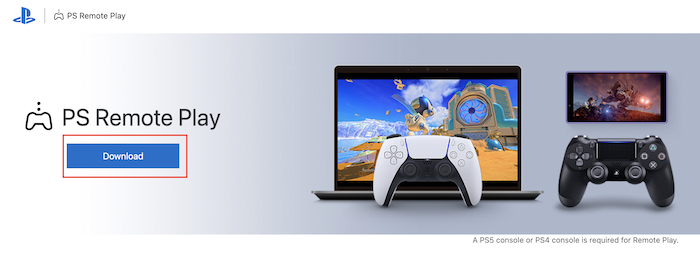
- On your Mac, download the PS Remote Play app from Sony’s official site.
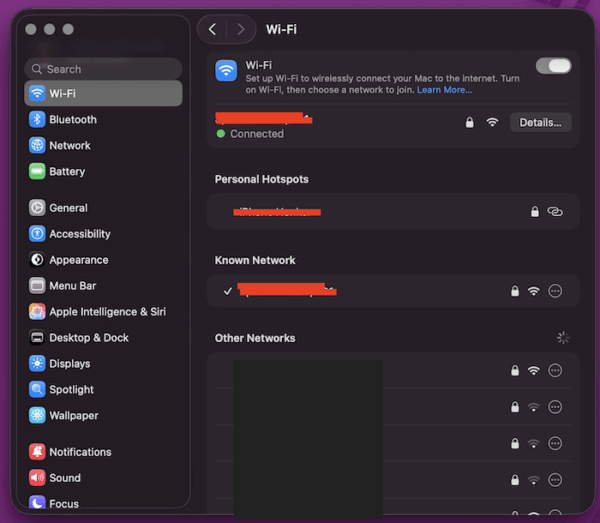
- Make sure your PS5 is updated and connected to the same Wi-Fi network as your Mac. Check your Mac via System Settings > Wi-Fi.
- Log in to the same PlayStation account on both devices.
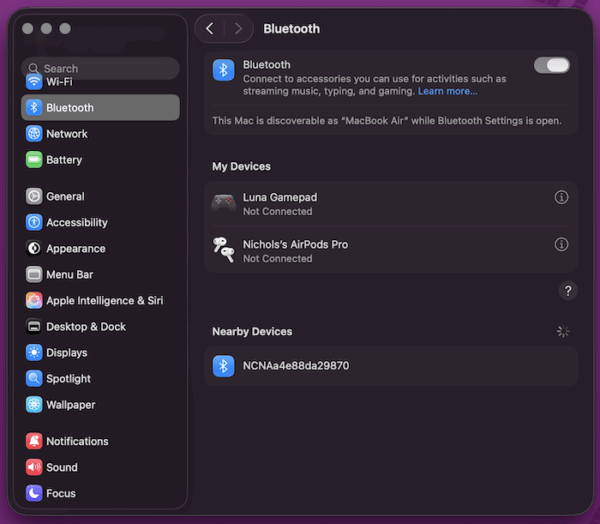
- Connect your controller (DualSense or DualShock 4) via Bluetooth or USB.
- Launch the app. Start playing.
Boom. You’re in.
What’s the Catch?
There are a few things to know before you start thinking your Mac is suddenly a gaming beast:
- You’ll need solid internet – at least 15Mbps down is recommended.
- Streaming caps out at 1080p. It’s sharp, but don’t expect full 4K glory.
- There may be occasional lag spikes, especially on shared or weaker networks.
If your setup is decent, though, gameplay feels smooth – responsive enough for anything short of high-stakes multiplayer duels.
Bonus: You Can Play Anywhere in the House
Your PS5 can be in the living room, and you can be deep into Final Fantasy XVI from the kitchen table. Or the couch. Or your bed. It turns your Mac into a wireless window to your console – and it’s great for families, roommates, or anyone whose TV is currently being held hostage by a true crime Ed Gein Netflix binge.
Also worth noting: this works outside your house, too. If you’ve enabled remote access and your PS5 is in Rest Mode, you can stream your games from basically anywhere with decent Wi-Fi. Hotel room? Grandma’s house? Your very boring workplace? All fair game.
Surprisingly Legit

Using your Mac to play PS5 games is a pretty sleek option. Whether you’re short on screens, sharing space, or just like the idea of gaming from your laptop, the PS Remote Play app makes it all happen without much fuss.
It won’t replace your dream OLED setup, but when convenience wins out over raw power, this method delivers. Quietly brilliant – just like your Mac thinks it is.


that was a seamless, informative delightful little read. answered my initial question, and also the one i did not anticipate.