

Losing your iPhone or Apple Watch feels bad enough, but losing access to your digital ID amplifies the stress. If you’re wondering how to recover your digital ID if you lose your iPhone or Apple Watch, the steps are straightforward. Apple gives you strong control over your identity; you just need to move quickly and in the right order.
Table of contents
1. Lock your missing device with Find My

Source Image: Apple
Start by shutting down access before anyone else reaches your information.
Don’t miss the best of The Mac Observer
Set us as a preferred source and our Apple reporting ranks higher in your Google Search results and Discover feed — one tap, no account changes.
- Open Find My on another Apple device or sign in at iCloud.com.
- Turn on Lost Mode to lock the device.
- Enter a contact number so someone can reach you.
- Apple Pay cards tied to the device pause instantly.
Since Find My powers multiple Apple safeguards, including layout tools referenced in how to make apps clear on iPhone, you’ll notice the system consistently prioritizes account-level control.
2. Secure your Apple ID

Source Image: Apple
Your Apple ID anchors your entire identity inside Apple’s ecosystem, so tighten its security right away.
- Change your Apple ID password on another device or through Apple’s recovery page.
- Review your list of trusted devices and remove the lost one.
- Enable sign-in alerts if they aren’t already active.

Because Apple routes device trust through your identity, even small adjustments like swapping your band in how to change your Apple Watch band rely on the same authentication chain.
3. Re-issue your digital ID or credential

Source Image: Apple
Apple Wallet doesn’t issue IDs; instead, it stores credentials that come from your agency or institution. So you need to notify the issuer.
- Contact your state DMV, university, or agency.
- Report the digital ID as compromised.
- Request a replacement or re-provisioned version.
- Re-verify your identity on your next device.
For clarity, Apple explains Wallet ID protections in its official documentation:
Apple Support – About Wallet ID Security
4. Recover your Apple ID if you lose all trusted devices
If you lost both your iPhone and Apple Watch, you should recover your Apple ID before anything else.
- Go to iforgot.apple.com.
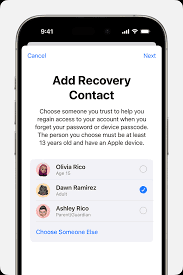
- Start Account Recovery using your saved recovery contacts or identity details.
- Complete each verification step until Apple restores your access.
Once you regain access, you can add your new device and re-enroll your digital ID without risk.
5. Watch for phishing attempts

Scammers often target people who have recently lost a device, so stay alert while you recover your accounts.
Look out for:
- Messages asking you to “confirm” your Apple ID
- Fake Find My alerts
- Links that don’t lead to Apple’s domain
If anything feels suspicious, change the passwords for your email, bank apps, and services tied to your Apple ID. These scams often mimic the confusion people feel during troubleshooting, similar to situations covered in fixing Bluetooth issues in iOS 26.1.
Final Thoughts
Learning how to recover your digital ID if you lose your iPhone or Apple Watch doesn’t have to feel overwhelming. When you lock the device immediately, secure your Apple ID, work with your ID issuer, and stay alert for scams, you prevent a hardware loss from becoming an identity loss. Apple gives you the tools you just need to use them quickly.


Discussion