
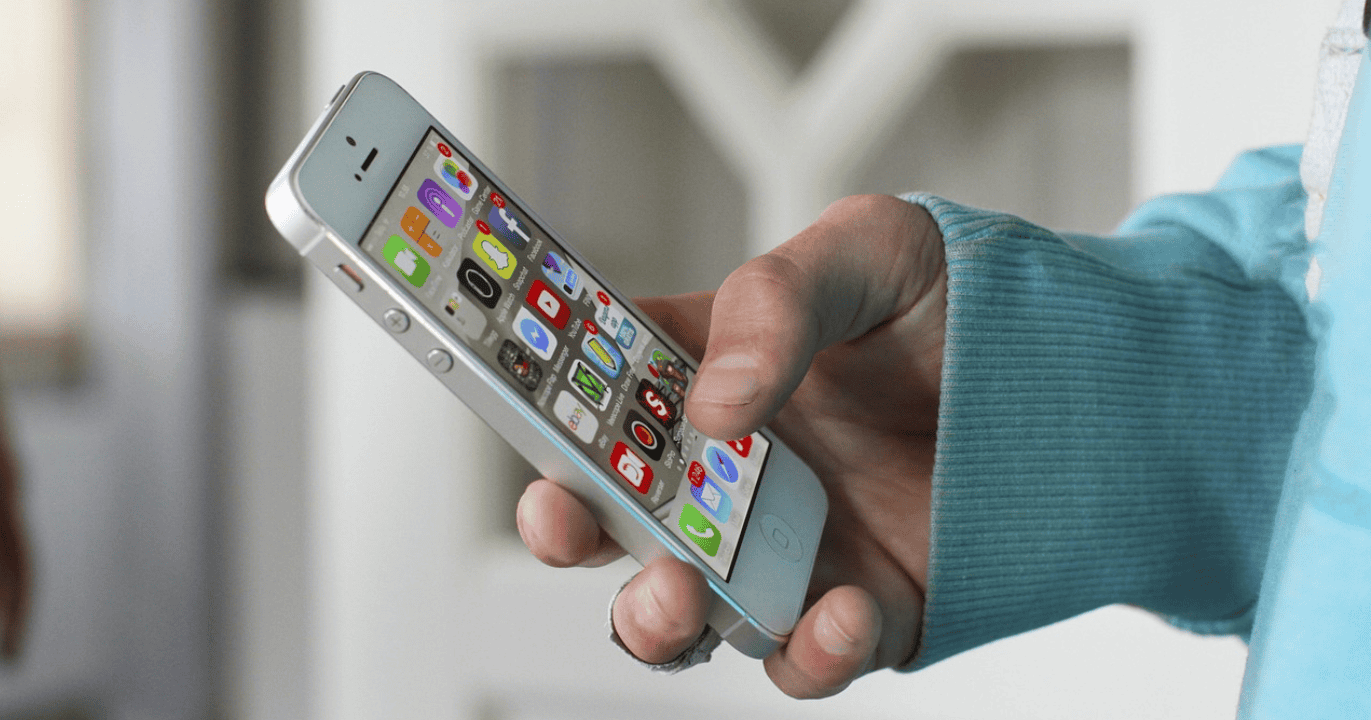
Have you ever opened an app and seen it asking for permission to access your contacts, location, or photos? You think to yourself, “Is it really needed?” You’re not alone. A lot of iPhone users feel the same way. That’s why understanding how iOS privacy settings work is important. It helps you control what you share and feel more comfortable using your iPhone without stress.
Privacy settings on iPhones are simple to handle once you know what they mean and where to find them. Today, almost every app comes with options that let you decide what it can and cannot do on your device. These controls help you use the app smoothly while keeping your personal data safe.
What Are iPhone Privacy Settings?
Every time you install an app on your iPhone, it may ask for access to certain features like your camera, location, contacts, microphone, and photos. This is part of Apple’s strict privacy system.
Don’t miss the best of The Mac Observer
Set us as a preferred source and our Apple reporting ranks higher in your Google Search results and Discover feed — one tap, no account changes.
New iOS-specific addition: iOS gives you more control by showing permission pop-ups only when the app tries to use a feature. You can allow access once, allow only while using the app, or deny it completely.
Privacy settings are where you can allow or block this access. For example, if you download a messaging app and it asks to read your contacts, you can decide whether to approve it. If you’re not comfortable, you can decline, and the app will still function for regular chatting.
Why iPhone Privacy Settings Are Useful
These settings are not just for protecting personal details. They are useful for many reasons and can also make your phone run better. After all, not every app needs full access to everything.
When you limit an app’s access, iOS automatically reduces how often that app can operate in the background, which means fewer hidden activities and better overall performance. This simple control extends your battery life, keeps unnecessary processes to a minimum, and prevents apps from collecting more data than they truly need. It also helps keep your storage cleaner since apps can’t save extra files or access your full photo library unless you allow it.
Apple’s ecosystem is built around the idea that apps should request permission only when needed, giving you the ability to use them without feeling pressured to share everything. This balance allows you to stay in control of your data while keeping your iPhone fast, organized, and more secure.
Easy Places to Check Privacy Settings
Most privacy controls on an iPhone are kept in one place, which makes them simple to manage. You can check everything through your iPhone’s main settings. When you open Settings → Privacy & Security, you’ll see a clear list of permissions such as Location Services, Photos, Contacts, Camera, Microphone, and more. This is where you can view what each app has access to and adjust it whenever you need.
You can review permissions either app by app or by selecting a specific permission type. For example, if you want to see which apps are using your camera, you can open the Camera section under Privacy & Security. If something doesn’t look right, you can turn off that access instantly with one tap. iOS makes these changes quick and effortless.
In many cases, apps also include their own privacy settings inside the app itself. This could include options to limit data collection, disable personalized ads, or control what the app shares. Checking these in-app options is always helpful because it gives you even more control over how your information is used.
Types of App Permissions You Can Control on iPhone
Let’s understand the common privacy controls that iPhone gives you. Here’s a simple table to make it clearer:
| Permission Type | What It Lets the App Do | Do You Always Need It? |
| Location | Knows where you are | Only needed for maps or delivery apps |
| Camera | Takes photos/videos | Needed for video or photo apps only |
| Microphone | Records audio | Needed for calls or voice notes |
| Contacts | Reads your contact list | Not needed for most apps |
| Photos | Accesses your pictures | Needed for sharing or editing images |
| Notifications | Sends alerts to your screen | Only useful if you want updates |
As you can see, some things are useful for certain apps, but not for all. So, it’s good to check what you’re allowing and adjust accordingly. Also, iOS offers a ‘Limited Photos Access’ option that lets you select only certain photos instead of giving full gallery access.
Tips to Stay Comfortable While Using iPhone Apps
Using iOS privacy settings doesn’t mean you’re being too strict or careful. It’s just about being smart. Here are some tips to help you feel more relaxed while using your phone:
First, check the permissions just after installing an app. You don’t have to allow everything it asks. Give only what’s really needed for the app to work properly.
Second, if an app works well but keeps asking for more access, you can turn it off anytime. There’s no harm in that. You can always turn it back on later if you feel it’s necessary.
Also, check settings every few months. Sometimes we forget what we gave access to. Just go to settings and check each app or permission. It takes just a few minutes and gives you more peace of mind.
Lastly, if you want to travel and need mobile internet while being careful about your information, apps like Yesim.app offer virtual mobile access where you don’t need to share too much personal info. It’s just a smart way to stay connected with less worry.
Things You Can Easily Control on Your iPhone
Some settings are not even about personal data but still affect your phone experience. For example, you can choose whether the app should run in the background or use mobile data when you’re not using it.
Many phones also give you the option to turn off background app refresh. This helps apps from using extra battery or data when you’re not even using them. These small changes make a big difference in how smooth your phone feels during the day.
You can also control whether the app should appear on your home screen, show notifications, or auto-update. These are not directly privacy-related but help you keep your phone clean and distraction-free.
To Sum Up
Privacy settings on iPhones are not something to be scared of or confused about. They are there to help you. Once you get used to checking them, it becomes part of your regular phone use. Just like how we check the battery or Wi-Fi, checking privacy is equally useful.
Using these options smartly helps you enjoy all the features of your apps without feeling like you gave away too much information. It keeps your iPhone more organized, uses less data, and gives you more peace in daily use. With a little attention, iPhone privacy settings help you get the best out of your apps in a calm and easy way.

Discussion