

Apple’s iOS 26 has brought major updates, but beyond the flashy features announced at the keynote, there are plenty of hidden gems tucked away in settings and apps. These little upgrades can make your iPhone faster, smarter, and more fun to use. Let’s dive into the coolest iOS 26 hidden features you might not have discovered yet.
iOS 26 Hidden Features
Table of contents
- iOS 26 Hidden Features
- 1. How to Make Liquid Glass Opaque
- 2. Translate Lyrics from Apple Music
- 3. Add Backgrounds to Text Messages
- 4. Use AirPods to Take Pictures
- 5. Add Your Passport to Wallet & Search for Transactions
- 6. Understand how long it will take to charge the iPhone
- 7. View Visited Places in Maps
- 8. Change the Default Snooze Duration for Alarms
- 9. Use Adaptive Power Mode
- 10. Try 3D Spatial Scenes
1. How to Make Liquid Glass Opaque

iOS 26’s new Liquid Glass look uses translucency across widgets, menus, and panels. Prefer solid, high-contrast cards? Follow these quick steps to switch to opaque UI.
Don’t miss the best of The Mac Observer
Set us as a preferred source and our Apple reporting ranks higher in your Google Search results and Discover feed — one tap, no account changes.
- Open Settings.
- Tap Accessibility.
- Go to Display & Text Size.
- Toggle Reduce Transparency ON — this replaces frosted panels with solid backgrounds.
- (Optional) Toggle Increase Contrast ON for even crisper edges and text.
- (Optional) Scroll to Accessibility Shortcut and add Reduce Transparency so you can toggle the effect from the side button triple-click.
Changes apply instantly—no restart needed. Enjoy the cleaner, more legible look.
2. Translate Lyrics from Apple Music

One of the coolest hidden gems in iOS 26 is the ability to translate song lyrics directly in Apple Music. Perfect for when you’re listening to tracks in another language, this feature makes understanding global hits effortless. Here’s how to use it:
- Open the Music app and start playing a song.
- Tap the lyrics icon at the bottom of the Now Playing screen.
- When the lyrics appear, look for the Translate option.
- Tap it, then choose your preferred language.
- The translated lyrics display instantly, synced in real time with the music.
No more Googling lyrics—everything’s built right in.
3. Add Backgrounds to Text Messages

iOS 26 adds a fun new way to personalize iMessage: custom backgrounds for your text bubbles. Whether you want a splash of color, a gradient, or even a themed image behind your chats, it’s quick to set up. Here’s how:
- Open the Messages app and select a conversation.
- Type your message, then long-press the send arrow.
- In the effects menu, tap Backgrounds.
- Browse through colors, gradients, or patterns—or add your own photo.
- Tap Send to deliver your message with its new background effect.
It’s a small tweak that makes conversations feel way more personal.
4. Use AirPods to Take Pictures
With iOS 26, your AirPods double as a remote shutter button—a clever hidden feature for snapping photos hands-free. Perfect for group shots, selfies, or tripod setups, it saves you from awkwardly tapping the screen. Here’s how it works:
- Make sure your AirPods are connected to your iPhone.
- Open the Camera app.
- Frame your shot and get into position.
- Press the stem (or squeeze, depending on your model) to trigger the shutter.
- The photo captures instantly—just like pressing the on-screen button.
Now your AirPods aren’t just for music—they’re a secret camera remote too.
5. Add Your Passport to Wallet & Search for Transactions
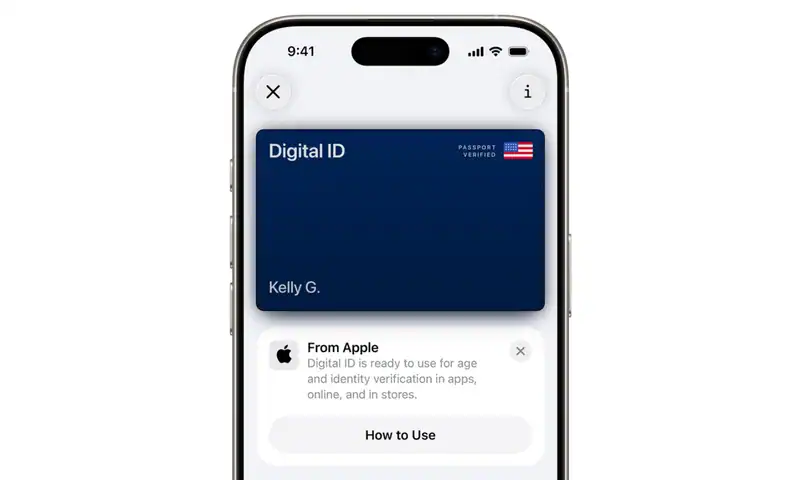
Travel just got easier with iOS 26. You can now store your passport securely in Apple Wallet and take advantage of a smarter search that finds cards, passes, and IDs instantly. Here’s how to use it:
- Open the Wallet app.
- Tap the “+” button in the top-right corner.
- Select Passport from the list of IDs.
- Follow the on-screen instructions to scan your passport and verify with Face ID.
- To quickly find it (or any pass), use the search bar at the top of Wallet.
The ability to search transactions within your Wallet App is also improved. If you use Apple Pay for everything, this is great. Unfortunately, transactions performed through the Apple Watch are not indexed yet.
6. Understand how long it will take to charge the iPhone

OS 26 finally gives iPhone users a long-awaited feature: battery charge time estimates. Now you can see how long it will take to fully charge, or how much time remains until your next milestone percentage. Here’s how to check it:
- Plug your iPhone into a charger.
- Swipe down to open Control Center or go to Settings > Battery.
- Under the battery icon, you’ll see an estimated time until fully charged.
- For more detail, tap Battery Settings to view projections by percentage.
7. View Visited Places in Maps

With iOS 26, Apple Maps now keeps a private log of your recently visited places, making it easier to retrace steps, revisit favorite spots, or track your travel history. Here’s how to access it:
- Open the Maps app.
- Tap your profile icon in the top-right corner.
- Select Visited Places from the menu.
- Browse the list of locations you’ve recently been to, complete with dates and routes.
- Tap any entry to get directions back or save it as a Favorite.
It’s a handy feature for frequent travelers—kept private and only visible to you.
8. Change the Default Snooze Duration for Alarms

At last, iOS 26 lets you customize the snooze time on your alarms. No more being stuck with Apple’s classic 9-minute snooze—you can now set it to whatever works best for you. Here’s how:
- Open the Clock app on your iPhone.
- Tap the Alarm tab at the bottom.
- Select an existing alarm or create a new one.
- Tap Snooze Duration.
- Choose your preferred snooze length (from 1 to 30 minutes).
- Save your changes, and you’re set.
9. Use Adaptive Power Mode

iOS 26 introduces Adaptive Power Mode, a smarter way to extend battery life without you lifting a finger. Instead of only kicking in at 20%, your iPhone now adjusts performance dynamically based on your habits. Here’s how to enable it:
- Open Settings.
- Tap Battery.
- Select Power Mode.
- Toggle Adaptive Power Mode ON.
- Your iPhone will now automatically reduce background activity, refresh rates, and visual effects when it predicts you’ll need extra battery life.
It’s a set-and-forget feature that helps you get through the day more reliably.
10. Try 3D Spatial Scenes
One of the flashiest hidden gems in iOS 26 is 3D Spatial Scenes, which turns your photos and wallpapers into immersive, layered visuals that move as you tilt your iPhone. It adds depth and a futuristic vibe to your lock or home screen. Here’s how to set it up:
- Go to Settings > Wallpaper.
- Tap Add New Wallpaper.
- Choose a photo that supports depth data (Portrait mode shots work best).
- Toggle on 3D Spatial Scene.
- Set it as your Lock Screen, Home Screen, or both.
Your iPhone instantly transforms into a living canvas with depth and motion.



Discussion