

You cannot tap one button to download all songs in Apple Music at once, but you can download your entire library in batches. The fastest way to download all songs in your Apple Music library is by using the Library view and bulk selecting albums or playlists.
Table of contents
How To Download Your Full Apple Music Library
Download All Songs From Your Library on iPhone or iPad
Apple does not provide a single “download everything” button, but you can quickly save your full Apple Music library by downloading entire playlists or albums.
Time needed: 5 minutes
- Open Music.
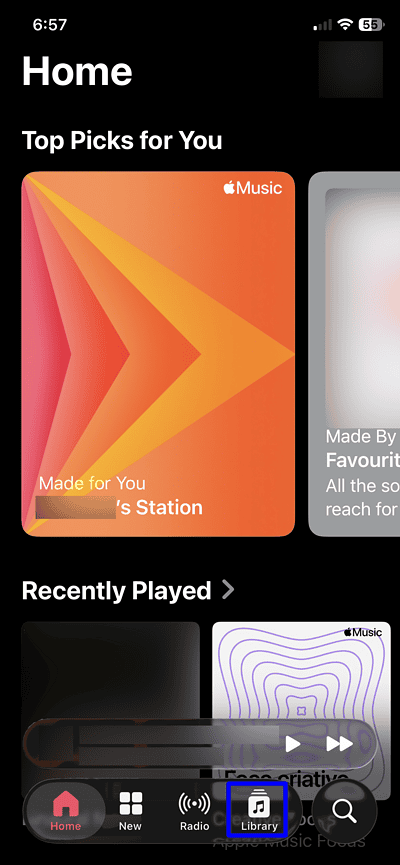
- Tap Library.
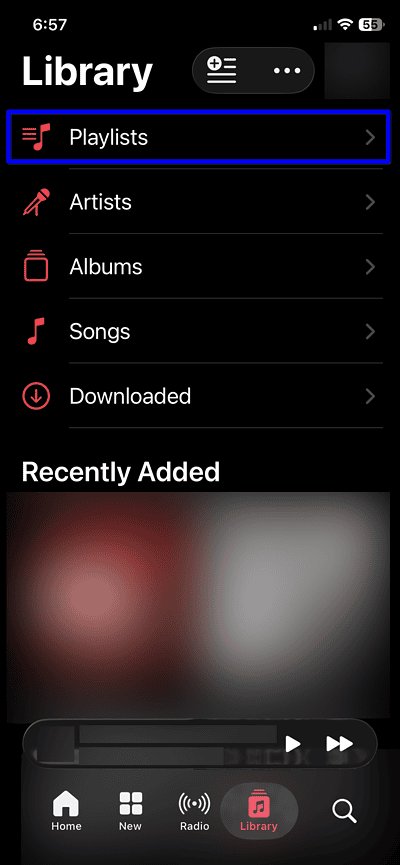
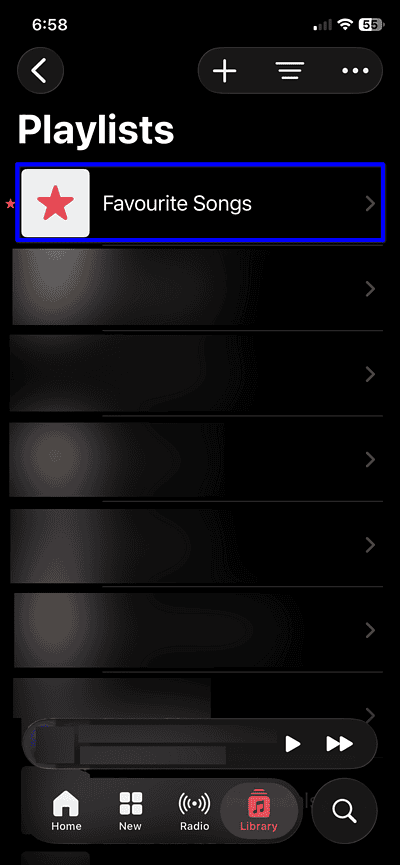
- Tap Playlists, then open a playlist that contains all your songs.
- Tap Download at the top of the playlist.
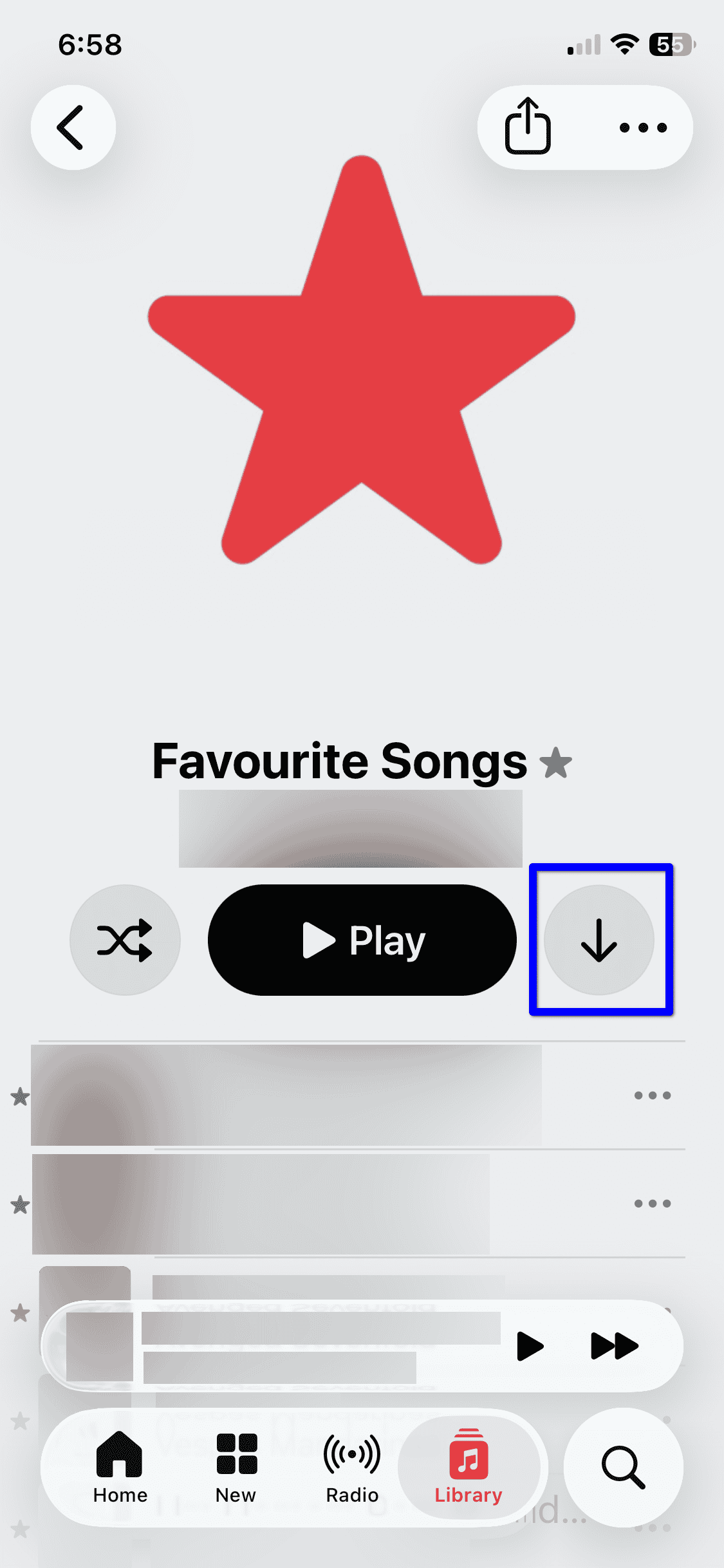


If you do not have a master playlist, create one by selecting all songs and adding them to a new playlist. Then download that playlist in one tap.
Download Your Entire Apple Music Library on Mac
On Mac, you can select your full library and download songs in bulk.
- Open Music on your Mac.
- Click Library in the sidebar.
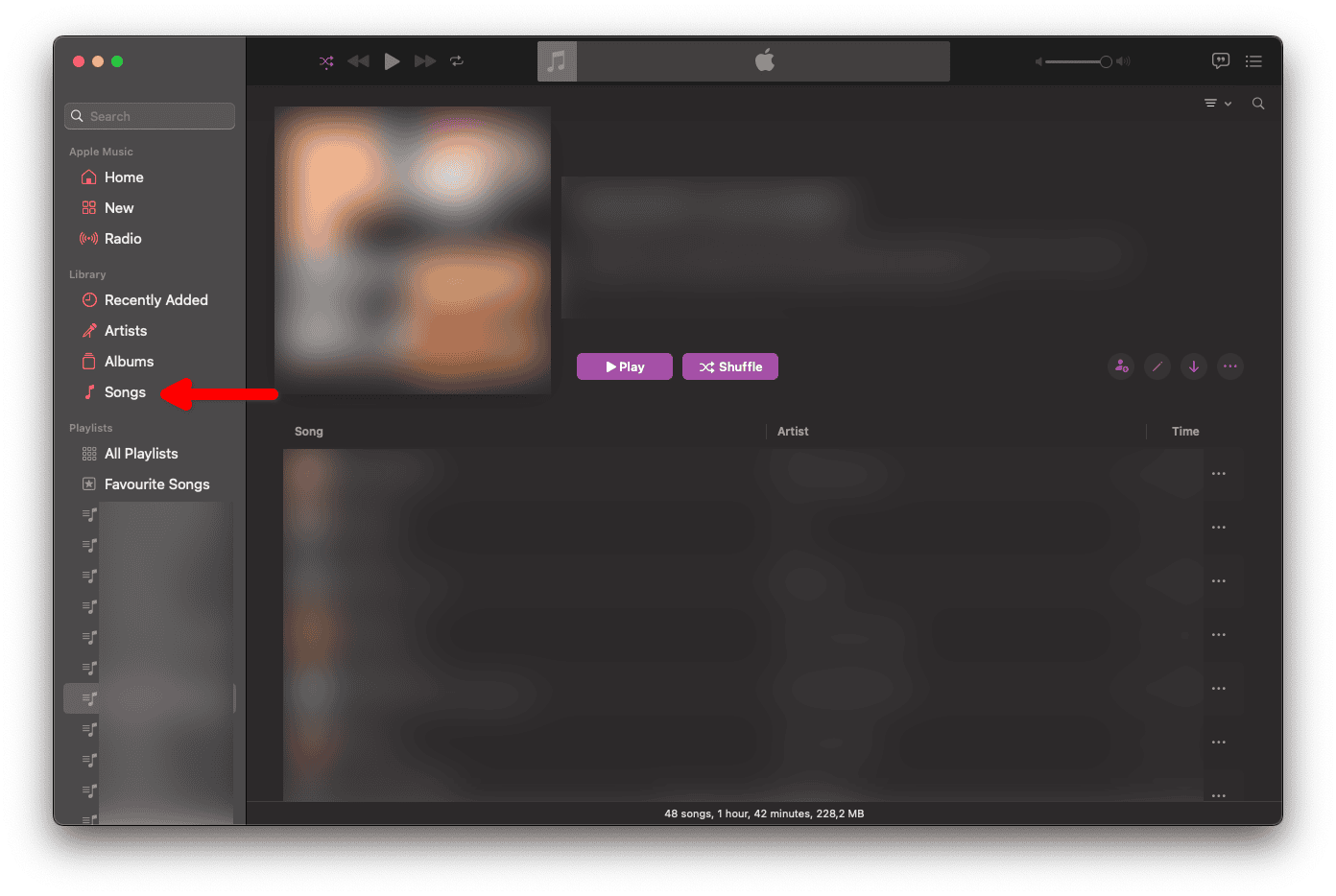
- Click Songs under Library.
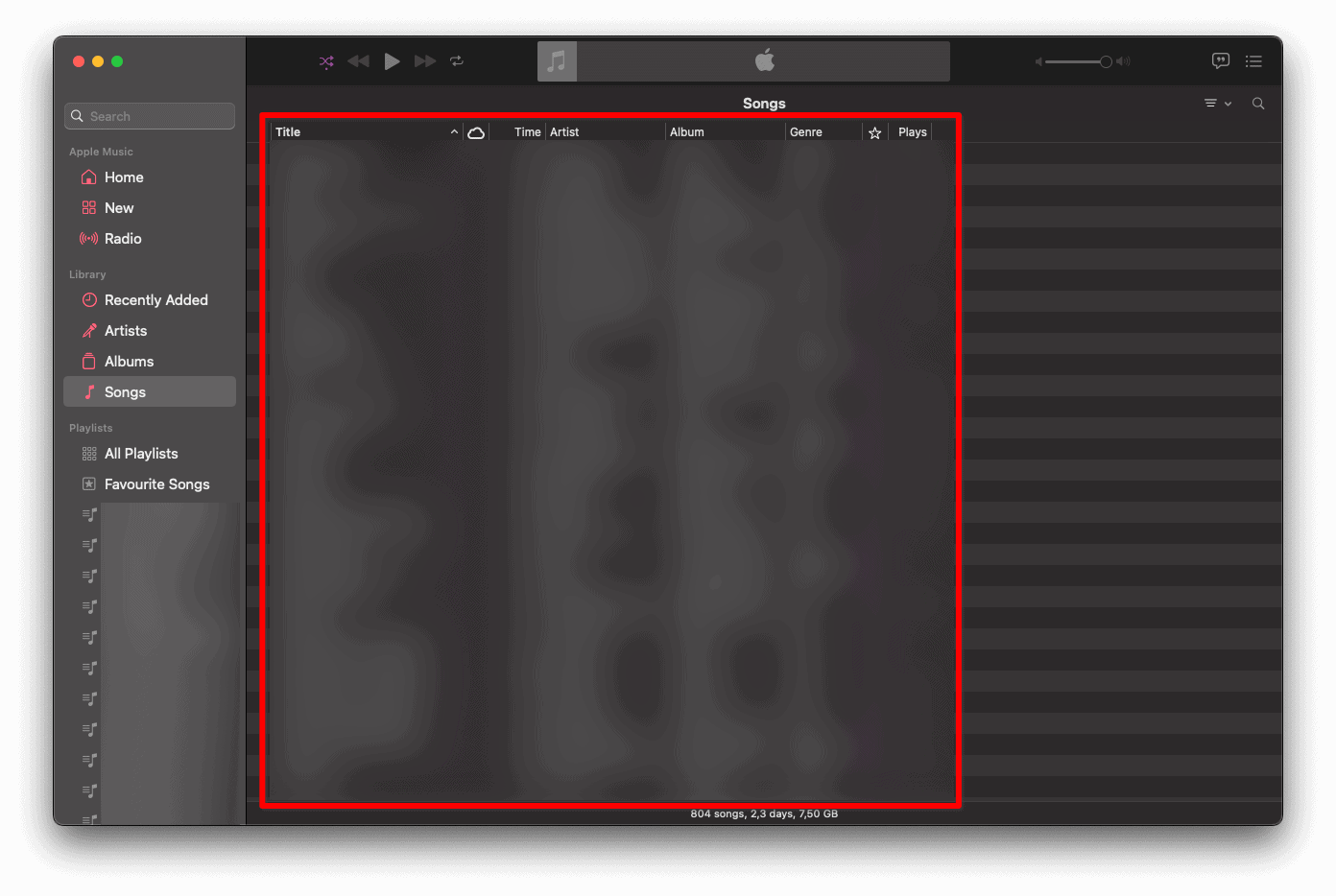
- Press Command + A to select all songs.
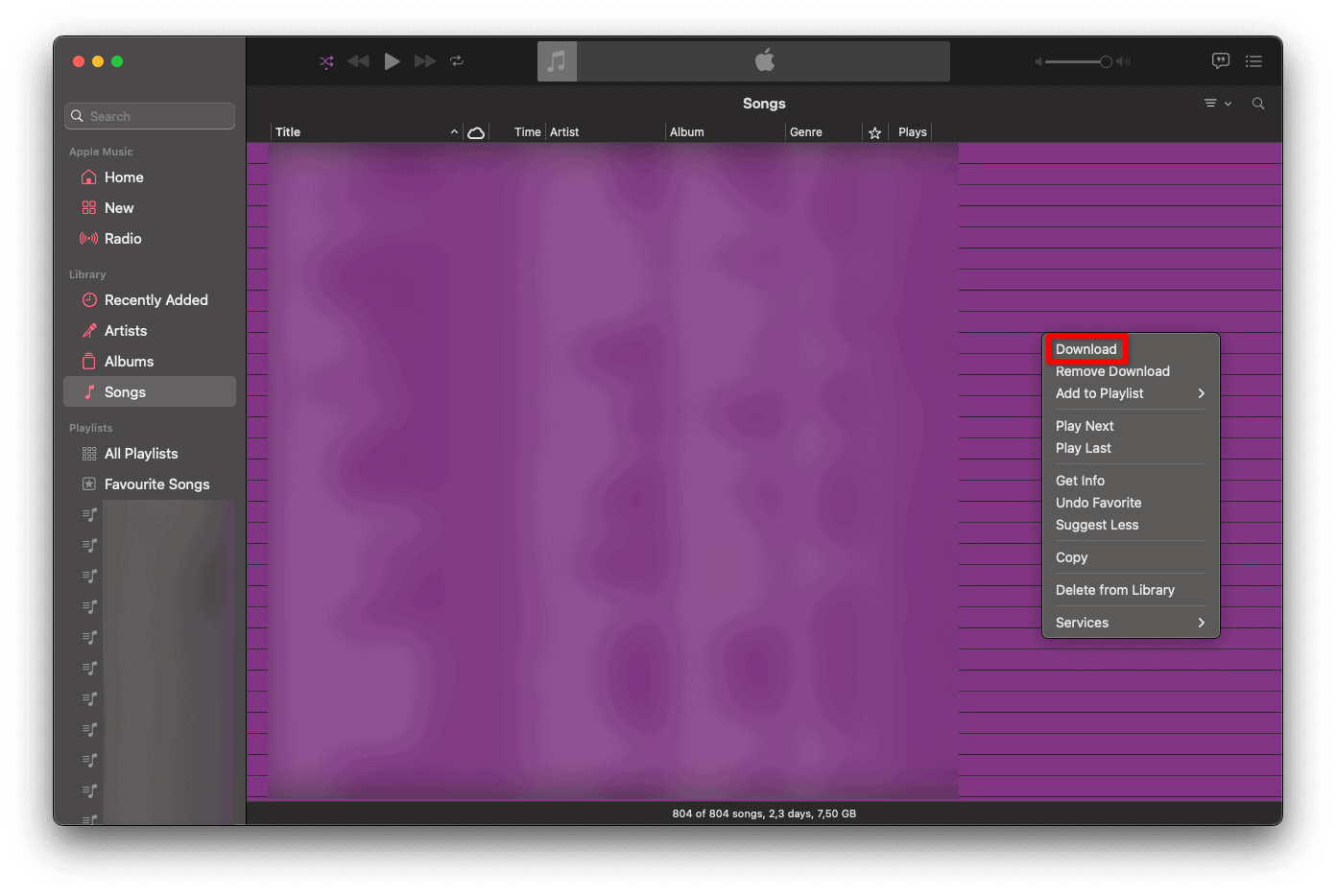
- Right-click the selection, then choose Download.


This method lets Apple Music download your entire library at once on macOS.
Automatically Download New Songs You Add
You can enable automatic downloads so new additions save locally without manual steps.
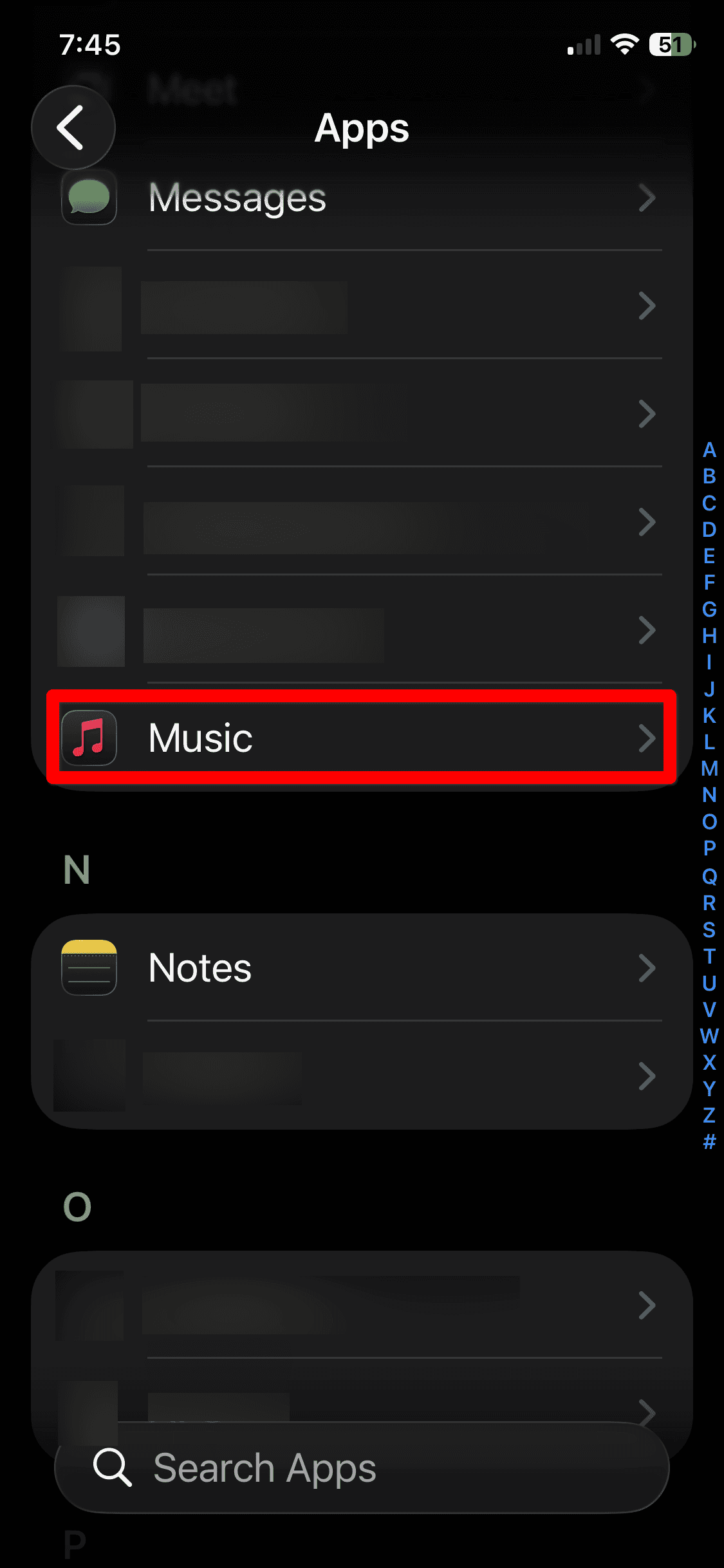
- Open Settings and go to Apps.
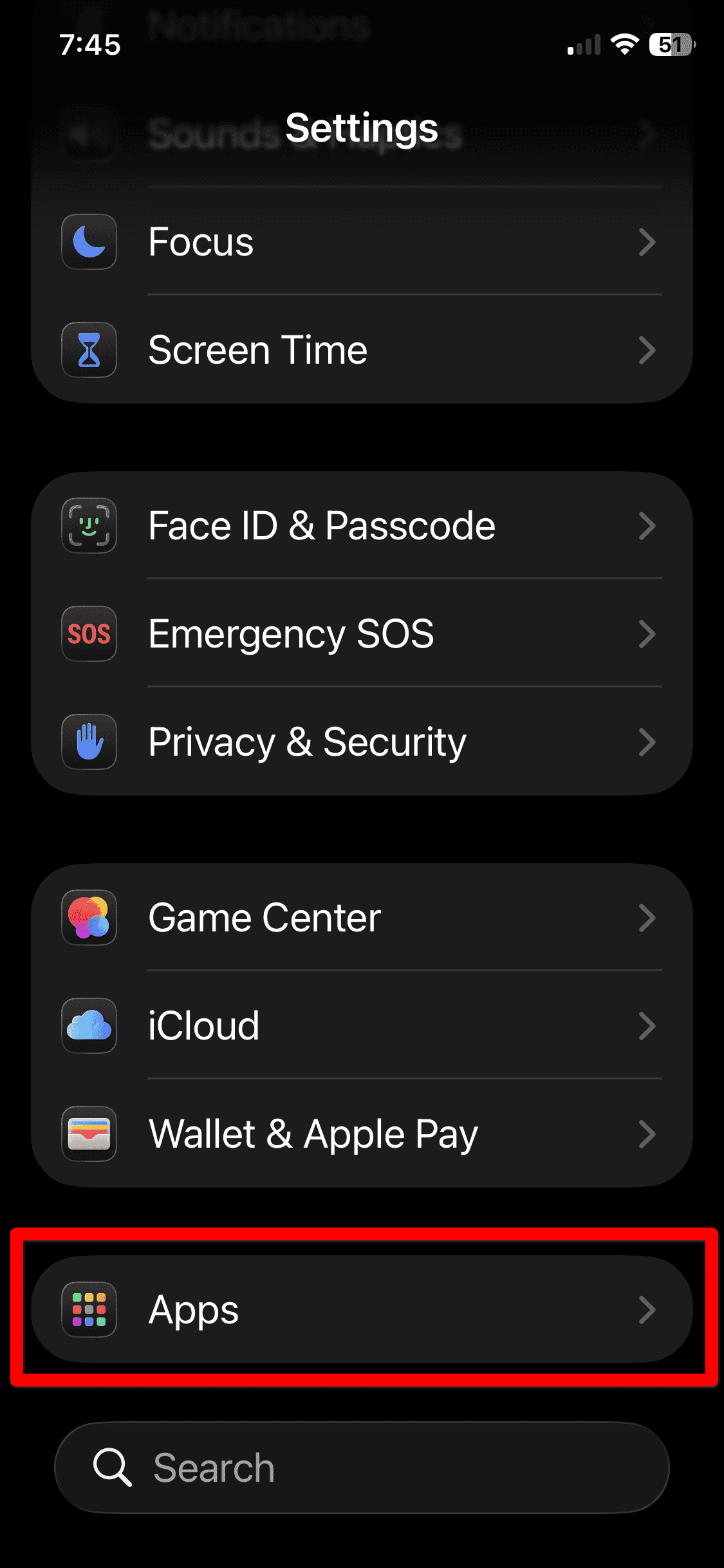
- Scroll down and tap Music.
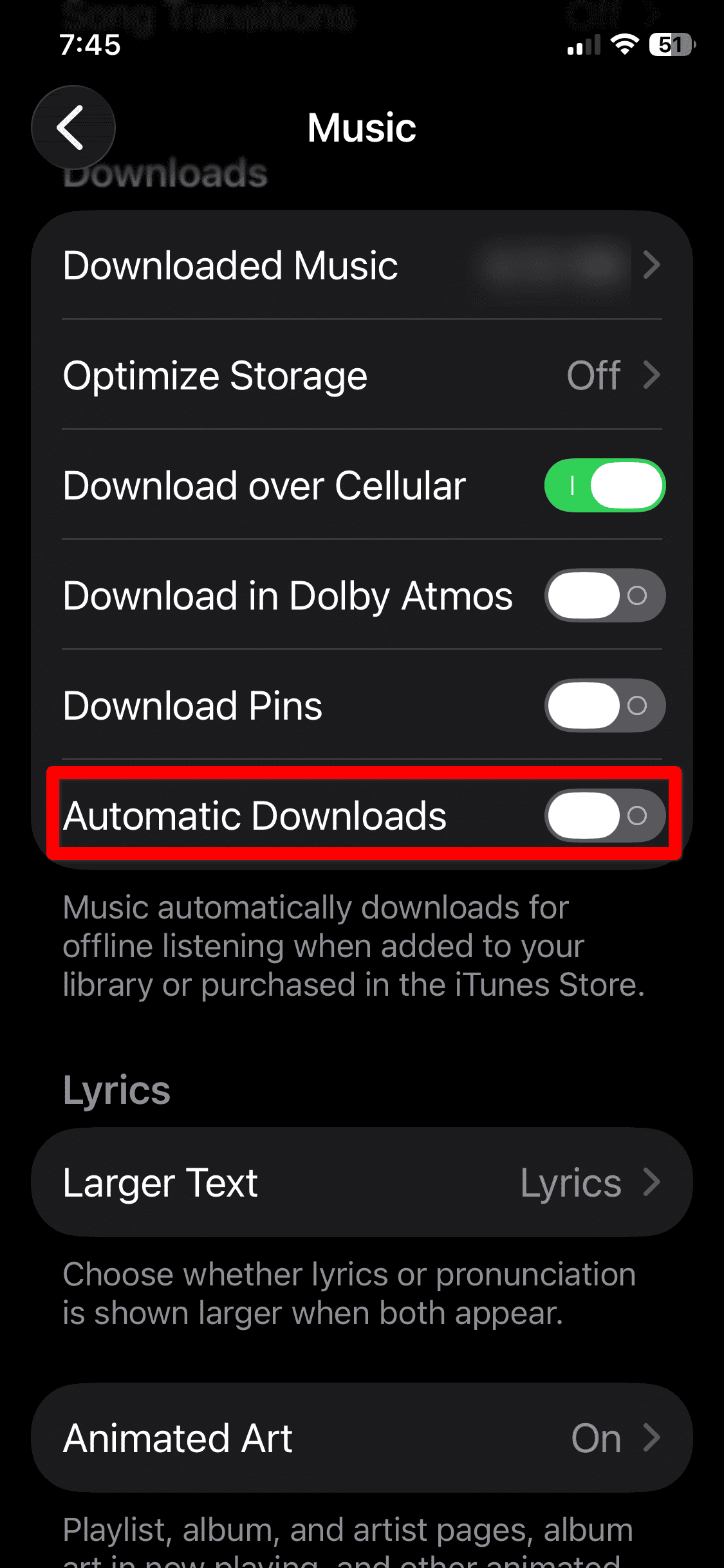
- Turn on Automatic Downloads.


This setting ensures future Apple Music downloads happen automatically when you add songs to your library.
Tips
- Connect to Wi-Fi before downloading large libraries.
- Check available storage in Settings > General > iPhone Storage.
- Keep Optimize Storage disabled if you want every song saved offline.
- Leave the Music app open while large downloads finish.
Download All Songs in Apple Music: FAQ
No, Apple does not offer a single button, but playlists allow near full-library downloads.
No, downloads simply save local copies for offline playback.
They remain available while your Apple Music subscription stays active.
Summary
- Create or use a master playlist that contains all songs.
- Tap Download on iPhone or iPad to save the playlist.
- On Mac, select all songs and choose Download.
- Enable Automatic Downloads for future additions.
Using playlists or bulk selection is the most reliable way to download all songs Apple Music includes in your library for offline listening.


