

Switching from Android to iPhone is much easier than it used to be. Apple’s Move to iOS tool can transfer most of your important data in one go, including contacts, messages, photos, videos, calendars, and even WhatsApp chats. Recent updates have also added faster transfer options through a USB-C cable, making the migration process quicker and more reliable.
If you’re setting up a new iPhone and want to bring your data from Android, this guide covers every major method available today, including Move to iOS, direct cable transfer, manual transfers, and cloud-based options.
Before You Start

Before transferring your data, make sure:
Don’t miss the best of The Mac Observer
Set us as a preferred source and our Apple reporting ranks higher in your Google Search results and Discover feed — one tap, no account changes.
- Your Android phone is connected to Wi-Fi.
- Both devices are charged or plugged into power.
- Your iPhone has enough free storage for all the content you want to move.
- You are using the latest software updates available on both devices.
- If possible, keep both phones close together throughout the process.
Method 1: Use Move to iOS (Recommended)
Move to iOS is Apple’s official migration tool and remains the easiest way to transfer data from Android to iPhone.
It can transfer:
- Contacts
- Messages
- Photos and videos
- Calendars
- Google accounts
- Browser bookmarks
- WhatsApp chats and media
- Call history (supported devices)
Steps
- Download Move to iOS from the Google Play Store on your Android phone.
- Turn on your new iPhone.
- Begin the setup process.
- On the Apps & Data screen, tap Move Data from Android.
- Open Move to iOS on Android.
- Tap Continue and accept the terms.

- A 6-digit or 10-digit code will appear on your iPhone.
- Enter the code on your Android device.
- Wait for the devices to connect.
- Select the data you want to transfer.
- Tap Continue.
- Keep both devices connected until the transfer completes.
- Finish setting up your iPhone.

Method 2: Transfer Using a USB-C Cable
Apple now supports direct Android-to-iPhone transfers through a USB-C cable on compatible devices.
This method is often faster than a wireless transfer because data moves directly between the phones.
Steps
- Start setting up your new iPhone.
- Connect the Android phone and iPhone using a compatible USB-C cable.
- Follow the on-screen instructions on both devices.
- Open Move to iOS if prompted.
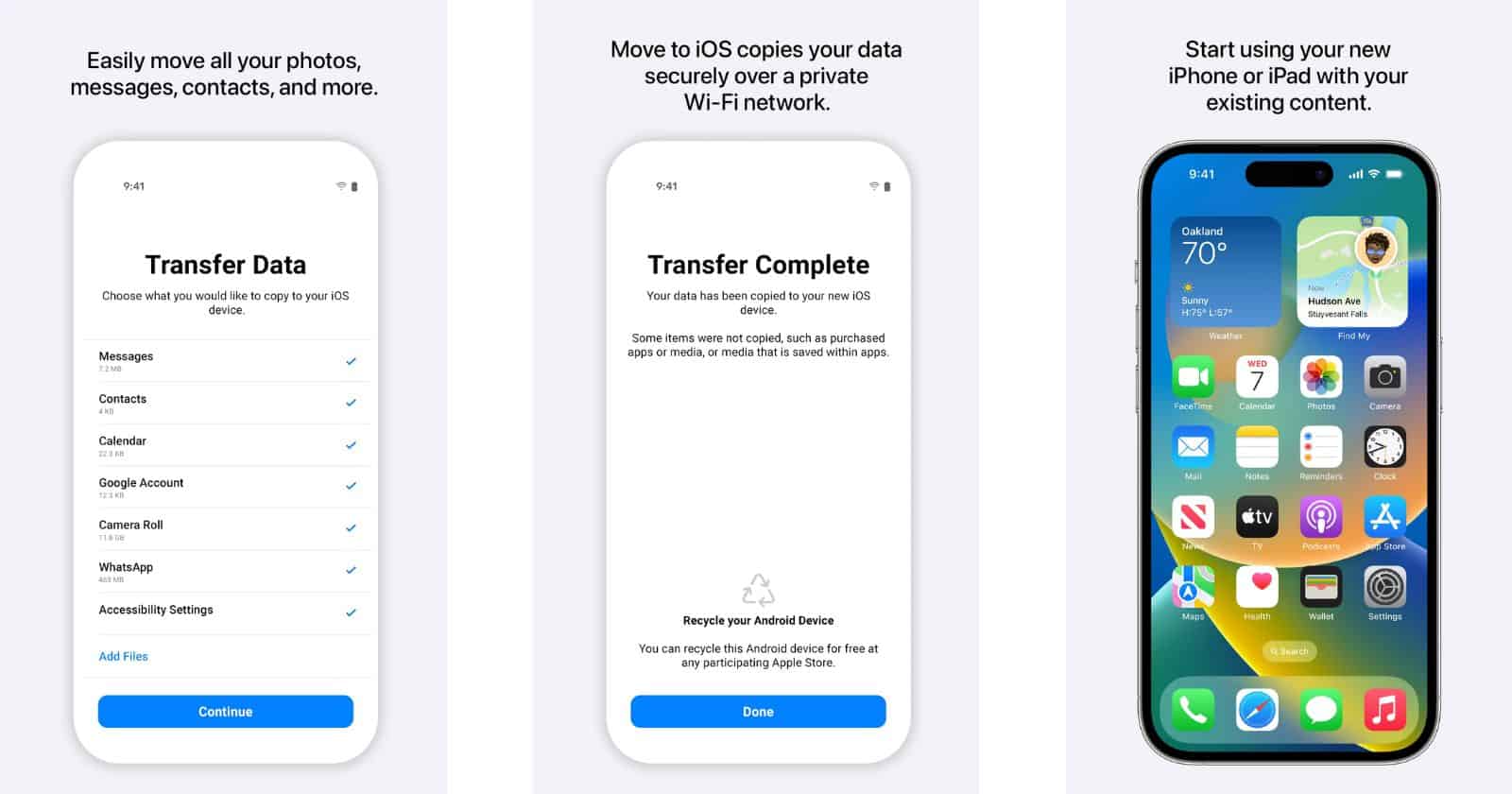
- Choose the content you want to transfer.
- Leave both devices connected until the process finishes.

Method 3: Transfer Without the Move to iOS App
Some newer Android devices support Apple’s newer migration process that works without downloading the Move to iOS app.
The transfer begins by scanning a QR code during iPhone setup.
Steps
- Turn on your new iPhone.
- On the Transfer Your Apps & Data screen, tap From Android.
- Select Transfer without App.
- Place both devices next to each other.
- Scan the QR code shown on the iPhone using your Android device.
- Select the data you want to transfer.
- Wait for the transfer to complete.
- Continue setting up your iPhone.
Method 4: Transfer Photos and Videos Manually
If you already set up your iPhone and only need photos and videos, manual transfer works well.
Steps
- Connect your Android phone to a computer.
- Open the DCIM folder.
- Copy photos and videos to your computer.
- Disconnect Android and connect your iPhone.
- Open Finder (Mac) or Apple Devices app (Windows).
- Sync the photos and videos to your iPhone.
- Open the Photos app on iPhone to view them.
Method 5: Transfer Contacts with a Google Account
If your contacts are already synced with Google, you can move them without any transfer app.
Steps
- On Android, make sure contact syncing is enabled.
- On iPhone, open Settings.
- Tap Apps > Contacts > Contacts Accounts (or Mail > Accounts on older versions).
- Add your Google account.
- Enable Contacts sync.
- Wait for the contacts to appear on your iPhone.
Method 6: Move Files Through Cloud Storage
Services like Google Drive, Dropbox, and OneDrive make file transfers simple.
Steps
- Upload files from Android to your preferred cloud service.
- Install the same app on iPhone.
- Sign in using the same account.
- Download or access your files on the iPhone.
Method 7: Transfer Music, Books, and PDFs
Some content still requires a manual transfer.
Steps
- Connect your Android phone to a computer.
- Copy music, PDFs, or eBooks to a folder.
- Connect your iPhone.
- Use Finder, Apple Devices app, or Apple Books to sync the files.
- Open the corresponding app on iPhone to access them.
FAQs
What data can Move to iOS transfer?
Move to iOS can transfer contacts, messages, photos, videos, calendars, browser bookmarks, Google accounts, WhatsApp data, and more.
Does Move to iOS transfer apps?
Not directly. The tool suggests matching iPhone apps from the App Store. You will still need to download them on your iPhone.
Can I transfer data after setting up my iPhone?
Move to iOS works during the initial iPhone setup process. If your iPhone is already set up, you may need to erase it or use manual transfer methods.
Why is Move to iOS taking so long?
Large photo libraries, videos, and messages can significantly increase transfer time. Keeping both phones plugged in and connected to Wi-Fi helps avoid interruptions.
Can WhatsApp chats be transferred?
Yes. WhatsApp chat history and media can be transferred through Move to iOS on supported devices.
Summary
- Move to iOS is the easiest and most complete transfer method.
- USB-C cable transfer is usually faster than wireless migration.
- Newer devices may support QR code transfers without the Move to iOS app.
- Photos, music, PDFs, and documents can be transferred manually.
- Google account syncing is ideal for contacts and calendars.
- Cloud storage services provide a simple way to move files.
- Always ensure your iPhone has enough storage before starting.
Conclusion
For most users, Move to iOS remains the best way to transfer data from Android to iPhone. It handles nearly everything automatically and requires very little setup. If you want faster speeds, a USB-C cable connection is worth using. Meanwhile, cloud storage and manual methods remain useful for transferring specific files after your iPhone has already been set up.
No matter which method you choose, moving from Android to iPhone is now much more straightforward, with Apple offering several reliable options to help you bring your important data with you.


You forgot about the LocalSend app. Add it to your article once you have investigated the app.