
Apple Intelligence in iOS 27 can take up to 14GB of storage on an iPhone 17 Pro, iPhone 17 Pro Max or iPhone Air, and up to 8GB on other supported iPhones. Apple says it becomes available automatically when you update, so if your free space shrank after installing iOS 27, that’s one likely reason.
The figures come from Apple’s support page “How to get the next generation of Apple Intelligence,” published September 14. Apple describes the feature set as “automatically available on eligible devices when you update to the 27.0 software releases” in supported languages and regions, with no separate opt-in.
How much space each device needs
| Device | Apple’s storage figure |
|---|---|
| iPhone 17 Pro, iPhone 17 Pro Max, iPhone Air | Up to 14GB |
| Other Apple Intelligence iPhones: iPhone 15 Pro, iPhone 15 Pro Max, and iPhone 16 models or later | Up to 8GB |
| iPad with M4 or later and at least 12GB of unified memory, Mac with M3 or later and at least 12GB, Apple Vision Pro (M5) | Up to 14GB |
| Other Apple Intelligence iPad, Mac and Apple Vision Pro models | Up to 8GB |
| Apple Watch | Up to 1.5GB |
| iPhone 11 through iPhone 14, iPhone 15, iPhone 15 Plus, iPhone SE | No figure, because Apple Intelligence isn’t supported |
The 14GB group matches, device for device, the list Apple gives for AFM Core Advanced, the on-device model it says Siri AI’s expressive voices require. Apple doesn’t say that model is what takes the extra space, but the two lists are the same.
Don’t miss the best of The Mac Observer
Set us as a preferred source and our Apple reporting ranks higher in your Google Search results and Discover feed — one tap, no account changes.
Apple’s storage figures don’t name the iPhone 18 Pro or iPhone Duo, which weren’t on sale when the page went up. The iOS 27 release notes describe on-device models “on iPhone Air and iPhone 17 Pro models and later,” which points to the larger figure for the new models, but Apple hasn’t said so.
One more condition applies. Your device language and Siri language must be “set to the same supported language.” Apple warns that if you change the Siri language, Apple Intelligence “might become unavailable until the new Siri language fully downloads and matches the device language.”
What users report after updating
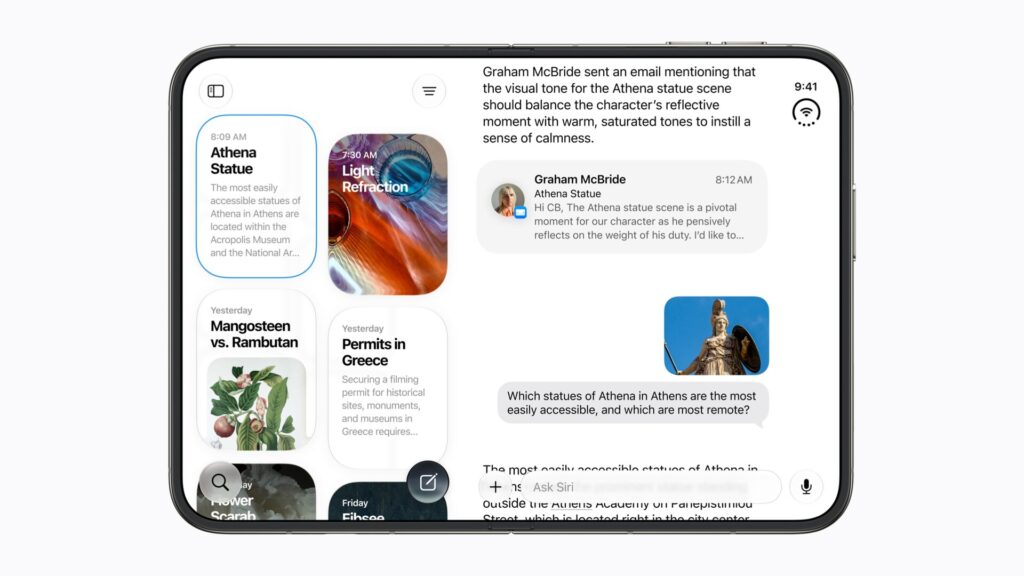
Reports from users describe roughly 8GB of storage disappearing right after the update, including on iPhones whose owners hadn’t joined the Siri AI waitlist. We can’t confirm individual cases, but the reports are consistent with Apple’s own description: Apple Intelligence arrives with iOS 27 itself, not with Siri AI.
Siri AI is a separate step. Apple says joining the waitlist from Settings > Siri > Try Siri AI (Beta) puts you in a queue, and “Siri AI will begin to download automatically when your wait is complete.” Apple doesn’t give a size for that download.
To see how much room you have, open Settings, tap General, then tap iPhone Storage. Apple’s guide says the available storage is shown at the top of the screen.
How to turn Apple Intelligence features off
Apple’s iOS 27 guide doesn’t offer one switch for everything. It lists the controls feature by feature. Open the Settings app, then:
- Siri AI (Beta): tap Siri, scroll down, tap Turn Off Siri, then tap Turn Off Siri again to confirm. To keep the older assistant, tap Turn on Siri, then tap Siri Classic.
- Messages summaries: tap Apps, tap Messages, then turn off Summarize Messages.
- Email summaries: tap Apps, tap Mail, then turn off Summarize Message Previews.
- Notification summaries: tap Notifications, tap Summarize Notifications, then turn off Summarize Notifications.
- Priority notifications: tap Notifications, tap Prioritize Notifications, then turn off Prioritize Notifications.
- Smart replies in Mail: tap Apps, tap Mail, then turn Personalize Smart Replies on or off.
- Voicemail suggestions: tap Apps, tap Phone, then turn Suggestions in Voicemail on or off.
- Call Context cards: tap Apps, tap Phone, tap Apple Intelligence & Siri, then tap Show When Calling.
- Journal writing prompts: tap Apps, tap Journal, then turn Get Writing Prompts on or off.
To block features rather than simply switch them off, Apple points to the “Block or allow Siri and Apple Intelligence features” settings in Screen Time, or to parental controls on a child’s device.
These switches control whether features run. Apple’s guide doesn’t say that turning them off removes the on-device models, and its storage page doesn’t say it returns any space, so don’t count on getting the 8GB or 14GB back this way.
If you’re short on space
For low storage, Apple’s Apple Intelligence page links to its general advice on freeing space, not to anything specific to Apple Intelligence. The iPhone guide lists the usual big items: back up photos and videos to iCloud and then remove them from the iPhone, delete message conversations and attachments you don’t need, remove videos you’ve downloaded and already watched, clear out old files in the Files app, and delete apps you no longer use.
The least disruptive option is offloading. Go to Settings > Apps > App Store and turn on Offload Unused Apps. Apple says iPhone then removes unused apps when storage is low while keeping their data, and the icon stays on the Home Screen with a cloud symbol so you can tap to reinstall.
If you’re choosing a capacity for a new iPhone, treat Apple Intelligence as space you won’t get back, alongside iOS itself. Our iOS 27 guide covers what that space buys you.



