
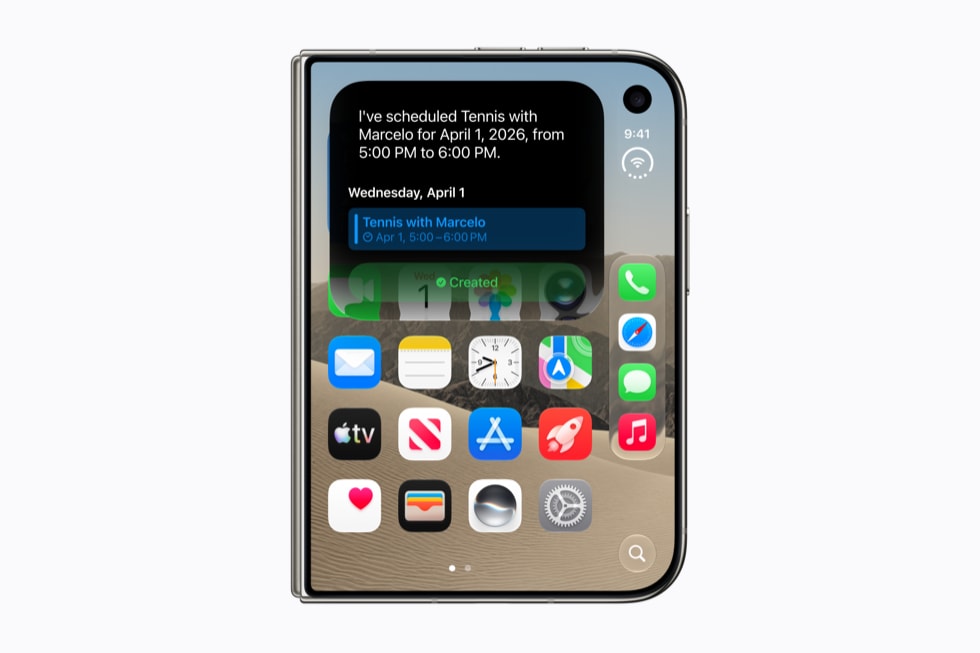
With Siri AI turned on, iOS 27 gives you four new ways to start Siri on iPhone: swipe down from the Dynamic Island, touch and hold something and choose Ask Siri, take a screenshot, or switch the Camera app to Siri mode. Saying “Siri” or “Hey Siri” and holding the side button still work.
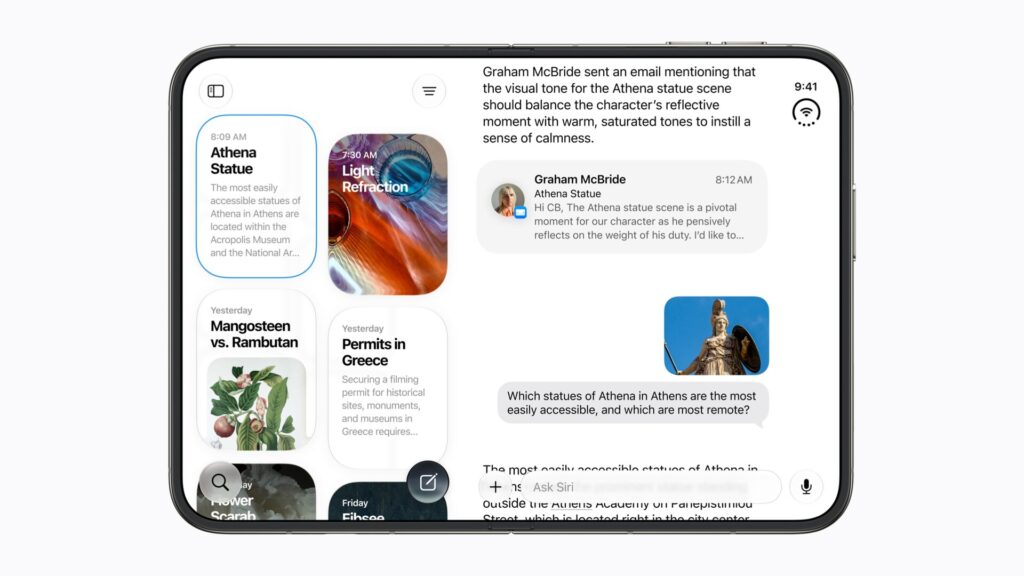
iOS 27 alone doesn’t unlock any of the four. They come with Siri AI, which you request in Settings > Siri > Try Siri AI (Beta) and which downloads once your place on Apple’s waitlist comes up.
Swipe down from the Dynamic Island
This is the one that changes habits. Apple’s iPhone User Guide lists it as “Use the Dynamic Island on iPhone: Swipe down from the top of the screen,” and Apple’s Siri AI announcement describes a swipe down from the Dynamic Island “to start a conversation and get an in-depth answer.”
Don’t miss the best of The Mac Observer
Set us as a preferred source and our Apple reporting ranks higher in your Google Search results and Discover feed — one tap, no account changes.
Start the swipe on the Dynamic Island itself. Control Center still opens with a swipe down from the top-right corner.
Not every Siri AI iPhone has a Dynamic Island. Apple’s specifications for iPhone 16e and iPhone 17e don’t list one, so on those models use one of the other methods.

Touch and hold, then choose Ask Siri
To ask about a single item, touch and hold it, such as a file or a photo, and choose Ask Siri from the menu that pops up.
You don’t always need the menu. Start Siri any way you like and ask about what’s on screen. Apple’s examples are “Explain this from my class notes” with a diagram open in Notes, and “Which quarterly report grew faster?” with two documents selected in Files.
Take a screenshot
The screenshot gesture now doubles as a way in. Quickly press and release the side button and the volume up button at the same time, then use the Visual Intelligence tools at the bottom of the screen:
- Tap the ask button, then ask a question about the screenshot.
- Tap the search button to look for similar images online.
- Tap an action if one appears. Apple’s example is “Look up nutrition” on a screenshot of a recipe.
To focus Siri on one part of the image, drag the corners of the rectangle around that area before you ask.
Use Siri mode in Camera
For things in front of you, open Camera and tap Siri to switch to Siri mode. Point the camera, then tap to ask a question or tap a suggested action. Aim at a restaurant check, for example, and “Split Bill with Apple Cash” can appear, an option Apple says is only available in the U.S.
On models with a Camera Control, you can click and hold it instead, and Apple’s getting-started guide says that works when your iPhone is locked. iPhone 18 Pro and iPhone Air have the button. Apple’s specifications list no Camera Control for iPhone 15 Pro, iPhone 15 Pro Max, iPhone 16e or iPhone 17e, so on those models open Siri mode from the Camera app.
Keep the conversation going
However you start Siri, you can carry on from its answer. Apple’s guide repeatedly tells you to swipe down on Siri’s response to see more and ask follow-up questions. To pick up an earlier conversation, open the Siri app and choose one from your history, or tap the new conversation button to start fresh.
The standard options live in Settings > Siri > Requests, where you choose between “Siri” and “Hey Siri” and turn on Press Side Button for Siri. With Siri AI on, Apple says you can always type to Siri. Our iOS 27 guide covers the rest of what changed.



