

If your AirPods Pro 3 keep disconnecting, you’re not imagining it. Even with Apple’s newest earbuds, Bluetooth can still get flaky. Sometimes it’s interference. Sometimes it’s software. Sometimes it’s the earbuds trying to be too smart for their own good. The good news is that most of these issues are easy to fix once you know where to look. So let’s break it down in a way that actually helps.
Table of contents
Why AirPods Pro 3 Disconnect in the First Place

Here’s the thing. AirPods don’t disconnect for one reason. They disconnect because several small things pile up. The usual troublemakers include:
- Weak Bluetooth connection or physical interference
- Outdated firmware
- Low battery in either the buds or the case
- Conflicts with automatic ear detection or automatic switching
- Wi-Fi interference
- Too many paired devices fighting for control
- Actual hardware damage
Knowing the cause makes fixing it a lot easier, so start with the basics.
Don’t miss the best of The Mac Observer
Set us as a preferred source and our Apple reporting ranks higher in your Google Search results and Discover feed — one tap, no account changes.
Quick Fixes to Stop the Disconnects
1. Put the AirPods Back in the Case
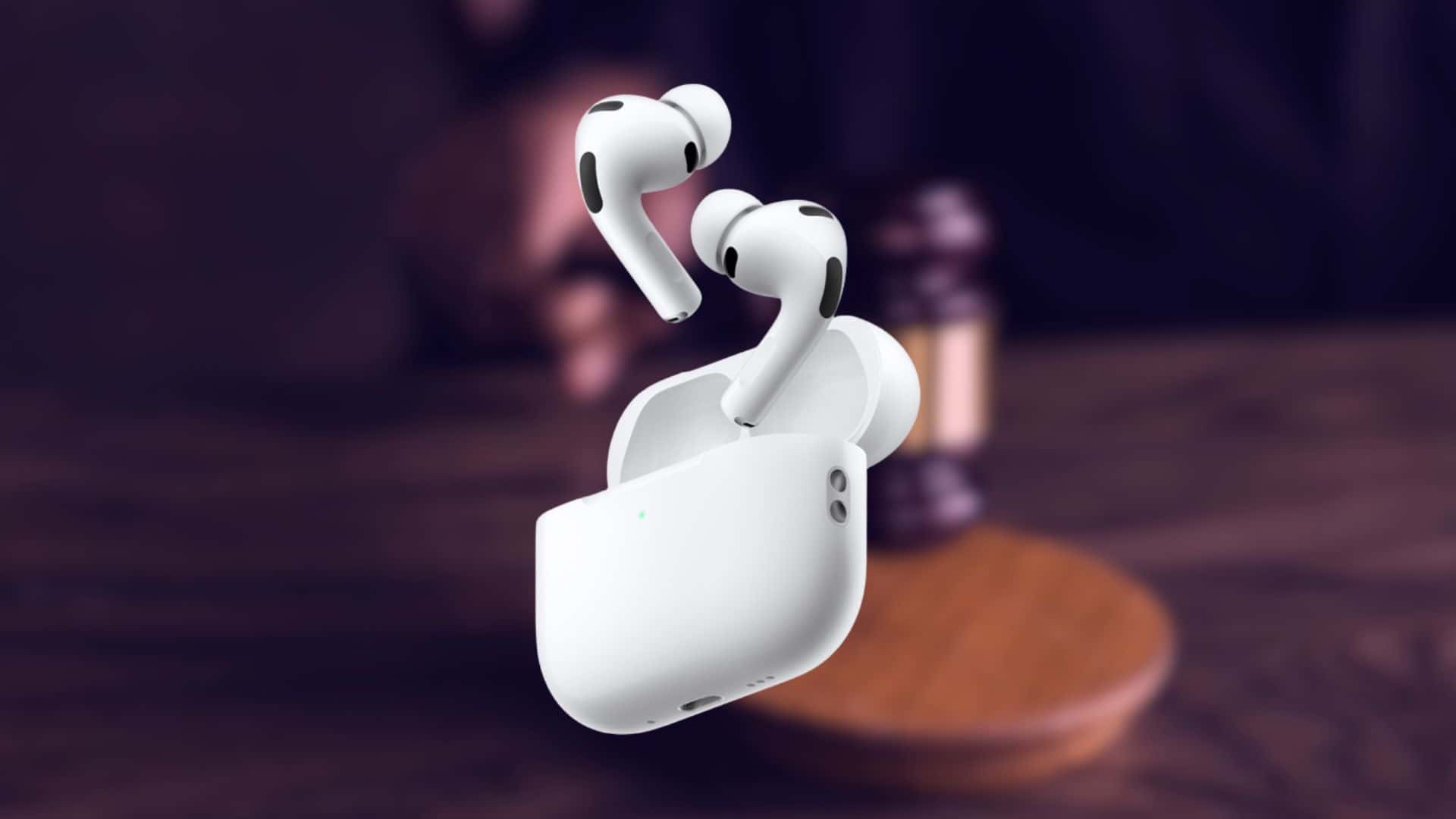
This is the classic unplug-it-and-plug-it-back-in moment, but it works. Since AirPods don’t have a real power switch, the case is how you restart them.
Drop them in, close the lid, wait a few seconds, then reconnect.
2. Bring the AirPods Closer to Your Device
Bluetooth range drops fast through walls, pockets, and bags. Keep your iPhone or Mac within 30 to 50 feet, ideally in the same room. If the disconnects stop, you’ve found your culprit.
3. Toggle Bluetooth Off and On
On your iPhone:
- Go to Settings → Bluetooth.
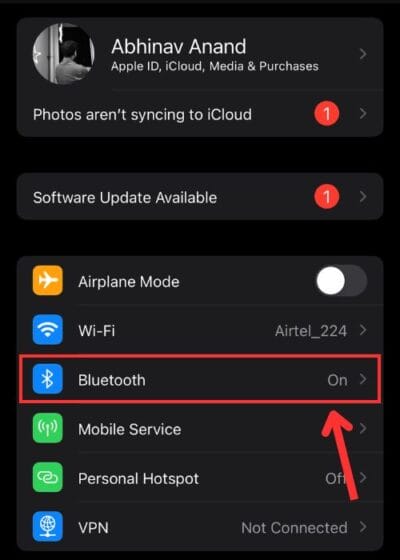
- Turn it off, then back on.
This resets the connection stack and often clears temporary glitches.
4. Unpair and Re-Pair the AirPods Pro 3
This gives your earbuds a fresh start across your iCloud devices.
- Go to Settings → Bluetooth
- Tap the info button next to your AirPods
- Tap “Forget This Device”.
- Then open the case next to your iPhone and reconnect using the setup card.
5. Check Battery Levels
Low battery equals unstable Bluetooth.
Use the Batteries widget on your iPhone or open the case near your phone to see the levels.
Ask Siri for the percentage if you want to skip the tapping around.
6. Turn Off Wi-Fi Temporarily
Wi-Fi can mess with Bluetooth if they’re fighting for the same spectrum.
Turn Wi-Fi off briefly to see if your connection suddenly stabilizes.
If that fixes the issue, your router placement or channel selection may need adjusting.
Software Tweaks That Make a Bigger Difference Than You’d Think
7. Update Your AirPods Firmware
You can’t force the update manually, but you can encourage it:
- Put the AirPods in the case
- Plug the case into power
- Leave the case next to your iPhone for a while
Your iPhone will install any available firmware quietly in the background.
8. Disable Automatic Ear Detection
If the sensors misread your ear position, the audio cuts out.
Turn this off here:
Settings → Bluetooth → AirPods → Automatic Ear Detection.
9. Disable Automatic Device Switching
This feature sounds nice on paper but often causes random disconnects or unwanted switches.
Go to:
- Settings → Bluetooth → AirPods → Connect to This iPhone.
- Select “When Last Connected to This iPhone.”
That keeps your earbuds loyal to the device you actually want to use.
Less Obvious Fixes You Should Try Before Calling Apple
10. Keep Them Away From Interference
Microwaves, baby monitors, older Bluetooth devices, and even wireless cameras can all disrupt the signal.
If your AirPods cut out only in one room, that’s not a coincidence.
11. Reset the AirPods Pro 3
If nothing else works, reset them completely:
- Put the AirPods in the case.
- Open the lid.
- Hold the button on the front until the light flashes amber, then white.
- Reconnect through the setup card.
12. Consider Hardware Damage
If you’ve dropped them, washed them, or tossed them across the room during a workout, physical damage could be the reason they disconnect.
At that point, an Apple Store diagnostic is your best move.
When To Call It and Visit Apple Support
If your AirPods Pro 3 still disconnect after:
- A reset
- A firmware update
- Disabling automatic switching
- Testing on multiple devices
There’s a chance the Bluetooth antenna or internal circuitry is damaged. Apple can usually tell within minutes and may replace the buds under warranty.
Final Takeaway
AirPods Pro 3 disconnecting isn’t just annoying—it’s disruptive. But the problems are rarely mysterious. Most of them come down to interference, outdated software, or settings that don’t play nice together. Once you eliminate those, the earbuds usually behave again.




Discussion