

Email is an essential service. Encountering errors when sending messages halts productivity. This happens on macOS, iPhone, or iPad. Failures often stem from network issues. They may also come from outdated settings or corrupted local data. Fortunately, a structured troubleshooting approach isolates the cause quickly. You can restore your ability to communicate effectively. This avoids complex, time-consuming solutions.
Table of contents
Resolving Email Sending Failures on Apple Devices
Mail sending problems stem from similar core causes. These involve account authentication or data synchronization. A systematic check of server settings and local app data is fastest. This restores your outgoing mail flow. Specifically, if you cannot send or receive messages, general troubleshooting helps. Check what to do when email is not working on iOS.
1. Confirm Server Settings and Internet Stability (iOS/Mac)
A weak connection is the most common sending issue. Misconfigured outbound servers also cause emails to get stuck. Therefore, stable network connectivity is crucial. Fresh account authentication provides a solid foundation for reliable sending. If you’ve been having trouble and can’t send or receive emails on iOS, start here.
Don’t miss the best of The Mac Observer
Set us as a preferred source and our Apple reporting ranks higher in your Google Search results and Discover feed — one tap, no account changes.
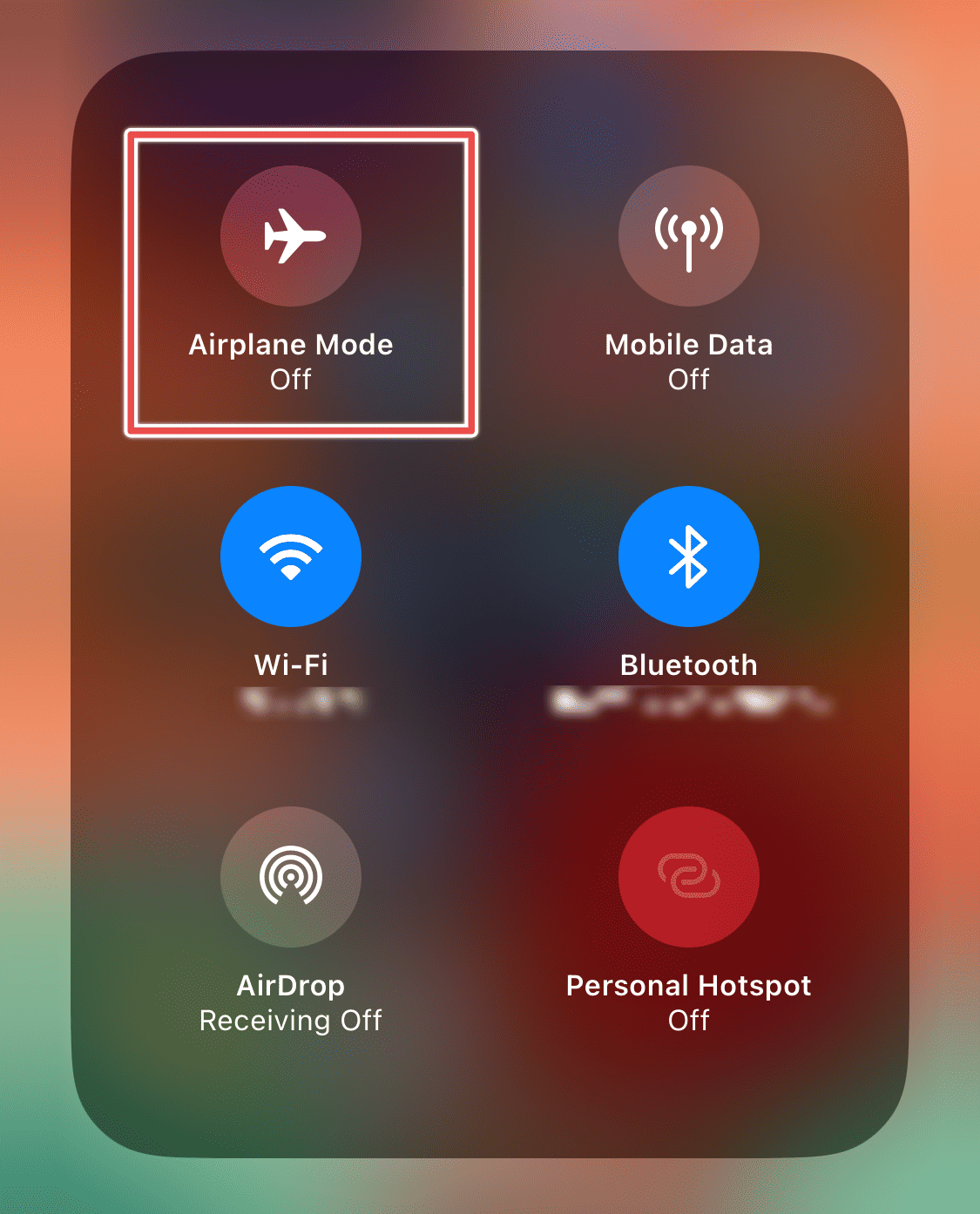
- Verify Network Status: Open a web browser like Safari. Try loading several pages quickly. If pages load slowly, switch networks. Change between Wi-Fi and cellular data. On iOS, you can toggle Airplane Mode off and on. This resets your network connections.
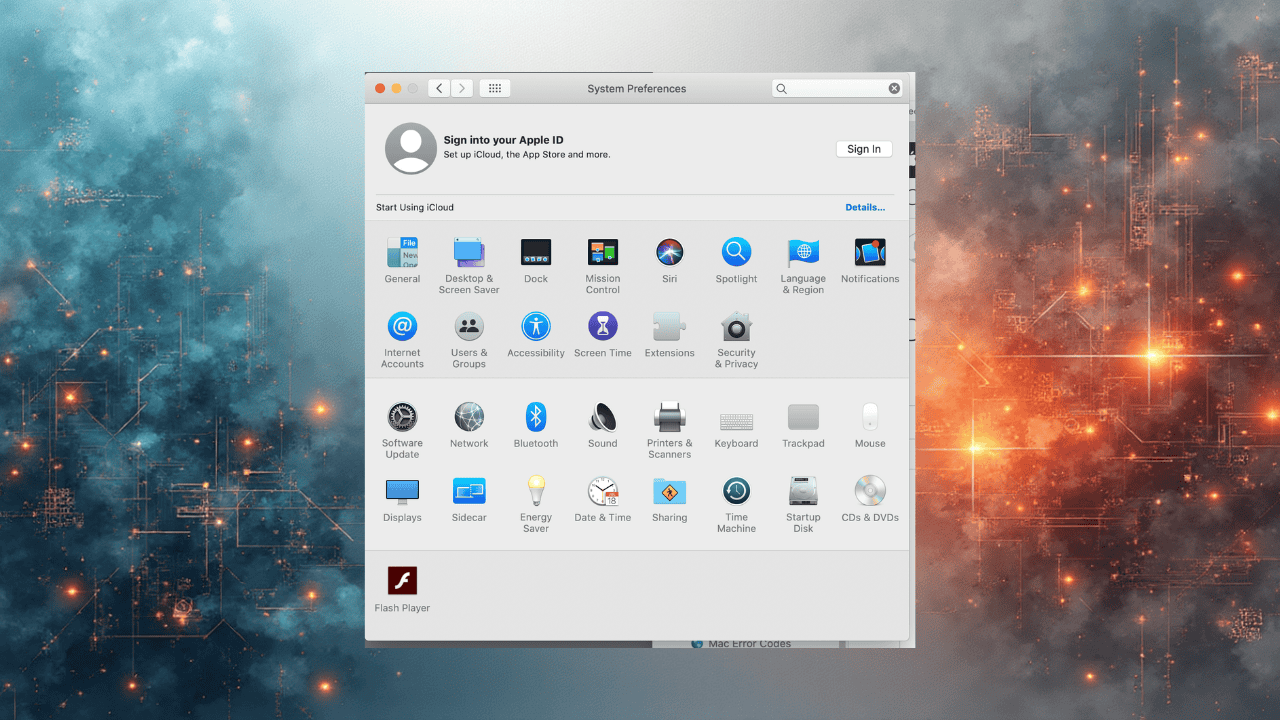
- Delete and Re-add the Account: A temporary disabling can refresh security tokens. Sometimes, a full reset is necessary. Go to Settings > Mail > Accounts on iOS. On Mac, use System Settings > Internet Accounts. Select the problematic account. Choose Delete Account, then re-add it. Use your correct login credentials. This forces the framework to reconnect to the provider.

2. Address Mailbox Index Corruption (macOS)
The Mail app relies on local index files. These files manage your message database. However, a major macOS update can corrupt these indices. Corruption prevents the app from processing outgoing messages correctly. It also stops it from loading sending components. If you find that Apple Mail is not working after a macOS update, rebuild the mailboxes.

- Open the Mail Application. Select the mailbox with issues, like Inbox.
- In the menu bar, click the Mailbox option.
- Select Rebuild from the dropdown menu. This process takes several minutes. The time depends on the message volume.
3. Modify Spell Check Preferences (macOS)
Some macOS versions have a specific conflict. The built-in spell checker can cause issues. It unexpectedly freezes the Mail application. Consequently, it prevents an email from completing transmission. Adjusting this preference bypasses the known bug. It instantly restores sending capability. This is particularly helpful after a recent OS upgrade. This targeted solution helps if composing is the issue.
- In the menu bar, click Mail. Select Settings (or Preferences on older macOS).
- Navigate to the Composing tab.
- Find the Check Spelling dropdown menu. Change the selection from “When I Click Send.” Choose As I Type or Never. This stops the spell check from interrupting transmission.

4. Reset Device Network and App Settings (iOS/iPadOS)
Simple fixes may fail on mobile devices. In these cases, a comprehensive reset clears persistent software conflicts. This action resets system preferences. It affects Wi-Fi passwords and display settings. Crucially, it leaves your apps and personal data intact. Moreover, a forced shutdown provides a hard refresh.
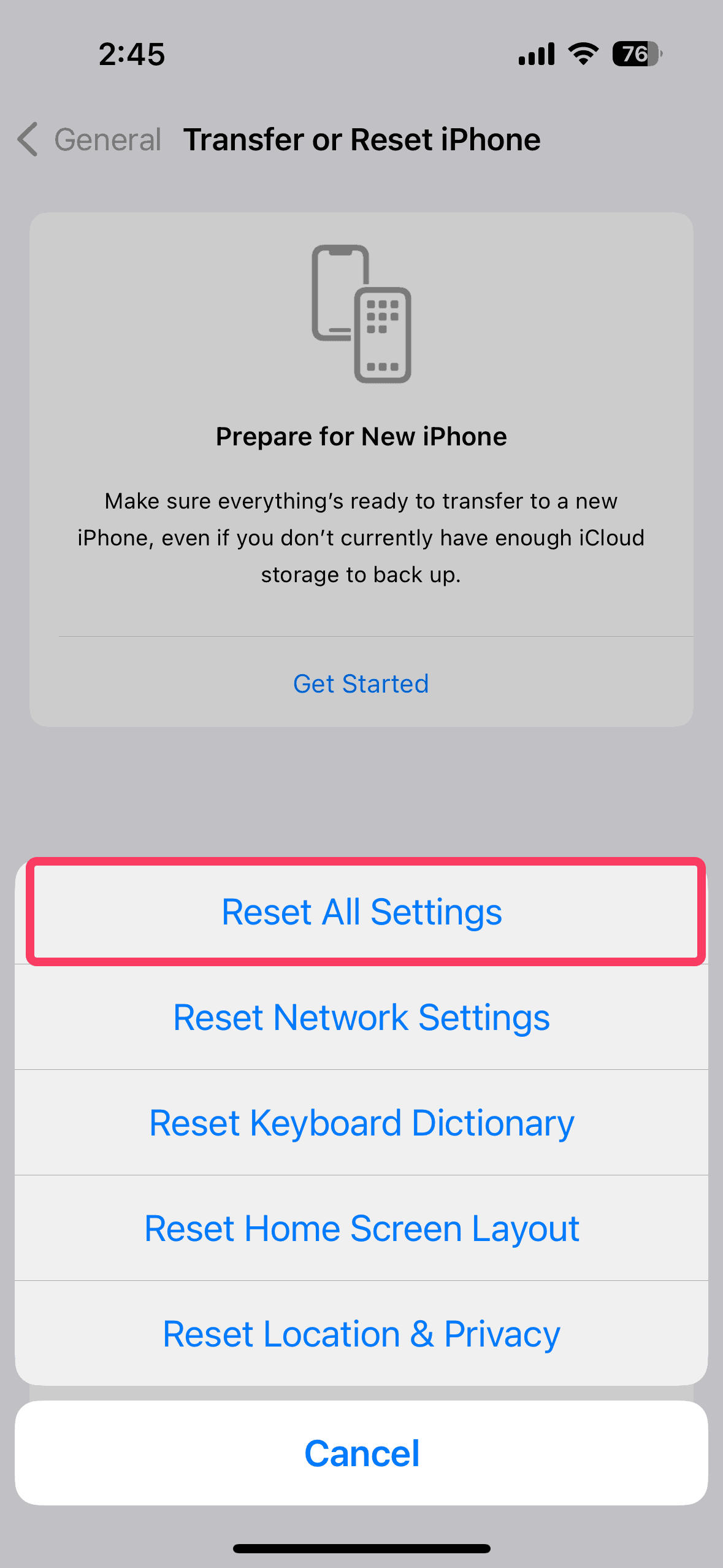
- Reset All Settings: Go to Settings > General > Transfer or Reset iPhone. Tap Reset, then choose Reset All Settings. You must re-enter your Wi-Fi passwords later. Check the Mail app functionality afterward.
- Perform a Force Restart: Force restart your device for a deep refresh. Quickly press and release Volume Up. Then quickly press and release Volume Down. Hold the Side button until the Apple logo appears. This clears temporary memory glitches.

FAQ
System updates often change underlying file structures. They may also alter security protocols. This causes pre-existing configuration files to become corrupted. Ultimately, this leads to functional failures in Mail access.
No, Mail is a core operating system component. You cannot delete or reinstall it separately. Focus on repairing or resetting user data. Use the account settings solutions above.
Restoring Reliable Mail Delivery
Work systematically through these troubleshooting solutions. You can successfully address common sending failures. The key is ensuring stable connectivity. Furthermore, address discrepancies in account authentication. Fix any local application data issues. These methodical fixes cover many issues. They guarantee reliable message delivery. If you are specifically running into issues where you are not getting emails on iPhone, take dedicated steps.


And me tell me the settings for sky email outgoing server
My outgoing mail problem is not my iPhone.It started with iOS 26. Your “try this” solutions are useless.
Tell me EXACYLY how to set up outgoing mail server on my iPhone 12 – How do I get to the screen where I can do that without screwing up everything else!!!!!