

After updating to iOS 26, some iPhone users have hit a wall with email; messages not coming through, the Mail app freezing, or outgoing emails getting stuck in drafts. It’s not ideal, especially if you rely on your inbox to actually get things done. But don’t panic. Most of these issues come down to a few settings or sync hiccups that are easy to fix.
Here’s how to get your email working again on iOS 26.
Why Your Email Stopped Working After the Update
Software updates sometimes reset account settings, change server configurations, or break app compatibility. That’s why you might suddenly see errors like “Cannot Get Mail” or notice missing messages. A few common culprits include:
Don’t miss the best of The Mac Observer
Set us as a preferred source and our Apple reporting ranks higher in your Google Search results and Discover feed — one tap, no account changes.
- Weak or unstable internet connection
- An incomplete or buggy iOS update
- Wrong mail server or port settings
- Sync settings disabled after the update
- Mailbox or iPhone storage full
- Emails getting filtered into Junk or Spam
- Outdated third-party email apps
Once you understand what’s causing it, fixing it usually takes just a few minutes.
How to Fix Your Email on iOS 26
1. Restart the Mail App
Start simple. Close the Mail app completely, wait a few seconds, and reopen it. This refreshes the session and clears minor glitches that block syncing or sending.
2. Re-add Your Email Account
Sometimes, starting fresh works best.
- Go to Settings > Mail > Accounts, tap your email, and choose Delete Account.
- Then tap Add Account and sign back in. This resets sync permissions and reconnects your mailbox to Apple’s Mail framework.
3. Check Your Internet Connection
Email can’t send or receive without a stable connection. Open Safari or YouTube and see if pages load quickly. If not, switch between Wi-Fi and cellular data.
If you’re on Wi-Fi, try toggling Airplane Mode on and off. Sometimes that’s enough to reset your network connection.
3. Update or Reinstall the Mail App
If Mail keeps crashing or lagging, update it in the App Store. Updates often fix compatibility bugs that pop up after major iOS changes.
If there’s no update available, delete and reinstall the app. Don’t worry, your accounts and emails will reappear once you sign back in.
4. Look Inside the Junk Folder
It’s possible your emails are still arriving but getting flagged as spam. Open the Mail app and check Junk or Spam folders. If you see legitimate messages there, move them back to your inbox and mark them as “Not Junk.”
5. Make Sure Syncing Is Enabled
If Mail isn’t updating automatically, your sync preferences may have reset.
- Go to Settings > Apps > Mail > Mail Accounts > Fetch New Data.
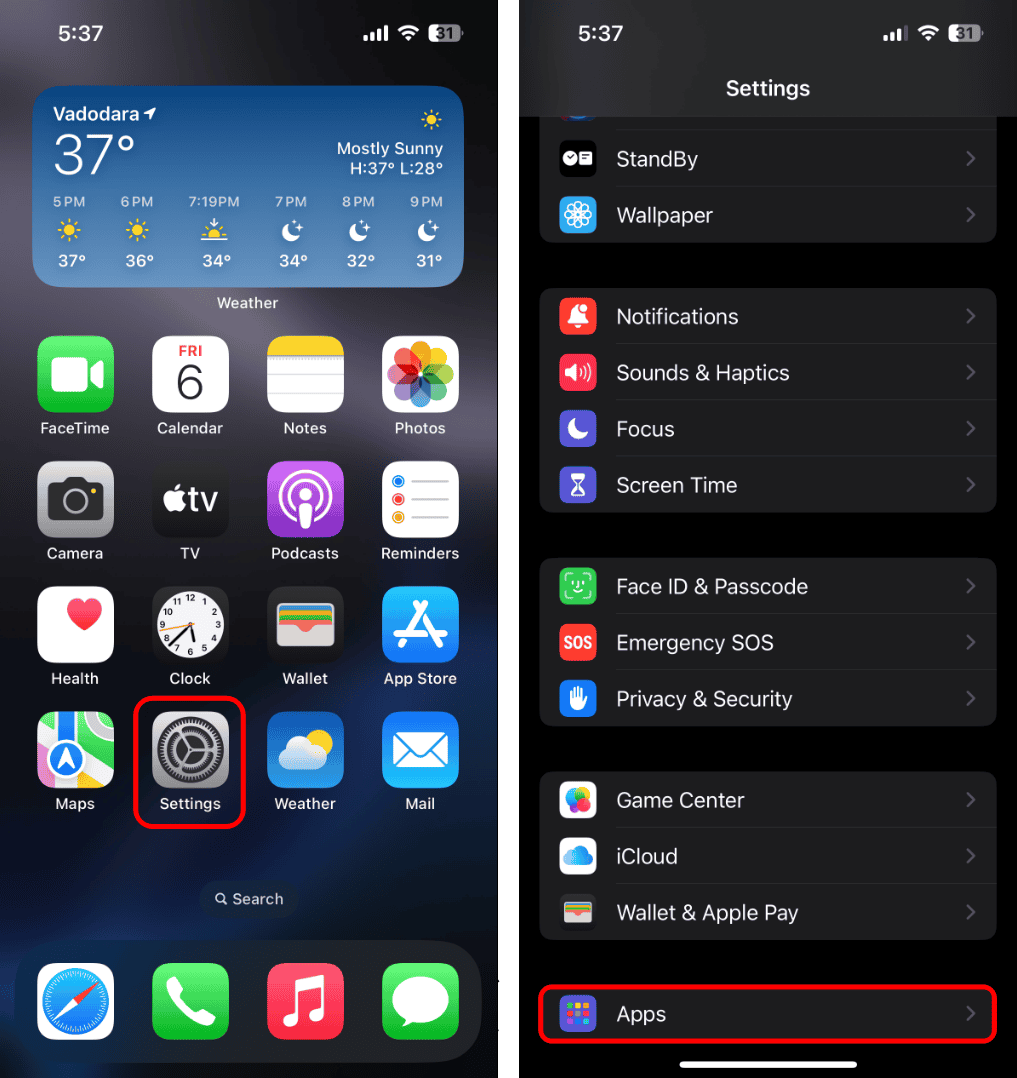
- Make sure Push is turned on. You can also select Fetch and choose Automatically to force more frequent updates.
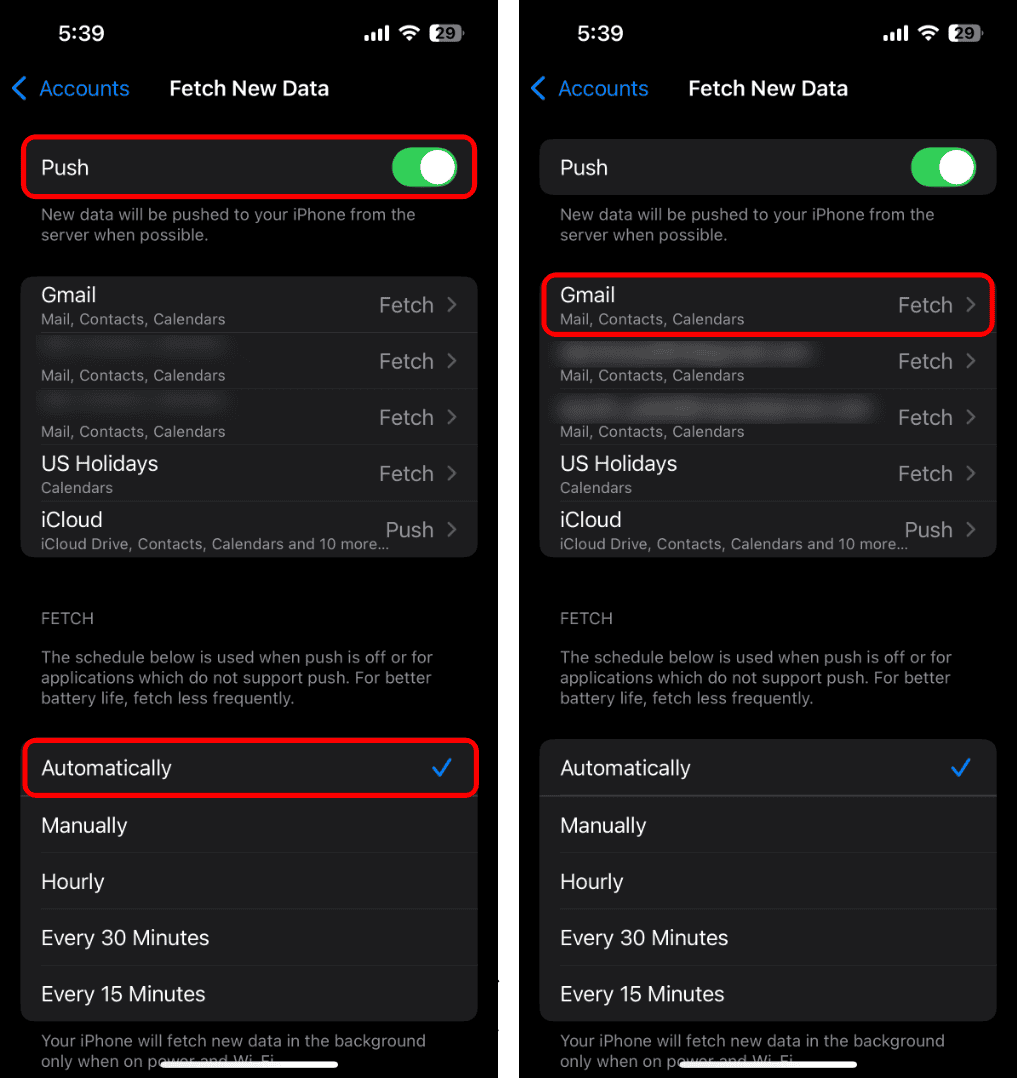


Then open the Mail app and swipe down to refresh.
6. Free Up Storage Space
If your iPhone or inbox is full, new messages might not download.
- To check iPhone storage, go to Settings > General > iPhone Storage.
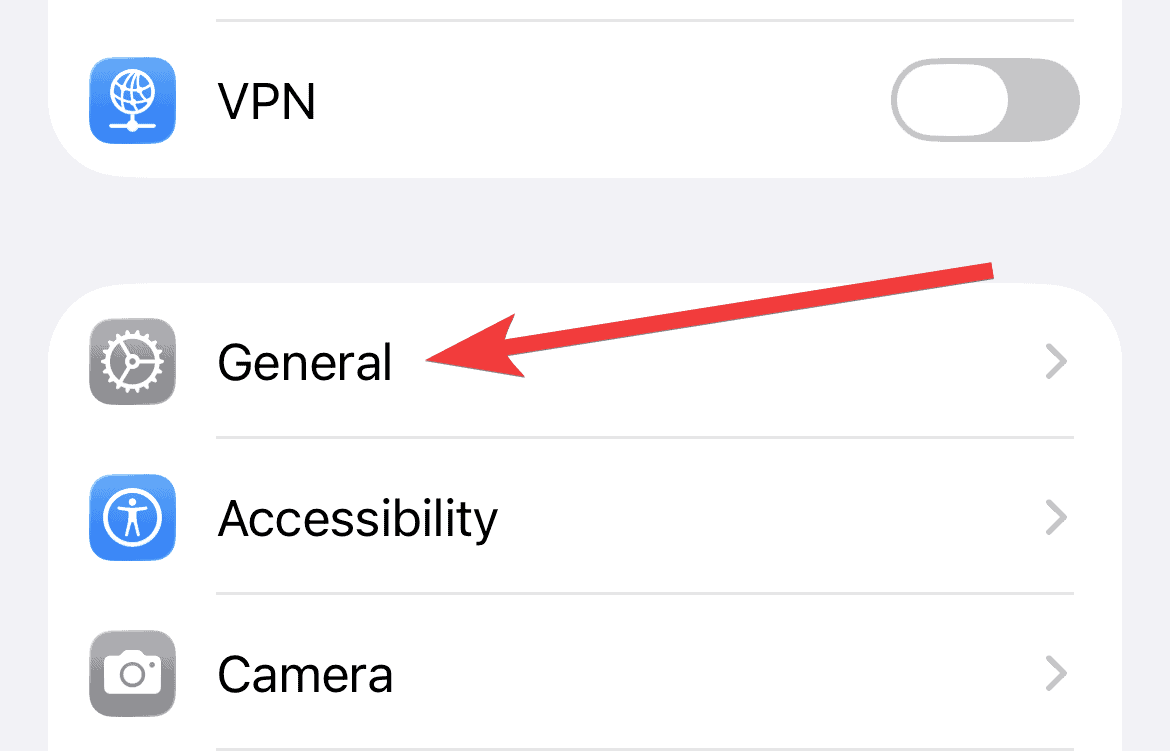
- Delete old attachments, photos, or apps you don’t use.

Then open Mail and clear out unnecessary messages, especially ones with large attachments.
7. Check for Update Errors
If Mail started acting up right after installing iOS 26, the update itself might have glitched.
- Go to Settings > General > Software Update to see if a patch is available.
- You can also try a force restart: press and release Volume Up, press and release Volume Down, then hold the Side button until the Apple logo appears.
8. Reset All Settings
If nothing else works, try resetting all system settings. This won’t erase your apps or data — just system preferences like Wi-Fi passwords and display settings.
- Go to Settings > General > Transfer or Reset iPhone
- Tap Reset > Reset All Settings.
Once done, reopen Mail and sign back into your accounts.
9. Update Third-Party Mail Apps
If you’re using Gmail, Outlook, or another third-party app, check for updates in the App Store. These apps sometimes lag behind new iOS versions and need a patch to sync properly again.
If the problem continues, try deleting and re-adding your email account inside the app.


Does not work!!!