
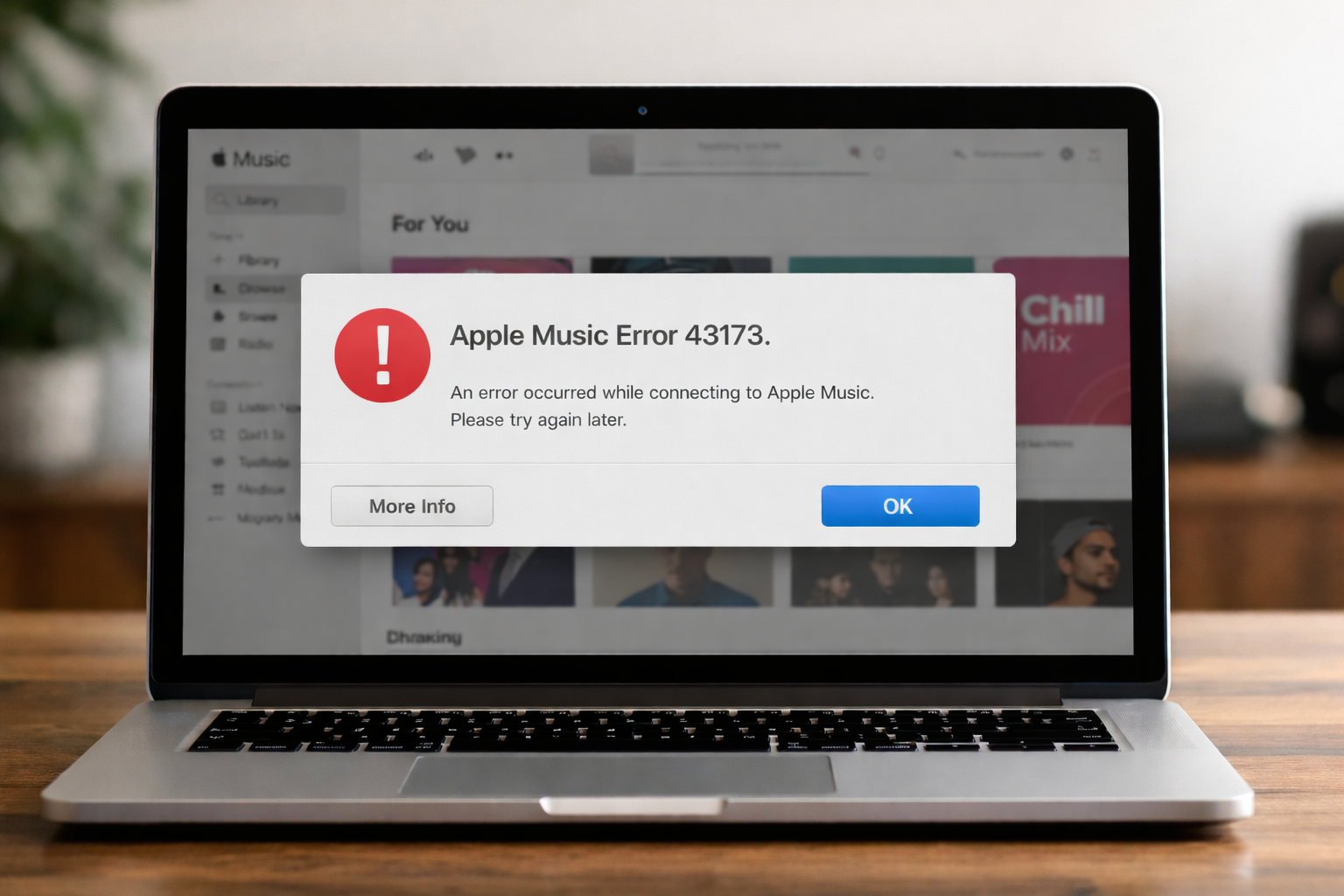
Apple Music offers a seamless listening experience across devices, but users occasionally encounter technical issues such as Error 43173. This specific error typically appears when there is a communication failure between the Music app and Apple’s servers, preventing users from syncing libraries, adding new tracks, or accessing cloud-based playlists on macOS.
Table of contents
Troubleshooting and Resolving Apple Music Error 43173
If your music library is frozen or failing to update, follow these technical solutions to restore functionality to your application.
1. Restart the Music App and macOS
A minor software glitch is often the primary cause of connectivity errors. Restarting the application clears the temporary cache, while a full system reboot refreshes the background processes responsible for iCloud syncing and stabilizes the connection to Apple’s servers.
Don’t miss the best of The Mac Observer
Set us as a preferred source and our Apple reporting ranks higher in your Google Search results and Discover feed — one tap, no account changes.
- Quit the Music app completely (Command + Q).
- Click the Apple Menu and select Restart.
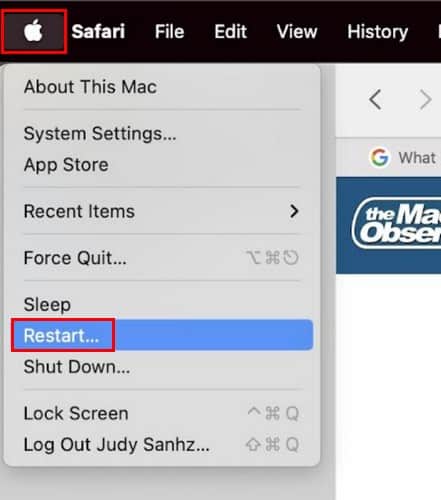
- Once the Mac reboots, open Music and check if the error persists.
2. Update macOS to the Latest Version
Apple frequently releases patches to fix bugs within native apps. Since Music is integrated into macOS, ensuring your software is up to date is essential. For deeper interface issues, checking Apple Music power tips you won’t find in the app can help you navigate the system efficiently.
- Go to System Settings.
- Select General, then click on Software Update.
- If an update is available, click Update Now to download and install it immediately.
3. Re-authorize Your Computer
Error 43173 can stem from an issue with your account’s digital rights management permissions. De-authorizing and then re-authorizing your Mac forces the application to re-verify your subscription status and account credentials, often clearing any lingering authentication conflicts or sync hurdles.
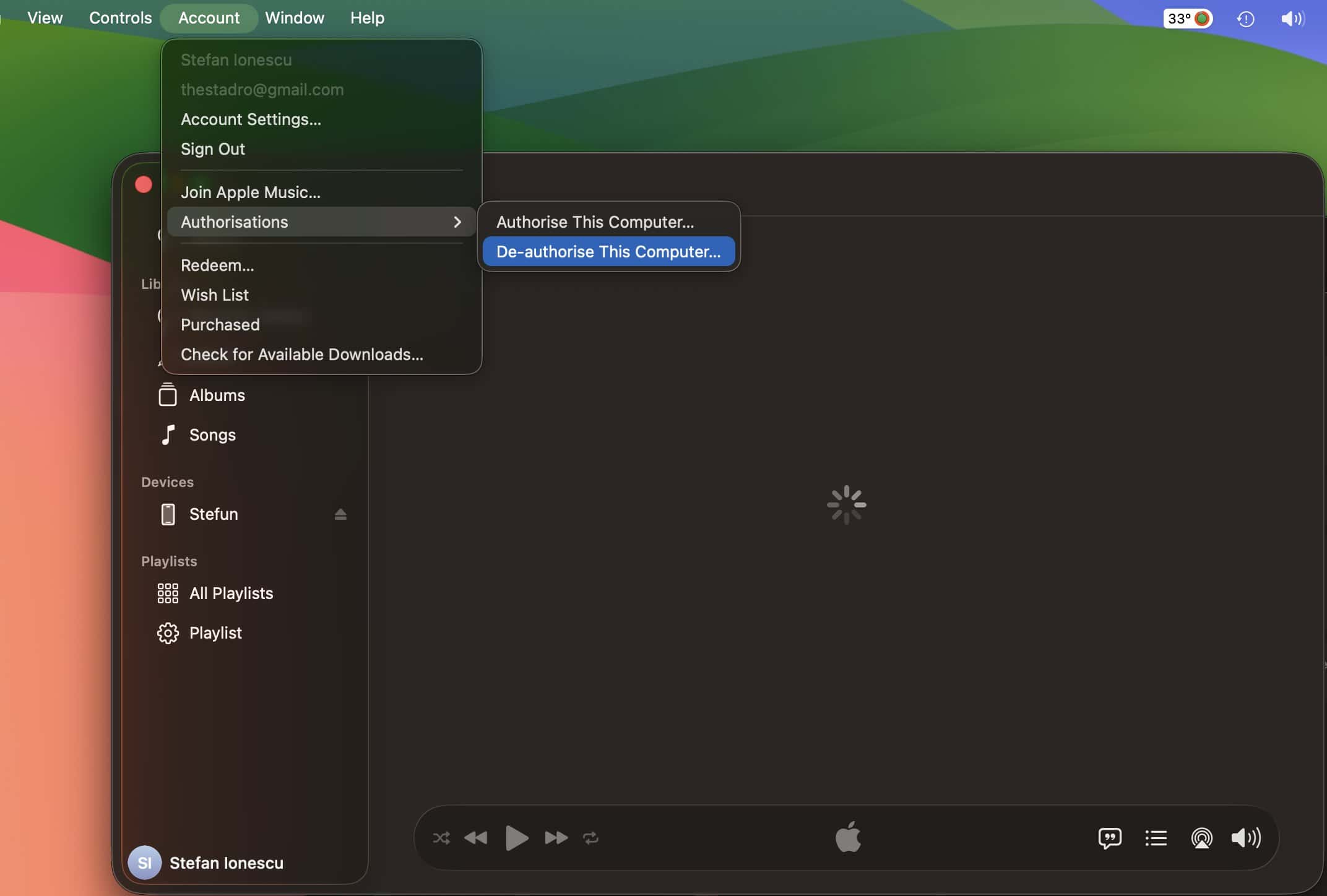
- Open the Music app and click Account in the menu bar.
- Select Authorizations > De-authorize This Computer.
- After the process finishes, go back to Account > Authorizations > Authorize This Computer.
4. Refresh Your Cloud Library
Sometimes the connection to the cloud library becomes desynchronized. You can manually trigger a refresh to force the app to communicate with Apple’s servers. If playback behaves oddly afterward, you might learn how to stop shuffle on Apple Music to regain control.
- Open Music and navigate to File in the top menu.
- Hover over Library and select Update Cloud Library.
- If the library still won’t sync, you can learn how to use Apple Music features to verify if other cloud functions are working.
5. Create a New Music Library
If the local database file is corrupted, the app will trigger Error 43173. Creating a new library file can bypass this corruption and let you safely re-sync your data from the cloud without losing your curated music collection.
- Quit the Music app.
- Press and hold the Option key, then click the Music app icon to open it.
- Click Create Library and choose a storage location.
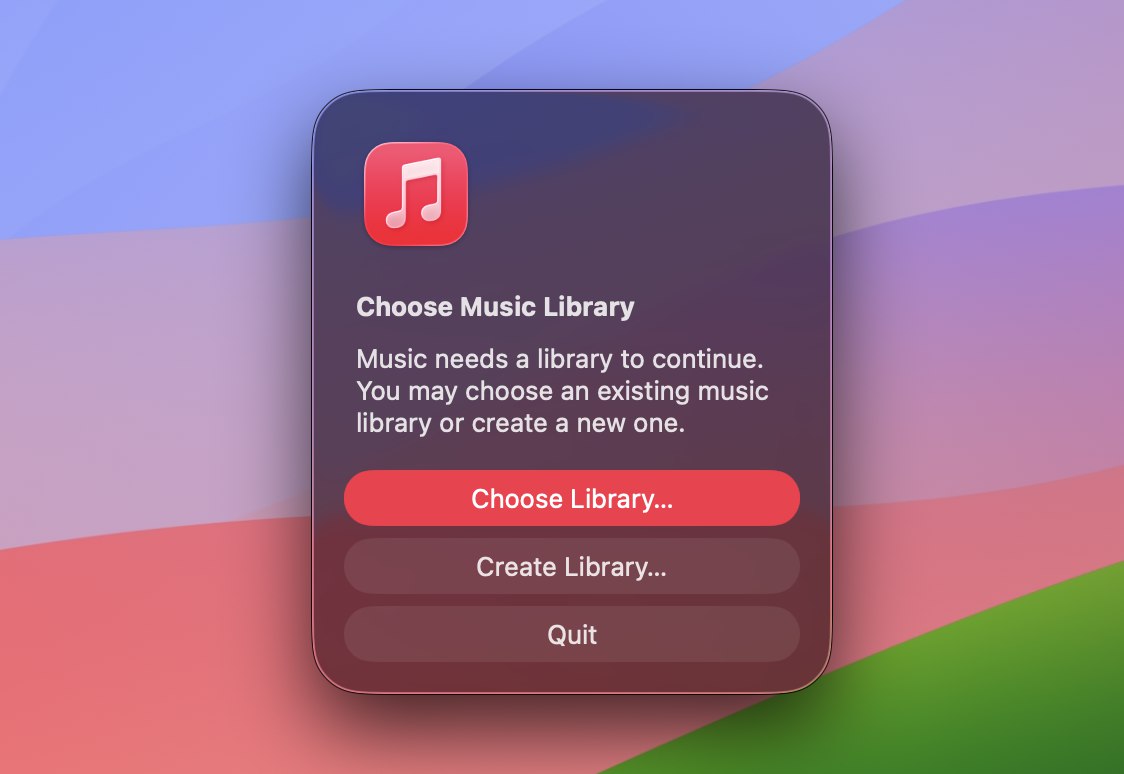
- Sign in to your Apple ID to re-download your cloud-based tracks.
FAQ
Corrupted library database files, outdated macOS software, or a temporary handshake failure between the local app and the iCloud Music Library primarily cause it.
Most fixes involve refreshing the connection to the cloud. As long as your music is synced to your Apple ID, your playlists and library will reappear once the connection is restored.
If the error remains, you may need to sign out of your Apple ID entirely within the Music app via the Account menu and Sign Out, then sign back in to reset the account handshake.
Maintaining a Glitch-Free Apple Music Experience
While Error 43173 is frustrating, most users can resolve it by updating software or refreshing library permissions. Consistently managing your database helps prevent issues like Apple Music not loading on your Mac. By following these steps, you can return to enjoying your favorite albums without any further technical interruptions.




Discussion