

Apple’s warranty tools make it easy to find out if your iPhone, iPad, Mac, or other device is still covered, and what kind of repairs or support you can get. Whether you want to confirm AppleCare+ details or just see when your warranty expires, here’s the simple way to check everything in one place.
Table of contents
How to Check if Your Apple Device Is Covered
You’ve got a few options, depending on which device you’re using.
On iPhone or iPad
Don’t miss the best of The Mac Observer
Set us as a preferred source and our Apple reporting ranks higher in your Google Search results and Discover feed — one tap, no account changes.
- Open Settings > General > AppleCare & Warranty.
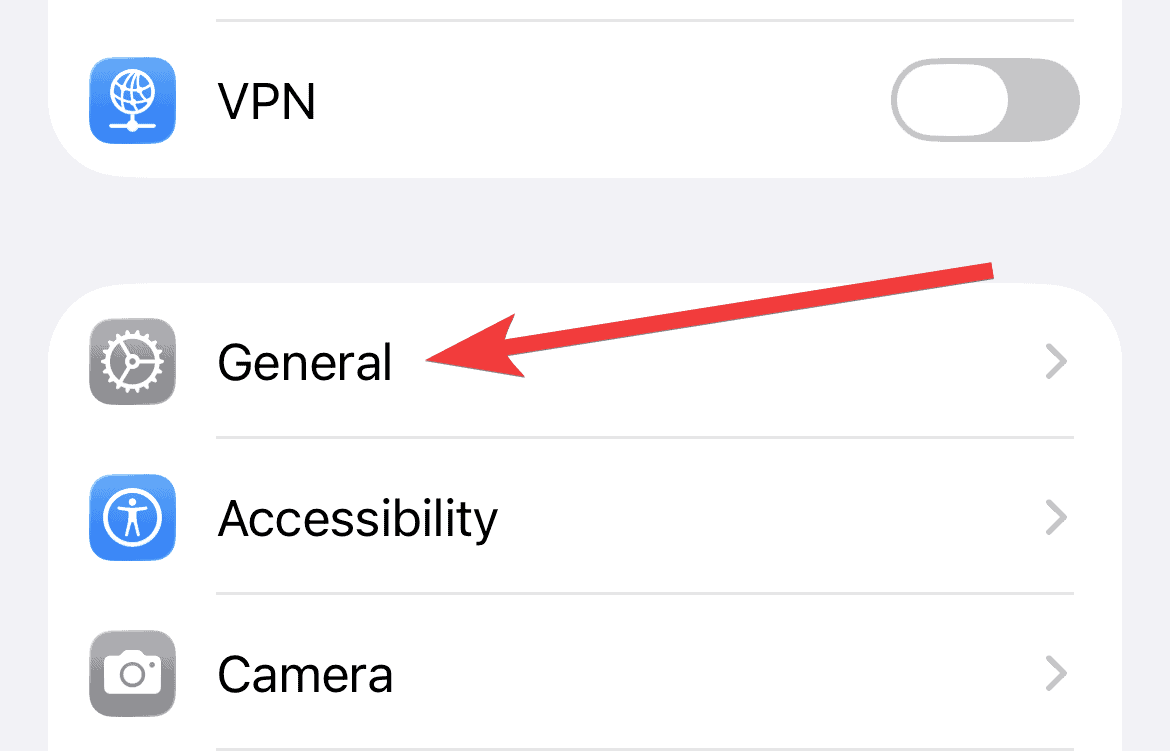
- Tap your device to view its coverage status.

On Mac
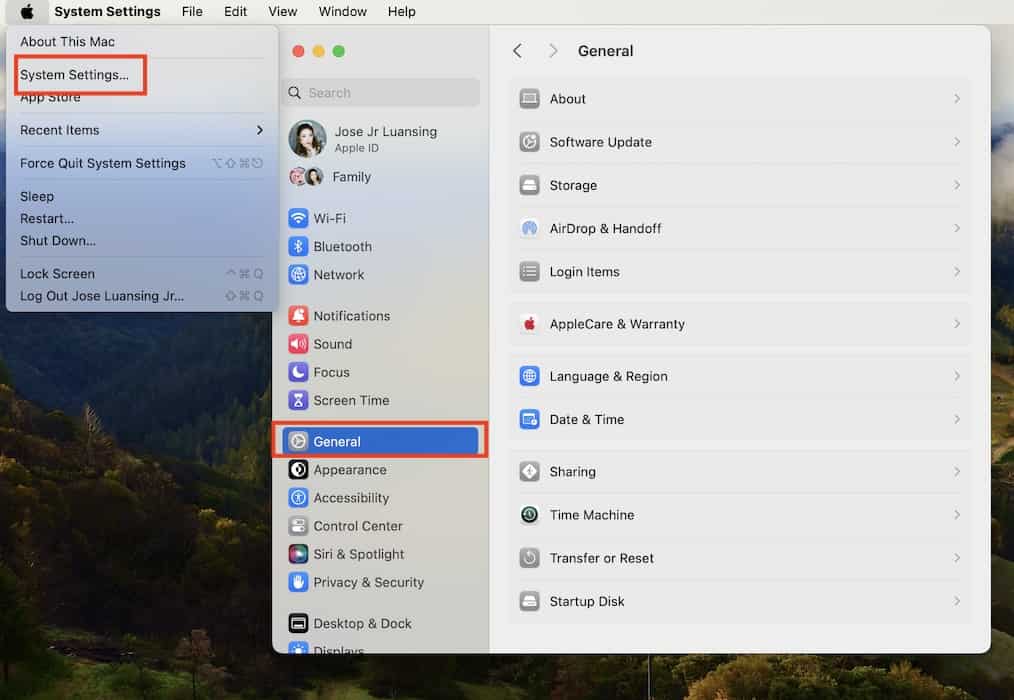
- Click the Apple menu in the top-left corner.
- Go to System Settings > General > AppleCare & Warranty.

Online
If you’d rather use a browser, visit checkcoverage.apple.com.
Enter your device’s serial number, follow the instructions, and you’ll instantly see if your device is under Apple’s Limited Warranty or an AppleCare plan.
You can also log in to mysupport.apple.com with your Apple ID to see all your devices and their coverage in one list.
How to See What Your Coverage Includes

Once you’ve found your plan, you can check what’s actually covered, and when it ends.
- On iPhone or iPad: Go to Settings > General > AppleCare & Warranty, then select your device.
- On Mac: Go to System Settings > General > AppleCare & Warranty.
- On the web: Sign in to mysupport.apple.com and choose your device.
You’ll see details like repair options, hardware coverage, and technical support eligibility, plus the expiration date of your warranty or AppleCare plan.
How to Find Your Proof of Coverage or Agreement Number

Need to show proof of your plan for a repair or trade-in? You can easily download it:
- Go to mysupport.apple.com.
- Sign in with your Apple ID.
- Choose your device.
- Click View Proof of Coverage.
If that option doesn’t appear, make sure your Apple ID has two-factor authentication turned on; Apple requires it to show warranty documents.
Keeping Track of Your Apple Coverage
That’s it. Whether you’re checking coverage for a single iPhone or a full lineup of Apple devices, you can find everything through the AppleCare & Warranty section on your device or by visiting mysupport.apple.com.
It’s worth checking once in a while; knowing when your warranty ends can save you time, stress, and repair costs.


Discussion