

The Water Lock feature on your Apple Watch is a great tool for protecting your device during aquatic activities. It prevents accidental screen touches caused by water droplets, which is crucial whether you’re swimming laps, surfing, or simply caught in a downpour. Knowing how to quickly activate and deactivate this mode ensures both the watch’s safety and continued functionality.
Table of contents
Activating and Disabling Apple Watch Water Lock

Activating Water Lock from Control Center
Using Water Lock is the best way to safeguard your watch’s display from phantom taps and misregistered commands when exposed to moisture. Before diving into the pool or starting your open water workout, be sure to pair an Apple Watch to a new iPhone and then enable Water Lock to fully lock the screen.
- Open Control Center: Quickly press the flat side button (for watchOS 10 and later) or swipe up from the bottom of your watch face (for watchOS 9 and earlier).
- Tap the Water Lock Icon: Look for the droplet-shaped icon and tap it once.
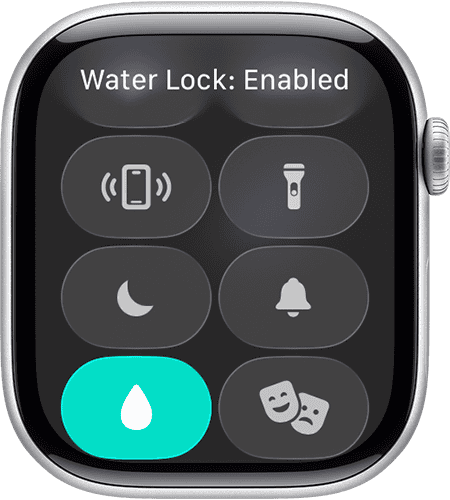
- Confirmation: A blue droplet symbol will appear at the very top of the watch face, confirming that Water Lock is active. The screen will no longer respond to touch input.

Water Ejection and Deactivation
Deactivating the feature is just as simple, but it’s accompanied by an essential process: water ejection. When you manually disable the lock, the watch emits a series of high-frequency vibrations and tones to expel any residual water from the speaker cavity, restoring the watch’s essential functions. This also ensures the screen is safe for adjusting settings or changing watch faces.
Don’t miss the best of The Mac Observer
Set us as a preferred source and our Apple reporting ranks higher in your Google Search results and Discover feed — one tap, no account changes.
- Press and Hold the Digital Crown: While the Water Lock is active, press and hold the Digital Crown continuously. (If running watchOS 8 or earlier, rotate the Digital Crown instead).
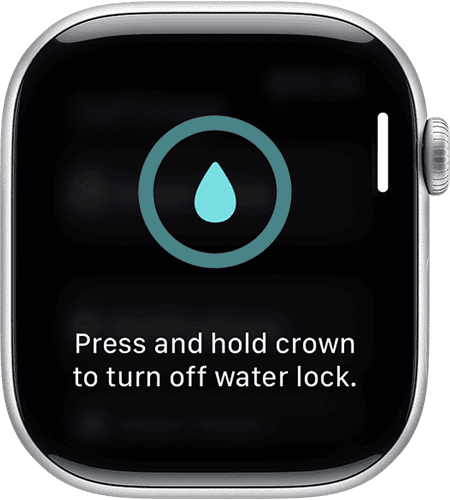
- Look for the Unlocking Animation: The watch screen will show an animation of the water droplet rotating and progressively filling a circle.
- Listen for the Tones: The watch will emit a series of loud, distinct sounds and corresponding vibrations, effectively clearing water from the speaker and microphone. The screen is now unlocked and fully operational.

FAQ
No. Water Lock only prevents screen input. Your watch’s inherent water resistance rating is what protects the hardware. Always check your specific model’s rating before engaging in water sports, as deep diving or high-velocity water sports may exceed its capabilities.
When you start a swimming workout using the native Workout app, Water Lock is enabled automatically. However, for casual use, like washing dishes or showering, or if you use a third-party swimming app, you may need to manually enable it via the Control Center.
The watch will remain locked, and you won’t be able to interact with the screen until you perform the water ejection sequence. It’s designed to stay locked until manually disabled by the user.
Maximizing Your Watch’s Water Safety and Longevity
To maintain your Apple Watch’s performance and ensure its longevity, always follow these critical steps: rinse your watch with fresh water after pool use to remove corrosive elements; regularly perform the water ejection sequence after any exposure; keep watchOS updated for the latest software and security enhancements; avoid using the watch during high-velocity water activities that exceed its pressure limits; and monitor the device by periodically checking for excessive battery drain as a sign of potential hardware issues.


Discussion