

Since the release of macOS Tahoe, many users have reported audio issues, including crackling, stuttering, and dropped sound, especially when the system is under even light load. These glitches often affect users relying on professional audio applications and external interfaces. Fortunately, there are several workarounds and fixes while waiting for an official Apple patch that addresses the CoreAudio driver issues.
Table of contents
Troubleshooting Sound Stuttering and Crackling in macOS Tahoe
The primary cause of these unexpected audio disruptions appears to be related to how macOS Tahoe manages its CoreAudio service and handles high bandwidth connections. While Apple is working on a permanent fix, you can implement several actionable steps to eliminate the sound problems on your MacBook or Mac Studio today.
1. Restart the CoreAudio Process
The CoreAudio process, named coreaudiod, is the system daemon responsible for managing all audio functions on your Mac. Restarting this service can often temporarily resolve resource conflicts and driver hiccups that cause stuttering sound. This is a common and quick fix recommended by many users in the Apple community forums.
Don’t miss the best of The Mac Observer
Set us as a preferred source and our Apple reporting ranks higher in your Google Search results and Discover feed — one tap, no account changes.
- Open the Terminal application from your Utilities folder.

- Type the command:
sudo killall coreaudiod - Press Return. You may be prompted to enter your administrator password.
2. Quit Background Resource Hogs
Reports indicate that high CPU usage, even by seemingly idle applications, can trigger the glitches. Developers often find that closing tools like the iOS Simulator or Xcode eliminates the problem entirely. Check your Activity Monitor and close any unusually resource hungry applications. If you are trying to use your iPhone as an audio input on Mac, ensure all related bridging applications are closed when not in use to free up system resources.
- Open Activity Monitor (Applications > Utilities).
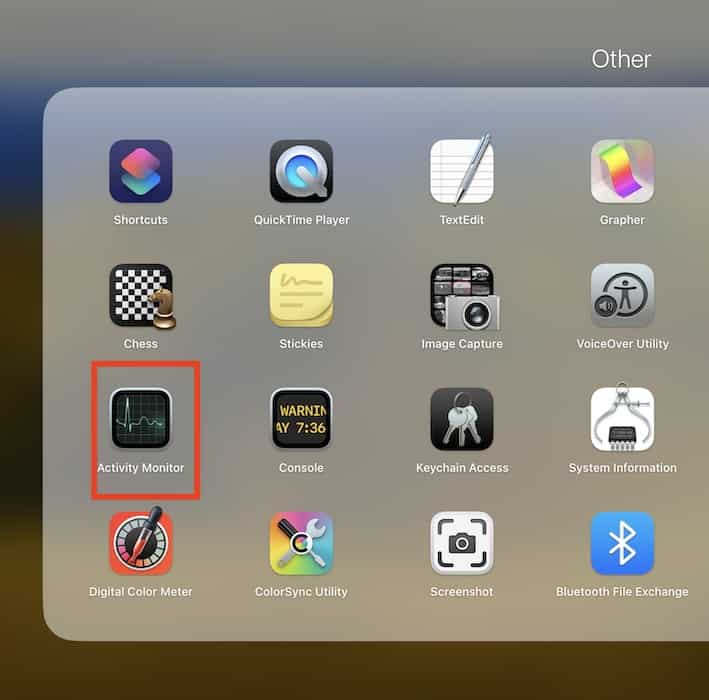
- Click the CPU tab and sort by the “% CPU” column.
- Identify and quit any non essential applications that are using a high percentage of your processor’s capacity.

3. Reconfigure MIDI Audio Settings
Users with professional audio equipment or those utilizing MIDI routing have discovered that the Tahoe update sometimes resets or corrupts their settings. If you use external microphones or need to select specific recording software for Mac, you may need to visit the Audio MIDI Setup application to reconfigure your device settings and sample rates.
- Open Audio MIDI Setup (Applications > Utilities).
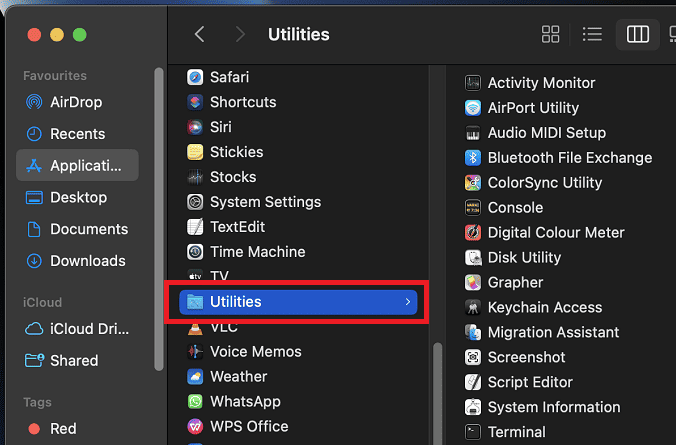
- Select your audio input or output device in the sidebar.
- Adjust the format (sample rate and bit depth) to a different setting, like 44.1 kHz, and then switch it back to your preferred setting, or try reducing the sample rate to see if the glitches disappear.

4. Inspect External Display and Dock Connections
A significant number of reports link the audio popping and crackling specifically to MacBooks connected via Thunderbolt or HDMI to an external display or dock. This suggests a potential issue with the power management or data transfer through these high bandwidth ports. If you typically use your Mac to enable AirPlay audio streaming, testing with built in speakers can help isolate the problem.
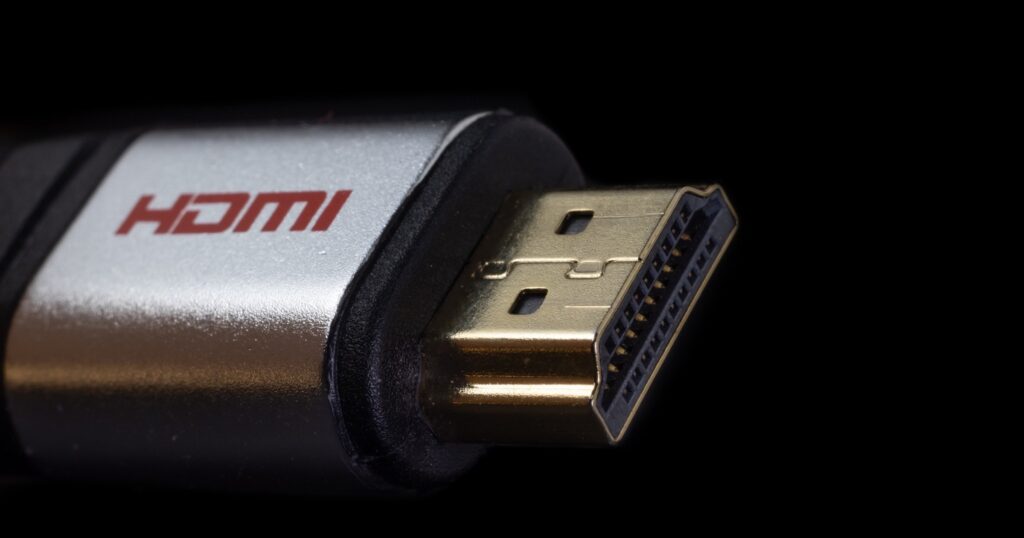
- Disconnect any external displays, USB C hubs, or docks you are using.
- Test the audio using your Mac’s built in speakers or a reliable Bluetooth connection.
- If the problem is resolved, ensure your dock’s firmware is updated or connect your peripherals directly to your Mac.
5. Check for System Updates
Apple is aware of the widespread CoreAudio issues introduced in this operating system. Senior support advisors have confirmed that a patch is being developed to address the problem at the operating system level, which will be the most stable and permanent fix for everyone.
- Go to System Settings (or System Preferences).
- Click General, then click Software Update.
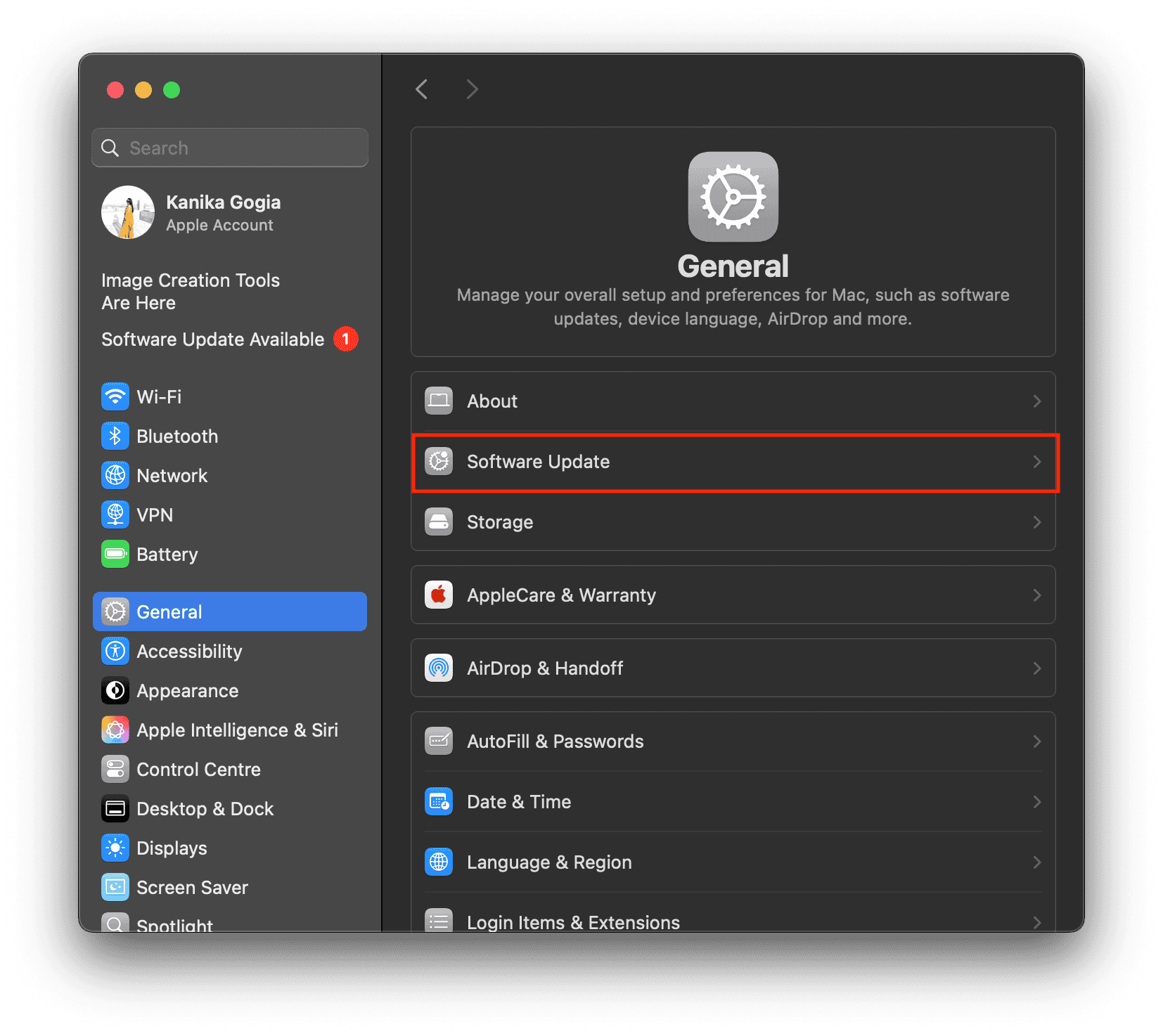
- Install any pending macOS Tahoe point updates, as these often contain critical driver and stability fixes aimed at resolving newly introduced bugs.

FAQ
The issues are primarily linked to a bug or change within the CoreAudio driver or how macOS Tahoe manages system resources and power, especially when interacting with certain third party apps or high bandwidth connections like Thunderbolt and HDMI.
For most users experiencing the issue immediately after the software update, it is a software bug, not a hardware failure. If your Mac’s audio was perfect before the update, a fix will likely arrive in a future macOS update.
Securing Your Mac’s Sound: A Post-Tahoe Review
While waiting for Apple to deliver the official patch in a subsequent macOS update, these community tested temporary fixes, from restarting the CoreAudio process to reviewing your favorite audio editing apps on macOS, should help mitigate the disruptive glitches. By applying these troubleshooting steps, you can restore clear sound and continue using your Mac for tasks like professional production or enjoying media without constant interruption. We hope these steps provide a smoother audio experience until a permanent system level solution is deployed by Apple.


Discussion