
If your Apple TV suddenly goes dark in the middle of a show or flashes to black for a few seconds before the picture returns, you’re not alone. It’s one of the more annoying quirks Apple TV owners run into, and it usually shows up at the worst possible moment. Here’s the thing. These blackouts almost always come down to video format switching, HDMI issues, or a setting that pushes your TV harder than it needs to. The good news is that every common cause has a simple fix.
Let’s break it all down so you can get rid of the black screen interruptions for good.
Table of contents
The Most Common Culprit: HDR Switching
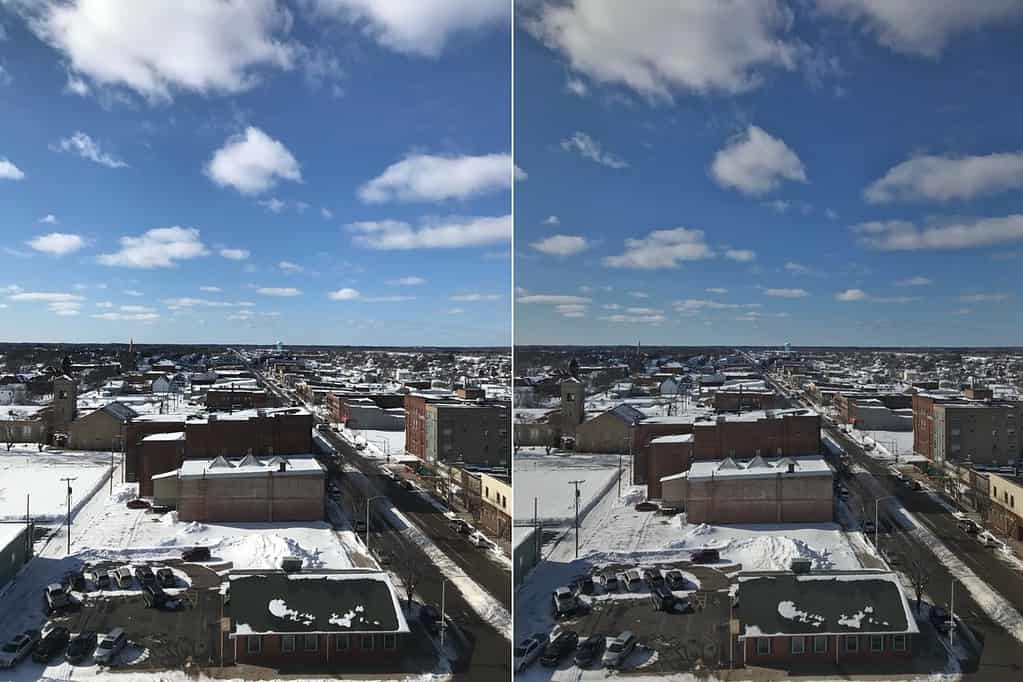
The biggest cause of blackout during playback on Apple TV 4K is your device bouncing between SDR and HDR. Apps like YouTube, for example, rarely provide real HDR content. So the moment your Apple TV switches formats, your TV takes a second to adjust. That moment of adjustment is the blackout you’re seeing.
Don’t miss the best of The Mac Observer
Set us as a preferred source and our Apple reporting ranks higher in your Google Search results and Discover feed — one tap, no account changes.
If you’re watching something in SDR and an HDR trailer loads, or an ad plays, or a video switches resolutions, the Apple TV tries to match the content. Your TV switches modes, the screen fades out, and you wait.
Here’s how to stop it instantly:
- Go to Settings.
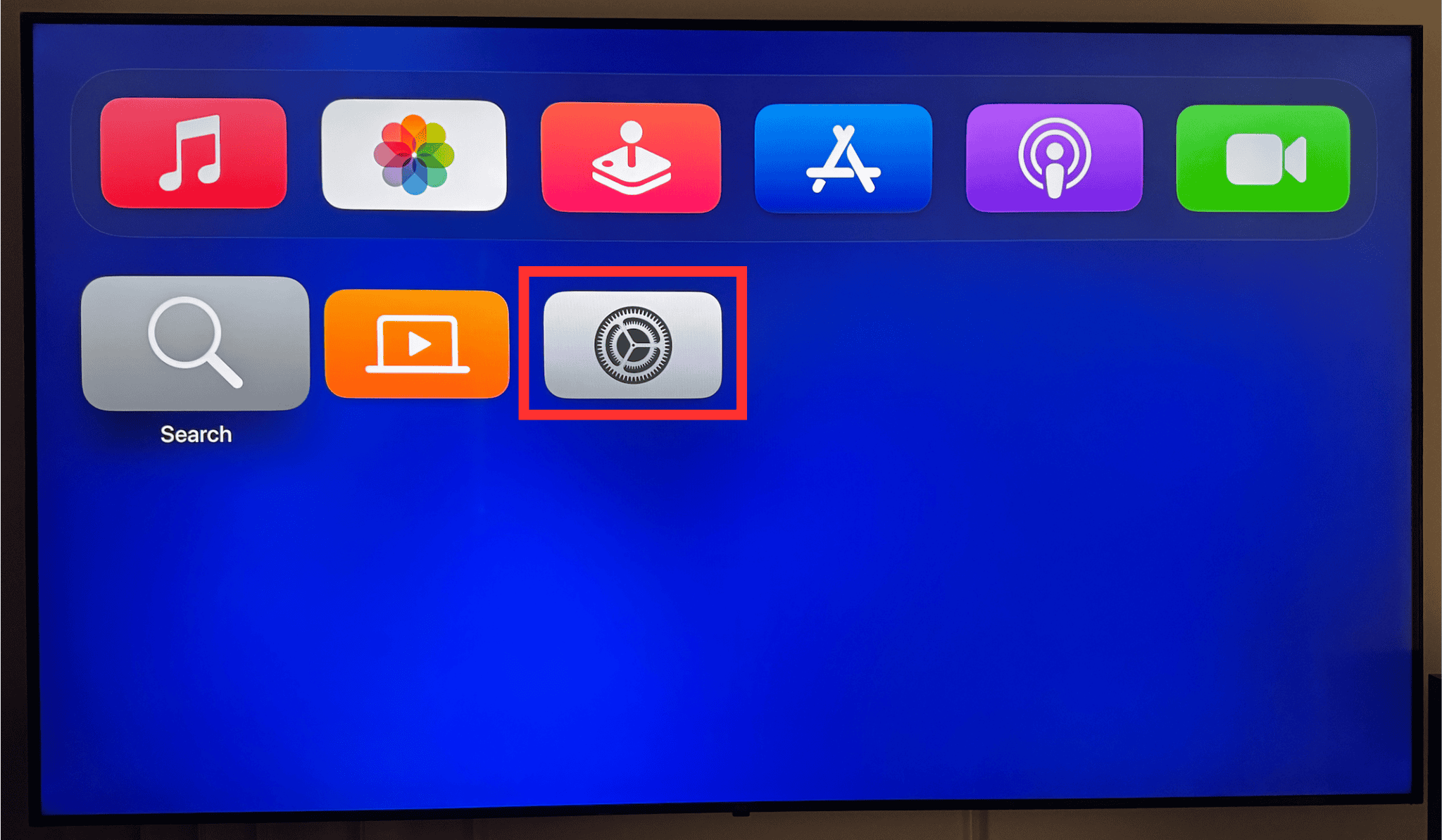
- Select Video and Audio.
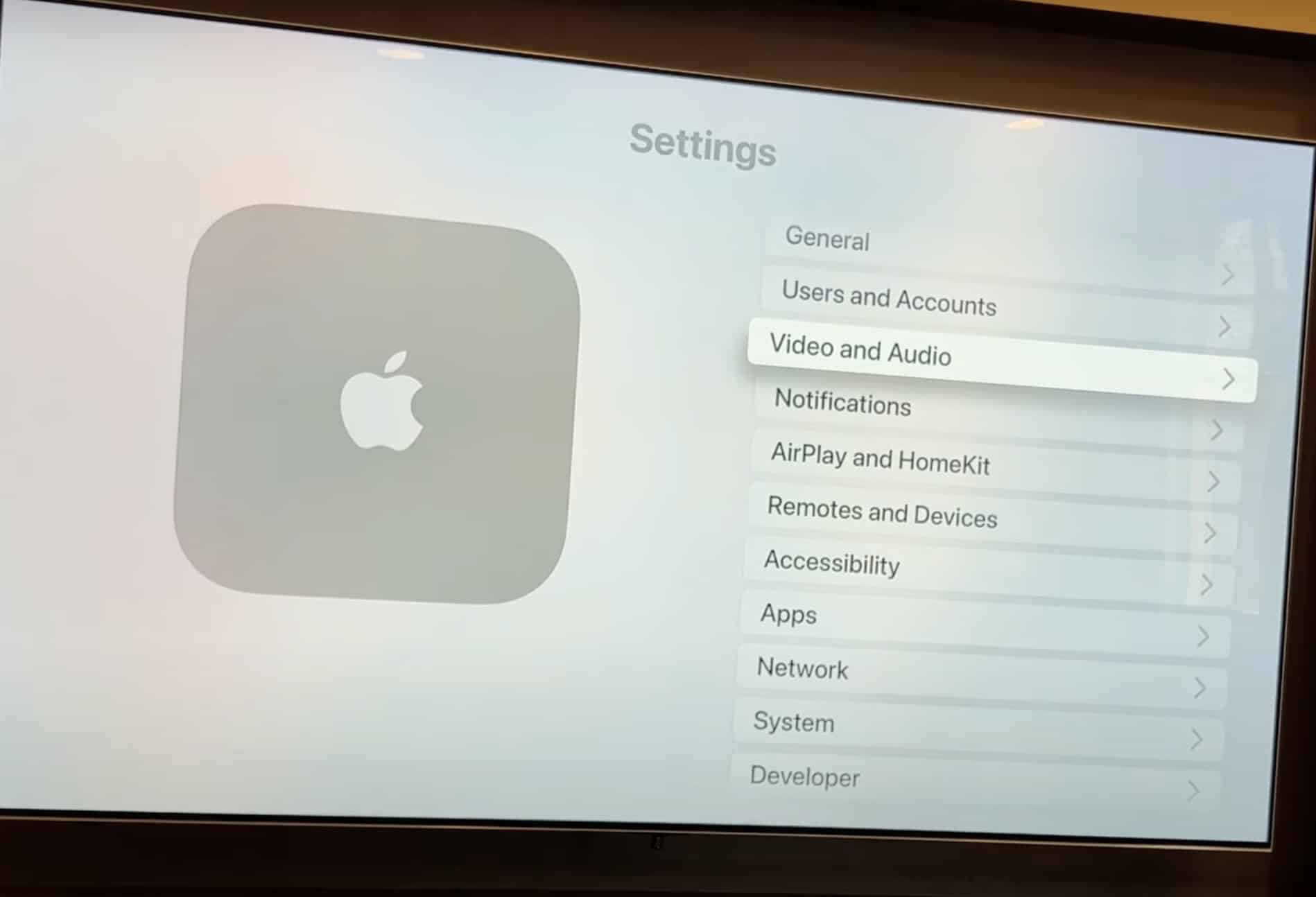
- Change Format to 4K SDR.
That’s it. By setting SDR as the default, you remove the constant switching. The picture stays stable, and the blackouts vanish.
But What If You Still Want HDR?
Disabling HDR as the default doesn’t mean losing it entirely. The trick is to let your Apple TV decide when HDR is actually needed instead of forcing HDR all the time.
You do that with Match Content.
- Go to Settings.
- Open Video and Audio.
- Scroll to Match Content.
- Turn on Match Dynamic Range and Match Frame Rate.
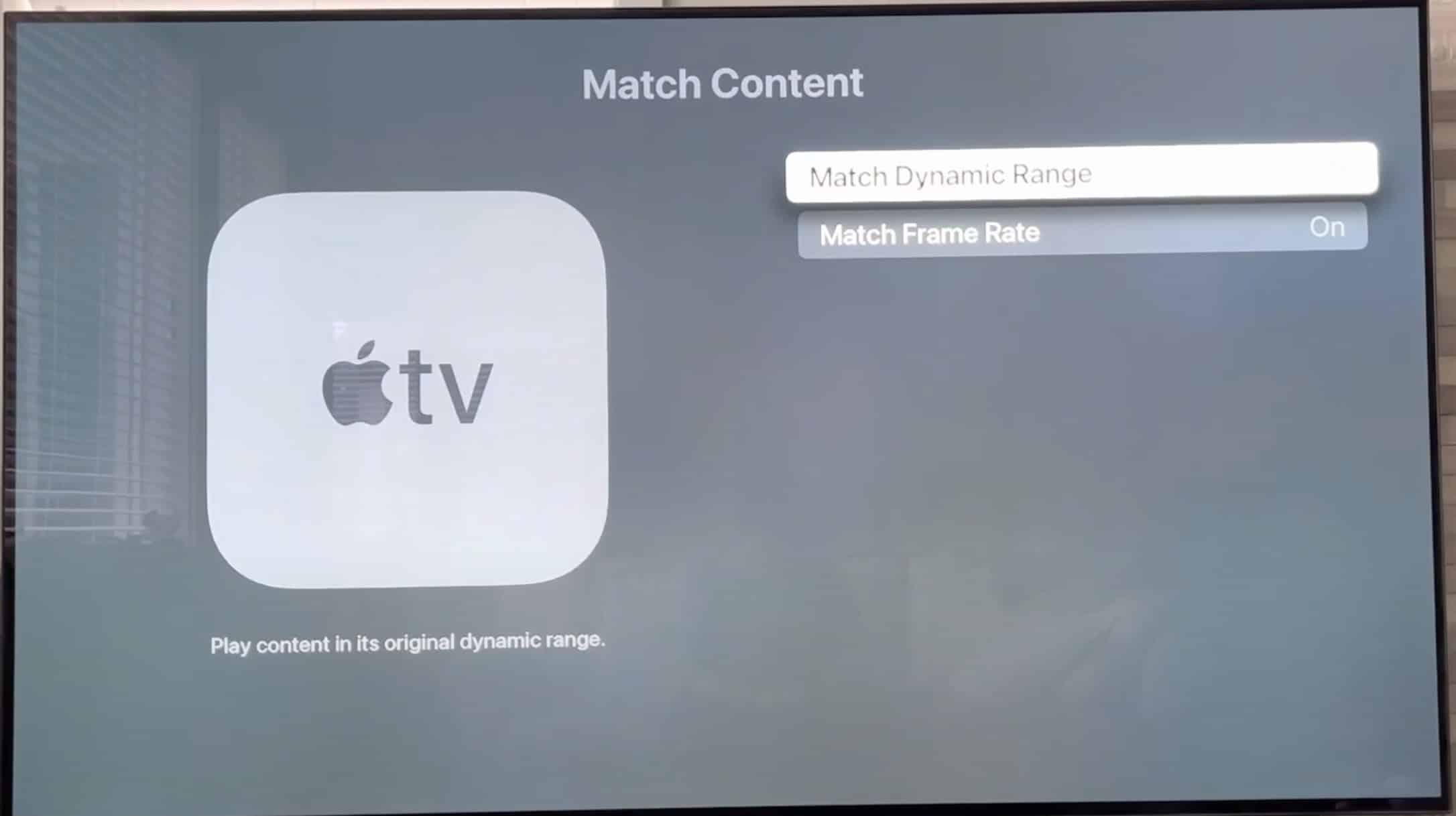
With these toggles on, your Apple TV will only switch to HDR when the movie or show actually supports it. Everything else stays in SDR, so your screen doesn’t flicker every time an ad rolls or the app changes formats.
Check Your HDMI Cable
Blackouts aren’t always about HDR. Sometimes the HDMI cable just can’t handle what your Apple TV is trying to send through it. If you upgraded your TV or switched to 4K HDR, your old cable might not be up to the job.
A quick checklist:
- Reseat both ends of the HDMI cable.
- Try a different HDMI port on your TV, ideally HDMI 1.
- Swap the cable for a Premium High Speed HDMI cable for HDR10 or Dolby Vision content.
- If you have an HDMI switch or AV receiver in the middle, bypass it temporarily.
If the blackouts disappear when you plug the Apple TV straight into the TV, you found your culprit.
Adjust Apple TV Video Resolution Manually
If the screen stays black as soon as Apple TV starts up or behaves strangely when switching videos, you can force it to cycle through resolutions.
Hold these buttons for five seconds:
Menu + Volume Down (Apple TV 4K or HD).
Apple TV will test different resolutions every 20 seconds. Once one works smoothly, select OK.
This resets the handshake between your TV and Apple TV and usually clears up glitchy video behavior.
Match Content Settings Causing Flickering?
Sometimes flicker happens because the TV is jumping between refresh rates too often. If your screen flickers but doesn’t fully black out, try temporarily turning off the Match settings:
Settings → Video and Audio → Match Content.
Toggle off both options.
If the flicker stops, you know your TV struggles with rapid frame rate shifts.
Check Power Connections
It sounds simple, but unstable power can trigger blackouts too.
- Unplug your Apple TV for 30 seconds.
- Try a different outlet or power strip.
- Swap power cables if you have a spare.
A loose power connection can cause momentary dropouts that look like video issues.
When the Issue Isn’t Video at All
If you see a black screen but still hear audio, that’s almost always HDR switching or HDMI. But if the screen goes black AND audio cuts out, you might be dealing with an app freeze.
Try this shortcut:
Hold Menu + TV button to restart the Apple TV.
Or go to Settings → System → Restart.
For stubborn apps, force quit by double-pressing the TV button and swiping the app away.
Bottom Line
Blackouts during playback on Apple TV almost always come from HDR switching, HDMI cable issues, or mismatched content settings. The fastest, cleanest fix is switching default output to 4K SDR and enabling Match Content. That stops constant format hopping while still giving you the best visuals when the content supports it.




Discussion