

Sometimes, iMessage texts show up from Gmail addresses instead of phone numbers. These are usually sent from someone’s Apple ID that is tied to Gmail and are mostly spam or unwanted messages. The tricky part is that iMessage does not let you block Gmail as a whole.
Instead, you can block specific senders or filter unknown contacts. In this guide, I’ll show you how to block Gmail texts in iMessage and keep your inbox clean.
Table of contents
How to block Gmail texts on iMessage?
1. Block the Gmail sender directly
- Open the conversation in iMessage.
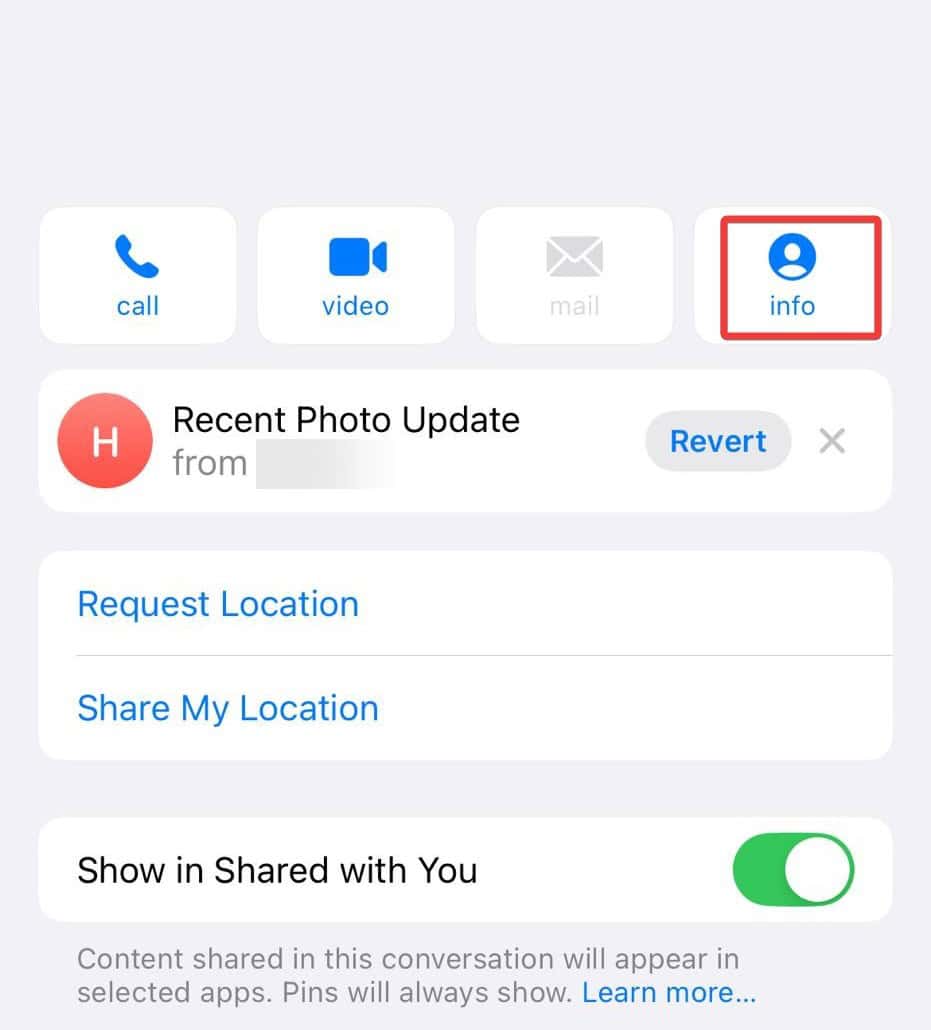
- Tap the contact name or email at the top.
- Tap Info.
- Scroll down and select Block Caller.
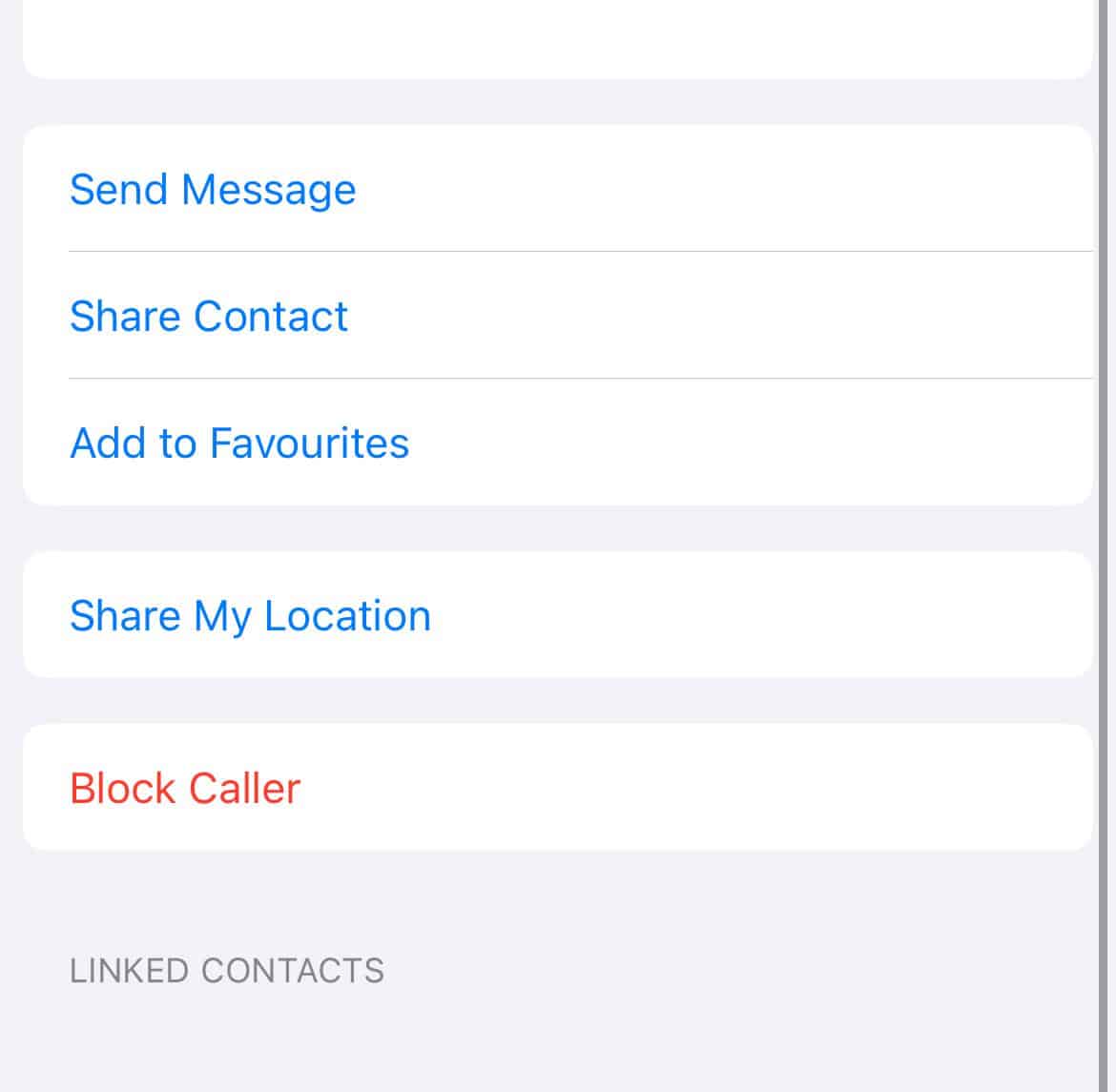


This blocks the sender, stopping all iMessages, calls, and FaceTime requests from that Gmail Apple ID. You can similarly block text messages on a Mac.
Don’t miss the best of The Mac Observer
Set us as a preferred source and our Apple reporting ranks higher in your Google Search results and Discover feed — one tap, no account changes.
As far as I have seen, the option is not always available. If that’s the case, head to the next method.
2. Use Filter Unknown Senders
- Go to Settings > Messages > Unknown & Spam.
- Toggle on Filter Unknown Senders.
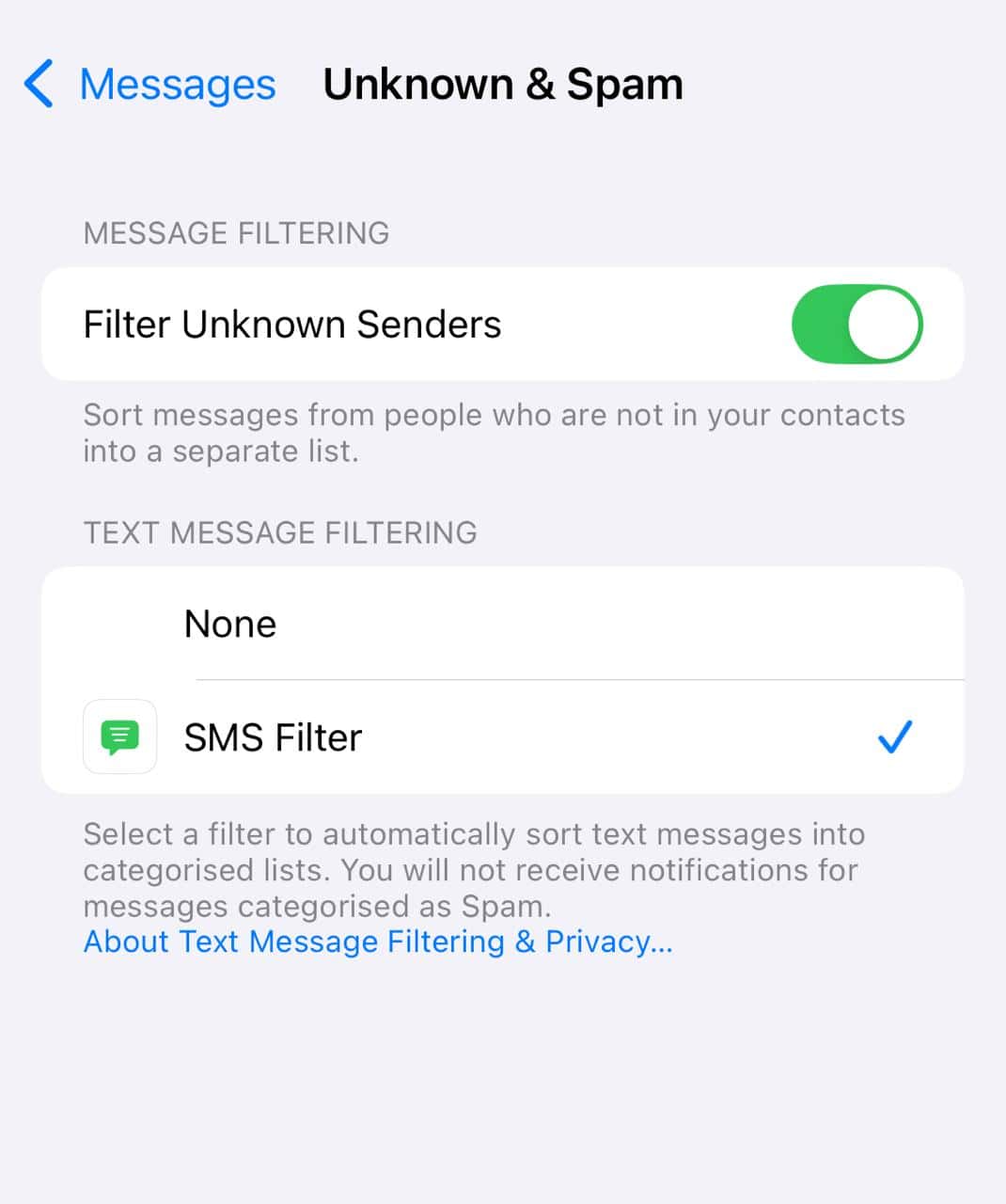
- Now, messages from people not in your contacts (including Gmail addresses) will go to a separate tab called “Unknown Senders.”

This does not block them, but it hides them from your main inbox.
3. Report junk messages
If you see “Report Junk” under a message from a Gmail address:
- Tap Report Junk.
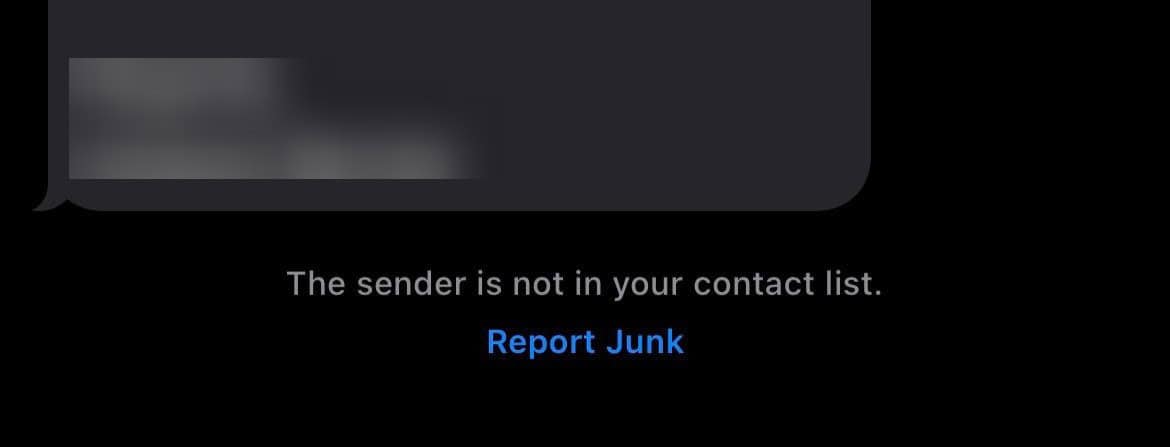
- Confirm the action.

This sends the details to Apple and deletes the message from your device.
4. Sign out and restrict Apple ID messages (optional)
If Gmail spam is frequent, you can adjust your Apple ID settings:
- Go to Settings > Messages > Send & Receive.
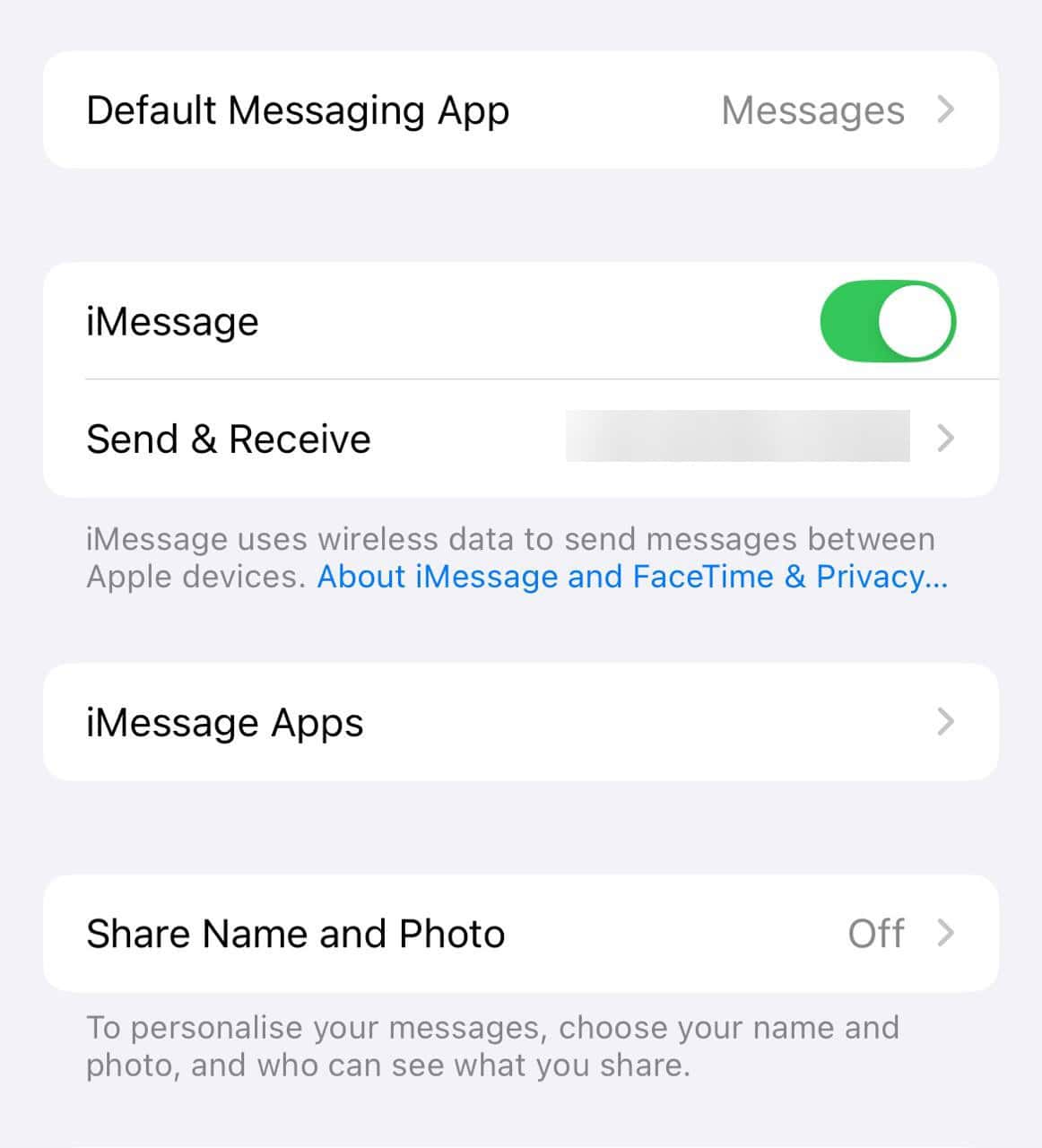
- Under You can receive iMessages to and reply from, uncheck any email addresses you no longer want to use.

This won’t stop Gmail senders completely, but it ensures your iMessage is tied only to your number or selected addresses.
If you have got too many of these messages, learn how to mass delete texts on iPhone.
Tips
- Add trusted people to your contacts. That way, Gmail senders you know will not end up in the “Unknown Senders” tab.
- Use the block option as soon as you get an unwanted Gmail message.
- If spam is frequent, keep Filter Unknown Senders turned on permanently.
- Check your Apple ID settings to limit how people can reach you on iMessage.
Frequently Asked Questions
No. iMessage does not allow blocking by domain. You can only block individual Gmail Apple IDs.
Many Apple users set their Apple ID email (often Gmail) to send iMessages. That is why the texts may appear from Gmail addresses.
Yes. Blocking stops all communication from that contact across iMessage, FaceTime, and phone calls, if both are linked to the same Apple ID.
It helps Apple improve spam filters, but it does not guarantee that all Gmail-based spam will stop.
Summary
- Block Gmail senders in iMessage through Info > Block this Caller.
- Turn on Filter Unknown Senders in Messages settings.
- Report Gmail texts as junk when available.
- Adjust Apple ID settings to control how people can reach you.
Conclusion
While there is no single switch to block all Gmail texts in iMessage, you can control who gets through. Blocking specific Gmail senders, filtering unknown contacts, and reporting junk will cut down unwanted messages. With these steps, your iMessage inbox will stay focused on conversations that matter.
If you are new to the Apple ecosystem, learn how to use iMessage and utilize the available features!


Discussion