
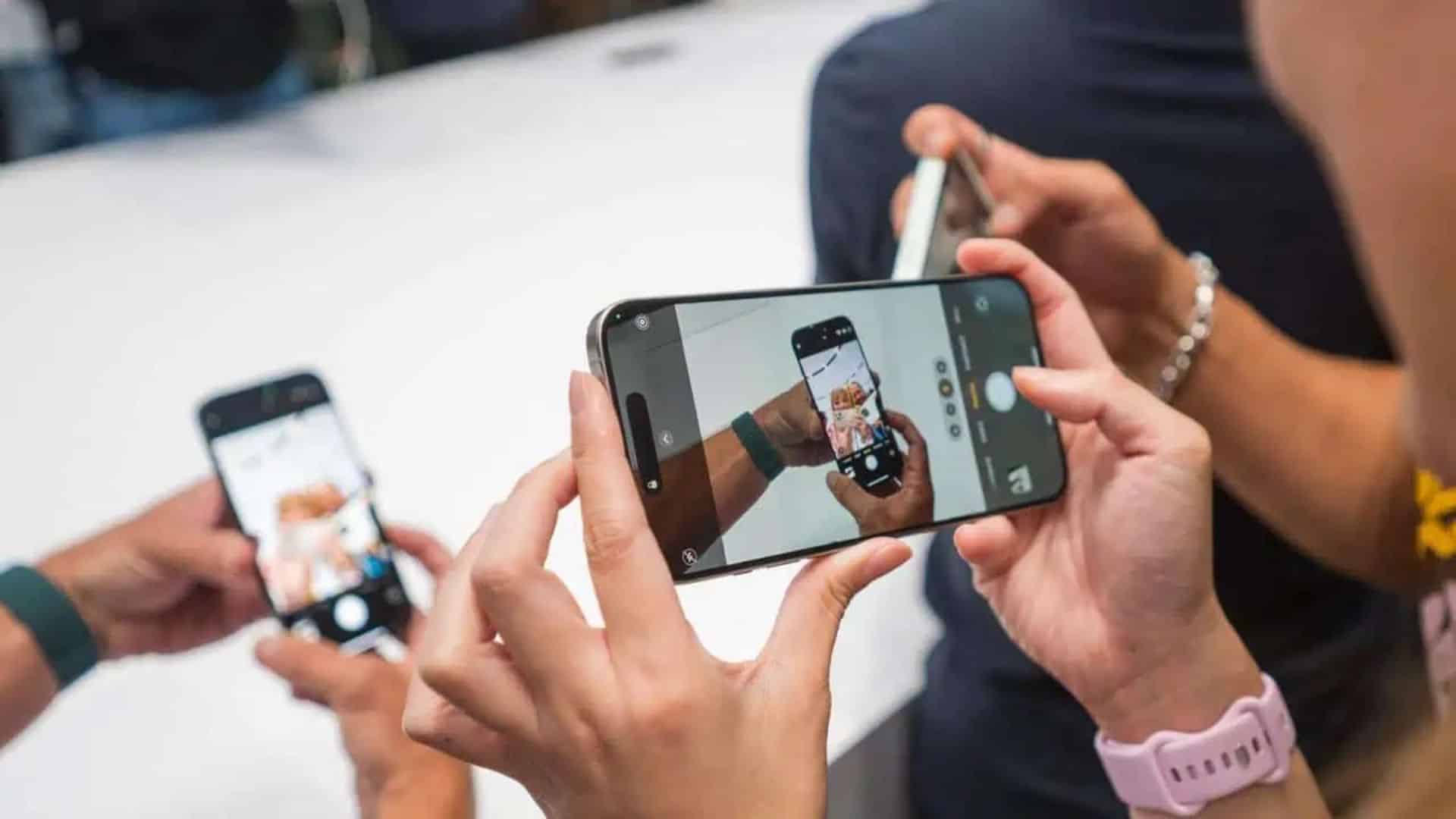
iOS 26.2 should have been a routine update, yet plenty of users say it turned their camera into a headache. Blurry selfies, frozen viewfinders, a camera app that refuses to switch lenses, or an app that opens to a black screen. If this sounds familiar, you’re not imagining it. These issues usually trace back to software hiccups introduced by the update, and the good news is you can fix most of them at home.
Let’s break it down and get your camera working again.
Table of contents
What’s Causing Camera Bugs in iOS 26.2
Camera failures after an update rarely point to hardware damage. Most of the time, it comes down to one of a few things:
Don’t miss the best of The Mac Observer
Set us as a preferred source and our Apple reporting ranks higher in your Google Search results and Discover feed — one tap, no account changes.
Software glitches
iOS updates sometimes introduce bugs that only show up once millions of people install them. Camera issues are a classic example.
Low storage
Your camera needs storage headroom to process photos and videos. If your device is running on fumes, expect lag, delays, or failed captures.
Conflicting apps
Apps that request camera access can interfere with the default camera app. A misbehaving third party camera or social media app can block or confuse the system.
Settings misfires
After an update, certain settings may shift or break, causing permissions or configurations to fall out of sync.
Actual hardware damage
Not the most common cause here, but if you’ve dropped your phone recently, don’t rule it out.
How to Fix iOS 26.2 Camera Bugs
1. Restart the Camera App
This sounds trivial, but here’s the thing: the camera loads a lot of system level processes. If one of them glitches, the app can’t recover until you force it to quit.
- Swipe up from the bottom of the screen to open the app switcher.

- Find the Camera app and swipe it away.
- Reopen it from your home screen.
If the problem was minor, this alone might sort it out.
2. Restart Your iPhone
A restart flushes out temporary bugs that survive an app restart. It’s simple and fixes more than people expect.
For all Face ID models:
- Press and hold the side button and either volume button.

- Slide to power off.
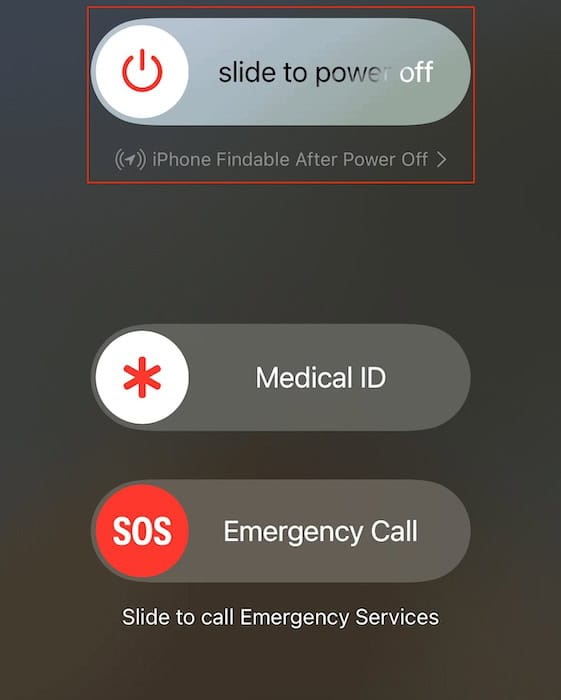
- Wait 30 seconds, then turn it back on.
For older models with a home button:
- Press and hold the side or top button until the slider appears.
Once it boots up again, open the camera and test it.
4. Reset All Settings
This is more drastic, but it avoids wiping your photos, apps, and files. It resets permissions, network settings, and general system configurations back to normal.
How to do it:
- Settings
- General
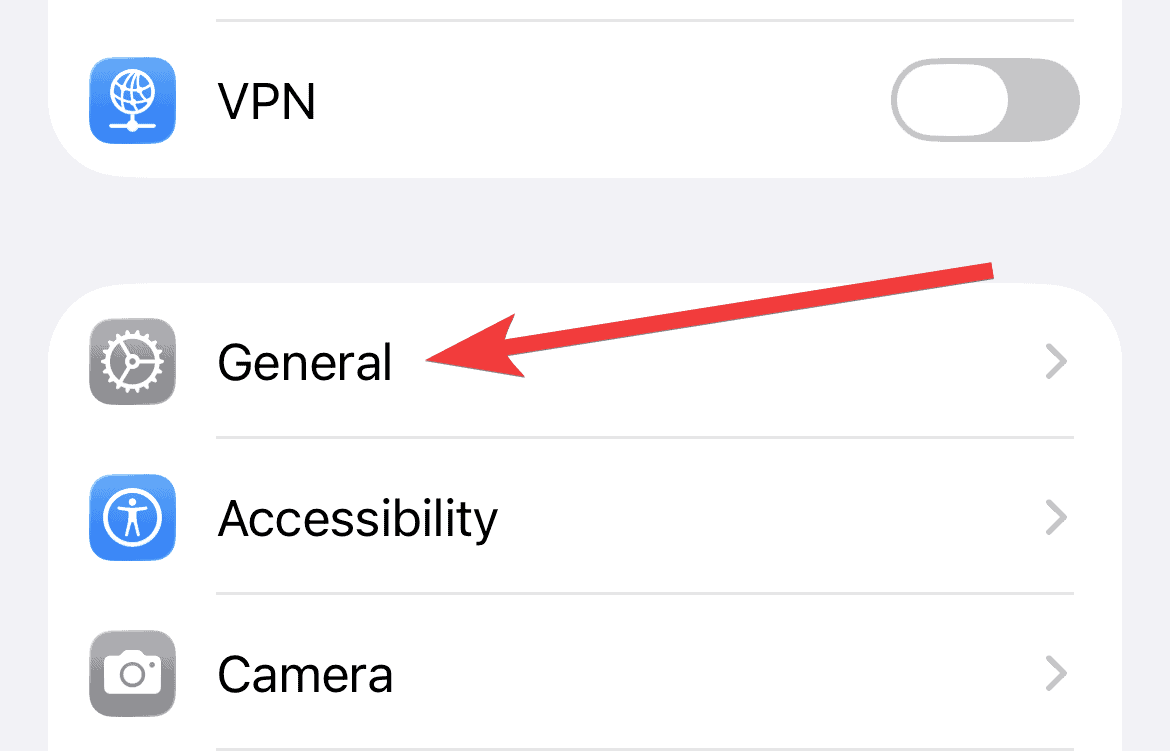
- Transfer and Reset iPhone
- Reset
- Reset All Settings
You’ll need to reenter WiFi passwords and reconnect Bluetooth devices afterward. If your camera issues began right after updating, this can clear the conflict.
5. Wait for the Next Patch
Sometimes the truth is simple: the update itself is broken. When thousands of users complain about the same bug, Apple notices. They usually patch issues like camera freezes or black screens in the next small update.
Check for updates here:
- Settings
- General
- Software Update
Final Thoughts
Camera bugs after an update are annoying, but they’re usually fixable. Start with the quick steps. If those don’t cut it, wait for the next iOS patch and keep an eye on storage and permissions.
If 26.2 introduced the bug, 26.2.1 or 26.3 may remove it.




Discussion