

Keeping too many tabs open in Safari on your iPhone can slow down performance, clutter your browsing experience, and drain battery life. Whether you’re tidying up your digital workspace or troubleshooting browser issues, knowing how to close all tabs at once is a useful skill. This guide walks you through the process step by step, including tips for managing Safari tabs efficiently and what to do if things go wrong.
Table of contents
Why You Might Want to Close All Tabs
Safari tabs accumulate quickly, especially if you browse frequently or use your iPhone for research, shopping, or reading. Over time, dozens of open tabs can make it harder to find what you need and may even affect Safari’s responsiveness. Fortunately, Apple provides a quick way to close all tabs without swiping through each one individually. This is especially helpful when managing Safari tabs across multiple devices using iCloud.
Method 1: Close All Tabs from the Tab Menu
This method is the fastest way to close all open tabs simultaneously. It works on iPhones running iOS 13 or later.
Don’t miss the best of The Mac Observer
Set us as a preferred source and our Apple reporting ranks higher in your Google Search results and Discover feed — one tap, no account changes.
- Open Safari on your iPhone.
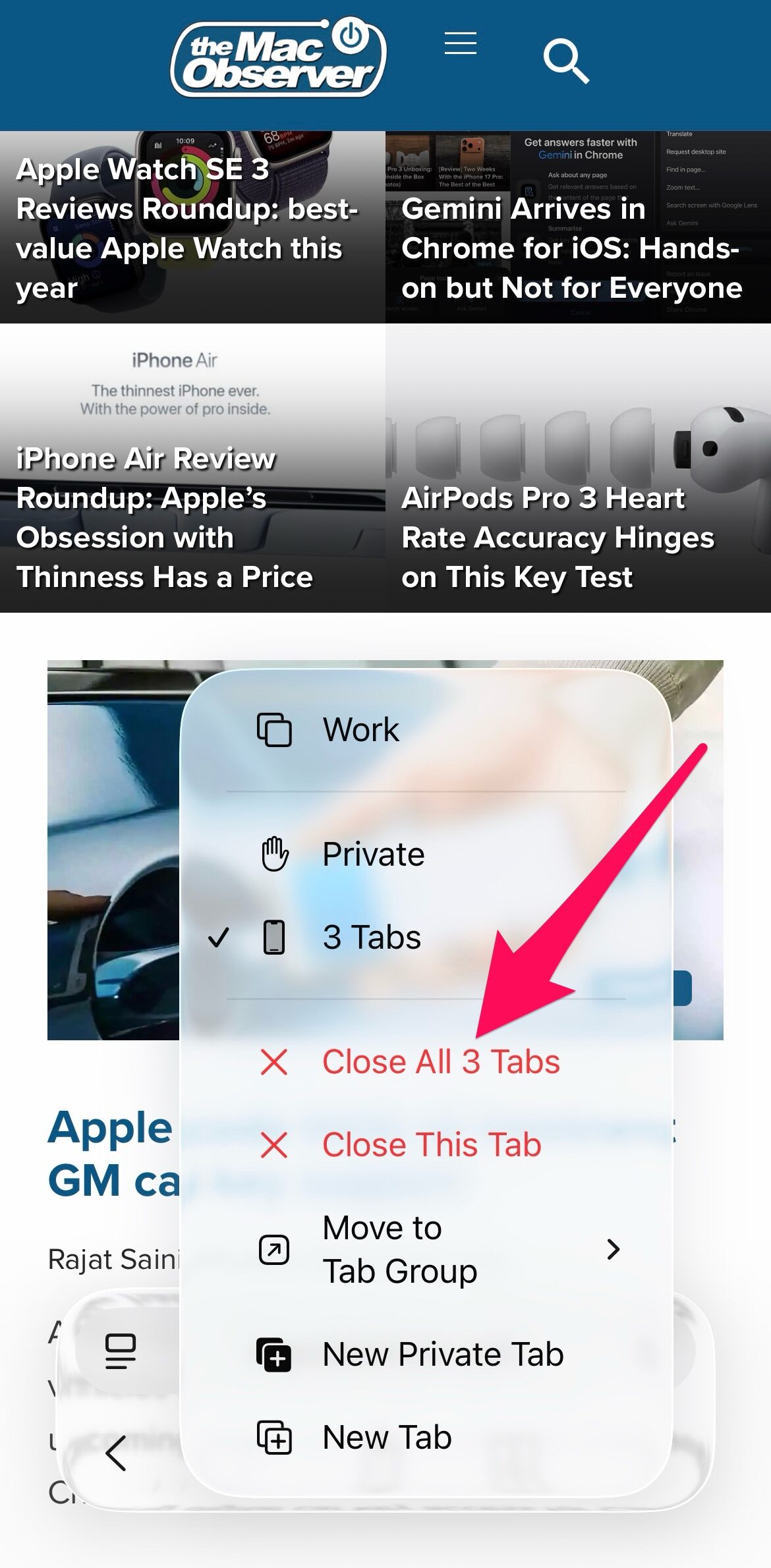
- Press and hold the tab icon in the bottom-right corner (it looks like two overlapping squares).

- Select Close All [X] Tabs from the pop-up menu.
Method 2: Close All Tabs from the Tab View
You can also do it from the screen where you see all tabs.
- Open Safari on your iPhone.
- Tap the tab icon in the bottom-right corner.
- Press and hold Done in the lower-right corner.
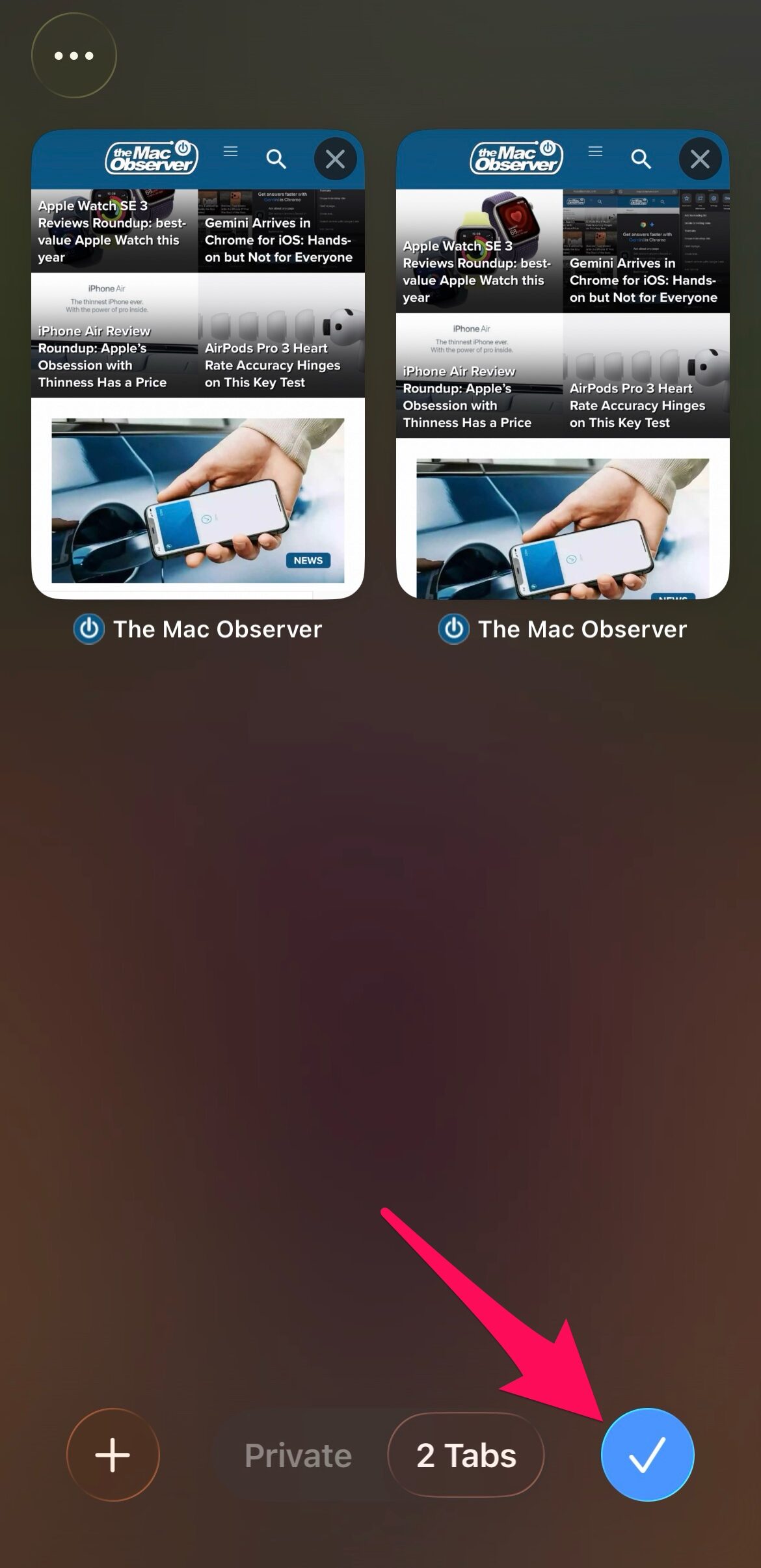
- Tap Close All [X] Tabs.
![Close All [X] Tabs](https://www.macobserver.com/wp-content/uploads/2025/10/How-to-Close-All-Tabs-on-iPhone_4-e1760517029478.jpg)
Method 3: Automatically Close Tabs After a Set Time
This setting helps you manage tab clutter automatically. It’s ideal if you often forget to close tabs manually.
- Open Settings on your iPhone.
- Scroll down and tap Apps.
- Tap Safari in the list of apps.
- Tap Close Tabs.
- Choose a time frame: After One Day, After One Week, or After One Month.
FAQ
No. Closing tabs does not affect your browsing history unless you clear it manually in Safari settings.
Yes. You can restore accidentally closed tabs in Safari by pressing and holding the plus (+) icon in the tab view.
If Safari remains sluggish, consider checking for software updates or reviewing what to do if Safari keeps crashing.
You may need to troubleshoot using steps outlined in how to fix it when Safari stops working.
Final Thoughts on Managing Safari Tabs
Closing all tabs on your iPhone is a quick way to declutter Safari and improve performance. Whether you do it manually or set it to happen automatically, keeping your browser organized can make a big difference. If you ever need to revisit a closed tab, remember you can easily restore accidentally closed tabs in Safari.



Discussion