

If iOS 26 keeps throwing Apple Account verification pop-ups in your face, you’re not imagining it. The alerts feel random at first, but they follow a pattern. Something in your setup isn’t lining up with Apple’s security checks, and iOS is trying to get your attention. Here’s the thing. These pop-ups almost never mean your account is in danger. They’re usually triggered by outdated credentials, a stuck service, or a simple system glitch. The good news is you can stop them with a handful of straightforward fixes.
Let’s break it down and get your iPhone back to normal.
Table of contents
Why iOS 26 Keeps Asking for Verification
There isn’t just one cause. A few common triggers show up again and again:
Don’t miss the best of The Mac Observer
Set us as a preferred source and our Apple reporting ranks higher in your Google Search results and Discover feed — one tap, no account changes.
You changed your Apple ID password somewhere else
If you updated your password on your Mac, iPad, or the web but not on your iPhone, iOS 26 will keep nudging you until everything matches.
A security check was triggered
Apple flags suspicious sign-ins or questionable activity. When that happens, you’re asked to confirm it’s still you.
iOS bugs or stalled services
A half-finished update or a stuck app download can cause constant verification requests.
Inactive sign-ins
If you haven’t authenticated your Apple ID on this device for a while, iOS tries to refresh the session.
Once you know the likely cause, fixing it becomes a lot easier.
Fix 1: Force Restart Your iPhone
A force restart is basic, but it clears temporary glitches instantly.
- iPhone X, 11, 12, 13, 14, 15, 16:
Press and quickly release Volume Up, then Volume Down. Hold the Side button until the Apple logo appears. - iPhone 7 series:
Hold Volume Down + Power until the Apple logo shows. - iPhone 6 and older:
Hold Home + Power until it restarts.
If the pop-ups return, move on.
Fix 2: Sign Out of iCloud and Back In
This resets the connection between your device and Apple’s servers.
- Go to Settings

- Tap your name
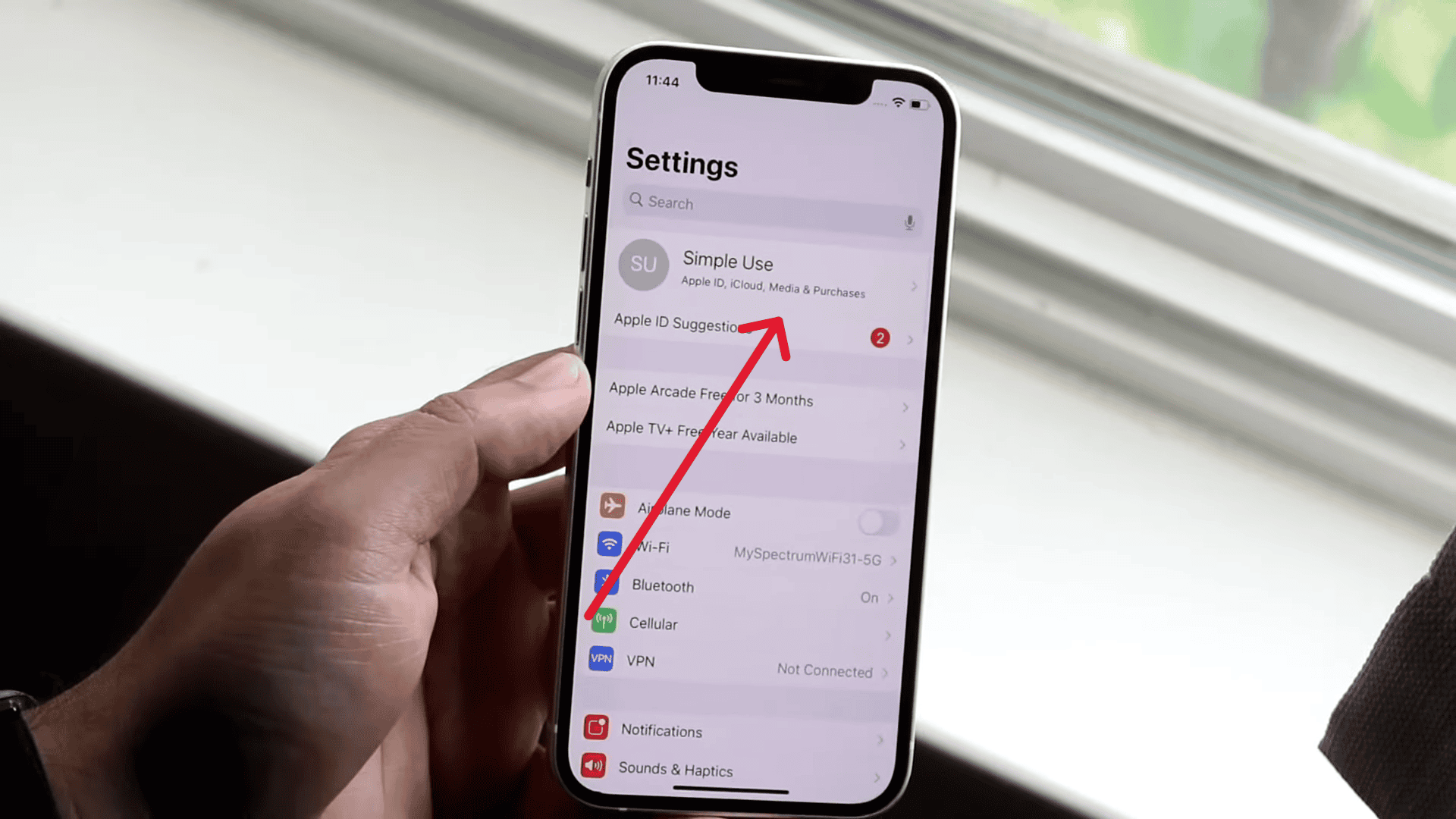
- Scroll down and choose Sign Out
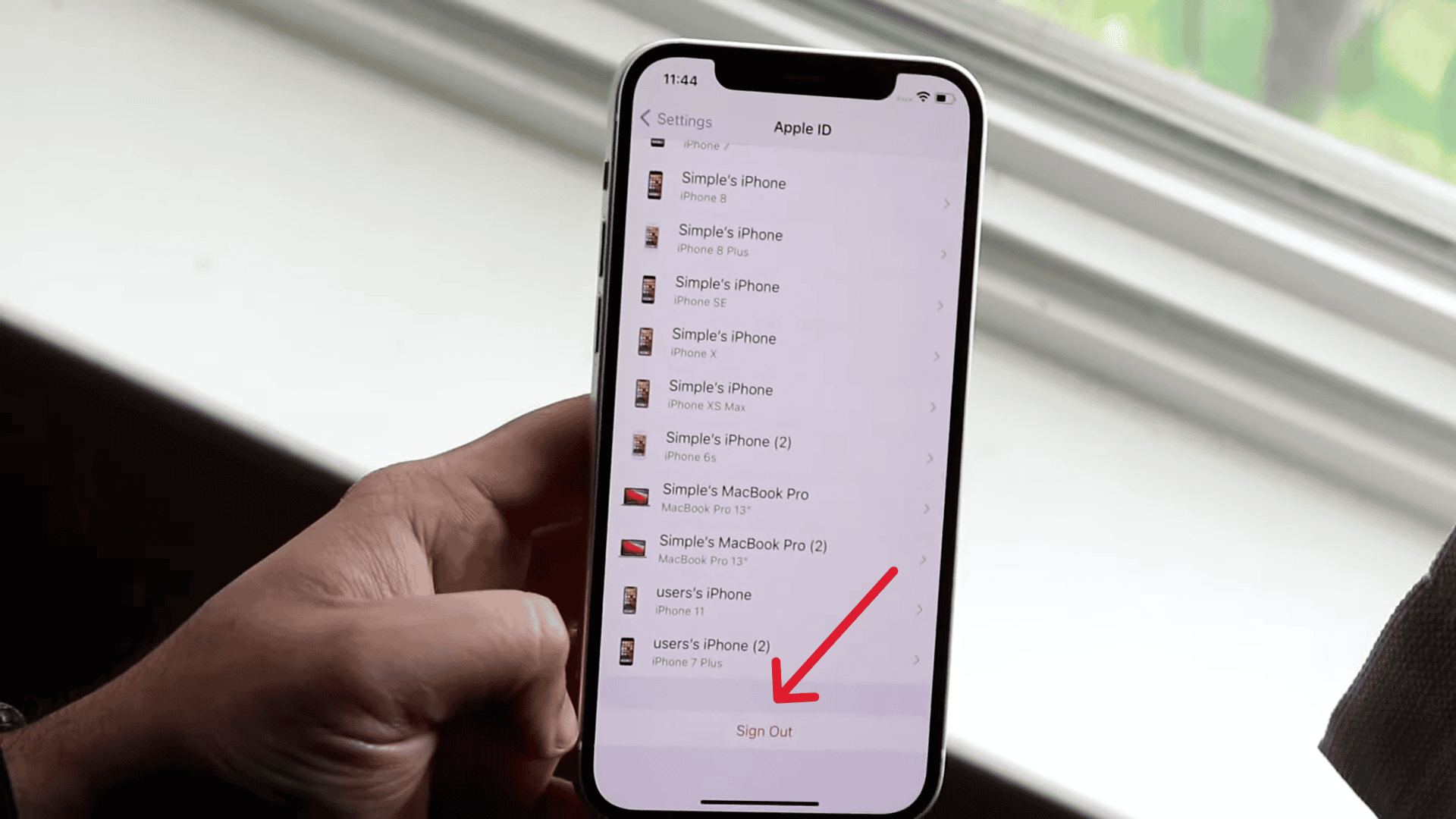
- Restart your iPhone
- Sign in again


If something in your iCloud session was corrupted, this clears it.
Fix 3: Update iOS and All Apps
Sometimes the system is simply asking for verification because something didn’t finish updating.
Do these:
- Open App Store and finish or restart any stuck downloads
- Go to Settings → General → Software Update

- Install the latest iOS 26 patch

A lot of persistent pop-ups vanish the moment everything is updated.
Fix 4: Reset Your Apple ID Password
If the verification pop-ups started after suspicious activity, this is your next step.
On iPhone:
Settings → Your Name → Password & Security → Change Password
On the web:
appleid.apple.com → Sign In → Security → Change Password
Once everything syncs, the pop-ups usually stop.
Fix 5: Toggle FaceTime and iMessage Off and Back On
Both services depend on your Apple ID. If one stalls, you get repeated alerts.
Turn off FaceTime:
Settings → FaceTime → toggle off → wait → toggle on
Enter your Apple ID when prompted.
Turn off iMessage:
Settings → Messages → toggle off → wait → toggle on
This refreshes your authentication across Apple’s messaging network.
Fix 6: Reset All Settings
This doesn’t erase your data, but it does wipe system preferences. If a broken setting is triggering the pop-ups, this will squash it.
Settings → General → Reset → Reset All Settings
Your device restarts, and you’ll need to reconfigure Wi-Fi and a few preferences, but your files stay safe.
Fix 7: When Nothing Works
Sometimes the cause isn’t something you can fix manually. A corrupt Apple ID session or a deeper activation issue can keep the pop-ups alive no matter what you do.
At that point, your best move is signing out entirely, removing the Apple ID from the device, and re-adding it cleanly. If the verification loop is tied to an old or partially-removed account, this resets everything at once.



Uck facetime and imessages, much better free apps out there.
My advice is to ignore it. I am (for now) succesfully trying this attitude for the last week. Just tap “not now”. Yes it will come back. But it is easier to tap “not now” button 10 times a day than to enter password, or password and then date of birth, two security questions, then again password. Just to have the same problem back again tomorrow or within a few days. Apple is just poking fun at us. They must be totally amused reading all those (in fact non working) manuals how to get rid of this nuisance. The fact is they are doing this on purpose to make fun of us that is all. Don´t try to understand the imbecil IT nerd that is behind this.
Why do i keep getting Apple Verifiation Can you fix it I can’t
To solve this, first navigate to Settings > [Your Name] > Payment & Shipping to ensure no financial instruments are flagged in red; subsequently, if the fiscal data is sound, perform a complete sign-out by going to Settings > [Your Name] > Sign Out (at the bottom), restart your device to clear any cached authentication errors, and then sign back in to refresh the cryptographic token linking your device to Apple’s servers.
You should jump on the left leg 10 times. Then jump on the right leg 15 times. Next run the marathon under 2 hours. And at last say aloud I love Apple three times. There is at least one person in the whole universe that has solved Apple verification pop up doing this. Other possibility is either to ignore it or buy something else.