

Want to create a new Apple ID on your iPhone? You don’t need a computer or complicated setup aș Apple makes it simple to get started directly from your device. Whether you’re setting up your very first iPhone, switching accounts, or creating a second Apple ID for specific use, the process takes just a few minutes. In this guide, you’ll learn exactly how to create a new Apple ID on your iPhone without losing your data, what to expect during setup, and how to troubleshoot common issues.
Table of contents
What to Know Before You Create a New Apple ID
Before you start, it’s important to understand that your Apple ID is at the center of everything you do with your iPhone. It controls your access to the App Store, iCloud storage, iMessage, FaceTime, Apple Music, and more. Creating a new Apple ID means you’ll essentially start fresh — your old purchases, subscriptions, and iCloud data won’t automatically transfer unless you set them up again.
You can create multiple Apple IDs, but you can only be signed into one iCloud account at a time on your iPhone. Some users make a second Apple ID to separate work and personal life, or to access a different regional App Store. Apple doesn’t stop you from creating another Apple ID, but you should keep your login details secure and avoid juggling too many accounts to prevent confusion.
Don’t miss the best of The Mac Observer
Set us as a preferred source and our Apple reporting ranks higher in your Google Search results and Discover feed — one tap, no account changes.
What Is an Apple ID?
An Apple ID(Apple Account) is the unique account that gives you access to Apple’s ecosystem of services. It’s tied to your email address and is used to sign in to iCloud, download apps from the App Store, and sync data like photos, contacts, and messages across devices.
When you create an Apple ID, Apple asks for basic details like your name, date of birth, email, and password. You’ll also set up security measures such as two-factor authentication, which ensures your account stays safe even if someone learns your password. Having an Apple ID is essential for making the most of your iPhone — without one, you’ll miss out on many of Apple’s most important features.
What to Do if You Forgot Your Apple ID
If you’ve previously used an Apple ID but forgot your email or password, you don’t always need to create a brand-new account. Instead, you can recover your existing Apple ID through Apple’s website or directly on your iPhone.
Go to Settings > [Your Name] > Sign-In & Security > Change Apple ID. From there, you can request account recovery. Apple will guide you through verifying your identity, often by sending a code to another trusted device or email. If recovery doesn’t work, you can visit iforgot.apple.com and follow Apple’s steps. Only create a new Apple ID if you’re sure you no longer have access to your old one, as having multiple IDs can make managing purchases and subscriptions more complicated.
How to Make a New Apple ID on Your iPhone or iPad
The good news is that Apple allows you to create a new Apple ID directly from your iPhone, no computer required. Here’s how:
- Open Settings. At the top of the screen, you’ll see the option to “Sign in to your iPhone.” Tap it.
- Choose “Create New Apple Account.” If you don’t see this option, sign out of any existing Apple ID first by going to Settings > [Your Name] > Sign Out.
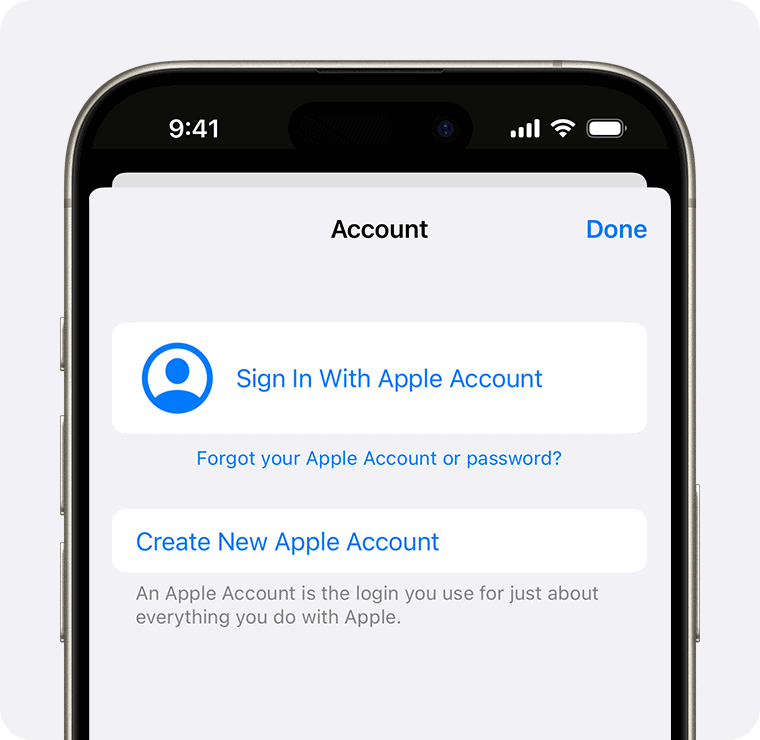
- Enter your details. Apple will ask for your first and last name, date of birth, and email. You can either use an existing email or create a free iCloud email during the process.
- Set a password and security. Choose a strong password and follow prompts for two-factor authentication. You’ll need to link your account to a trusted phone number.
- Add payment and billing info (optional). Apple will ask for a payment method. If you’d prefer not to add one, select “None.” This option appears if you aren’t signing up for subscriptions during setup.
- Verify your email. Apple will send a verification code to the email address you provided. Enter this code to activate your new Apple ID.
- Sign in and sync. Once created, your new Apple ID will be linked to your iPhone. From here, you can enable iCloud, download apps, and personalize your settings.

The whole process typically takes 5–10 minutes.
Tips for Creating a New Apple ID
When making a new Apple ID, always use an email account you can access long term, since you’ll need it for verification and recovery. Choose a strong password that you don’t reuse elsewhere, and write down your security questions in case you forget them later.
If you’re creating a new Apple ID for a child or family member, consider setting it up under Family Sharing. This allows you to share purchases without mixing up accounts and gives you control over parental settings.
It’s also smart to enable two-factor authentication right away. This adds a second layer of security and prevents unauthorized access. Finally, remember that if you already have an Apple ID, creating a new one won’t merge your data or purchases — those will remain tied to your old account.
Frequently Asked Questions
Yes, you can create another Apple ID, but only one iCloud account can be signed in at a time on a single iPhone. You can, however, use multiple Apple IDs for different services like iTunes and iCloud.
If you’re getting errors, it could be because you’ve reached Apple’s daily account creation limit, your device isn’t connected to Wi-Fi, or you’re trying to use an email already linked to an Apple ID. Switching to a different email usually fixes the problem.
Creating a new Apple ID won’t erase your iPhone, but you won’t have access to data, purchases, or iCloud backups tied to your old Apple ID. If you want to keep everything, make sure to stay signed in with your existing Apple ID or transfer purchases before switching.
Yes, when you reach the payment setup screen, select “None.” This allows you to create an Apple ID without linking a credit card, though you’ll still be able to download free apps and use iCloud.
You can’t use two Apple IDs at the same time for iCloud, but you can sign in with a different Apple ID for the App Store, iTunes, or Messages. Many users do this to separate work and personal use.
Summary
- Go to Settings > Sign in to your iPhone.
- Select Create New Apple ID and enter your details.
- Choose a password, set security, and add payment info (or select “None”).
- Verify your email and sign in.
- Start using your new Apple ID on iPhone.
Conclusion
Creating a new Apple ID on your iPhone is quick and straightforward, whether you’re a first-time iPhone user or just need a fresh account. By following these steps, you’ll have access to the App Store, iCloud, iMessage, FaceTime, and Apple’s full range of services in just a few minutes. Remember to use a secure email, enable two-factor authentication, and avoid juggling too many Apple IDs. With the right setup, your Apple ID will keep your digital life organized, safe, and fully connected across all your Apple devices.




Ok I will create my now