
If your iPhone 17 Pro battery does not last as long as you want, lowering the display’s refresh rate is one of the quickest ways to extend runtime. The iPhone’s adaptive ProMotion system can reach high refresh rates, which improves motion but consumes more power. You can limit the frame rate to reduce battery usage without affecting basic performance.
Table of contents
Turn Off ProMotion Max (Limit the Frame Rate)
Apple does not offer a ProMotion Max toggle in Display & Brightness. Instead, you can reduce the maximum refresh rate by turning on Limit Frame Rate in Accessibility. This caps the screen at approximately 60Hz, which uses less power throughout the day.
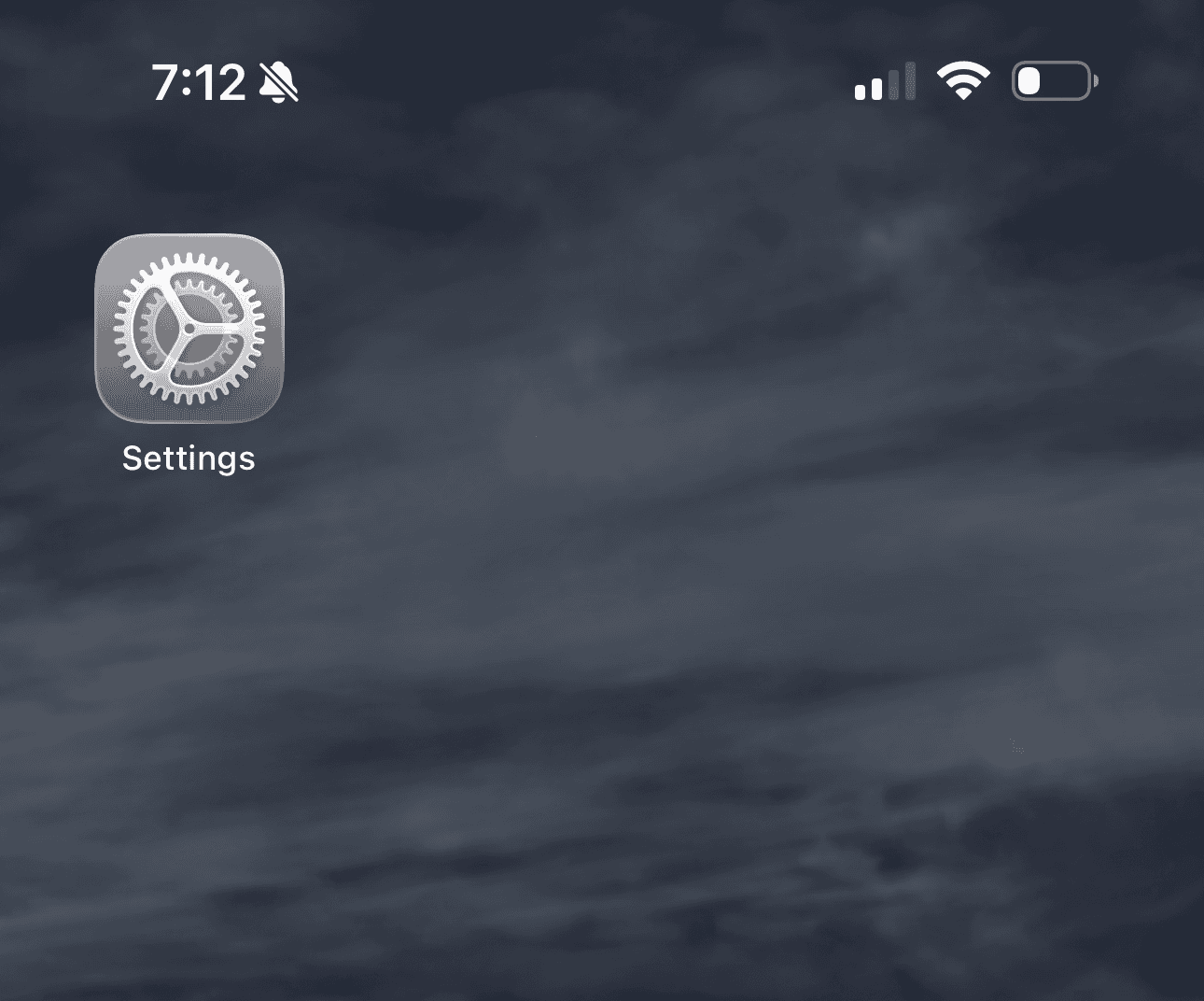
- Open Settings.
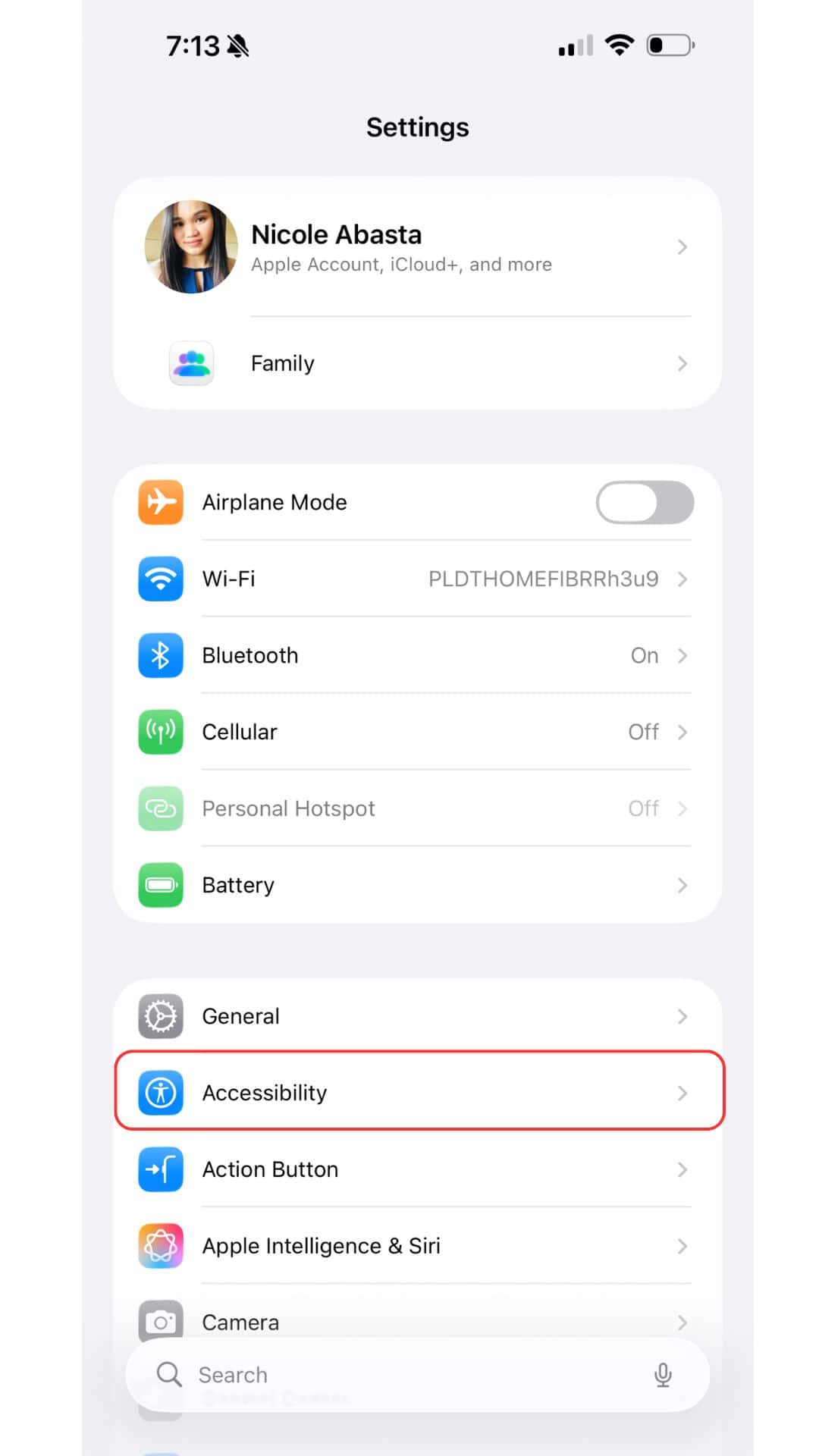
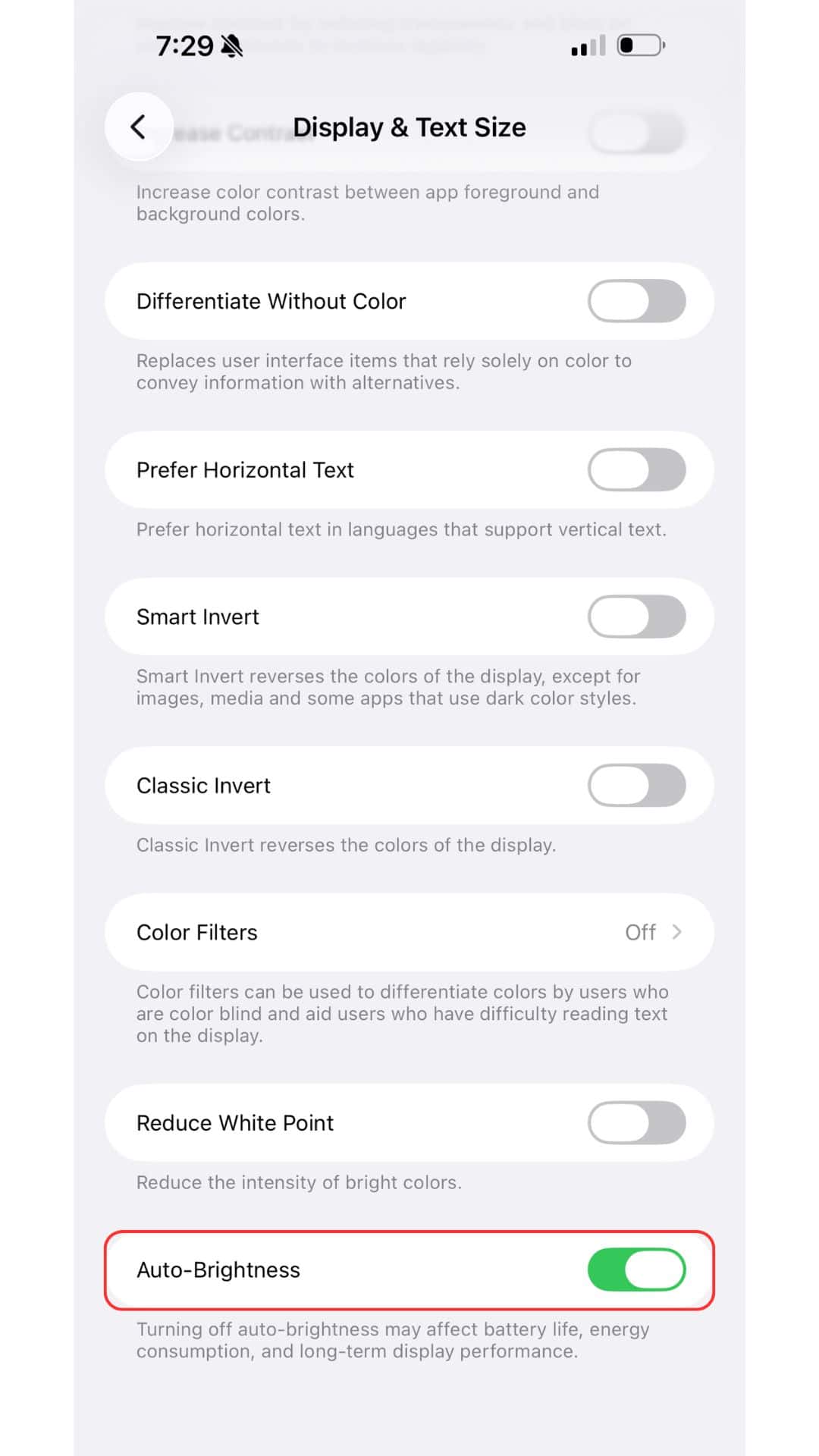
- Tap Accessibility.
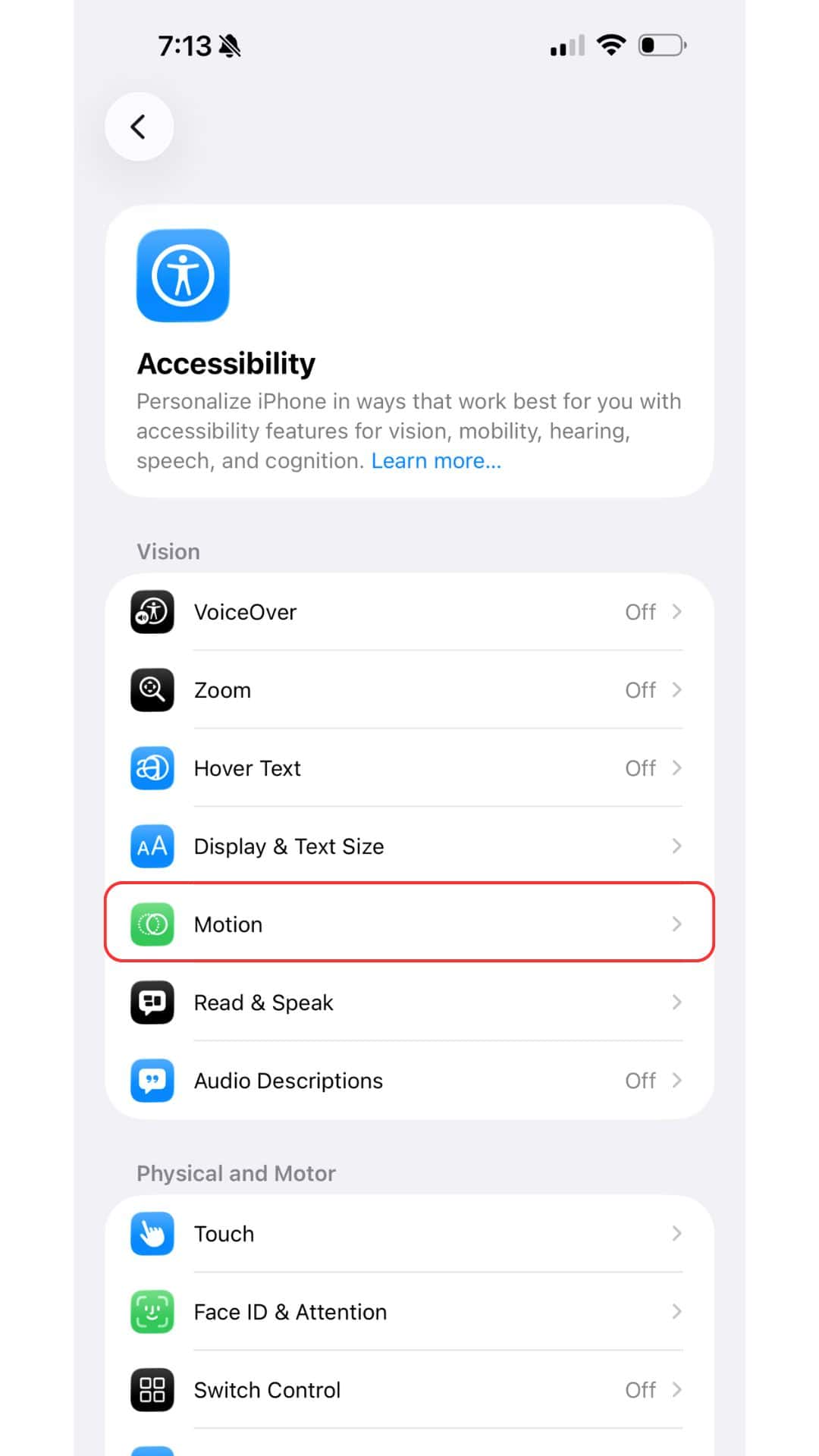
- Select Motion.
- Turn on Limit Frame Rate.
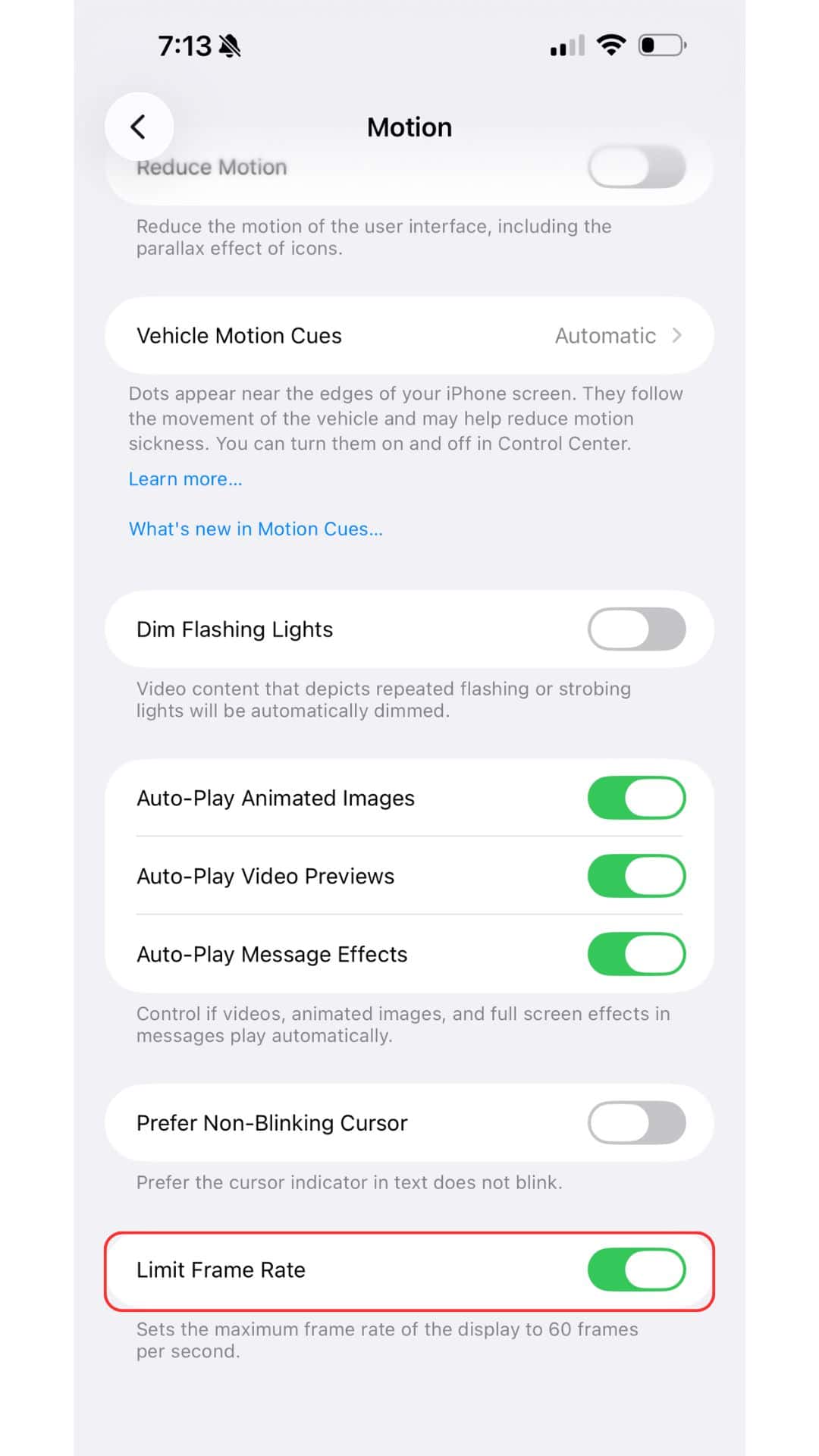
- Exit Settings. The change takes effect immediately.
When active, the iPhone stops using higher refresh rates for scrolling and animations. This reduces visual smoothness slightly, but many users do not notice the difference in everyday tasks.
Don’t miss the best of The Mac Observer
Set us as a preferred source and our Apple reporting ranks higher in your Google Search results and Discover feed — one tap, no account changes.
Additional Ways to Reduce Display Power Usage
After limiting the frame rate, you can adjust a few more settings to lower display-related battery drain.
Adjust automatic brightness
A bright display is one of the biggest contributors to battery drain.
- Go to Settings.
- Tap Accessibility.
- Choose Display & Text Size.
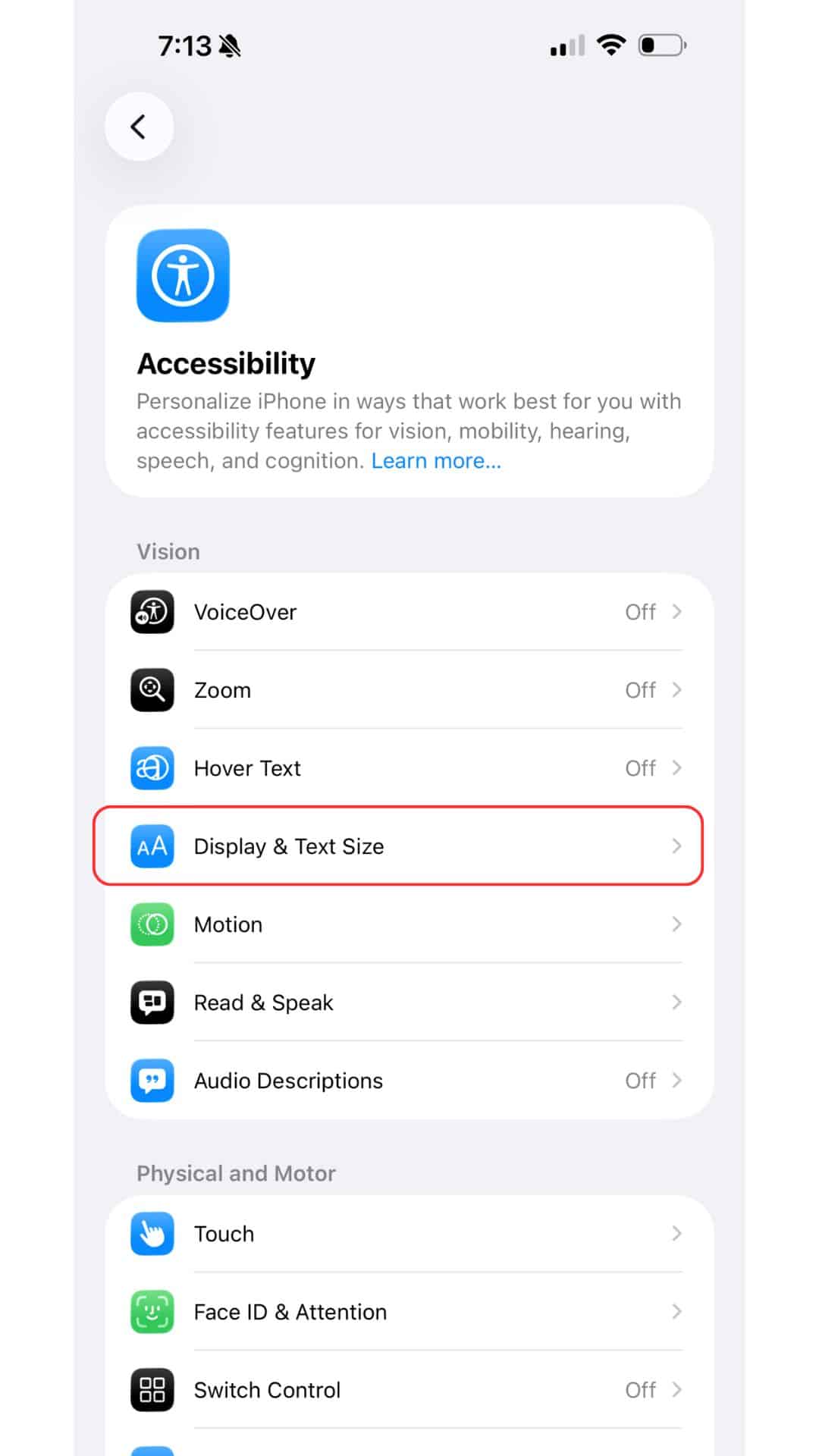
- Turn on Auto-Brightness.
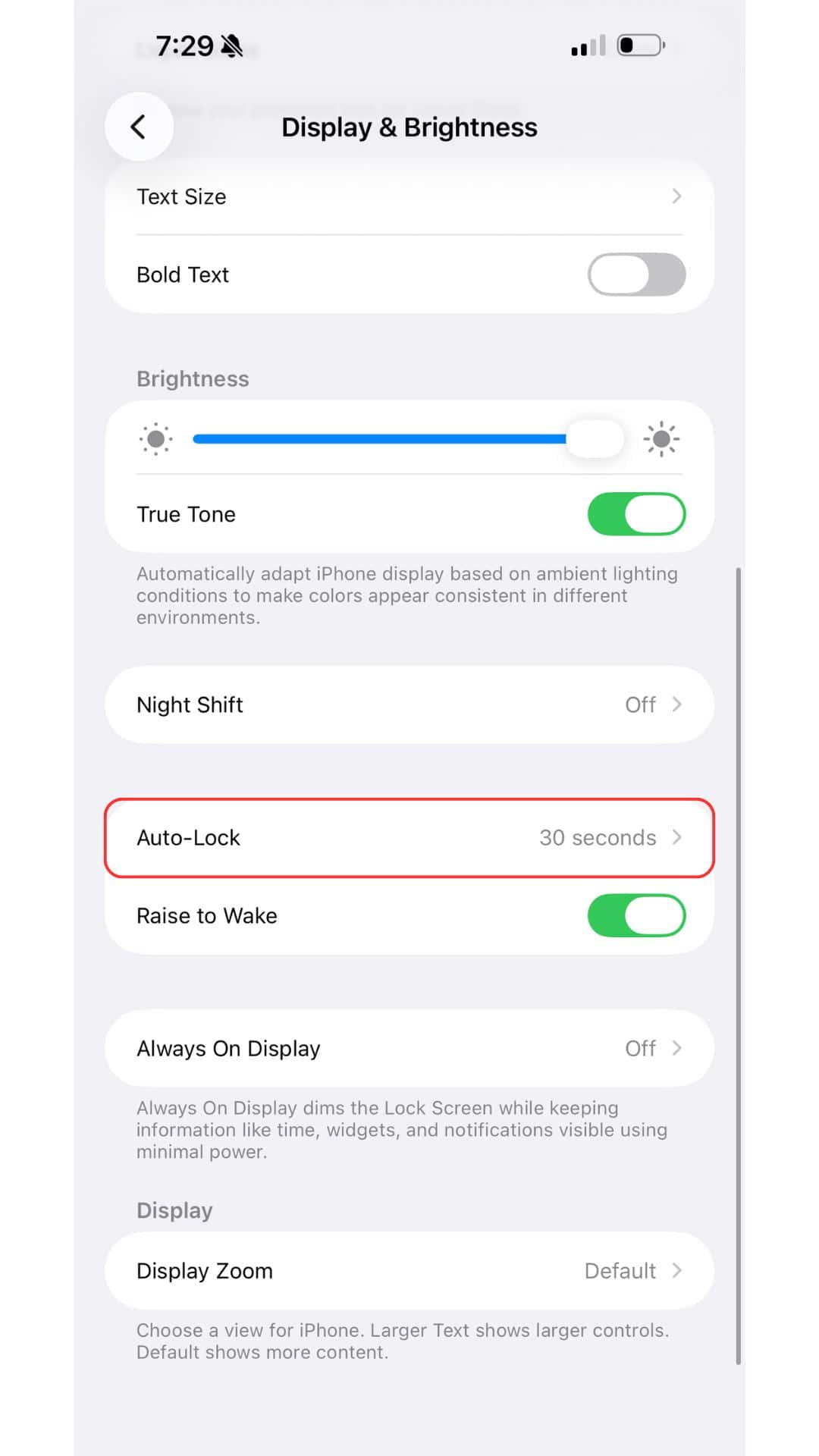
Shorten Auto-Lock
Reducing the time before the screen turns off helps preserve battery across the day.
- Open Settings.
- Tap Display & Brightness.
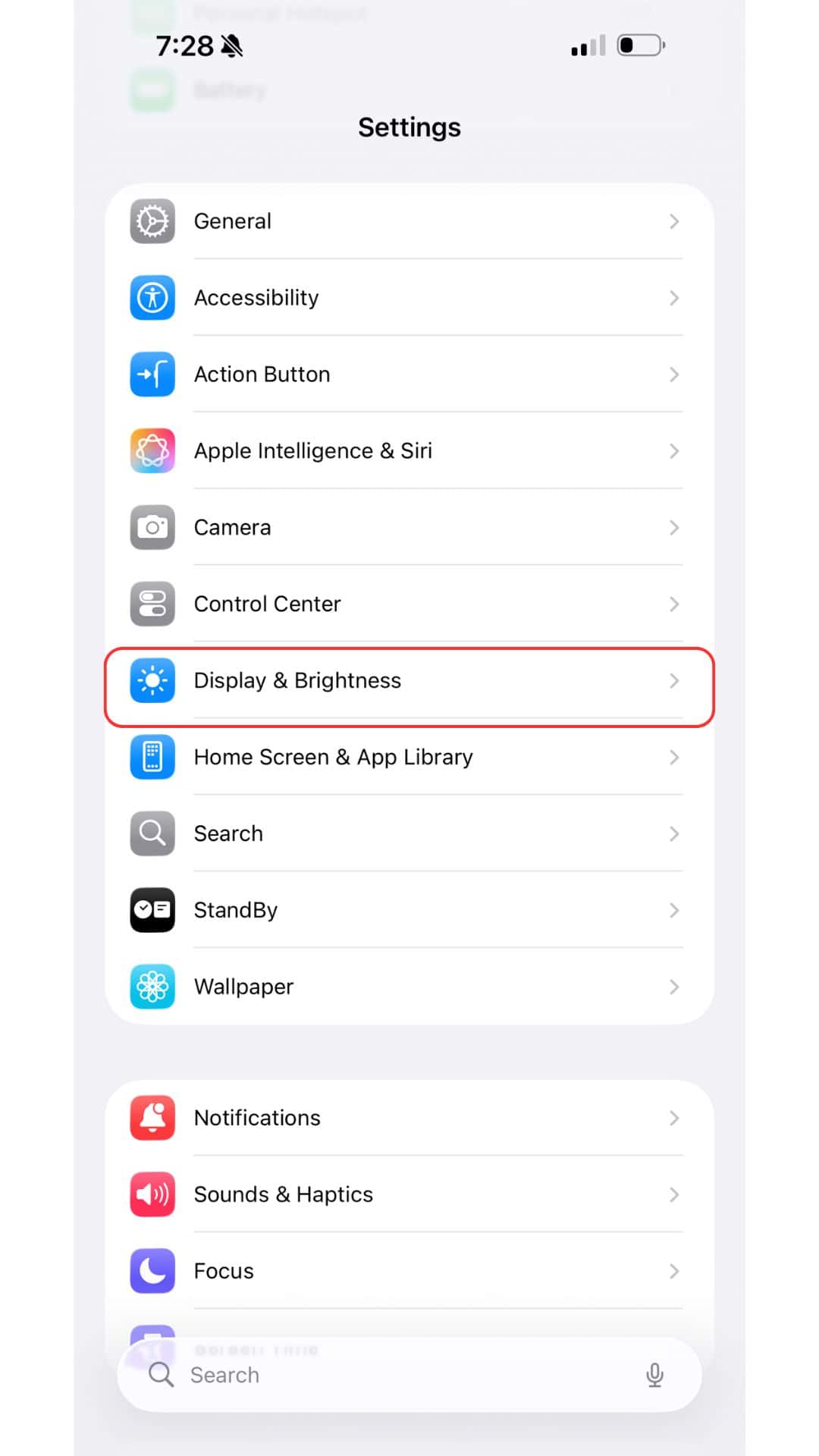
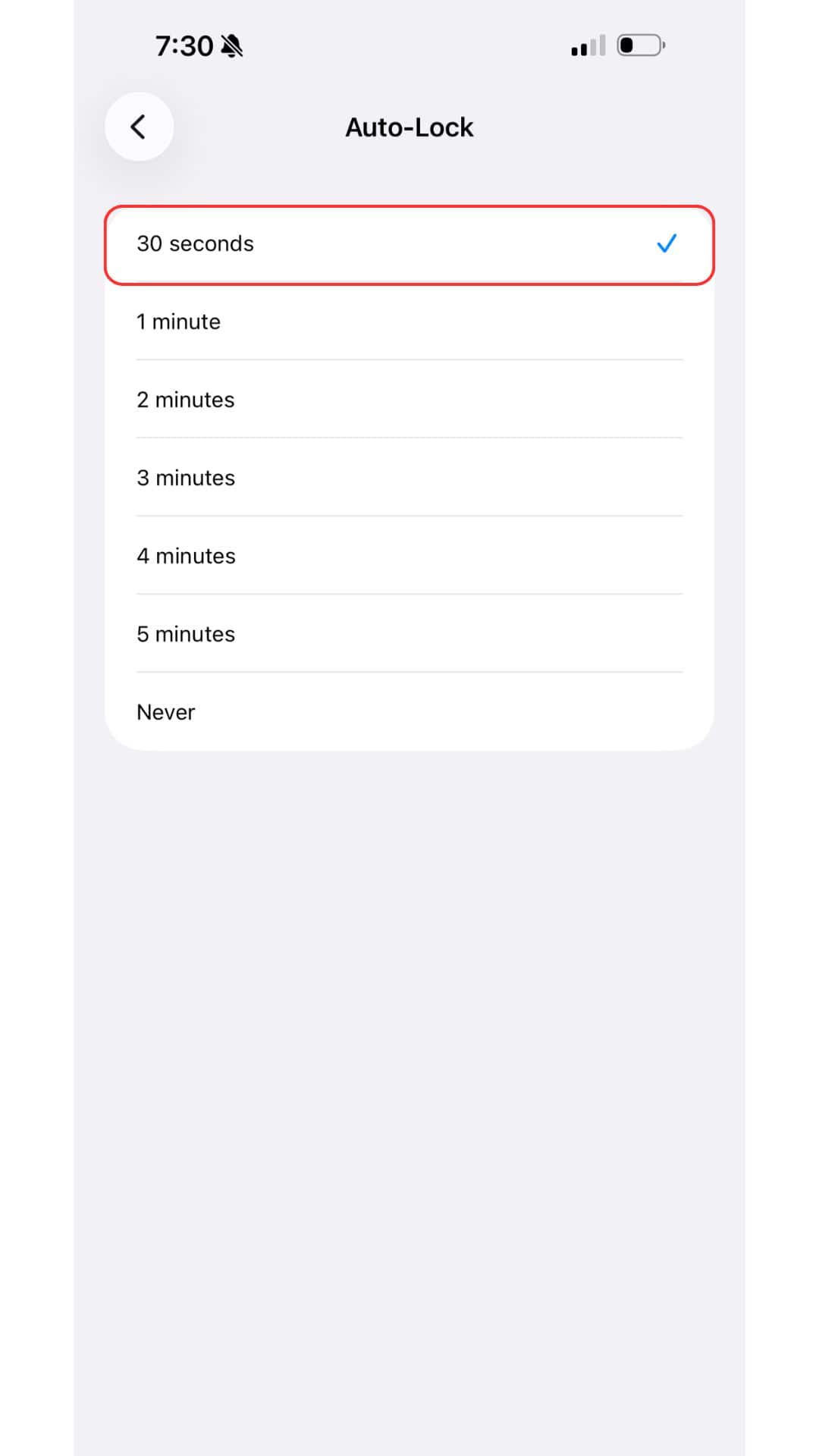
- Select Auto-Lock.
- Pick a shorter interval, such as 30 seconds or 1 minute.
Tips for Saving Even More Battery
- Lower the screen brightness manually when indoors.
- Turn off Always-On Display in Display & Brightness.
- Enable Low Power Mode when you want the system to automatically limit performance and refresh rate.
- Disable background app refresh for apps you rarely use.
- Update iOS to benefit from the latest battery optimizations.
FAQ
Animations and scrolling may look slightly less smooth, but messaging, browsing, and reading feel nearly the same for most users.
Not unless you turn off Limit Frame Rate or activate features that restore adaptive behavior.
Yes. Low Power Mode reduces background activity and limits display performance to preserve battery life.
It is the closest available option. Apple does not include a full ProMotion toggle, but capping the refresh rate effectively disables its higher-end behavior.
Summary
- Open Settings.
- Tap Accessibility.
- Choose Motion.
- Turn on Limit Frame Rate.
- Adjust brightness and Auto-Lock for additional savings.
ProMotion offers smooth visuals, but it is not essential for daily use. Limiting the frame rate on the iPhone 17 Pro provides a practical way to improve battery life while keeping the device responsive. With one switch and a few optional adjustments, you can noticeably extend your phone’s runtime throughout the day.




Discussion