

After updating to macOS Tahoe, some Mac users have reported that their screens won’t wake up from sleep. This problem usually happens when the laptop lid is opened or after the display times out. The issue can be linked to new power management changes in macOS Tahoe. Fortunately, there are a few effective ways to fix it.
Table of contents
Common Causes
The screen not waking up issue after installing macOS Tahoe usually happens due to changes in the new power management system, which can sometimes interfere with how your Mac handles sleep and wake cycles. Outdated or incompatible display drivers may also prevent the screen from turning back on properly.
In some cases, third-party apps that modify brightness, control sleep behavior, or manage external displays can conflict with macOS settings. Additionally, incorrect energy preferences or minor NVRAM and system cache corruption after the upgrade can contribute to this problem.
Don’t miss the best of The Mac Observer
Set us as a preferred source and our Apple reporting ranks higher in your Google Search results and Discover feed — one tap, no account changes.
If you’re facing other macOS Tahoe-related problems, check out how to fix macOS Tahoe battery drain or Touch Bar not working in macOS Tahoe.
Fix 1: Force Wake and Reset Display Sleep
If your Mac screen remains black, don’t panic. These quick steps often bring it back to life.
Follow each step carefully to see which one works for your Mac.
- Close the lid completely and wait 10 seconds.
- Open the lid and press any key or the power button once.
- If that doesn’t work, plug in the charger and press the Touch ID/power button for 3 seconds.
- Connect an external monitor to see if the system is active.
If the external display works, the issue lies in macOS Tahoe’s sleep/wake handling.
Fix 2: Reset NVRAM and SMC (Intel Macs)
If you have an Intel-based Mac, resetting NVRAM and SMC often fixes power-related glitches.
These resets don’t erase data and only refresh system settings.
- Shut down your Mac completely.
- Press and hold Option + Command + P + R for 20 seconds.
- Release the keys and let it boot normally.
Then reset the SMC:
- Shut down again.
- Hold Shift + Control + Option + Power for 10 seconds.
- Release all keys and turn on the Mac.
(Apple Silicon Macs handle this automatically after a restart.)
Fix 3: Check Power and Sleep Settings
Sometimes, sleep settings don’t carry over properly after a system upgrade.
Re-toggling them can reset the underlying sleep scheduler.
- Go to System Settings → Displays → Advanced → Prevent automatic sleeping on power adapter and toggle it off/on.
- Open Battery → Options → Wake for network access and toggle it off/on.
This often resolves display wake issues found after the macOS Tahoe update.
Fix 4: Boot in Safe Mode
If the issue persists, Safe Mode can help you identify third-party conflicts.
It temporarily disables unnecessary startup items and background extensions.
- Shut down your Mac.
- Hold the power button until “Loading startup options” appears.
- Choose your drive and press Shift → Continue in Safe Mode.

- Log in and test if the screen wakes normally.

If it does, disable or uninstall any recently added apps that manage display or battery.
Fix 5: Reset Sleep State on Apple Silicon Macs
Apple Silicon models handle sleep differently, and a quick Terminal refresh can help.
Use the following commands to reset sleep configurations.
- Open Terminal and enter these commands:
sudo pmset -a disablesleep 1
sudo pmset -a disablesleep 0 - Restart your Mac afterward.
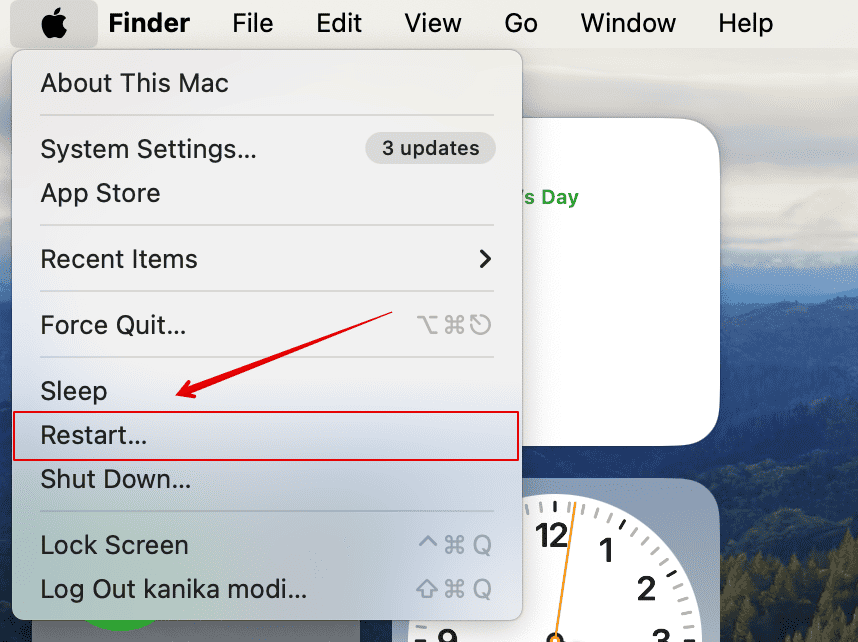

This resets the macOS sleep service and usually resolves the issue.
Fix 6: Reinstall macOS Tahoe
If none of the earlier methods fix the screen wake issue, reinstalling macOS Tahoe can help restore missing or corrupted system components that control display and sleep functions. This process doesn’t erase your data but refreshes the operating system files.
Follow these steps:
- Back up your Mac using Time Machine or iCloud Drive.
- Restart your Mac and hold the power button until you see Loading startup options.
- Select Options → Continue to open macOS Recovery.
- Choose Reinstall macOS and follow the on-screen instructions.
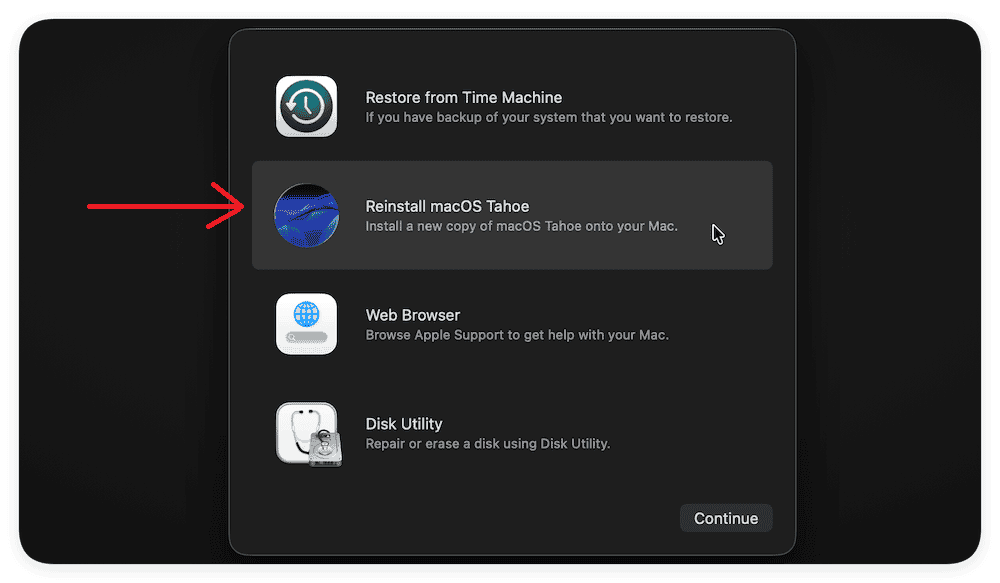
- Once reinstalled, check if the display wakes normally after sleep.

A few users on Apple’s community forum also reported success after reinstalling macOS, as it restores the power management framework to its default state.
Additional Tips
If the problem continues:
- Keep “Prevent automatic sleeping on power adapter” enabled.
- Use Sleep from the Apple menu instead of closing the lid.
- Turn off True Tone and Automatic graphics switching.
- If needed, reinstall macOS Tahoe or follow this guide to fix macOS Tahoe not installing on Mac Studio M3 Ultra.
Conclusion
The screen not waking up after the macOS Tahoe update is a common but fixable software issue. Resetting NVRAM, refreshing sleep settings, or using Safe Mode usually solves it. If the issue persists, reinstalling macOS or waiting for Apple’s next update is the best option. For more related fixes, check how to fix Touch ID not working on macOS Tahoe.
FAQs
It’s often caused by macOS Tahoe’s new power management handling or outdated system settings.
No, these resets only affect system-level settings, not your personal data.
Yes, you can downgrade using Recovery Mode until Apple releases a fix.
Usually not. It’s mostly a software or configuration problem introduced in macOS Tahoe.


Discussion