

The launch of the latest operating system, iOS 26, introduced a significant number of new features and design changes, including the striking new Liquid Glass aesthetic. However, many iPhone users have been plagued by an unexpected glitch: the Handwriting canvas in Messages keeps popping up while they are simply trying to type a standard text. This bug is disrupting the messaging experience for countless users, especially those using iMessage in the portrait orientation.
Table of contents
Fixing Handwriting Canvas Keeps Popping Up
For users encountering this disruptive issue, a handful of temporary workarounds and settings adjustments have proven helpful. Since the root cause appears to be a bug in the software itself, a full fix will likely require a future update like iOS 26.1, but these solutions can offer immediate relief. Understanding what iMessage is may provide context, but these keyboard-related fixes focus purely on input.
1. Force Quit the Messages App
This simple step can often clear up temporary glitches or memory conflicts that might be causing the keyboard bug. If your iPhone is not receiving text messages properly, this is often a good initial troubleshooting step.
Don’t miss the best of The Mac Observer
Set us as a preferred source and our Apple reporting ranks higher in your Google Search results and Discover feed — one tap, no account changes.
- Swipe up from the bottom of your screen and hold briefly (on iPhones with Face ID) or double-press the Home button (on iPhones with a Home button) to bring up the App Switcher.
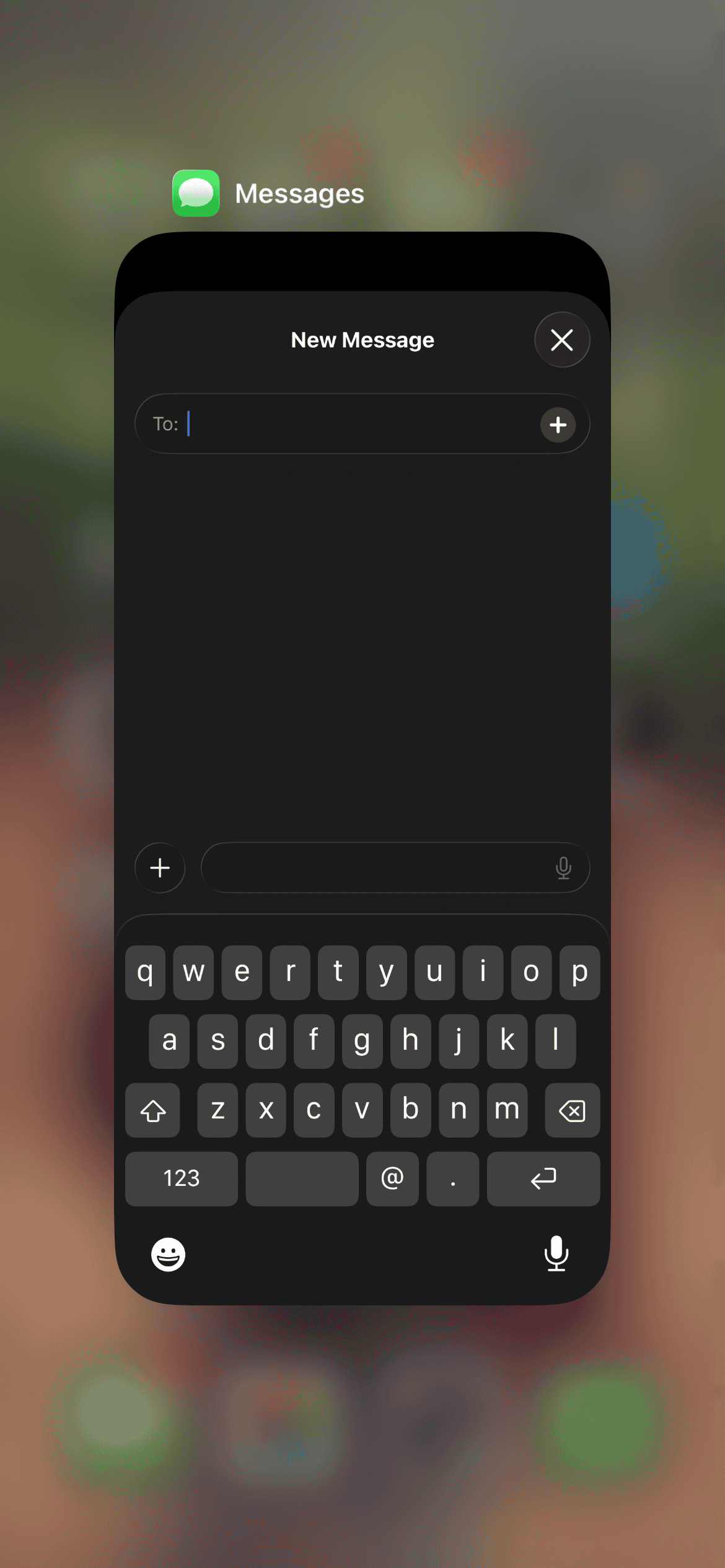
- Locate the Messages app card in the list of running apps.
- Swipe the Messages app card up and off the screen to force it to quit completely.
- Reopen the Messages app and attempt to type again.

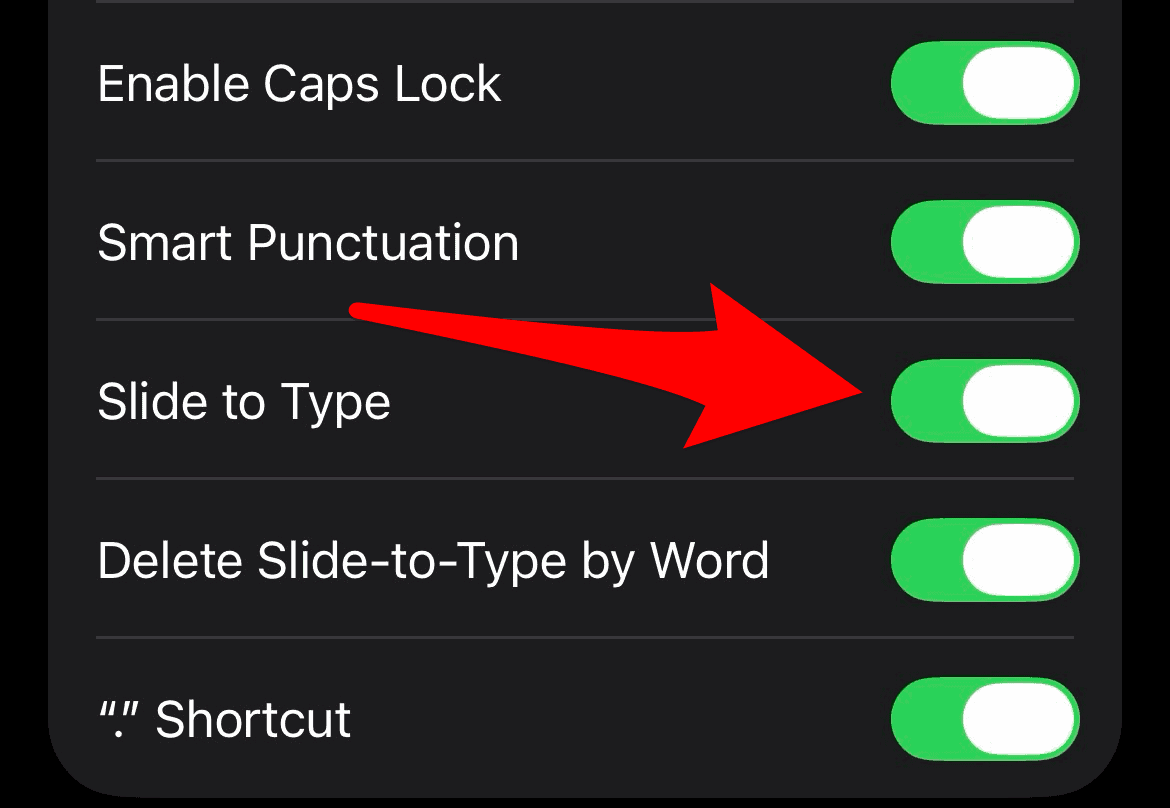
2. Toggle Off ‘Slide to Type’
Some users have reported that disabling the swipe-typing feature reduces the accidental activation of the handwriting canvas, suggesting a potential conflict with gesture detection.
- Go to Settings.
- Tap General, then select Keyboard.
- Scroll down to the All Keyboards section.
- Toggle off the switch next to Slide to Type.

3. Turn Off Predictive Text
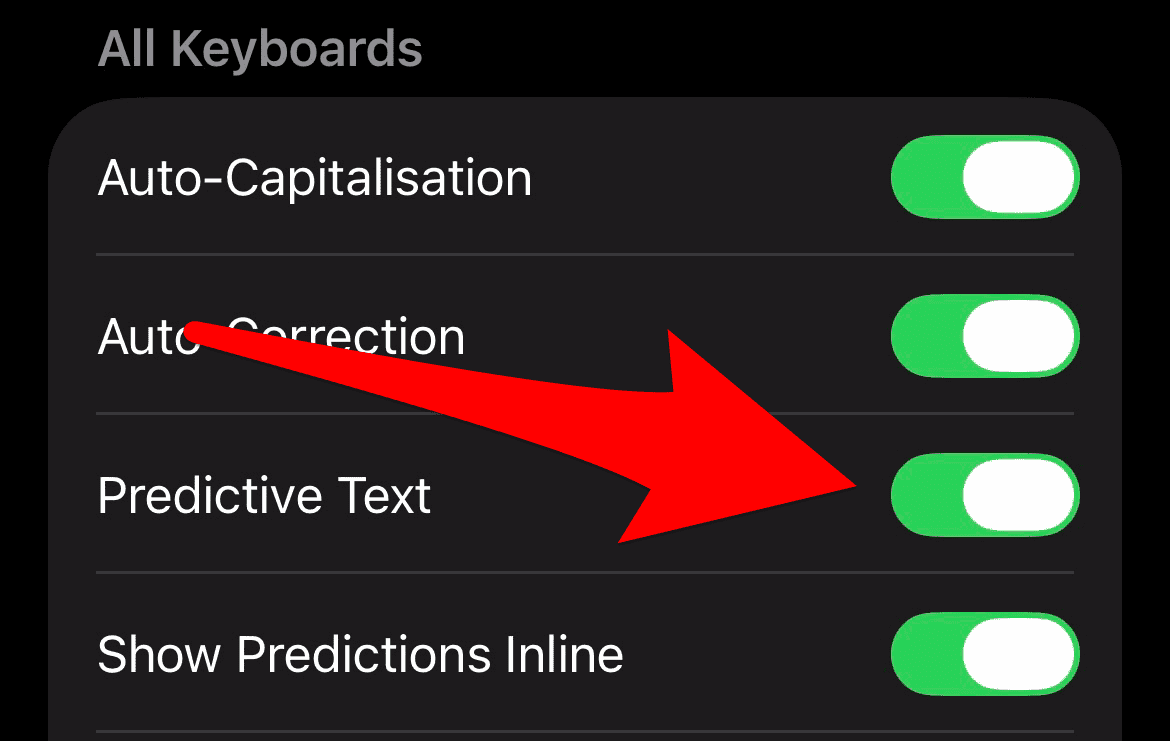
While less common, certain typing assist features can sometimes conflict with keyboard boundaries. Disabling predictive text may alleviate the issue for some.
- Navigate to Settings.
- Tap General, then select Keyboard.
- Scroll down to the All Keyboards section.
- Toggle off the switch for Predictive Text.

4. Reset Keyboard Dictionary
This is a more aggressive step that clears all custom words added to your keyboard dictionary, but it can occasionally resolve deeply rooted keyboard bugs.
- Go to Settings.
- Tap General, then select Transfer or Reset iPhone.

- Tap Reset, then select Reset Keyboard Dictionary.
- Enter your passcode to confirm the action.

5. Check and Remove Third-Party Keyboards
If you have an alternative keyboard installed, a conflict with the new iOS 26 keyboard layout could be the culprit. Removing them ensures only the native iOS keyboard is active.
- Go to Settings.
- Tap General, then select Keyboard.
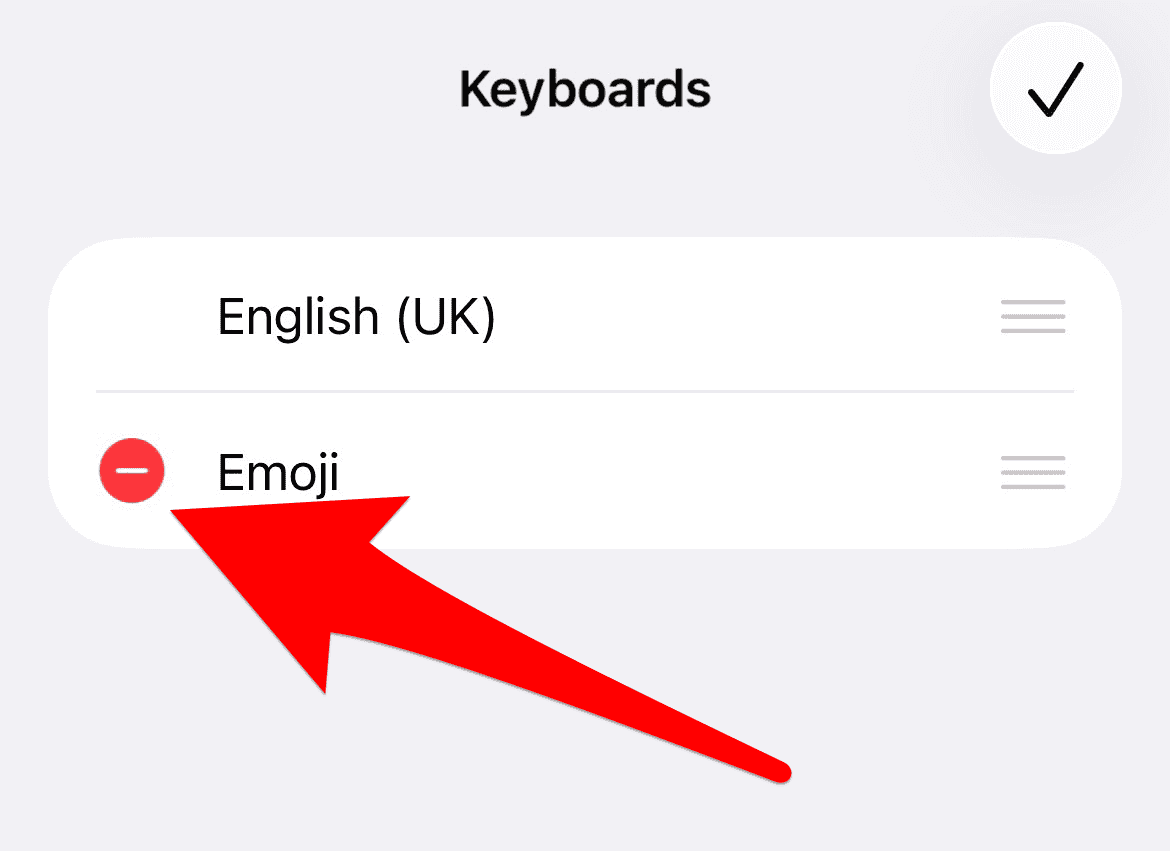
- Tap Keyboards at the top.
- Review the list. If any third-party keyboards are installed, tap Edit and delete them by tapping the red minus icon. This action minimizes compatibility issues.

Frequently Asked Questions
User reports indicate that a remnant of the landscape Handwriting button, which is usually hidden, remains an active ‘hotspot’ in the bottom right corner of the keyboard in portrait mode. Accidental taps near the ‘L’ or ‘Delete’ key trigger this invisible button.
Currently, there is no dedicated setting in iOS to permanently disable the Handwriting feature. The only way to stop it is to prevent the accidental tap or wait for an official Apple bug fix update.
The issue has been reported across various models running iOS 26, from older iPhones to the latest hardware, suggesting it is a software bug related to the operating system’s keyboard layout rather than a device-specific problem.
Future Stability for Messages in iOS
The Handwriting pop-up bug is an annoying setback in an otherwise major update. While the community has provided several helpful short-term fixes, the issue highlights the necessity of precise keyboard mapping in a mobile operating system. Users should continue to report the issue directly to Apple to ensure it is prioritized for a future maintenance release. If you encounter issues with deleted items, you may need to learn how to recover message archives or understand how to manage your Messages storage on iPhone to prevent your device from running out of space.


Discussion