
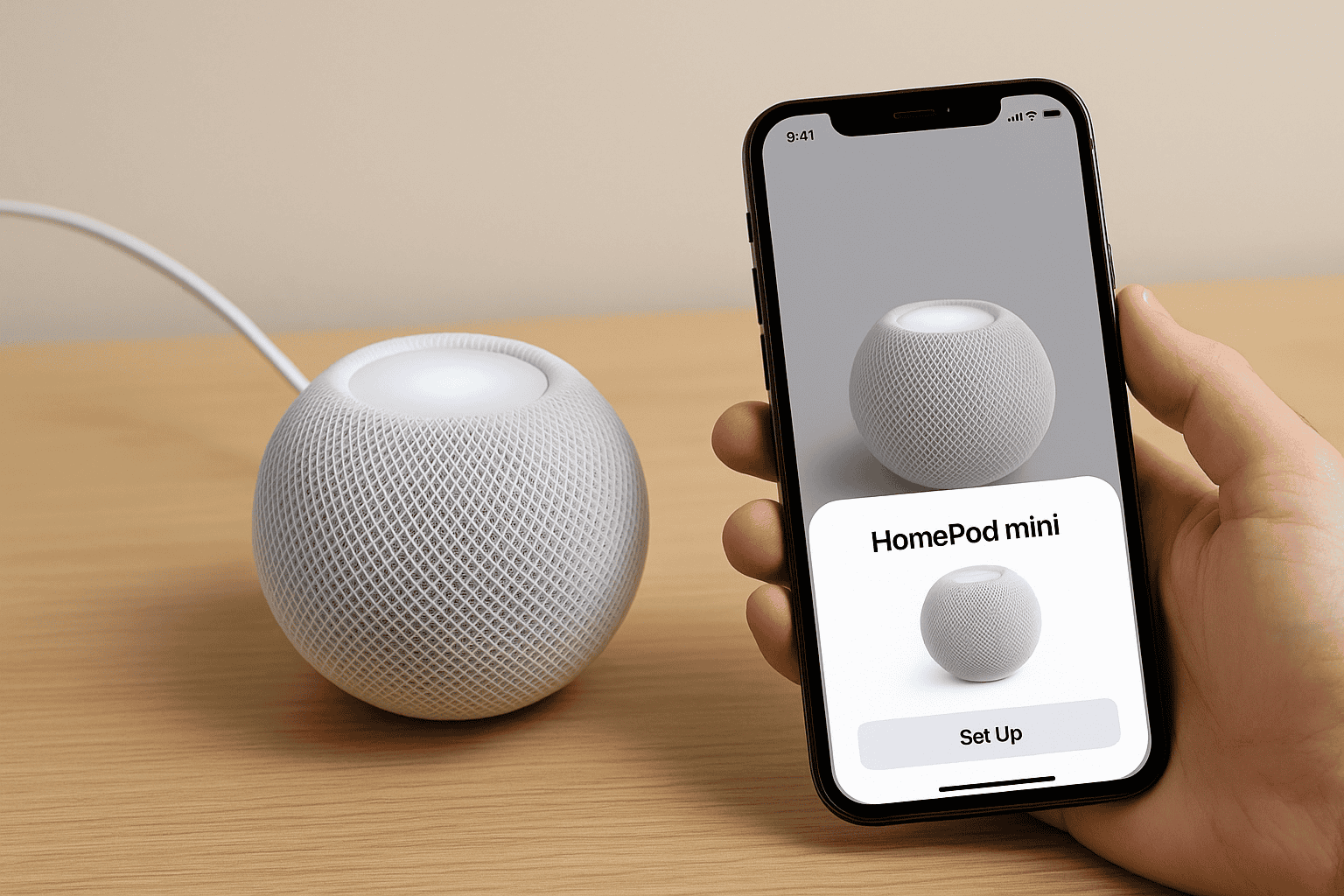
When a HomePod mini refuses to connect, the whole smart home starts to feel a little less smart. The good news is that most of these issues trace back to a few predictable trouble spots. Fix those, and your tiny speaker usually snaps back to life without much drama.
Table of contents
- Start by checking what the Home app is telling you
- Make sure your Wi Fi connection is solid
- Give the mini a quick restart
- If you can’t set it up at all
- Fixing Wi-Fi mismatch problems
- Pairing problems with two HomePod minis
- When the mini keeps losing internet
- When the mini refuses to respond to your voice
- Stuck on configuring
- When all else fails
Start by checking what the Home app is telling you

Here’s the thing. The Home app almost always knows something you don’t. If the mini can’t reach your Wi Fi, can’t sign in to your Apple account, or hit another snag, you’ll see a No Response message or a specific alert. Tap the HomePod tile and look for clues. This alone can save you from guessing.
Make sure your Wi Fi connection is solid
The HomePod mini rides whatever network your iPhone or iPad is on. If your phone is floating between networks or clinging to a weak signal, the speaker will follow. Open the Home app, tap your HomePod, head into settings, and check the signal strength indicator.
Don’t miss the best of The Mac Observer
Set us as a preferred source and our Apple reporting ranks higher in your Google Search results and Discover feed — one tap, no account changes.
If it shows two bars or fewer, move the speaker closer to your router or remove obvious sources of interference. If there’s an exclamation point, you’re dealing with a real connection failure and should follow the steps the app recommends.
Keep in mind that captive networks, like the ones at hotels or universities, need sign in steps. Your iPhone handles that, and the HomePod usually follows after a proper handoff.
Give the mini a quick restart
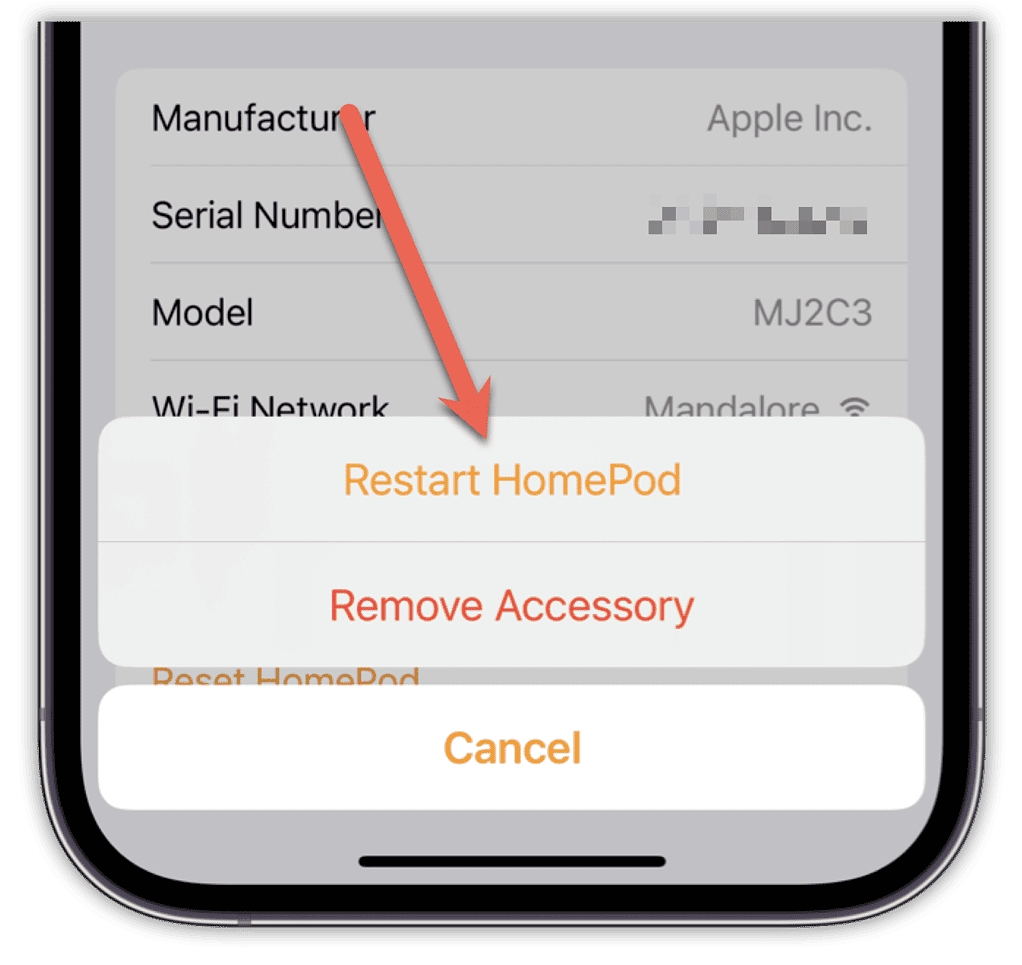
Sometimes the simplest move wins. Restart the HomePod through the Home app by going to Settings and choosing Restart HomePod. If that option isn’t there, unplug the speaker and plug it back in.
If the mini still ignores you, reset it completely. A full reset wipes out weird software states and clears out problems that don’t show up in the Home app.
If you can’t set it up at all
A failed setup can feel like a dead end, but it isn’t. Start with the basics. You need an iPhone or iPad running iOS or iPadOS 16.3 or later. Macs won’t set up a HomePod.
Make sure your phone is on the Wi Fi network you want the HomePod to use. Personal hotspots almost always cause headaches.
If the setup screen doesn’t appear, lock your phone, unlock it, and hold it next to the HomePod again. When that doesn’t work, open the Home app, choose Add Accessory, then More Options, and pick HomePod. If it still refuses to show up, reset the speaker and try again.
Fixing Wi-Fi mismatch problems
A Wi Fi incompatible message usually means your phone and HomePod disagree about what network they should use. Forget the network on your phone, reconnect, and run setup again.
If the alert mentions 6 GHz Wi Fi, check that all your router bands share the same network name. Split networks confuse HomePod minis.
Pairing problems with two HomePod minis
Stereo pairing should be automatic, but not if you mix a HomePod with a HomePod mini. Two minis or two full size models only.
Make sure both speakers were set up with the same Apple ID and sit on the same Wi Fi network. Assign them to the same room in the Home app.
If all that checks out, put the minis right next to each other and power cycle them. Once they pair, you can move them back to your actual listening spots.
When the mini keeps losing internet
Intermittent internet problems often point to your router, not the speaker. Restart your modem and router, then give the network a minute to settle.
If the mini sits too far from the router or behind a wall of obstacles, move either the router or the speaker.
If your phone shows healthy Wi Fi but the HomePod doesn’t, your iPhone may be connected to a different network or band. Fix the mismatch in the Home app by tapping the alert and letting the mini adopt your phone’s settings.
When the mini refuses to respond to your voice
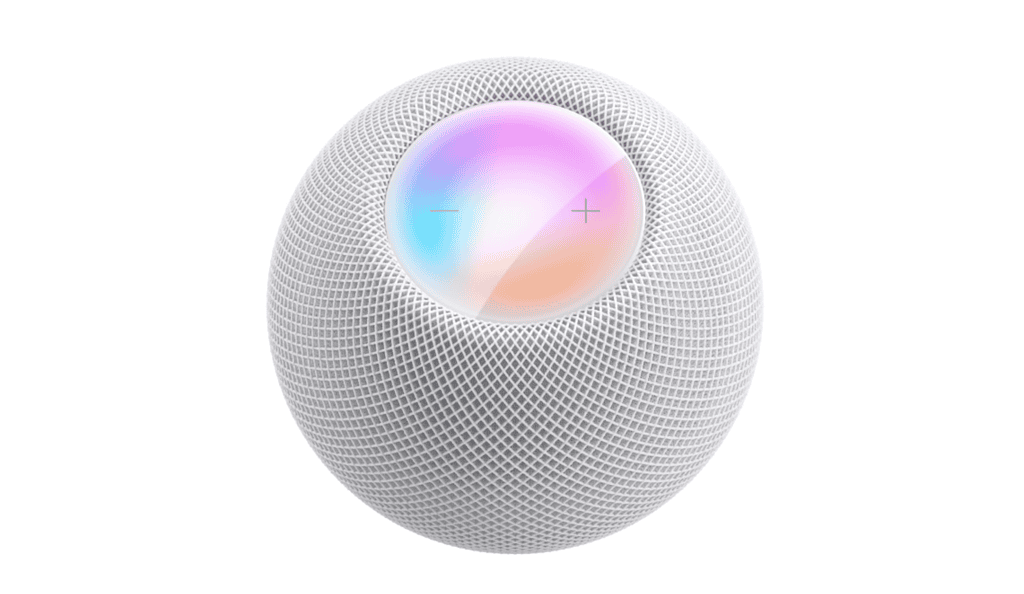
Start with the obvious. Is it even on? Tap the top. If you get light or sound, it’s alive. If not, check your USB adapter. The HomePod mini wants a 20 watt power supply, and underpowering it can cause odd behavior.
If Hey Siri seems to be off, press and hold the top and tell it to turn on Hey Siri. You can also toggle the setting in the Home app.
If everything looks right but the mini still ignores you, reset it.
Stuck on configuring
Some units sit in a never ending configuring state, and the cause isn’t always local. Check Apple’s System Status page. If iCloud is down, nothing you do will push the setup forward.
Make sure your iCloud account on your phone isn’t throwing errors. Then, give the HomePod time. During busy server windows, configuration can take longer than it should. If hours pass with no change, restart or factory reset the mini and try again.
When all else fails
At the end of the line, you’re looking at a bad unit. Apple support sees this often enough. If the speaker powers on but won’t stay connected or refuses voice commands even after resets and updates, you may need a replacement.




Discussion