

When a HomePod mini doesn’t show in the Home app, the problem almost always traces back to specific settings that block the device from joining your home network. The fastest way to fix it is to confirm whether the device is on the right Wi-Fi network, recognized by your Apple ID, and allowed to sync through iCloud. Once those areas are corrected, the HomePod mini usually appears immediately. Here is how to verify each step.
Table of contents
Confirm your devices share the same network
The HomePod mini must be on the same Wi-Fi network as the iPhone or iPad you use with the Home app. If the networks don’t match, the Home app cannot detect the speaker.
1. Check Wi-Fi on your iPhone or iPad
- Open Settings.
- Select Wi-Fi and make sure you are connected to your main home network.
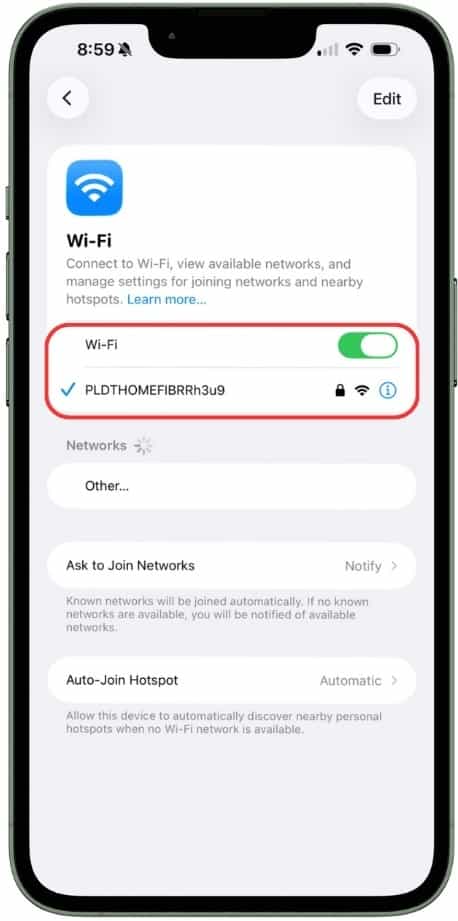
- Toggle Wi-Fi off and on to refresh the connection.

2. Inspect your router environment
- Ensure the router is not isolating devices from one another.
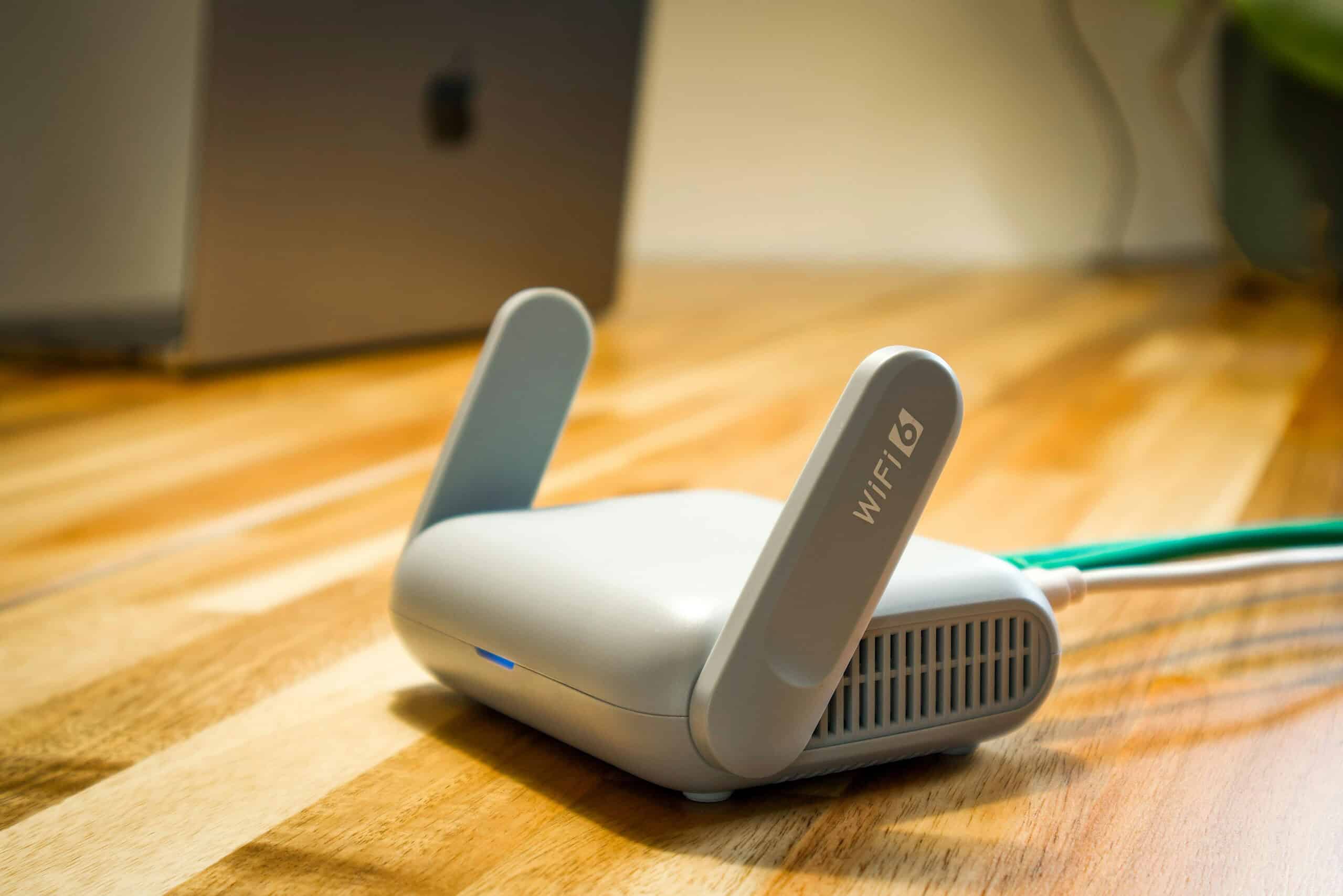
- Avoid using guest networks for HomePod setup.
- Restart the router if the network is slow or unstable.

Restart the HomePod mini and refresh the Home app
A restart clears temporary issues that prevent the HomePod mini from being detected. It also reinitializes the device for accessory discovery.
Don’t miss the best of The Mac Observer
Set us as a preferred source and our Apple reporting ranks higher in your Google Search results and Discover feed — one tap, no account changes.
1. Restart the HomePod mini
- Unplug the HomePod mini.
- Wait about 10 seconds.
- Plug it back in and wait for the pulsing white light.
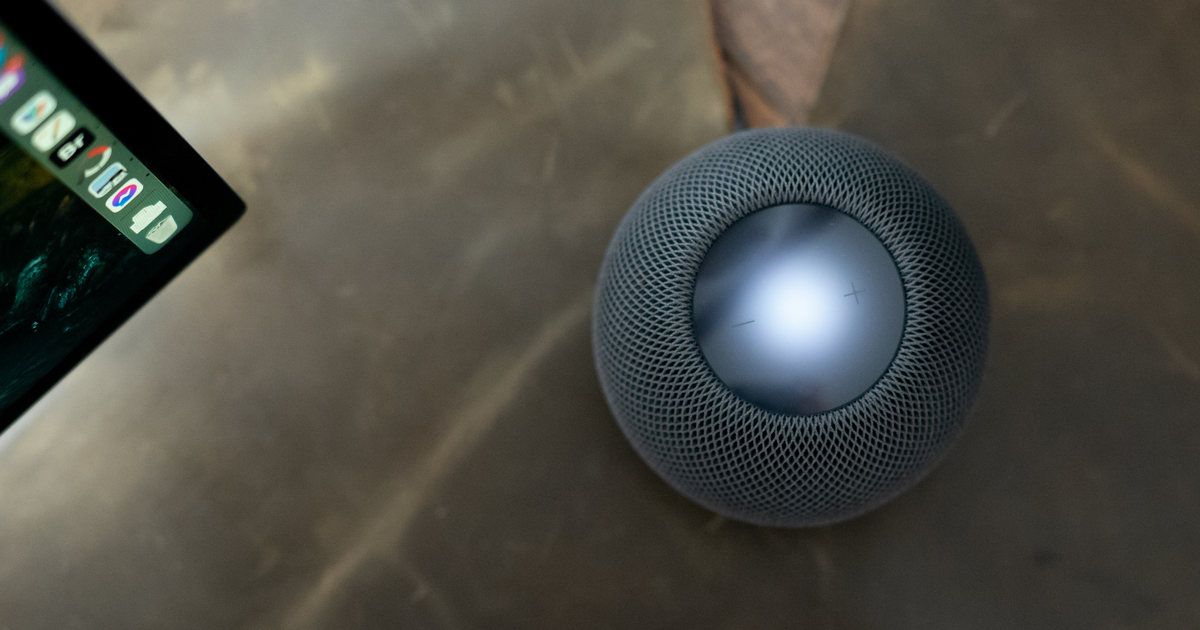
- Open the Home app and check if it appears.

2. Refresh the Home app
- Force close the Home app.
- Reopen it and wait for the accessories to load.
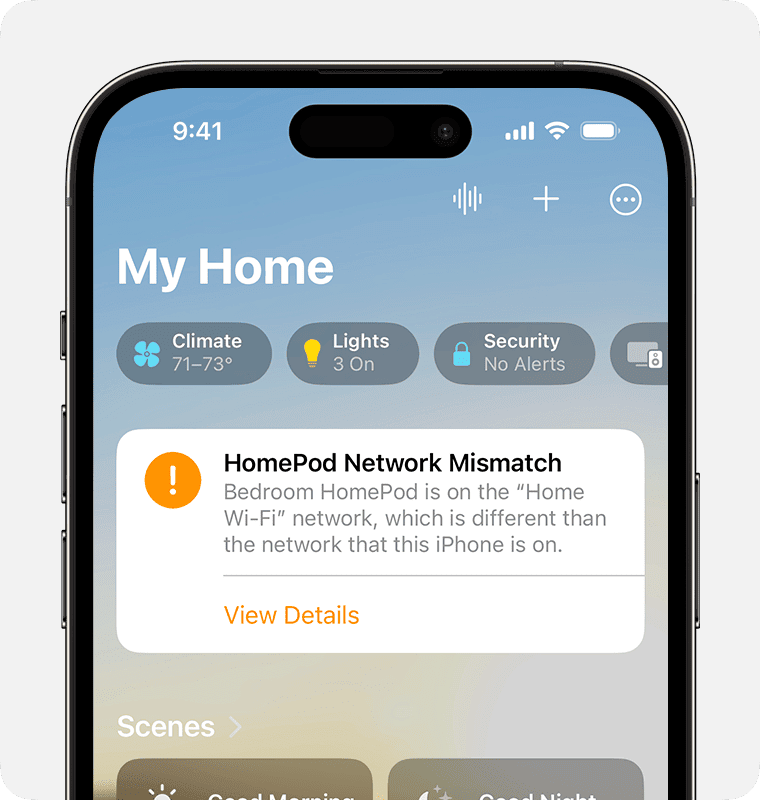
- Confirm that you’re viewing the correct home configuration if you manage more than one.

Verify your Apple ID and iCloud settings
The HomePod mini relies on iCloud to sync settings and appear across your devices. If any iCloud feature is disabled, the Home app may fail to list the speaker.
1. Check Apple ID syncing
- Open Settings.
- Tap your name and confirm you’re signed in.
- Make sure iCloud, Keychain and Two-Factor Authentication are enabled.


2. Confirm Apple ID consistency
If someone else in your household set up the HomePod mini, check that all devices involved use the Apple ID associated with the Home setup. A mismatch can hide the accessory.
Reset the HomePod mini if it still will not appear
A factory reset puts the HomePod mini back into pairing mode so the Home app can recognize it again.
1. Reset from the HomePod mini
- Unplug the speaker for five seconds.
- Plug it back in and wait for the white light.
- Press and hold the top until the light turns red.

- Continue holding until you hear confirmation.
- Let the reset complete, then attempt setup again.

2. Restore using a Mac
Use this method if the HomePod mini shows an orange light or becomes unresponsive.
- Connect the HomePod mini to a Mac with a USB-C cable.
- Open Finder and select the HomePod from the sidebar.
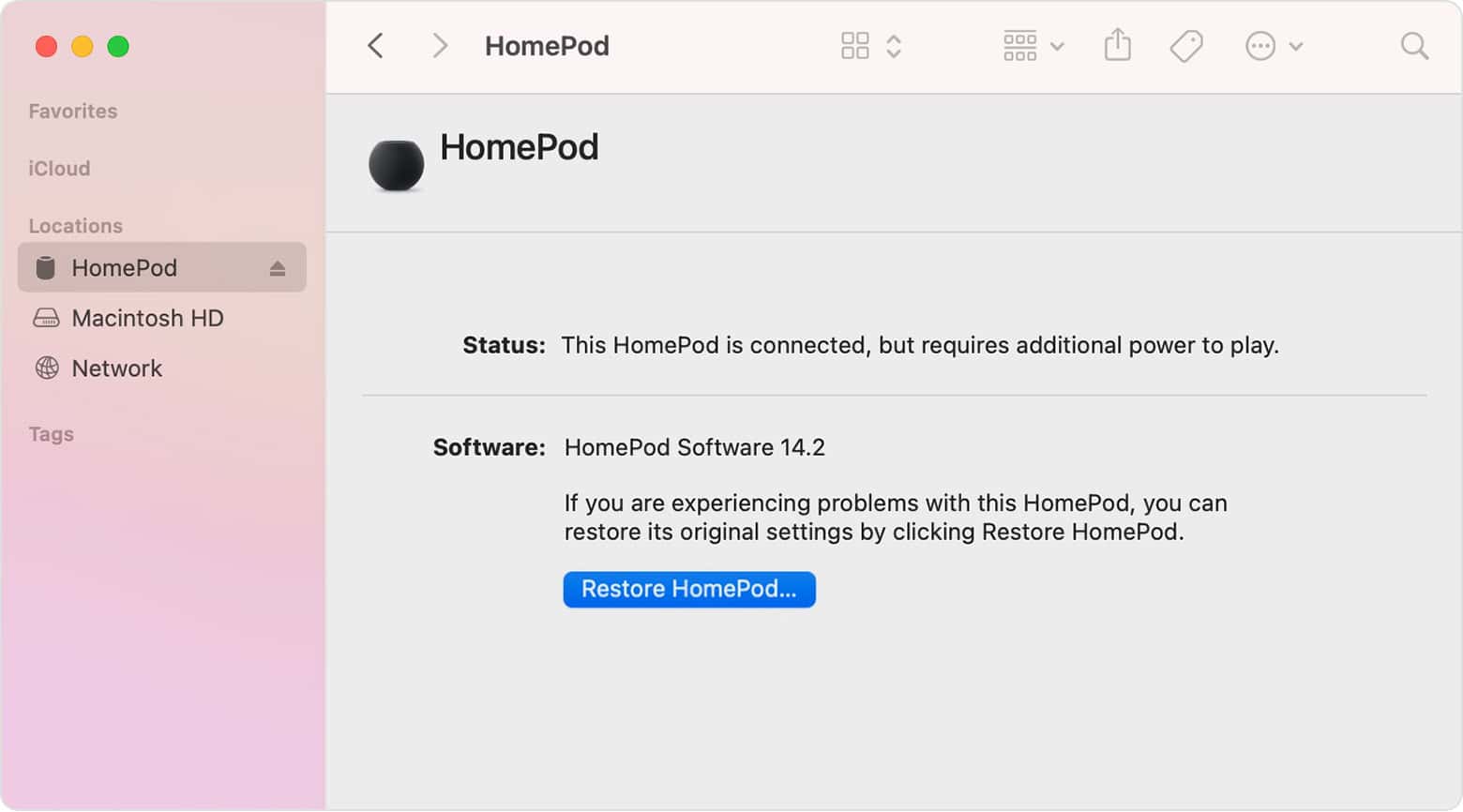
- Choose Restore and wait for the software to reinstall.

Tips to keep your HomePod mini visible in the Home app
- Keep your iPhone close to the HomePod mini during setup.
- Update iOS, iPadOS and HomePod software regularly.
- Turn off VPN connections during setup.
- Avoid using networks with client isolation.
- Disable low power mode if wireless connectivity drops.
FAQ
This usually happens when Wi-Fi is unstable or iCloud syncing is interrupted.
Yes. Bluetooth helps your iPhone detect the HomePod mini during setup.
Yes. Make sure you are viewing the correct home and room.
You need an Apple ID with iCloud enabled to manage it through the Home app.
Summary
- Check that your iPhone and HomePod mini share the same Wi-Fi network.
- Restart the router, HomePod mini and Home app.
- Verify Apple ID, iCloud and Keychain settings.
- Confirm you are in the correct home within the Home app.
- Reset or restore the HomePod mini if needed.
Conclusion
A HomePod mini that doesn’t appear in the Home app usually signals a network mismatch, an iCloud issue, or a reset that didn’t complete. Once you confirm your Wi-Fi settings, restart the device and verify Apple ID syncing; the speaker typically reappears without further troubleshooting. These steps help ensure a smooth connection and reliable performance in the Home app.


Discussion