

If you’re wondering how to disable the login password on Mac, the good news is that macOS allows it as long as you have administrator access and FileVault turned off. These two conditions ensure your drive isn’t encrypted or restricted when your Mac logs in automatically. Once those are set, you can skip typing your password at startup or after sleep.
Table of contents
Check Your Security Settings
Before making changes, open System Settings › Users & Groups (or System Preferences on older macOS versions) and review two key options:
- Automatic login: controls whether your Mac signs in automatically at startup.
- FileVault: encrypts your disk. It must be disabled to use automatic login.
If you’re unsure which macOS version you’re running, check System Settings › General › About, or confirm it using MacObserver’s complete macOS version list.
Don’t miss the best of The Mac Observer
Set us as a preferred source and our Apple reporting ranks higher in your Google Search results and Discover feed — one tap, no account changes.
Turn Off FileVault Before Disabling the Password
FileVault is macOS’s built-in encryption system. When it’s enabled, automatic login isn’t allowed even if you’re the admin.
To check or disable it:
- Open System Settings › Privacy & Security › FileVault.
- If it’s turned on, click Turn Off FileVault.
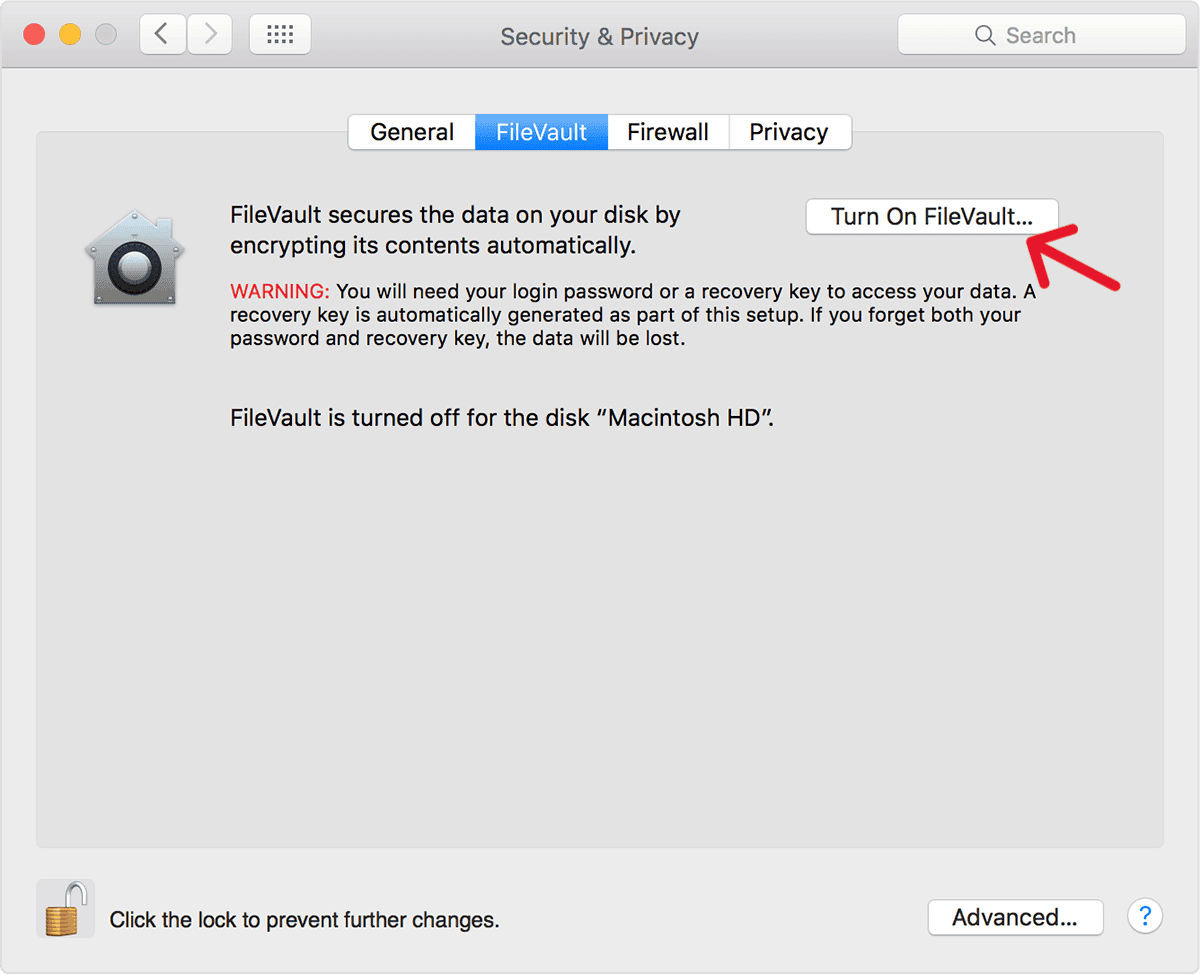
- Enter your admin password and wait while your Mac decrypts the drive.

You can confirm these steps on Apple’s FileVault support page. Once FileVault is off, you can safely enable automatic login.
Turn Off the Login Password at Startup

Image Source: YouTube
- Go to System Settings › Users & Groups.
- Click the lock icon and enter your admin password.
- Select Login Options, then open Automatic Login and choose your account.
- Enter your password once to confirm.
Your Mac will now bypass the login screen automatically.
If Automatic Login isn’t visible, it’s because FileVault is still enabled. Turn it off under Privacy & Security, restart, and the option will appear. Full instructions are available in Apple’s automatic login documentation.
Stop Password Prompts After Sleep
If you want to skip the password only when your Mac wakes from sleep:
- Open System Settings › Lock Screen.
- Under “Require password after sleep or screen saver begins,” select a late time stamp.
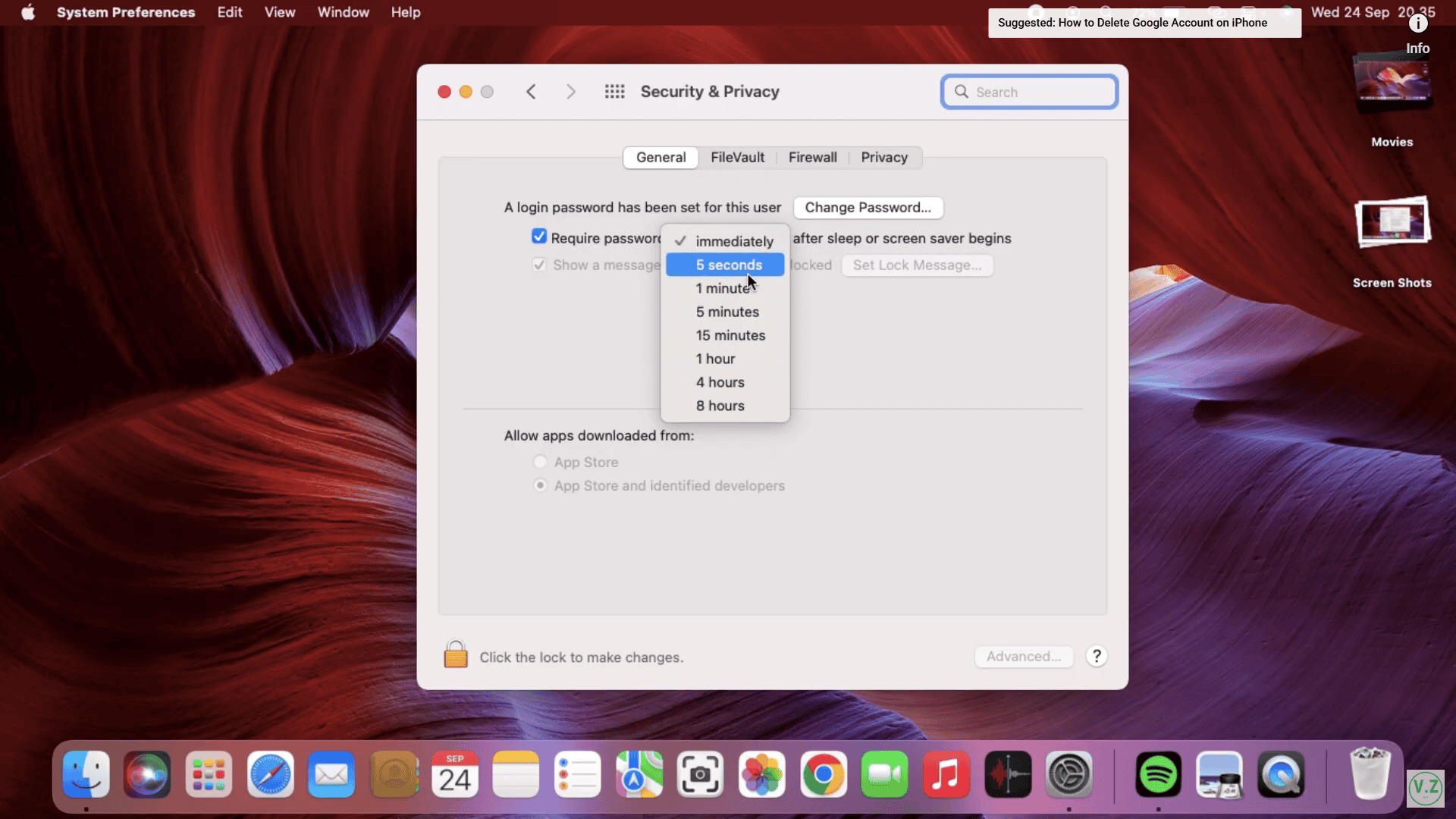

This change applies immediately and doesn’t affect startup security.
If this option is greyed out, your Mac might be managed by a work or school account. Managed profiles use Apple’s mobile device management system, which limits certain security settings for compliance reasons.
Re-Enable the Password Later
To turn login protection back on, return to Users & Groups › Login Options, set Automatic Login to Off, and re-enable your password requirement under Lock Screen.
If you use Touch ID or iCloud Keychain, macOS may automatically restore password prompts after major updates or password changes.
If you notice slower startup performance afterward, MacObserver’s guide to speeding up a slow Mac covers steps like disabling startup items and cleaning cached files.
Final Thoughts
Turning off the password can make daily use faster, especially on a personal Mac that stays at home. Still, it’s best to keep some level of protection if you travel or share your device.
For a better balance between security and convenience, enable Touch ID or Unlock with Apple Watch; both let you access your Mac instantly without removing the password entirely.


Forgot to say it’s running Tahoe 26.3
I have the same problem with my Mac Studio (Mac16,9). There are no profiles installed, file vault is off. This was not a problem initially but a software update in the last few months has brought it on. Any further thoughts?
The Lock Screen shown in System Settings on my iMac3 desktop using Tahoe 26.2 differs from what you show. The option for Require password after screen saver begins or display is turned off is greyed out and all attempts to be able to change this has been negative. My FileVault is Off and mirroring is Off. Please help.
It sounds like the “Require password” option is greyed out due to a system-level setting or profile restriction on your iMac. Even with FileVault off and mirroring disabled, macOS can lock certain security settings if there’s a configuration profile, managed account, or parental controls in place. Check System Settings → Profiles to see if anything is enforcing password policies, or try creating a new admin user to see if the option becomes adjustable there.