

VoiceOver turns your Apple TV into something you can navigate without ever looking at the screen. It reads menus, apps, and text out loud, which makes the device far more accessible for people who are blind or have low vision. The feature is powerful, but Apple hides it behind a few layers of settings, so knowing the fastest ways to turn it on and off makes a big difference.
Table of contents
Turning VoiceOver on or off on Apple TV 4K or Apple TV HD
These models give you three easy options. Pick the one that fits how you use your TV.
Method 1: Through Settings
- Open Settings
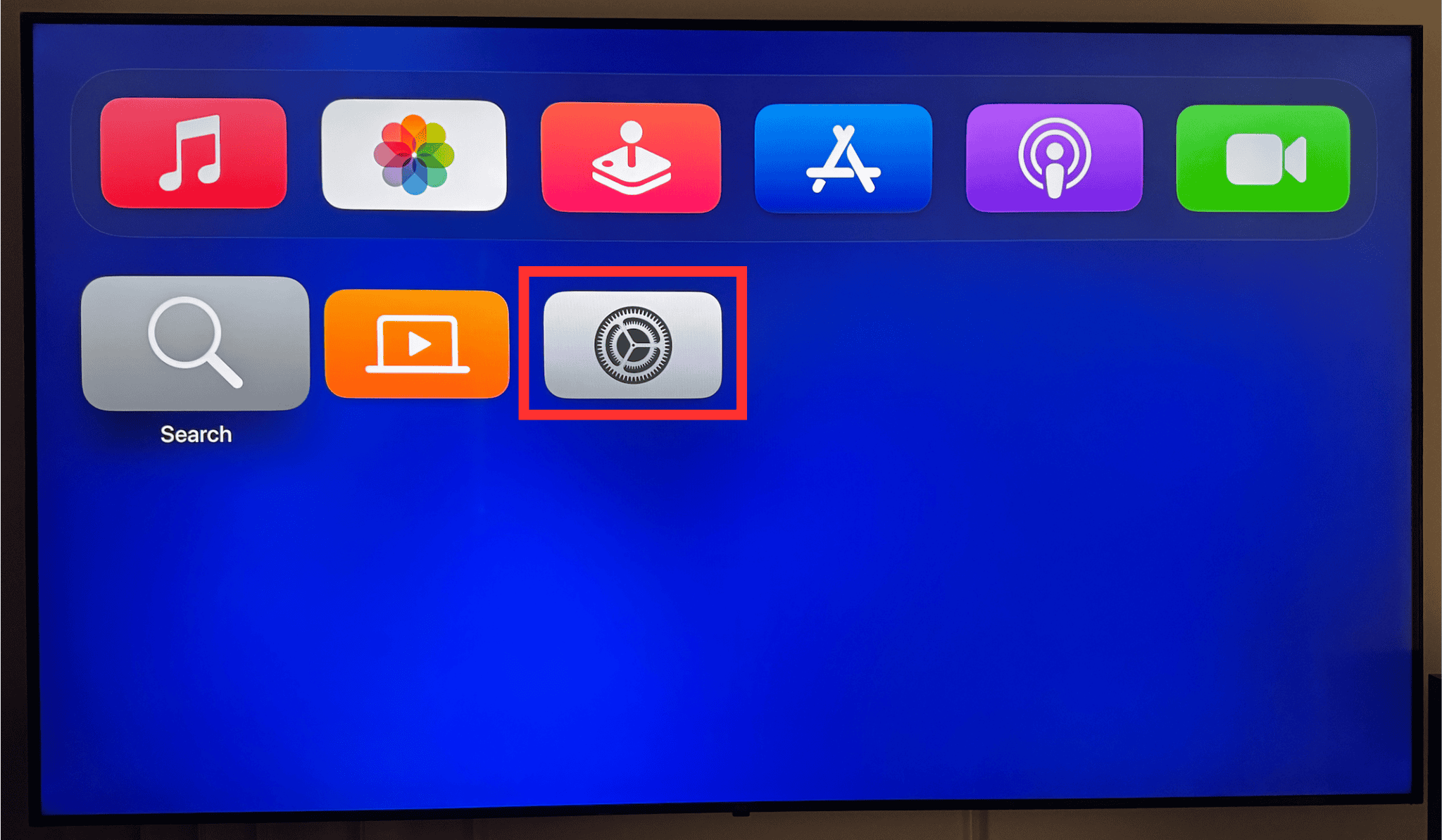
- Go to Accessibility
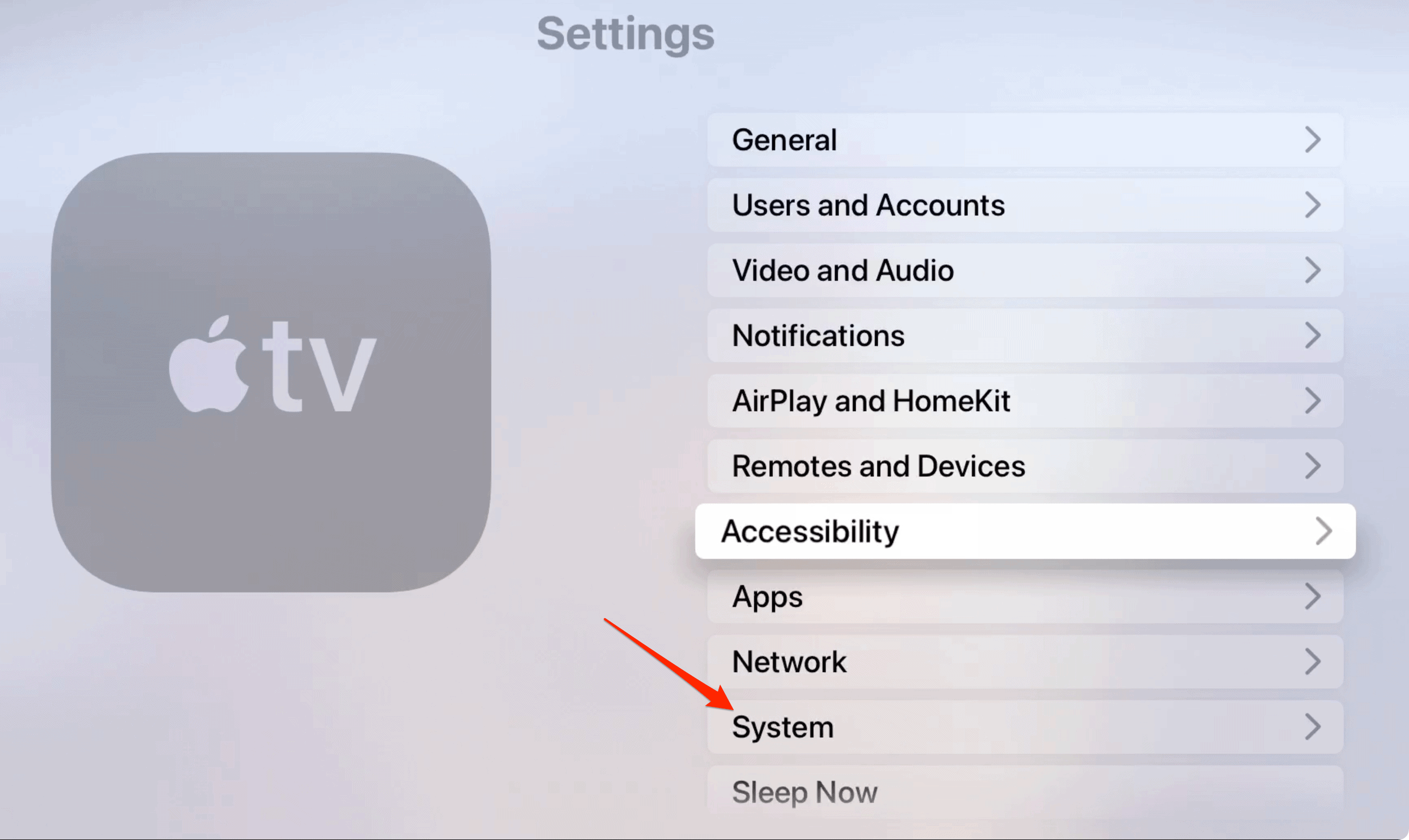
- Select VoiceOver
- Turn VoiceOver on or off


Straightforward, reliable, and always available.
Don’t miss the best of The Mac Observer
Set us as a preferred source and our Apple reporting ranks higher in your Google Search results and Discover feed — one tap, no account changes.
Method 2: With Siri
Hold the Siri button on your remote and say Turn VoiceOver on or Turn VoiceOver off.
As long as your region and language support Siri, this works instantly.
Method 3: With the remote shortcut

Press the Menu or Back button three times.
This toggle is great when you don’t want to dig through menus.
Turning VoiceOver on or off on Apple TV 3rd generation

Older Apple TVs use a different menu structure and a remote with no touch surface, so the steps take a little more patience.
- Press the Menu button repeatedly until you hear a stop sound
- Press Down once
- Press Right until you hear another stop sound to reach Settings
- Press Select twice
- Press Down until you hear a stop
- Press Up four times
- Press Select twice to enable VoiceOver
Once it’s on, the screen reader guides you through the rest.
Using VoiceOver once it’s enabled
VoiceOver on Apple TV lets you move around by swiping, tapping, or pressing on the remote’s clickpad or touch surface. As you slide your finger, VoiceOver speaks each item you pass over. Press the center to select.
VoiceOver has two modes:
Navigation mode
Speaks items as you move from one to the next.
Exploration mode
Keeps your current item selected so you can drift around the screen and hear what’s nearby before choosing anything.
To switch between modes, tap the clickpad center with two fingers three times.
There’s also the rotor. Think of it as a hidden menu for VoiceOver settings. Rotate two fingers on the clickpad like you’re turning a dial. You’ll hear which control is active. Rotate again to switch controls and swipe up or down to adjust things like speech rate. Stop interacting for a moment and the rotor closes on its own.
The bottom line
VoiceOver is one of the most helpful features on Apple TV, and once you know how to toggle it quickly, it becomes much easier to use. Whether you prefer Siri, the remote shortcut, or the settings menu, you’re only a few seconds away from turning it on or off whenever you need it.



Discussion