

If you’ve been having fun sending stickers in iMessage but now your sticker drawer looks like a junk drawer, you’re not alone. Apple makes it incredibly easy to create, save, and collect stickers. Removing them, though, isn’t always obvious. The good news is that once you know where the controls live, cleaning up your sticker collection takes seconds. Let’s break it down so you can tidy things up without hunting through menus.
Table of contents
Removing a Sticker You Placed on a Message
Sometimes you stick something in the wrong spot, or you just want it gone. You can delete any sticker you’ve placed on a message bubble.
- Open Messages and go to the conversation.
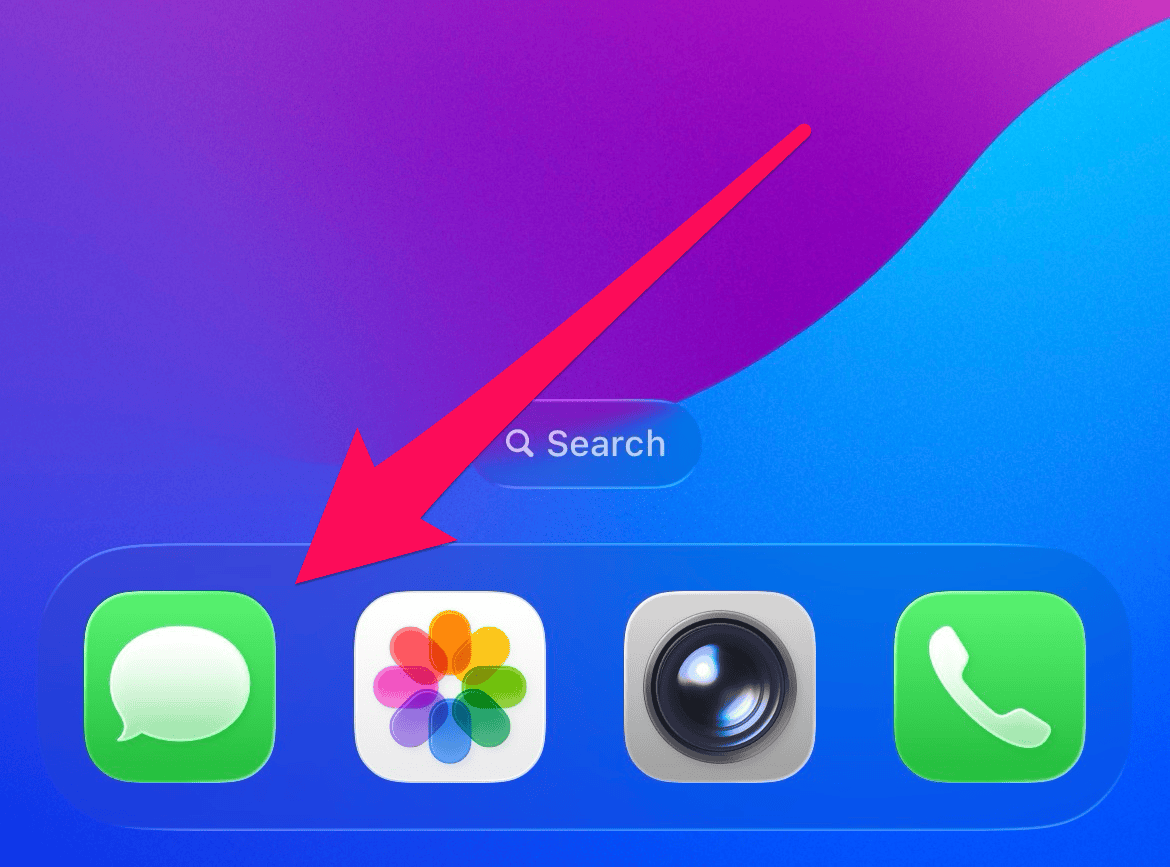
- Touch and hold the sticker that’s sitting on a bubble.
- Tap Sticker Details.
- Swipe left on the sticker and tap Delete.

That’s it. The sticker disappears for everyone, not just you.
Removing Custom Stickers You Created (iPhone and iPad)
This part trips up most people because the delete button isn’t obvious. You’ll find your custom stickers inside the Stickers app in Messages or inside the emoji keyboard.
Remove stickers from the Stickers panel
- Open Messages and enter any chat.
- Tap the Add button, then choose Stickers.

- Switch to the Live Stickers tab. That’s where all your homemade stickers live.
- Touch and hold the sticker you want to delete.
- Tap Delete.
If you want to delete several at once:
- Touch and hold any sticker.
- Tap Rearrange.
- Tap the minus button on each sticker you want to remove.
- Tap anywhere to exit.
No confirmation prompts. Once you hit that minus button, it’s gone.
Remove stickers from the emoji keyboard
Sometimes you’re already typing and it’s easier to clean things up right from the keyboard.
- Open the emoji keyboard.
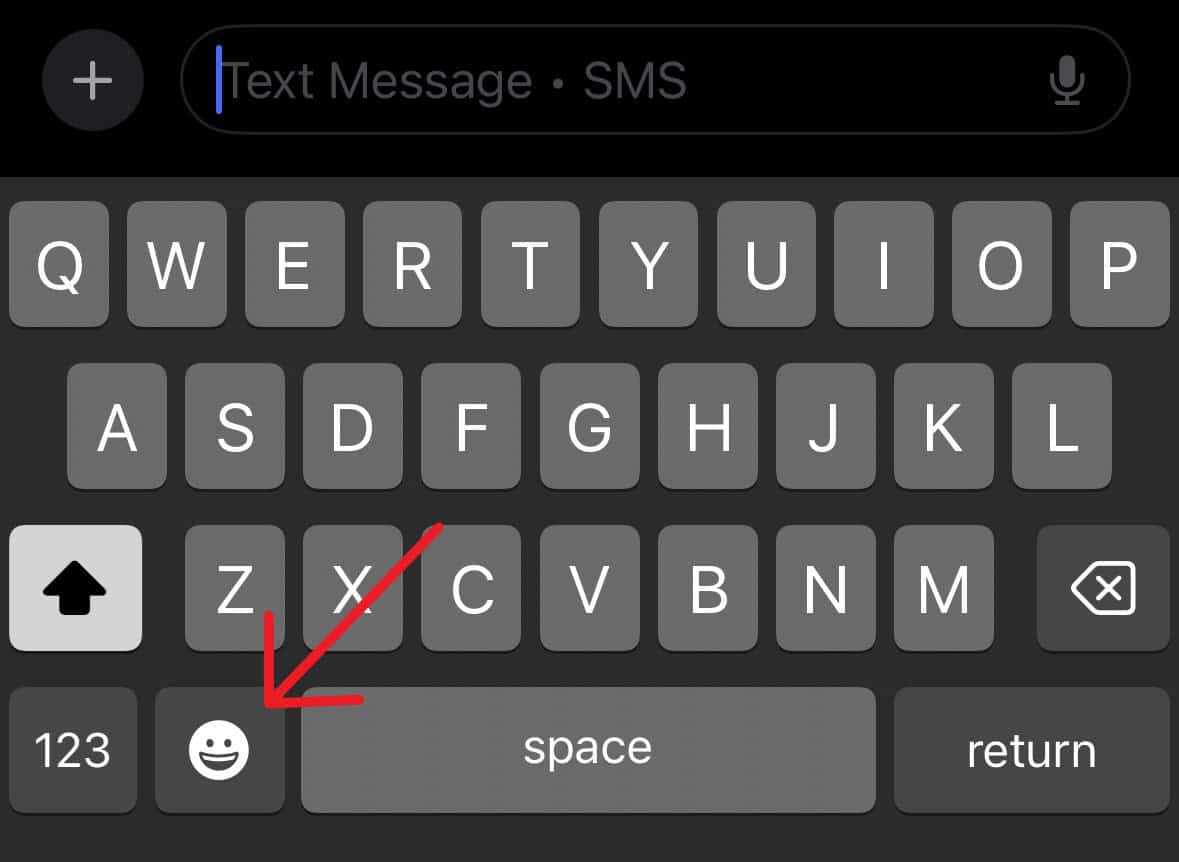
- Tap the Stickers icon.
- Switch to the Live Stickers tab again.
- Touch and hold a sticker, then tap Delete.

Or choose Rearrange to bulk-delete just like in Messages.
Removing Stickers on a Mac
Your Mac syncs stickers across devices, so whatever you delete here disappears from your iPhone and iPad too.
Remove stickers from the Stickers drawer in Messages
- Open Messages on your Mac.
- Click the Apps button, then choose Stickers.
- Go to the Live tab.
- Right-click, Control-click, or two-finger tap the sticker.
- Select Delete.
Remove stickers from the Emoji & Symbols panel
- Open the Emoji & Symbols viewer.
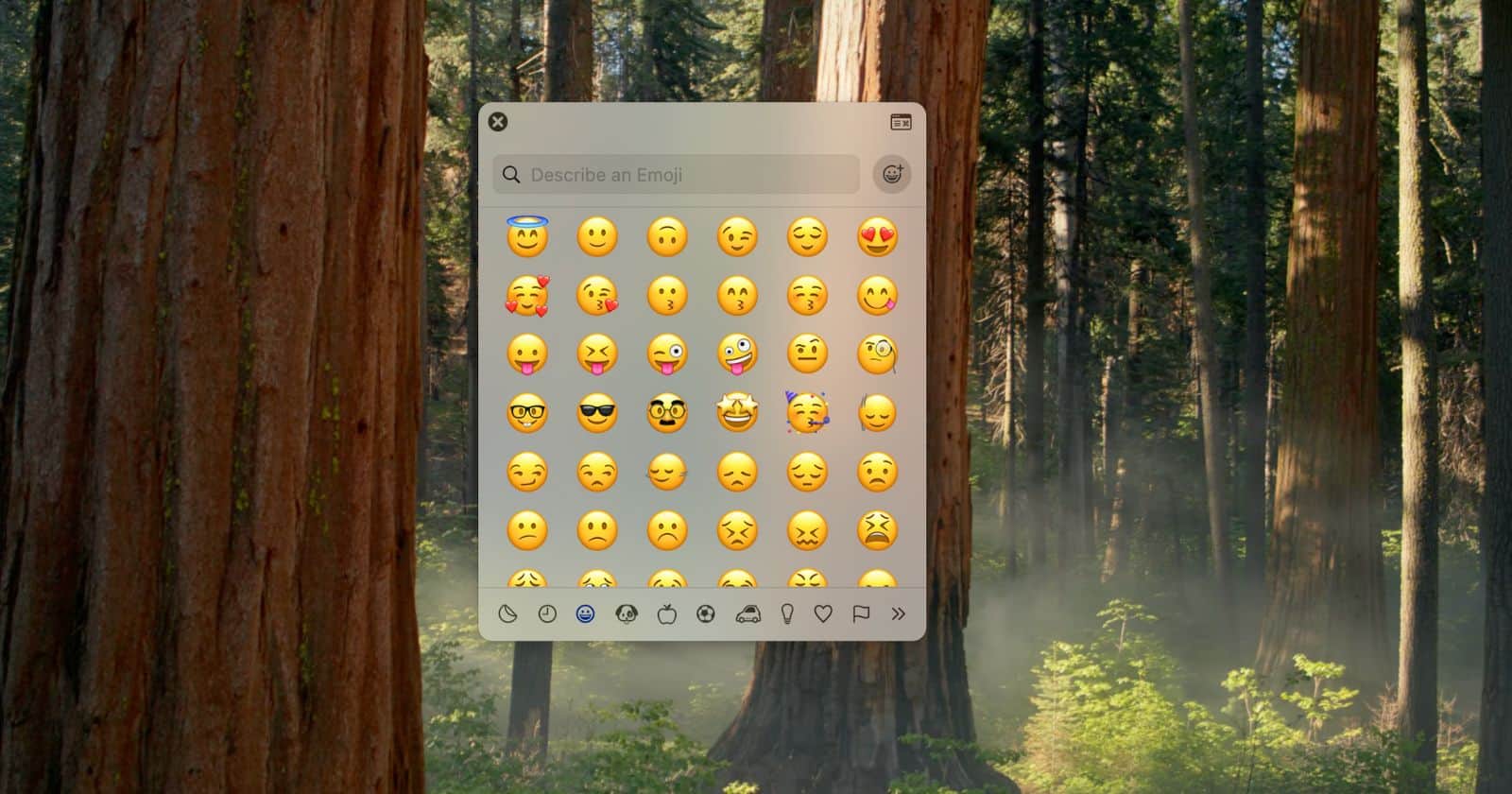
- Switch to the Live Stickers tab.
- Right-click or two-finger tap a sticker, then choose Delete.

Same rules apply: it’s removed everywhere instantly.
Quick Tips to Keep Your Sticker Collection Clean
A little maintenance goes a long way.
- Hide sticker packs you don’t use instead of deleting them.
- Delete old Memoji to remove their sticker packs.
- Clear your Recents by simply using other stickers until the unwanted ones fall off the list.
- Save only the stickers you’ll actually reuse. Everything else just adds clutter.
Wrap-Up
Cleaning up stickers in iMessage isn’t complicated once you know where everything lives. Whether you’re fixing a misplaced sticker on a message bubble or deleting old Live Stickers you never use anymore, the tools are built in and pretty quick to use. Keep things tidy and your sticker drawer stays fun instead of overwhelming.


