

If you’ve ever tried to hunt down that one photo someone sent you on iMessage, you already know the pain. Endless scrolling, random screenshots getting in the way, and no easy, all-in-one viewer like WhatsApp’s media folder. Here’s the thing: iOS 26 actually gives you a clean way to see every photo and video exchanged in a conversation you just need to know where Apple hid it.
Let’s break it down so you never dig through a chat like a digital archaeologist again.
Table of contents
Where iOS 26 Keeps Your Shared Photos
Apple didn’t reinvent how iMessage stores photos. Each conversation still keeps its own little media vault. But iOS 26 refined the layout, and once you know where to tap, everything makes a lot more sense.
Don’t miss the best of The Mac Observer
Set us as a preferred source and our Apple reporting ranks higher in your Google Search results and Discover feed — one tap, no account changes.
Here’s the fastest way to see every photo, video, or screenshot exchanged in a specific chat:
- Open Messages and pick the conversation.
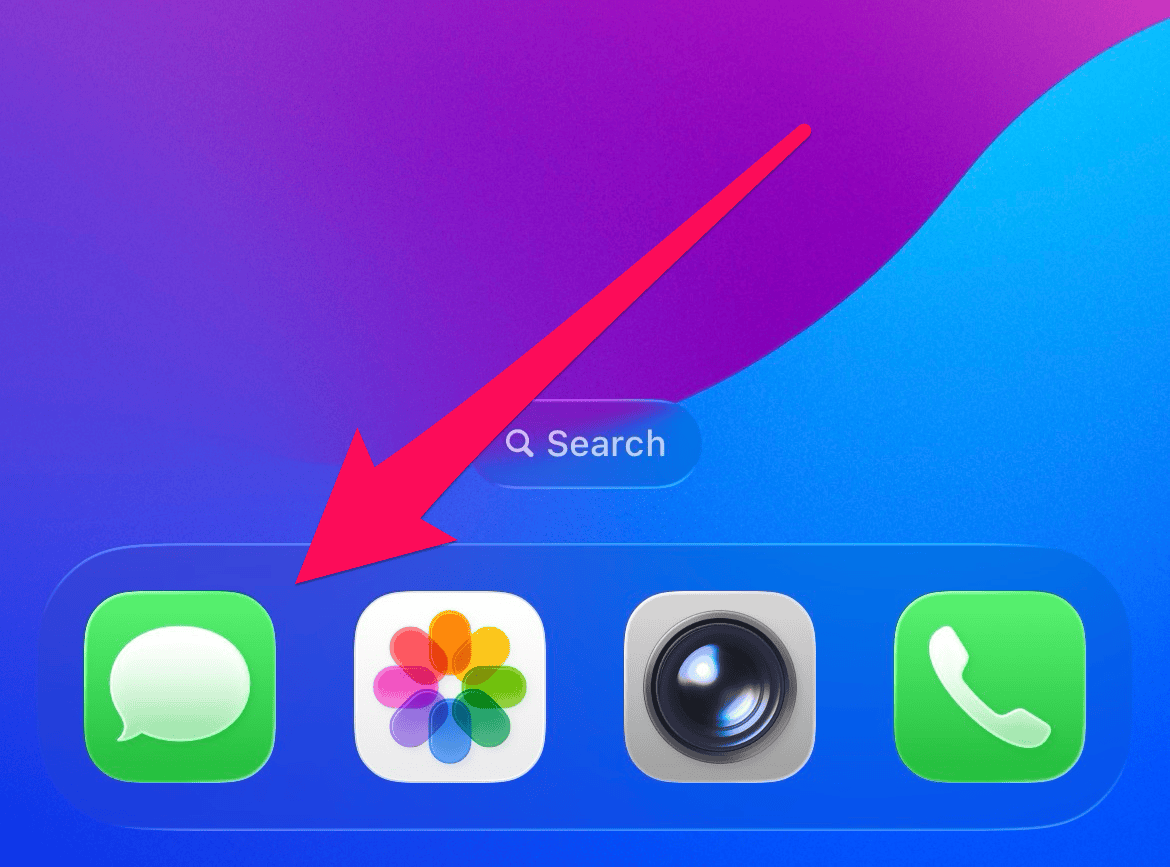
- Tap the contact’s name (or group name) at the top.
- Go to the Photos tab it only appears if you’ve actually exchanged media.
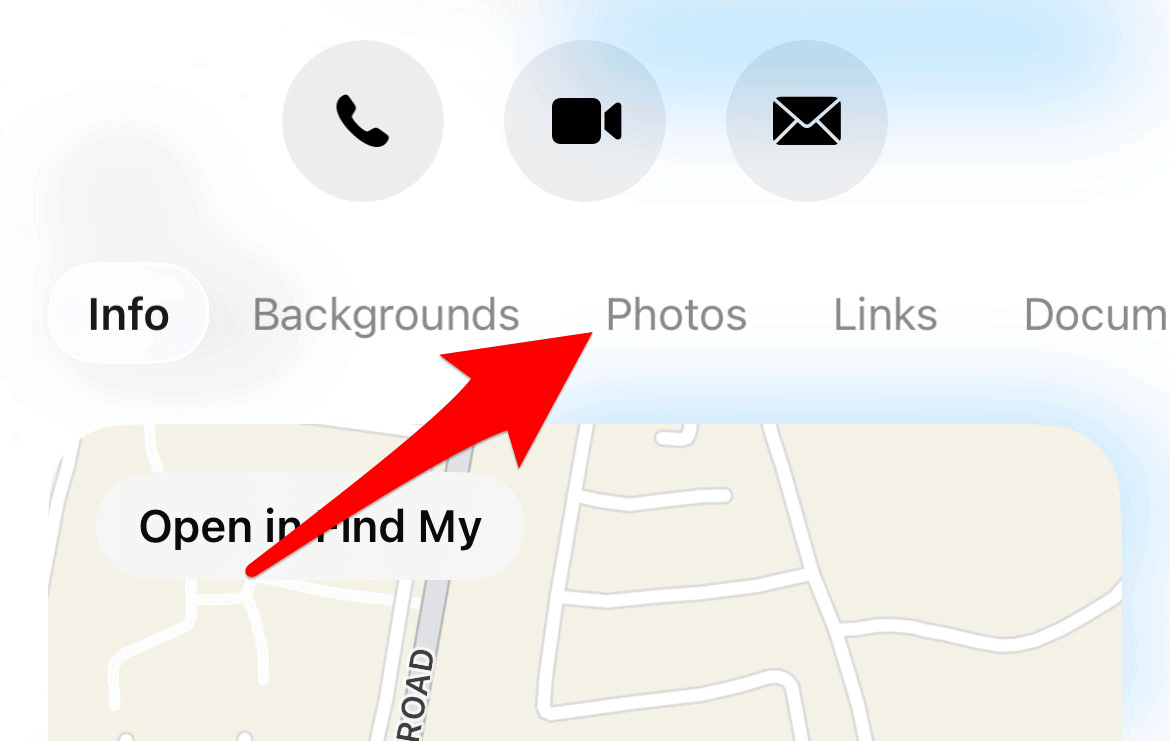
- Tap the three-lines icon at the bottom and select All.


That’s it. Everything is there in one clean grid without scrolling through days or months of texts.
Viewing Shared Photos Without Opening Messages
If you don’t want to dig through conversations at all, iOS gives you another option: Shared with You inside the Photos app. Think of it as a catch-all gallery for everything sent to you at least, everything you’ve allowed to show up there.
Here’s how to get to it:
- Open the Photos app.

- Tap your profile icon in the top right.
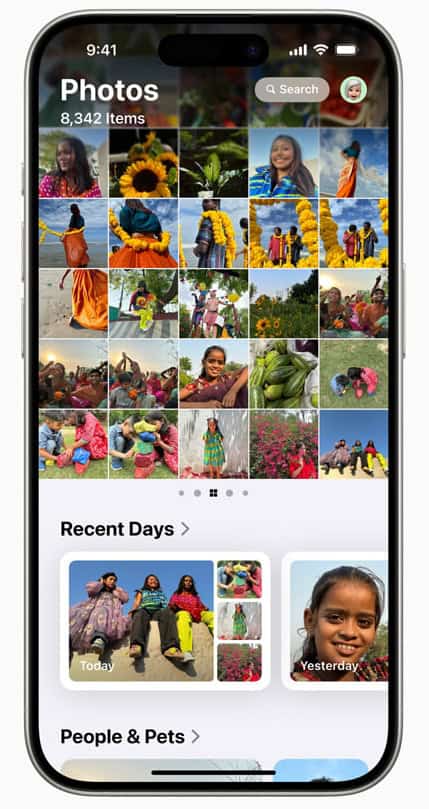
- Look for Shared with You.


Not every photo from iMessage ends up here. Apple filters this section a bit, so it’s not a perfect mirror of your message threads. But for most users, it works surprisingly well.
Turn On Shared With You (If You Don’t See Anything)
If your Shared with You gallery looks suspiciously empty, iOS probably doesn’t have permission to populate it.
Fix that in a few taps:
- Go to Settings → Apps → Messages.
- Tap Shared with You.
- Toggle on Photos.
- If you want finer control, toggle individual contacts inside each chat under Show in Shared with You.
This prevents your Photos app from being overrun by memes from that one friend who never stops.
Why Some Photos Don’t Show Up
If something’s missing, it’s usually one of these:
1. You deleted the photo in the chat.
If it’s gone from the conversation, it won’t show anywhere else. Ask the sender to resend it if you need it.
2. Your phone hasn’t finished indexing.
After updating to iOS 26 or setting up a new device, indexing takes time. Leaving your phone plugged in and on Wi-Fi overnight helps.
3. iCloud Messages is out of sync.
- Go to Settings → Apple ID → iCloud → Messages → Sync Now.
- If all else fails, toggle Use on this iPhone off, restart, and toggle it back on.
4. You’re offline.
Older media stored in iCloud won’t load without Wi-Fi or cellular data.
A Smarter Way to Manage Shared Photos
iMessage threads can build up years of random media. A little maintenance goes a long way:
- Save important photos immediately before you forget.
- Use the Photos section in each chat to bulk delete old memes or screenshots.
- Try smart search in Messages (pull down on the main screen and type something like “beach Maria photos”).
- Favorite the good stuff right from the Photos app so it never gets buried.
The Bottom Line
Finding shared photos in iMessage used to mean manual scrolling and a bit of luck. iOS 26 cleans that up. Whether you’re checking the Photos tab inside a chat or browsing Shared with You, everything is much easier to reach and manage.
If you rely on iMessage for sharing memories, the new layout finally makes it feel like Apple actually thought through the problem.


Discussion