

Apple’s iOS 26 rollout has introduced exciting features, but some users are reporting connectivity issues between their iPhones and AirPods. Whether your AirPods fail to pair, disconnect randomly, or refuse to play audio, the problem can be frustrating. This guide explores the root causes and offers practical solutions to restore seamless wireless audio.
Table of contents
Why AirPods Fail to Connect After Updating to iOS 26
Several factors can interfere with AirPods connectivity after an update to iOS 26. These include outdated firmware, incompatible AirPods models, Bluetooth interference, and system bugs. Apple’s latest firmware update 8A358 targets AirPods Pro 2, AirPods Pro 3, and AirPods 4, but excludes older models like AirPods 1 and 2. If your AirPods are not supported, they may not function reliably with iOS 26.
Fixes for AirPods Not Connecting to iOS 26

Check Compatibility
Before troubleshooting, verify that your AirPods model supports iOS 26. AirPods Pro 2, AirPods Pro 3, and AirPods 4 are compatible. Older models may experience limited functionality or fail to connect entirely.
Don’t miss the best of The Mac Observer
Set us as a preferred source and our Apple reporting ranks higher in your Google Search results and Discover feed — one tap, no account changes.
- Open Settings on your iPhone.
- Tap Bluetooth and locate your AirPods.
- Check the firmware version and model name.
Charge Your AirPods Properly
Low battery levels can prevent AirPods from connecting or updating. Make sure both the AirPods and the case are charged.
- Place your AirPods in the charging case.
- Connect the case to power using a Lightning cable or MagSafe charger.
- Check the charging status light: amber means charging, green means fully charged.
- Leave them charging for at least 30 minutes before reconnecting.
Update AirPods Firmware
Firmware updates are essential for compatibility with new iOS versions. To ensure your AirPods are running the latest version, follow Apple’s guidance to update the firmware of your AirPods.
- Place AirPods in their charging case.
- Keep them near your iPhone with iOS 26 installed for at least 30 minutes.
- Play audio briefly to trigger an active connection.
- Wait for the update to install automatically.
Turn Off Automatic Ear Detection
Automatic Ear Detection can sometimes cause AirPods to disconnect or fail to route audio properly.
- Go to Settings > Bluetooth.
- Tap the info icon next to your AirPods.
- Toggle off Automatic Ear Detection
Reset Network Settings
If your AirPods still won’t connect, resetting your iPhone’s network settings can resolve deeper Bluetooth conflicts.
- Go to Settings > General > Transfer or Reset iPhone.
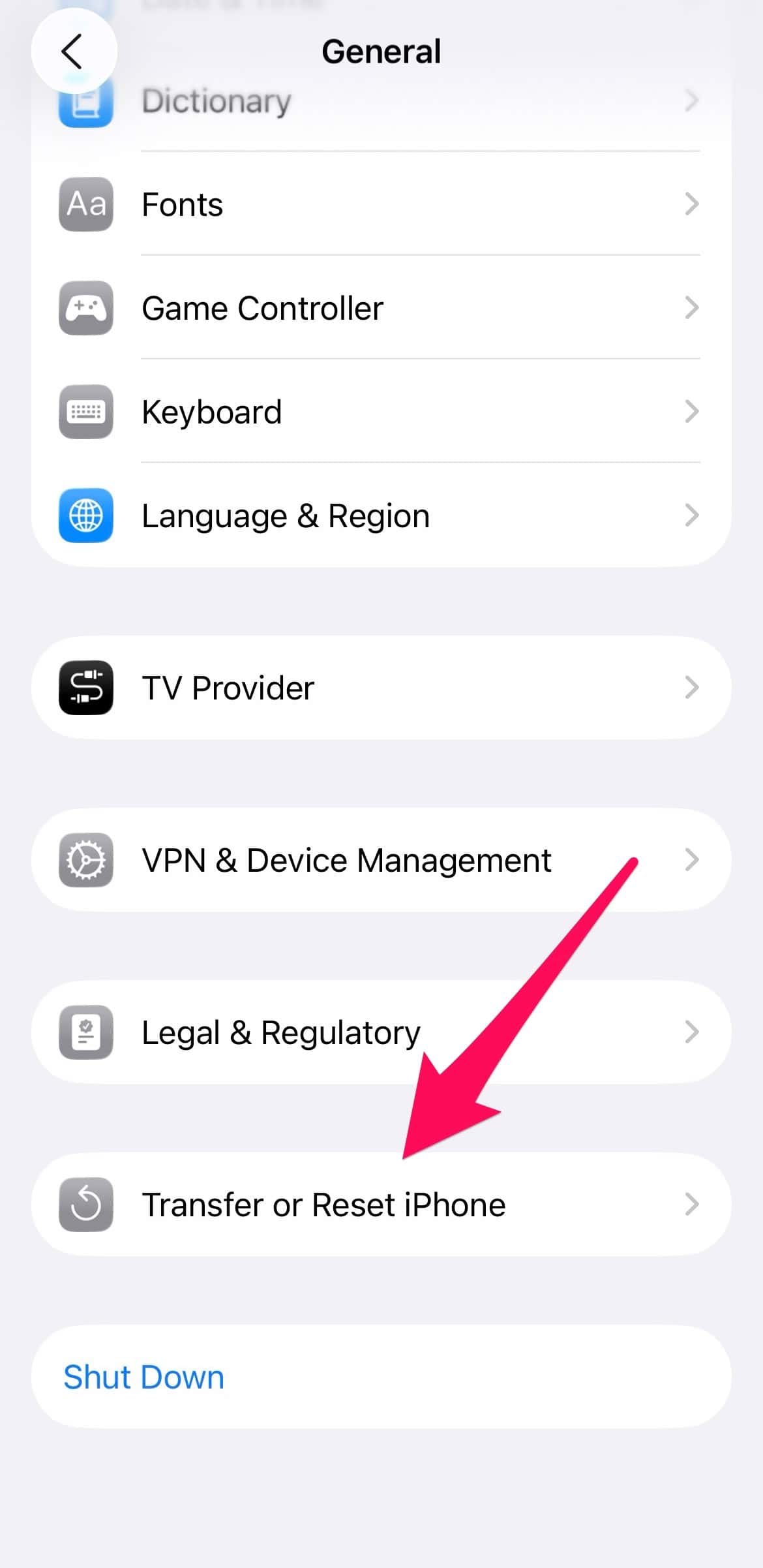
- Tap Reset > Reset Network Settings.

- Reconnect your AirPods after the reset.


Re-Pair Your AirPods
Sometimes, forgetting and re-pairing your AirPods resolves persistent connection issues.
- Go to Settings > Bluetooth.
- Tap the info icon next to your AirPods.
- Tap Forget This Device.
- Restart your iPhone and re-pair your AirPods.
Reset Your AirPods
A full reset can resolve firmware glitches and restore factory settings.
- Place AirPods in their charging case and close the lid for 30 seconds.
- Open the lid and press the setup button on the back of the case until the status light flashes amber, then white.
- Reconnect your AirPods via Bluetooth on your iPhone.
Disable “Reduce Loud Sounds”
Some users report that the “Reduce Loud Sounds” feature interferes with audio output.
- Navigate to Settings > Sounds & Haptics > Headphone Safety.
- Toggle off Reduce Loud Sounds.
FAQ
AirPods Pro 2, AirPods Pro 3, and AirPods 4 are fully compatible. AirPods Max and older models may not support all features.
No. Firmware updates occur automatically when AirPods are connected to a compatible device.
This may be due to outdated firmware or Bluetooth interference. Try re-pairing your AirPods and updating your iPhone.
Live Translation requires AirPods Pro 2 or newer and an iPhone 15 Pro or later running iOS 26.
Restoring Reliable AirPods Connectivity in iOS 26
Connectivity issues after an upgrade to iOS 26 are often solvable with firmware updates and basic troubleshooting. Apple’s iOS 26 AirPods update introduces new features like Live Translation, but only for supported models. If your AirPods are still not working, consider contacting Apple Support or checking for upcoming patches.


Discussion