

The iPhone 17 front camera has sophisticated tracking. This feature keeps you perfectly centered during video calls. It works even on WhatsApp. This feature, called Center Stage, improves video communication greatly. It automatically pans and zooms when you move. People find constant adjustment distracting sometimes. Therefore, you may want to disable it.
Table of contents
Understanding and Managing Center Stage on iPhone 17
The Center Stage feature is new on iPhone 17 models. It uses the high-resolution front-facing camera. Advanced software keeps subjects in the frame center. It intelligently detects all faces and movements. This feature is on by default in video apps. This includes FaceTime and WhatsApp. You can still regain manual control easily. Many users also want to know what is new with the iPhone 17 camera features.
1. Disabling Center Stage Directly in WhatsApp
This method provides the most immediate solution. It stops the camera from automatically tracking your face. You use this technique during a live WhatsApp video call. It immediately stops the automatic adjustment for that specific call.
Don’t miss the best of The Mac Observer
Set us as a preferred source and our Apple reporting ranks higher in your Google Search results and Discover feed — one tap, no account changes.
- Start a video call in WhatsApp.
- Access the Control Center. Swipe down from your screen’s top-right corner.
- Tap the Video Effects button. It looks like a person in a frame. You may also see the Center Stage icon.
- Tap the Center Stage button. This action turns the feature off for your current call.
2. Adjusting Camera Effects Within the Call
You may find this option available in the camera view itself. Look inside the video window. This access point is very quick. It appears during the active call only.
- Tap your own video preview tile. Do this during an active WhatsApp video call.
- Tap the Camera Effects option.
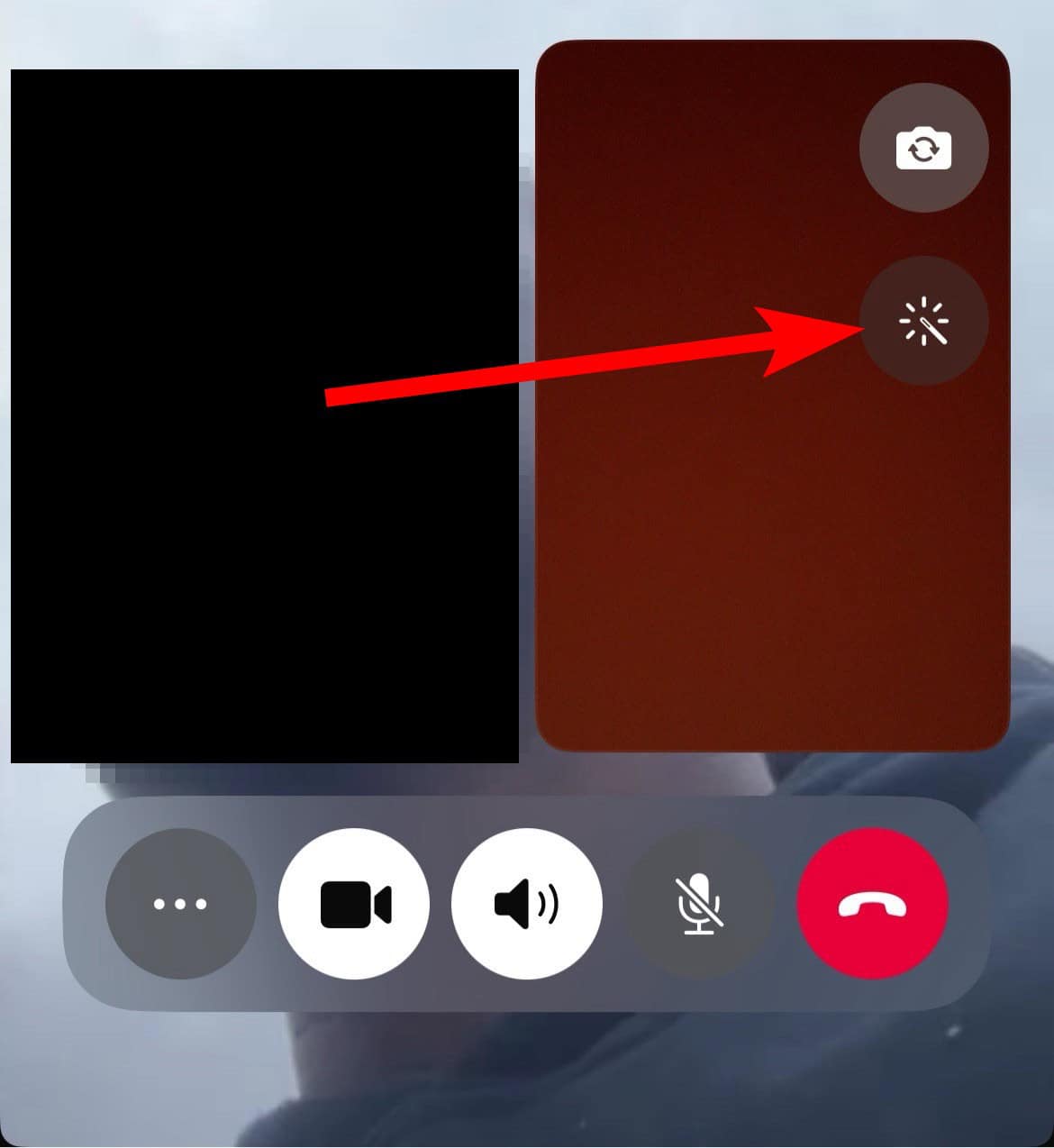
- The effects menu appears. You will see the Center Stage feature there. Now, toggle it off.

3. Force-Quitting the WhatsApp Application
A simple software refresh can often fix temporary glitches. It also resolves issues where a setting did not apply correctly. This quick step is a common troubleshooting fix. Try this before making major changes.
- Swipe up from the screen bottom. Pause slightly in the middle. This reveals your open apps.
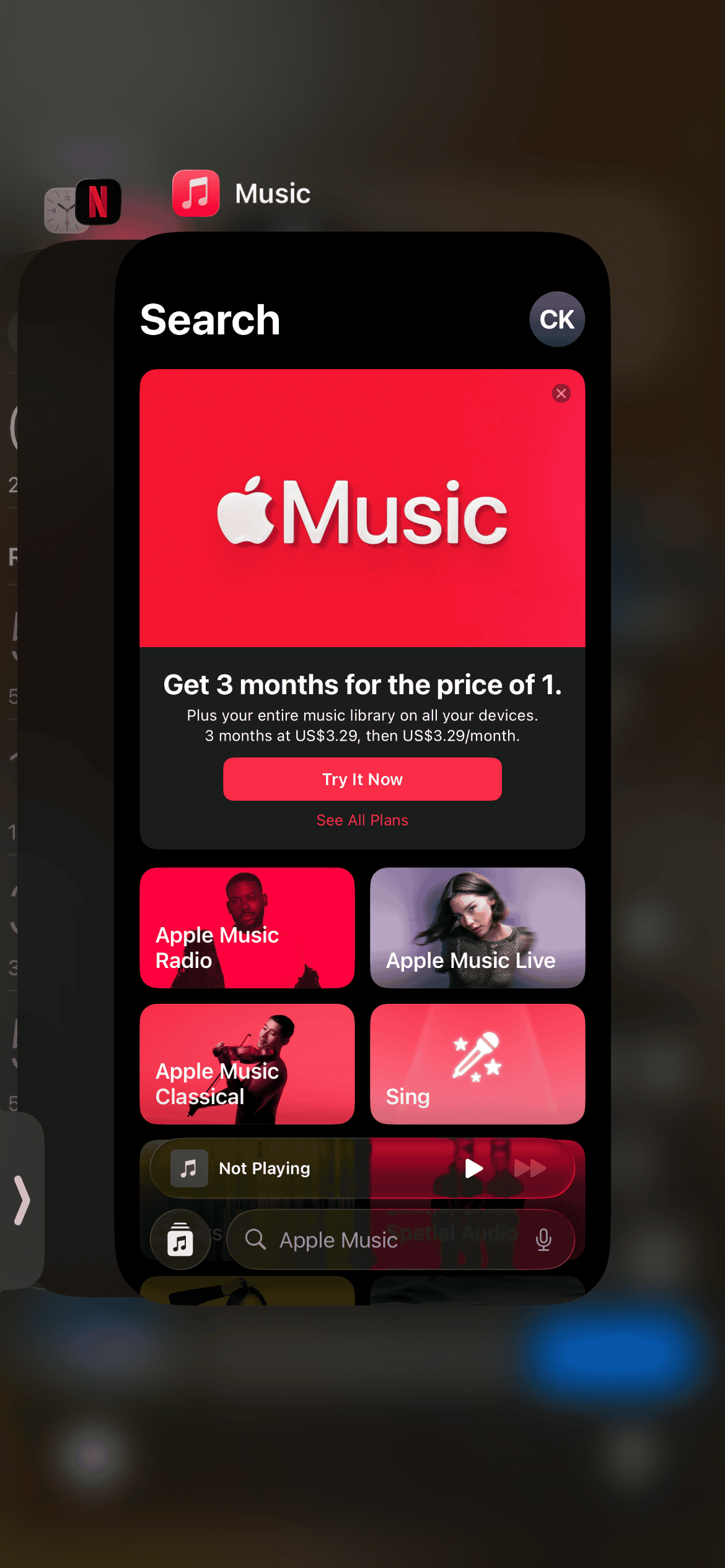
- Find the WhatsApp app card. Swipe it upward to force-close it.
- Re-open WhatsApp. Check if the tracking issue continues during a new video call.

4. Updating iOS and WhatsApp Software
Newest software versions always include vital bug fixes. They also provide important stability improvements for all apps. These changes affect system camera features greatly. They also impact app integration. Keeping your device updated is critical for peak performance. Furthermore, you gain access to the best iPhone 17 camera settings.
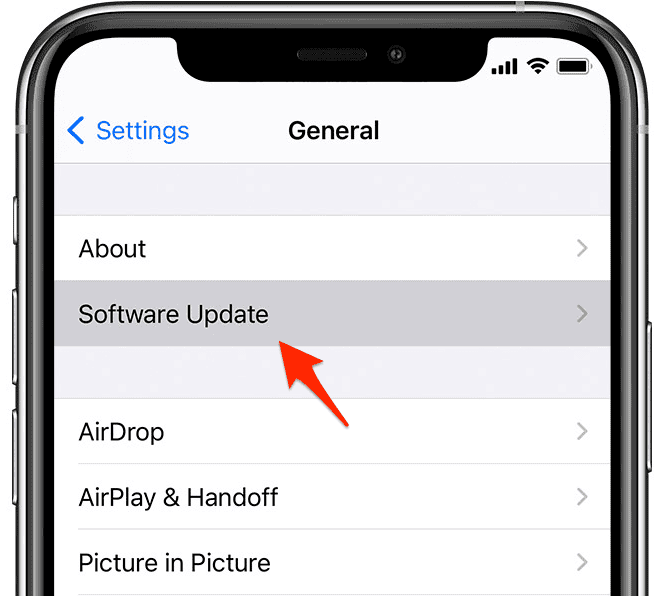
- Go to the Settings app. Then navigate to General > Software Update. Check for the newest iOS version.
- Open the App Store. Search for WhatsApp Messenger. Install all available updates.

FAQ
Center Stage is a device-side feature. It uses on-device intelligence to frame the image. It does not create new privacy risks for WhatsApp communication.
The iPhone 17 has a more advanced front-facing camera. It has built-in features like Center Stage. Therefore, you notice a smoother, more pronounced automatic zooming experience.
No, absolutely not. Disabling Center Stage only stops the automatic framing during video use. It does not impact your standard photos or videos.
Taking Full Command of Your Camera
Understanding how to manage Center Stage is simple. This gives you command over your video calls. The automatic face tracking is a welcome feature. It makes hands-free communication feel very smooth. Nevertheless, you can turn it off easily. This ensures full control of your framing and privacy. For instance, learn how to stop WhatsApp calls disconnecting on iPhone.



Discussion