

Many iPhone users have reported an issue with WhatsApp: Users’ calls randomly disconnecting when iPhone 17 is locked. The problem typically occurs 4–5 seconds after the screen locks during a voice or video call.
Specifically, this problem is only prevalent on the iPhone 17 with iOS 26. While we’re all waiting for the newest WhatsApp major design overhaul, this problem still persists as of late 2025. We’ll take a closer look at the causes, solutions, and show you methods to avoid this problem.
Table of contents
WhatsApp Calls Disconnect After 4-5 Seconds When iPhone 17 Is Locked
If you’ve recently upgraded to iOS 26 on your iPhone 17, you may have noticed that if you are attempting to connect a video call on WhatsApp, and eventually during the call the iPhone locks, there may be a chance that the call will drop after a couple of seconds.
Don’t miss the best of The Mac Observer
Set us as a preferred source and our Apple reporting ranks higher in your Google Search results and Discover feed — one tap, no account changes.

Similarly, if you receive an incoming WhatsApp call while your iPhone is locked, it disconnects automatically after 4-5 seconds once you pick up. Oddly enough, if you connect the call while it’s unlocked, there are no problems, as reported by the Apple discussion community.
Users report that restarting the phone or enabling and disabling the Background App Refresh & Notification Settings do not seem to work at all.
The nature of this problem isn’t related to your iOS, as Apple isn’t responsible for third-party apps. The main issue lies in compatibility problems that the WhatsApp devs still haven’t fixed. Even pulling down the notification center during the video call will make the phone call pause.
How to Solve and Avoid WhatsApp Calls Disconnecting on Your iPhone
If you’re having problems with your WhatsApp dropping the video calls unexpectedly, you can try these four simple methods and follow the step-by-step processes for each.
Step 1: Resetting the Network
The first thing to do to resolve the issue is to check your network connectivity to see if there’s a general bandwidth problem. Resetting the network on your Wi-Fi connections should help you resolve the issue. First:
- Go to Settings
- Then click on General
- Go to Reset, and then Reset Network Settings
Before proceeding, you need to make sure that you have your Wi-Fi password remembered because resetting the network can sometimes completely remove the remembered passwords. The network reset removes all the Wi-Fi connections you had. Be sure to back up your passwords beforehand.
Step 2: Turning Off the Do Not Disturb Option
Another feature that may pose an issue is the Do Not Disturb option. Make sure that your phone can alert you every time you receive a WhatsApp call by disabling the Do Not Disturb feature:
- Go to your iPhone’s Settings
- Click on Do Not Disturb.
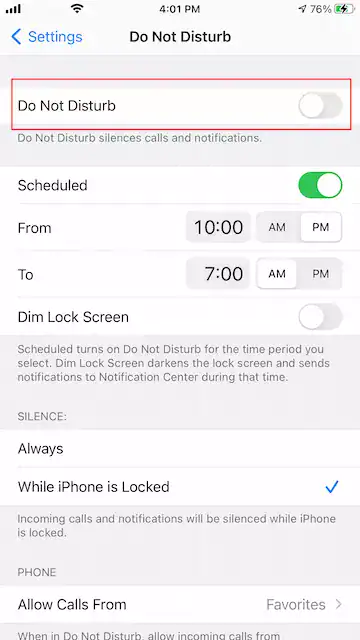
- Toggle Do Not Disturb and turn it on.
Step 3: Disabling Noise Cancellation
Another solution that most users reported as viable is the iPhone noise cancellation feature. This helps reduce background sounds during WhatsApp calls. While it improves call clarity, this might be a problem that causes the dropped connection during your video call. Follow these steps to turn it off:
- Go to your iPhone’s Settings
- Navigate to Accessibility.
- In the Hearing section, click on the Audio/Visual button
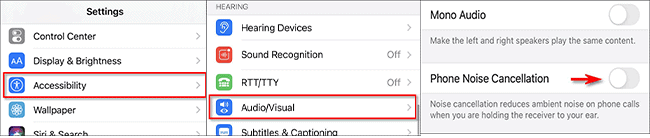
- Turn the Phone Noise Cancellation feature off.

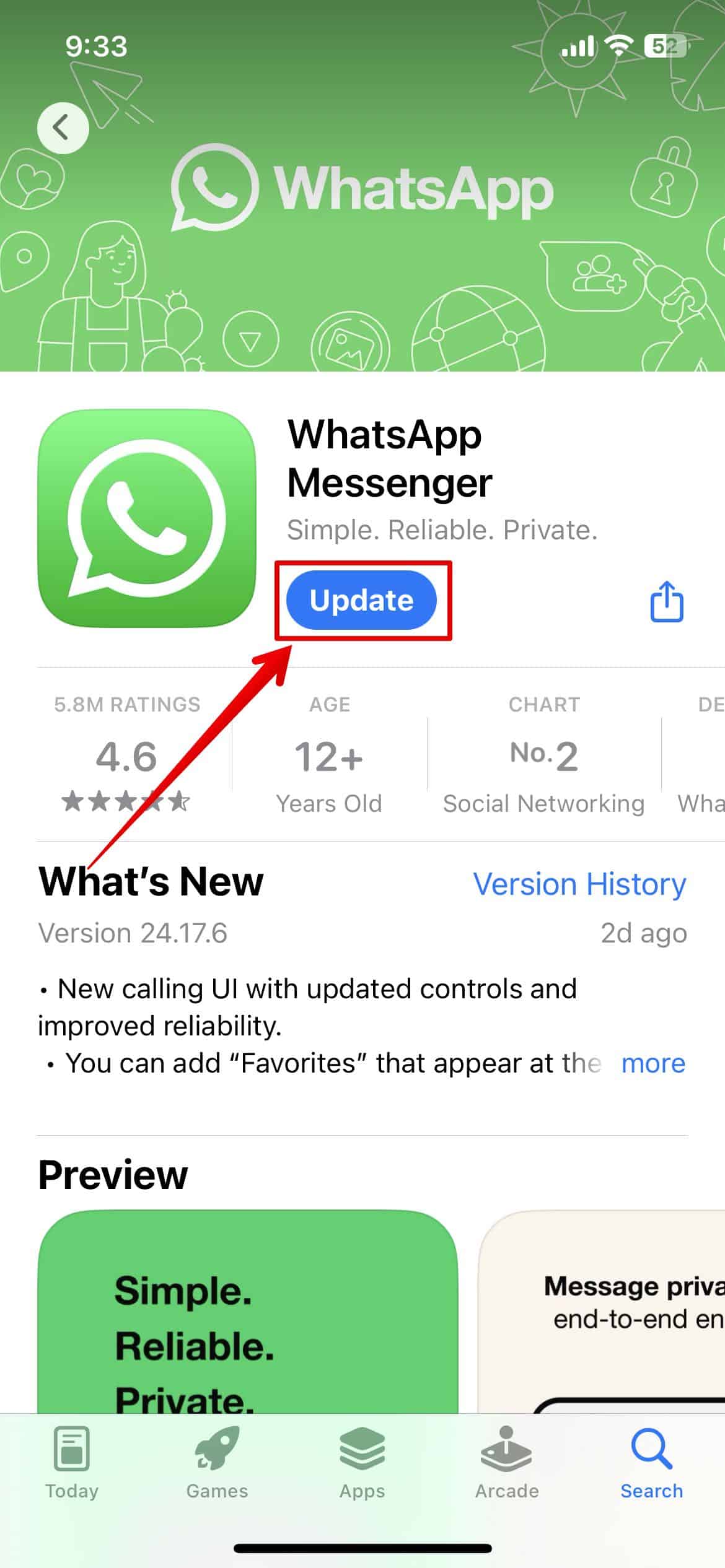
Step 4: Updating WhatsApp
Sometimes updating the app can resolve this issue. It’s important that you’re using the latest version of the WhatsApp application because the developers might currently be working on a fix for the bug. Given below are simple steps to update WhatsApp:
- Open App Store and type WhatsApp in the search bar.
- Click on Update next to the messenger to download and install the latest updates.

Step 5: Reinstalling WhatsApp
If all else fails, some users report that completely uninstalling WhatsApp may resolve the issue.
Be aware that you may need to backup your data before unstalling the application because you might lose all your data. Always be sure to backup your calls and messages beforehand, especially times when WhatsApp is no longer available on the App Store.
Summary
- WhatsApp disconnects after 4–5 seconds when the iPhone 17 is locked.
- The issue is not caused by iOS itself but stems from WhatsApp’s compatibility problems.
- Restarting the phone or toggling Background App Refresh does not fix the issue.
- Solutions include resetting network settings, disabling Do Not Disturb, and turning off Noise Cancellation.
- Updating or reinstalling WhatsApp may help if other fixes don’t work.
Conclusion
We hope that these solutions can resolve your problem. Either way, most users are currently waiting on a fix by the WhatsApp developers, hoping that the next update can resolve the issue. The issue appears to be app-specific and not tied to Apple’s system software, and updating may also fix common bugs, such as WhatsApp saving media twice.
While there’s no official fix yet, several workarounds like disabling Noise Cancellation, updating WhatsApp, or resetting your network can help. Until WhatsApp releases a permanent solution, these steps offer the best chance to maintain stable call connections.



Discussion