

If you see iPhone Error 9, it usually means your device disconnected during a restore or update. This can happen because of a faulty USB cable, outdated iTunes, antivirus interference, or software glitches.
The good news is that most of these issues can be fixed at home with a few simple steps. Let’s go through the main causes and the solutions!
Table of contents
How to Fix iPhone Error 9?
1. Update iTunes or macOS/Apple Devices App
Outdated software can cause connection errors during restore. Make sure your Mac is updated to the latest macOS version, or on Windows, update iTunes or the Apple Devices app before trying again.
Don’t miss the best of The Mac Observer
Set us as a preferred source and our Apple reporting ranks higher in your Google Search results and Discover feed — one tap, no account changes.
2. Force Restart Your iPhone
Sometimes a simple force restart of the iPhone clears temporary glitches.
- iPhone 8 or later: Press and quickly release the Volume Up button, then the Volume Down button. Hold the Side button until the Apple logo appears.
- iPhone 7 or 7 Plus: Hold the Side button and Volume Down button together until you see the Apple logo.
- iPhone 6s or earlier: Hold the Home and Side/Top buttons together until you see the Apple logo.

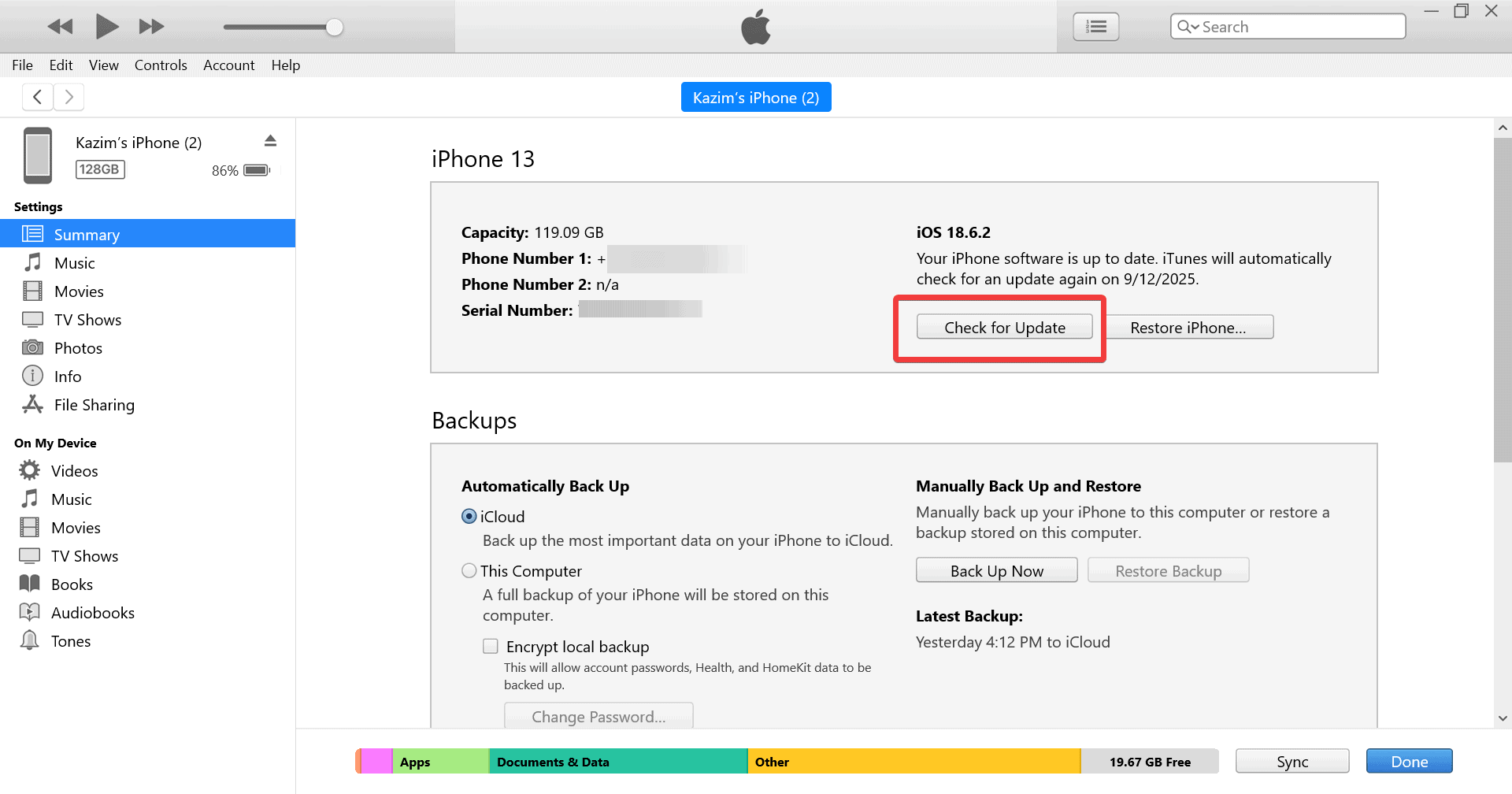
3. Use “Update” Instead of “Restore”
If you choose Update, your iPhone will try to reinstall iOS without erasing your data. This often fixes the error while keeping your content intact. If that fails, a restore may be necessary, but it will erase your data.
- Connect your device to the computer.
- In iTunes or Finder, select your device.
- Click Check for Update rather than Restore iPhone to reinstall the software without erasing content.

4. Try Another USB Cable, Port, or Computer
A faulty cable or port can interrupt the restore process and trigger Error 9 on iPhone.
- Always use an Apple-certified Lightning or USB-C cable.
- Plug into a different USB port on your computer.
- If possible, try restoring with another computer.
5. Check Security Software or Firewall
Sometimes antivirus or firewall settings block iTunes or Finder from communicating with Apple’s servers. Temporarily disable your security software and try the restore again.
Make sure to enable it once the restore is complete, as this can put your PC at risk.
For some, this also turned out to be the reason behind iPhone Error 75.
6. Enter Recovery Mode and Retry
If nothing else works, putting your iPhone into recovery mode often helps.
- Power off your iPhone.
- Hold the correct button combination for your model while connecting it to your computer.
- Keep holding until you see the recovery mode screen.
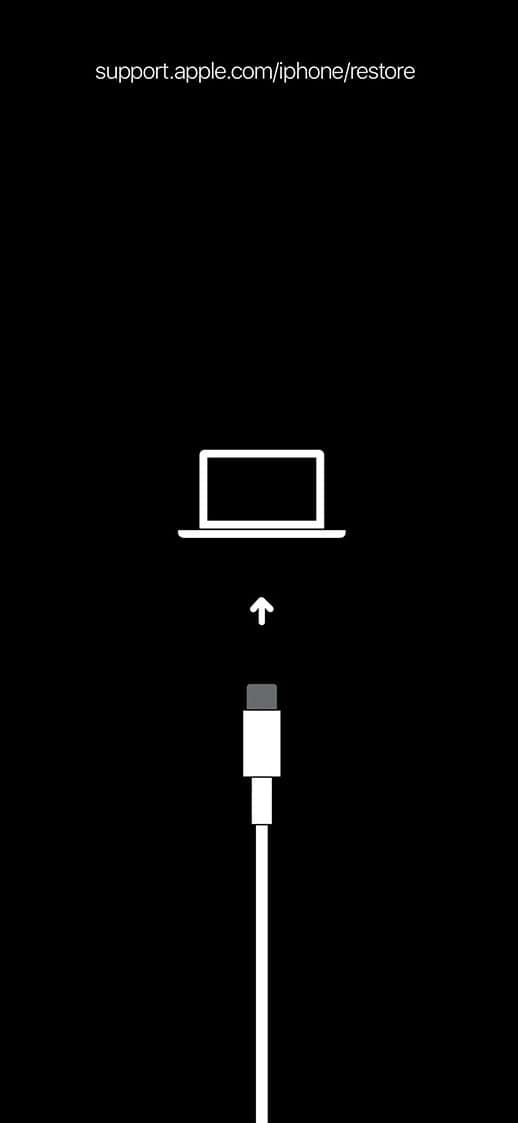
- Choose Update first, and if that fails, try Restore.

Restoring from recovery mode also helps fix iPhone Error 1109.
Tips
- Keep your computer software updated before attempting a restore.
- Always back up your iPhone before major updates or restores.
- Use genuine Apple cables for a stable connection.
- Disable security software temporarily if restores keep failing.
- Try restoring on another computer to rule out system issues.
Frequently Asked Questions
It usually means your iPhone lost connection during an update or restore, often because of USB or software issues.
No. Update attempts to reinstall iOS without removing data. Restore, on the other hand, erases all content.
Yes. A damaged or non-certified cable can disconnect during restore and trigger the error.
If all else fails, contact Apple Support. They can help diagnose if the issue is hardware-related.
Summary
- Update iTunes, macOS, or the Apple Devices app.
- Force restart your iPhone.
- Use Update instead of Restore to keep data.
- Switch cables, ports, or computers.
- Temporarily disable security software.
- Try recovery mode and restore the iPhone again.
Conclusion
iPhone Error 9 often points to a connection or software issue during restore. Most problems can be fixed by updating your software, restarting the iPhone, using the right cables, or checking antivirus settings. If recovery mode does not solve it, contacting Apple Support is the safest way forward.
With these steps, you can get your iPhone running again without much hassle.



Discussion