

Apple labels Lockdown Mode as an optional, extreme protection feature that reduces your iPhone’s exposure to digital threats by limiting certain features and functionality.
Smartphones face many security risks, from phishing links to spyware that can silently install itself. Lockdown Mode aims to block the most advanced attack methods by restricting the phone’s normal behavior.
In iOS 26, Lockdown Mode works alongside other security upgrades like Background Security Improvements and Memory Integrity Enforcement to provide multiple layers of defense.
Don’t miss the best of The Mac Observer
Set us as a preferred source and our Apple reporting ranks higher in your Google Search results and Discover feed — one tap, no account changes.
Table of contents
How to Enable
Open Lockdown Mode
This method walks you through turning on Lockdown Mode for your iPhone. Once enabled, it applies to your paired Apple Watch automatically.
- Open the Settings app on your iPhone.
- Tap Privacy and Security.
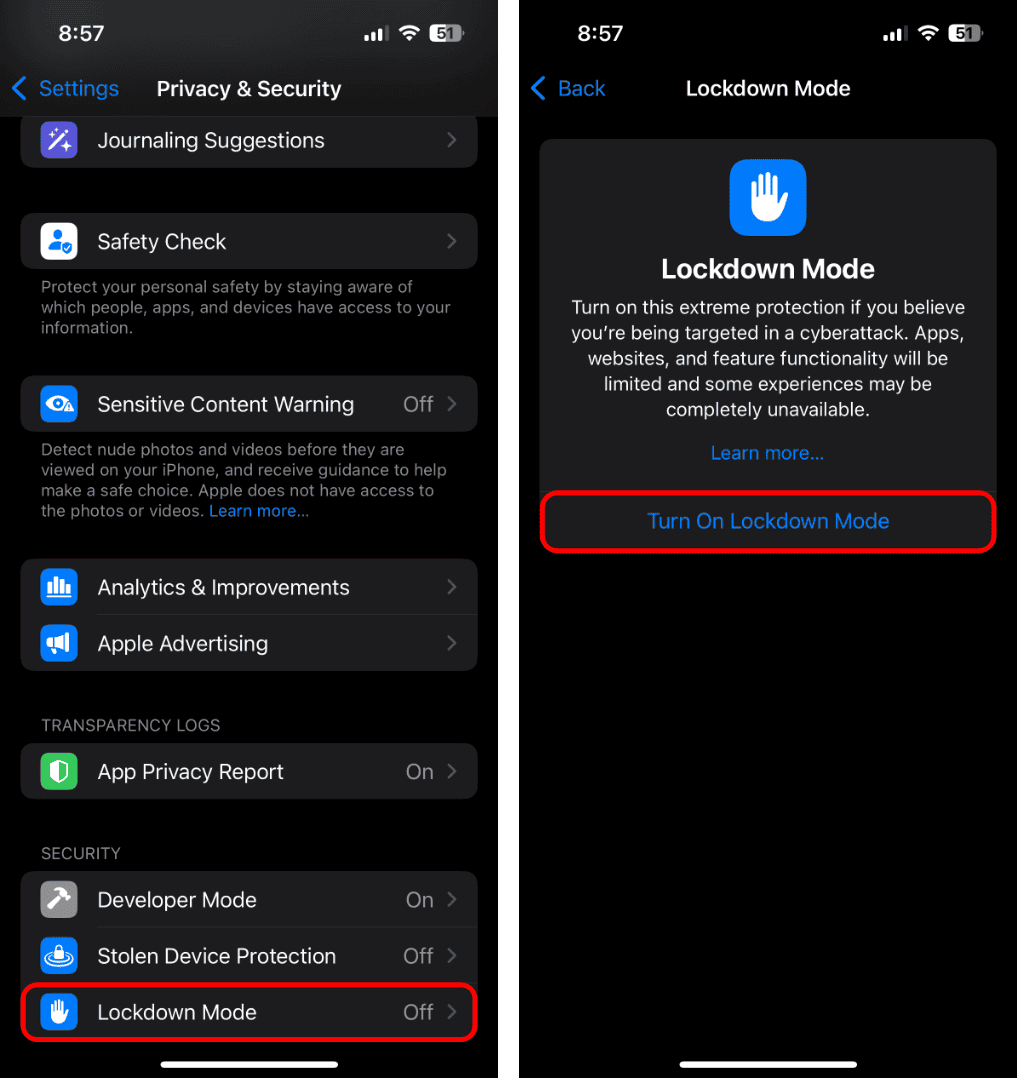
- Scroll down and select Lockdown Mode.
- Tap Turn On Lockdown Mode.
- Tap again to confirm and choose Turn On and Restart.
- Enter your device passcode when prompted.

Once your iPhone restarts, Lockdown Mode is active. Your device now runs with extra security restrictions.
Configure Exceptions in Lockdown Mode
Allow Trusted Apps or Websites
Lockdown Mode can block features you need for work or daily use. You can allow trusted apps and websites to bypass some restrictions if you are sure they are safe.
- Launch Settings again.
- Go to Privacy and Security and tap Lockdown Mode.
- Choose Configure Web Browsing.
- To exclude a website, add it under Excluded Safari Websites.
- To allow an app, scroll in the app list and turn off Lockdown Mode for it.
Use this sparingly. Only allow exceptions for apps and websites you fully trust.
Lockdown Mode: Benefits and Limits
Benefits
- Stronger protection against targeted cyberattacks.
- Works with iOS 26 security updates like Memory Integrity Enforcement.
- Blocks many exploit paths used by spyware.
Limitations
- Some normal features stop working.
- Certain web content and apps might break.
- You need to manually allow trusted domains or apps if needed.
Only enable it if you think your iPhone is at risk from advanced threats. For most users, everyday protections built into iOS 26 are already strong.
FAQ
Should everyone turn on Lockdown Mode?
No. Lockdown Mode restricts many normal features. Use it only if you have reason to believe you are a target of sophisticated attacks.
Will my messages still work?
Yes, plain text messages and calls still work. But many attachments and link previews are blocked.
Does Lockdown Mode protect against all threats?
It strengthens defenses against high-level attacks. It does not replace basic security hygiene like installing updates or avoiding unknown links.
Summary
- Lockdown Mode is optional but powerful. It limits features to reduce attack paths.
- You enable it in Settings under Privacy and Security. It applies after restart.
- Lockdown Mode blocks advanced features that spyware often uses.
- You can allow trusted apps or websites. Do this only when necessary.
- It works best with iOS 26 updates. Ensure your iPhone is fully updated.
Conclusion
Lockdown Mode gives your iPhone some of the strongest defenses Apple currently offers. It is not meant for every user, but you gain deep protection if you face real threats. If you decide to use it, update to iOS 26 first and then turn the mode on. Check your trusted apps and websites carefully so that necessary tools still work.


I need to read more. This iOS 26 software on my iPhone 13 is in trouble or I am wrong. Because,
my wi- fi is’t fast enough for me to navigate the Internet.
How do you turn it OFF?