

Receiving a threatening message like “Last warning all your emails will be removed” or “All photos will be deleted” is alarming. These intimidating notifications often appear as spam emails or automatically generated calendar entries, creating a pervasive nuisance. They are usually phishing attempts designed to trick you into clicking malicious links. Rest assured, these are seldom legitimate warnings, and simple steps can resolve the issue, protecting your data and peace of mind.
Table of contents
Resolving Urgent Data Deletion Warnings on iPhone
1. Removing Calendar Entries by Disabling the Account Calendar
If the spam has populated your calendar with persistent events, the most efficient method for clearing them all at once is to temporarily disable the calendar function for the affected email account. Before proceeding, ensure you have saved any important upcoming meetings or reminders outside of the calendar app to avoid data loss.
- Open Settings > Apps > Calendar > Calendar Accounts.
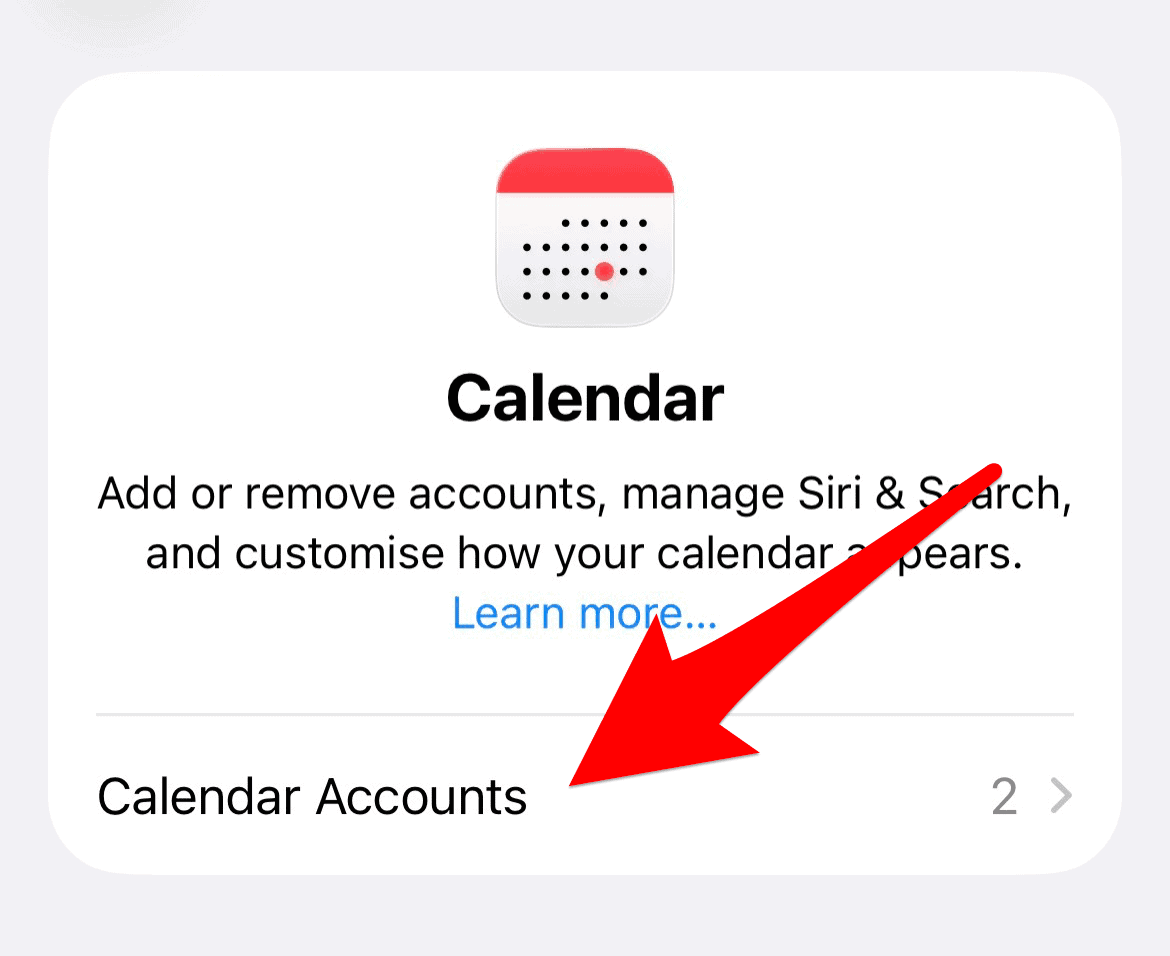
- Choose the email account associated with the spam.
- Toggle the Calendars switch to the off position.
- The annoying reminders should instantly clear from your calendar.

2. Deleting the Source Spam Email from Your Junk Folder
The automatic creation of calendar events is often triggered by receiving the malicious invitation in your inbox, particularly if your device settings automatically add invitations. Eliminating the source email is a critical step in stopping the problem at its root.
Don’t miss the best of The Mac Observer
Set us as a preferred source and our Apple reporting ranks higher in your Google Search results and Discover feed — one tap, no account changes.
- Open your Mail app and navigate to your Junk or Spam folder.
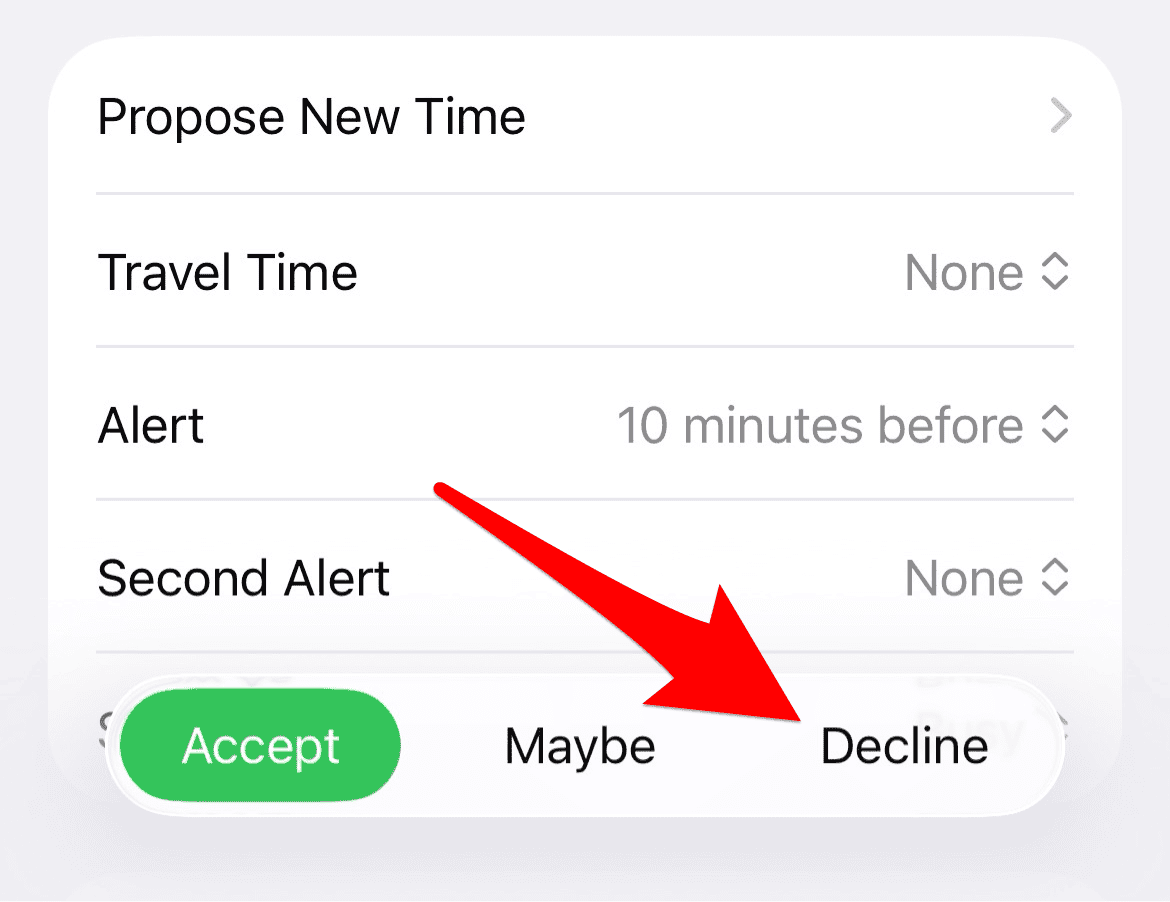
- Locate the suspicious email with the warning subject line.
- Delete the email immediately. Do not open or interact with it further, as this might inadvertently confirm your email is active to the sender.

3. Manually Deleting the Individual Calendar Events
For users with fewer spam events, or for those who prefer not to toggle off their entire account calendar, manually removing the individual entries is a safe and effective approach. This method is safe because deleting the entry itself does not trigger any malicious links.
- Open the Calendar app.
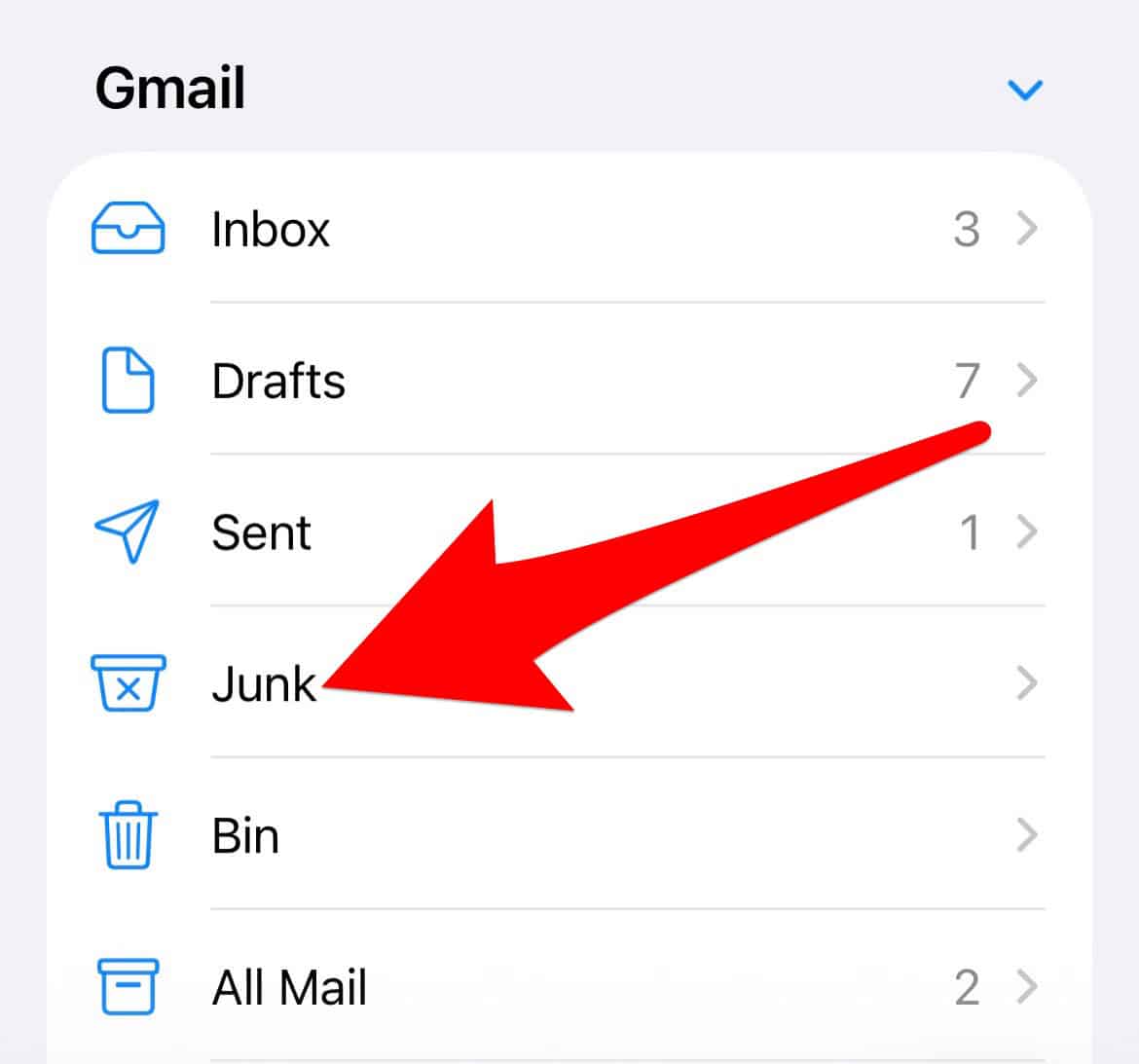
- Tap on the specific spam event.
- Select Delete Event or Decline the invitation. If you are having trouble with other applications, you may find solutions to fix iPhone Photos app crashing and hanging.

4. Checking and Removing Suspicious Calendar Subscriptions
Calendar spam is frequently generated by a malicious calendar subscription you may have inadvertently accepted through a deceptive web link. Reviewing your subscribed calendars and removing any unfamiliar ones is a crucial step to prevent future spam.
- Open Settings > Apps > Calendar > Calendar Accounts.
- Look for Subscribed Calendars within the list of accounts.
- Tap on any suspicious calendar that you do not recognize.
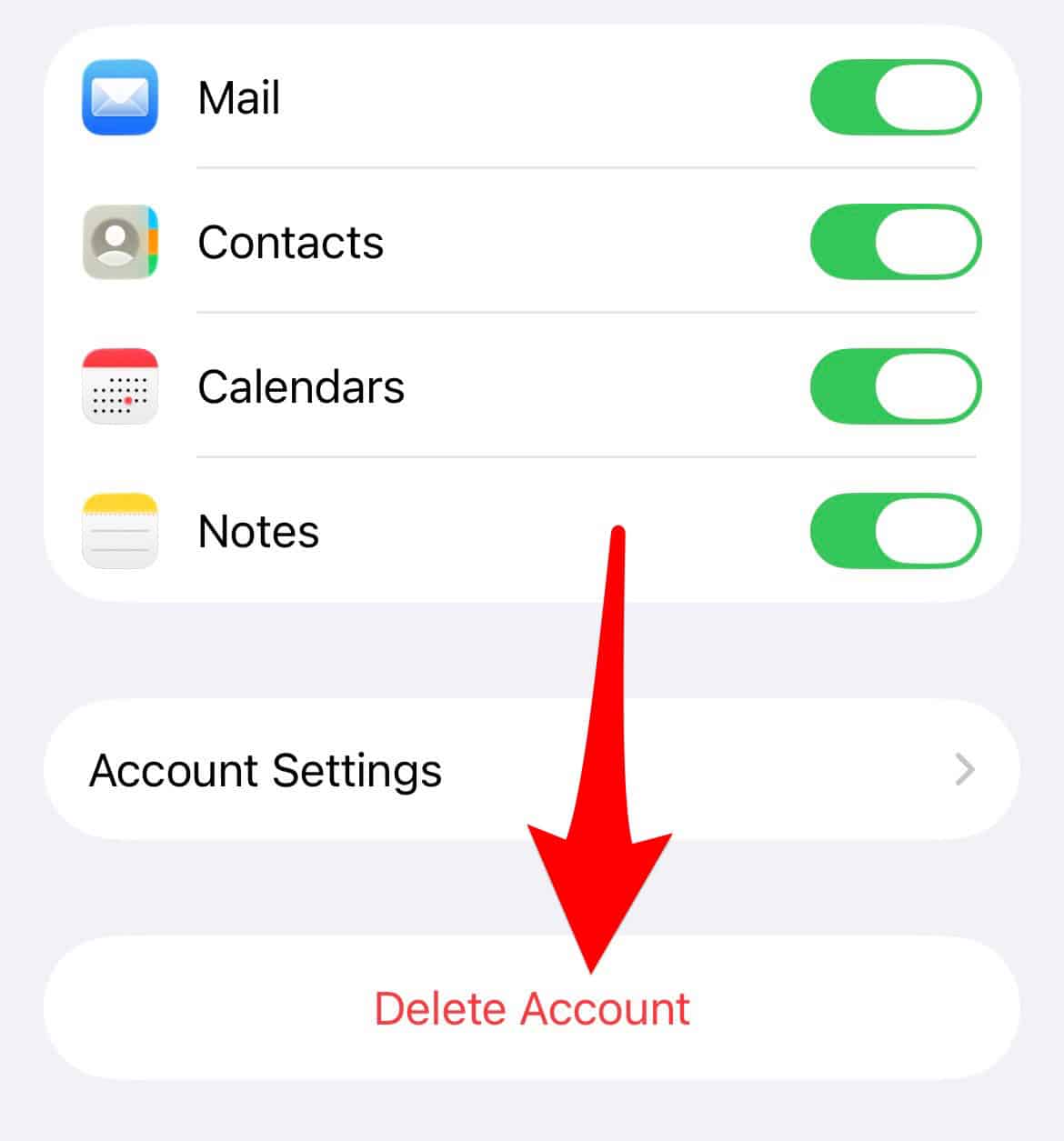
- Select Delete Account to permanently remove the subscription.

Also, Checking your library for issues is important, especially if you see the Photos app stuck optimizing library. On a related note, learning how to access all photos shared via iMessage on your iPhone can help you manage your media storage effectively.
FAQ
Yes. Deleting the spam calendar event directly is safe and will not activate any malicious links embedded within the notification.
No. These messages are designed to create panic and are not legitimate warnings from your service provider or device. Your data is typically safe as long as you do not click any links.
Maintaining Data Integrity After Phishing Attempts
The “Last warning all your emails will be removed” message is not a legitimate threat to your essential data, but a common phishing tactic aimed at inducing panic and clicks. By applying these effective, simple solutions, you can swiftly clean up your calendar and digital space, ensuring your continued security against these intrusive scams. Furthermore, for general device maintenance, it is always a good idea to check if you are not getting emails on your iPhone after adjusting your account settings, just to ensure legitimate communication is flowing smoothly.


Discussion