

Your Mac has multiple built-in methods to access emojis while typing. I’ll show you every way to pull up the emoji picker, including keyboard shortcuts, menu bar options, and how to set up text replacements for your most-used emojis.
Table of contents
Using Keyboard Shortcuts
The fastest way to access emojis on Mac is with the Control + Command + Space keyboard shortcut. This works across nearly every app, from Messages and Mail to Safari and third-party applications.
- Place your cursor where you want to insert an emoji.
- Press Control + Command + Space simultaneously.
- The Character Viewer window appears with emoji categories.
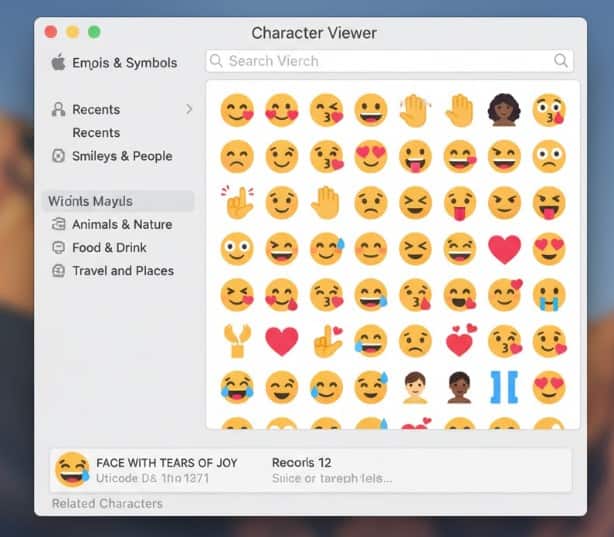
- Click any emoji to insert it at your cursor position.

This shortcut opens the full Character Viewer, giving you access to emojis, symbols, special characters, and accented letters.
Don’t miss the best of The Mac Observer
Set us as a preferred source and our Apple reporting ranks higher in your Google Search results and Discover feed — one tap, no account changes.
Using the Globe/Fn Key
On newer Macs with Apple Silicon (M1, M2, M3 chips from 2020 onward), you can press the Globe key (also labeled as the Fn key) to quickly access emojis.
- Position your cursor in any text field.
- Press the Globe/Fn key once.
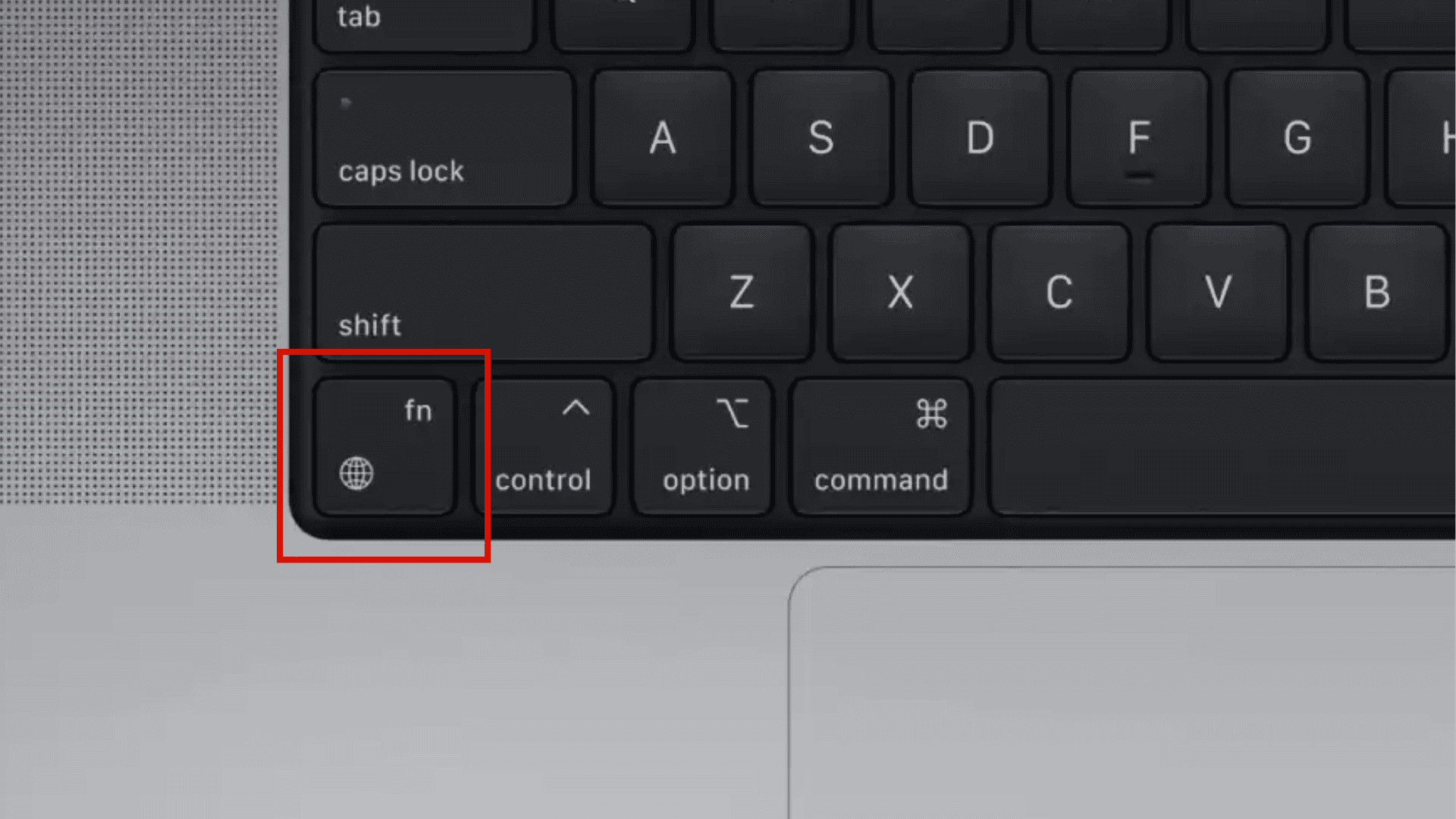
- The emoji picker appears in the center of your screen.
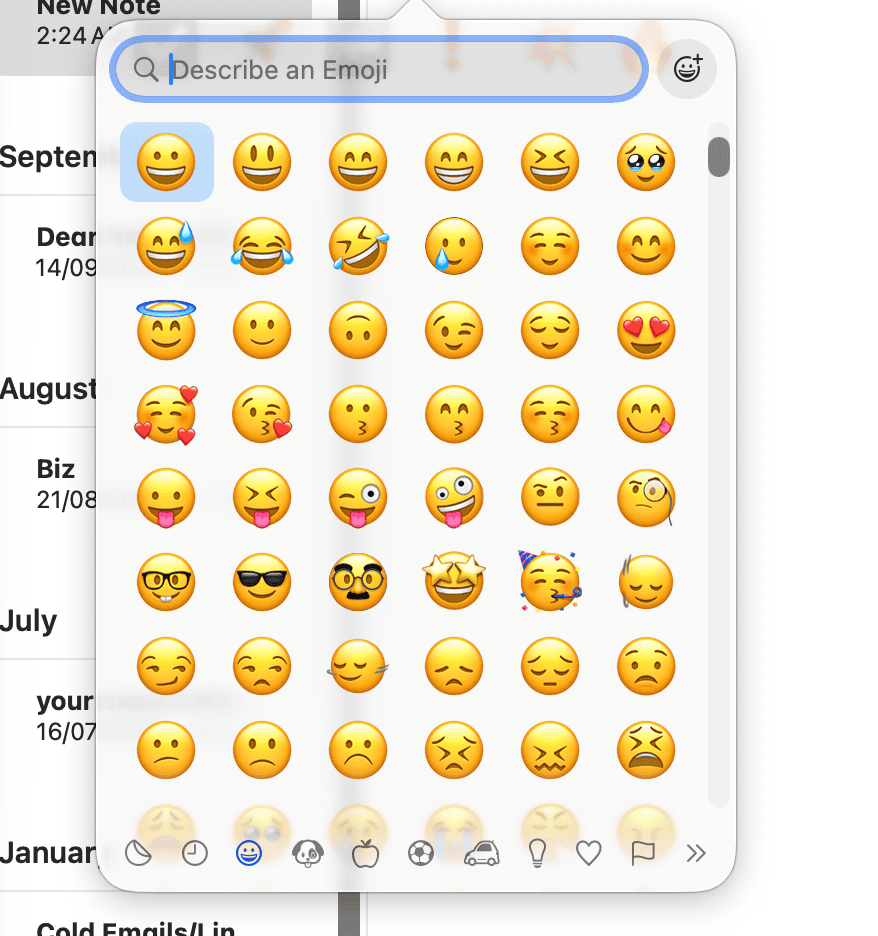
- Select an emoji to insert it.


By default, the Globe key might be set to a different function. I’ll explain how to configure it in the next section.
Using the Menu Bar
If you prefer using your mouse or trackpad, you can access emojis through the menu bar:
- Click Edit in the menu bar at the top of your screen.
- Select Emoji & Symbols from the dropdown menu.
- The Character Viewer window opens.
- Browse or search for emojis and click to insert them.
This method works in most Mac applications that support text input, though the Edit menu location may vary depending on the app you’re using.
Setting Up the Globe Key for Quick Access
To configure your Globe/Fn key to open the emoji picker with a single press:
- Click the Apple logo in the menu bar.
- Select System Settings (or System Preferences on older macOS versions).
- Click Keyboard in the sidebar (scroll down if needed).
- Find the Press Globe key to dropdown menu (or Press fn key to on some models).
- Select Show Emoji & Symbols.
Now pressing the Globe key once instantly brings up the emoji picker. This setting makes accessing emojis significantly faster, especially if you use them frequently in your work or messages.
Creating Text Replacement Shortcuts
You can set up automatic emoji replacements for specific text strings, perfect for emojis you use constantly:
- Open System Settings from the Apple menu.
- Click Keyboard in the sidebar.
- Select Text Replacements (or Text in older macOS versions).
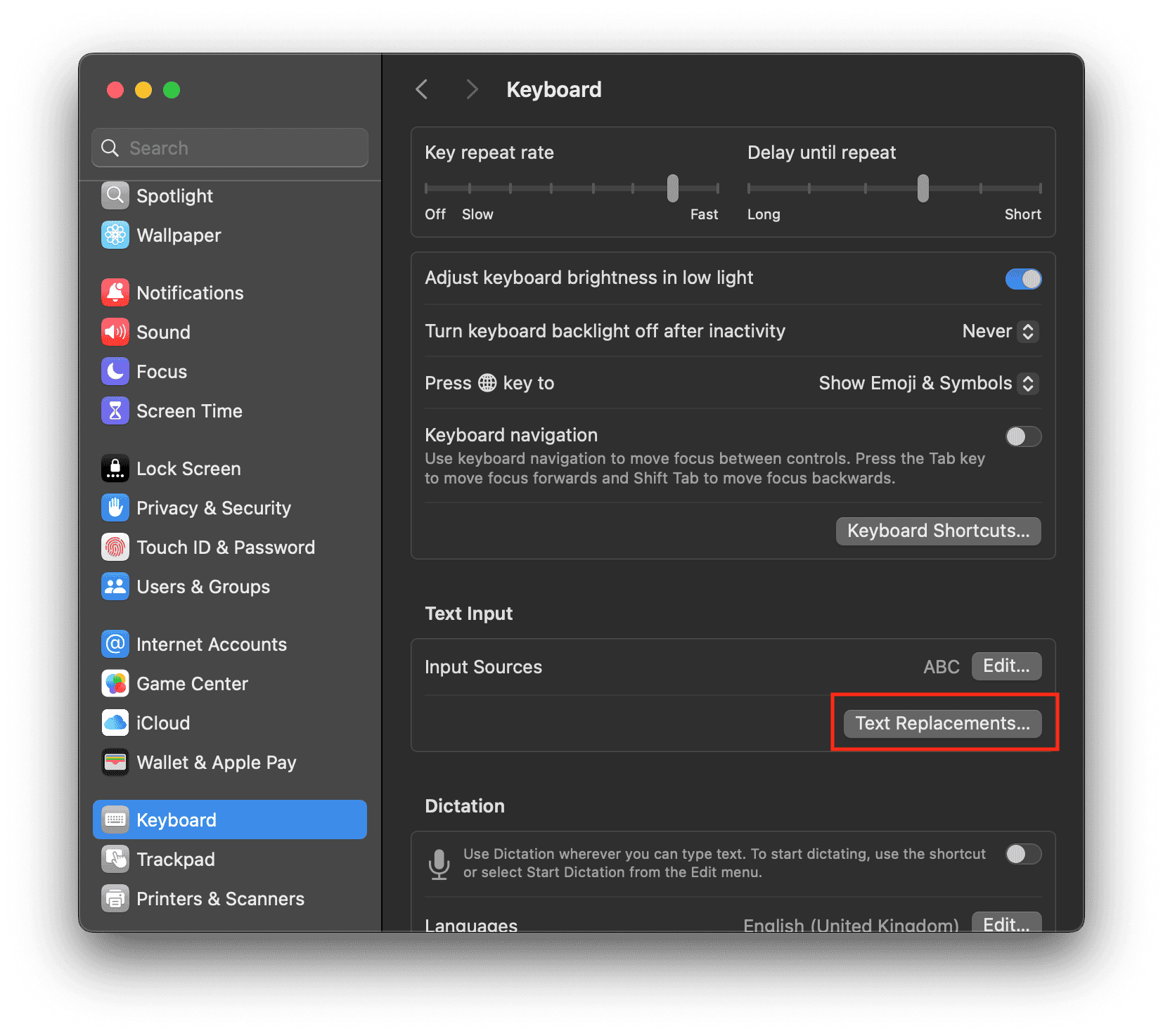
- Click the + button to add a new replacement.
- In the Replace field, type your shortcut text (for example, “tu” for thumbs up).
- Click in the With field and press Control + Command + Space to open the emoji picker.
- Select the emoji you want to use.
- Click Add to save the replacement.

Based on our tests, text replacements work seamlessly across Apple apps like Messages, Mail, and Notes. From our findings, they also sync across your Apple devices when signed in with the same Apple ID, though some third-party apps may not support this feature.
Using Smart Emoji Suggestions
On Macs running macOS Sonoma or later, Apple introduced smart emoji suggestions. When you type a common word and press the Globe key or Fn + E, macOS suggests up to three relevant emojis:
- Type a word like “heart,” “thumbs up,” or “smile.”
- Press Fn + E or the Globe key.
- Press Return to replace the word with the first suggested emoji.
- Or click on one of the other suggestions.
- Click the arrow icon to see additional emoji options in the full Character Viewer.
If you prefer the traditional emoji picker to open immediately instead of seeing suggestions, you can disable this feature. I’ll cover this in the troubleshooting section.
Searching for Specific Emojis
The Character Viewer includes a search function that makes finding specific emojis quick and easy:
- Open the emoji picker using any method described above.
- Click the window icon in the top-right corner to expand the viewer (if it’s collapsed).
- Type in the search field at the top (for example, “laughing face” or “heart”).
- Browse the filtered results.
- Click or double-click an emoji to insert it.
You can also browse by category using the sidebar on the left side of the expanded Character Viewer. Categories include Smileys & People, Animals & Nature, Food & Drink, Activity, Travel & Places, Objects, Symbols, and Flags.
Troubleshooting Emoji Picker Issues
Globe/Fn Key Not Working
If pressing the Globe key doesn’t open the emoji picker:
- Go to System Settings > Keyboard.
- Check the Press Globe key to setting.
- Make sure it’s set to Show Emoji & Symbols.
- If it’s set correctly but still not working, try pressing Control + Command + Space instead.
- Once the emoji picker opens via the keyboard shortcut, the Globe key often starts working again.
From Apple Community forums, users reported that pressing Control + Command + Space can restart the emoji picker process if it has crashed, which then allows the Globe key to function properly again.
Emoji Picker Disappears Too Quickly
If the emoji picker flashes and disappears immediately:
- Restart your Mac.
- Check for macOS updates in System Settings > General > Software Update.
- Install any available updates, as they often fix keyboard-related bugs.
Disabling Smart Emoji Suggestions
If you prefer the full emoji picker to appear instead of smart suggestions in macOS Sonoma or later:
- Open the Terminal app (found in Applications > Utilities).
- Type or paste this command:
sudo defaults write /Library/Preferences/FeatureFlags/Domain/UIKit.plist emoji_enhancements -dict-add Enabled -bool NO - Press Return and enter your Mac password when prompted.
- Restart your Mac.
To re-enable smart suggestions later, use this command instead:
sudo defaults write /Library/Preferences/FeatureFlags/Domain/UIKit.plist emoji_enhancements -dict-add Enabled -bool YES
External Keyboard Globe Key Issues
Based on reports from Apple Community users, the Globe key on external keyboards sometimes stops working when using a MacBook in clamshell mode (lid closed). The keyboard shortcut Control + Command + Space continues to work as an alternative. Opening the MacBook lid often resolves the issue with external keyboards.
Keyboard Shortcut Not Responding
If Control + Command + Space stops working:
- Go to System Settings > Keyboard > Keyboard Shortcuts.
- Click Input Sources in the sidebar.
- Verify that the shortcut for Select the previous input source isn’t conflicting.
- If there’s a conflict, disable or change the conflicting shortcut.
Conclusion
Accessing emojis on your Mac is simple once you know the available methods:
- Press Control + Command + Space for the universal emoji keyboard shortcut that works on all Macs and in nearly every app.
- Press the Globe/Fn key on newer Macs with Apple Silicon for instant access to the emoji picker.
- Configure the Globe key in System Settings > Keyboard to open emojis with a single keypress.
- Use the menu bar by clicking Edit > Emoji & Symbols if you prefer using your mouse.
- Set up text replacements in System Settings > Keyboard > Text Replacements to automatically convert text shortcuts into your most-used emojis.
- Search for specific emojis using the search field in the expanded Character Viewer.
- Troubleshoot issues by restarting your Mac, updating macOS, or using alternative keyboard shortcuts when the Globe key doesn’t respond.
Whether you’re adding personality to messages, emphasizing points in emails, or just having fun with your communication, these methods make emoji access effortless on your Mac.
FAQs
The fastest method is pressing the Globe/Fn key (on newer Macs) or Control + Command + Space (works on all Macs). Both open the emoji picker instantly from any application.
Open the Character Viewer, expand it by clicking the window icon, find an emoji you use frequently, and click Add to Favorites. Your favorite emojis appear at the top of the viewer for quick access.
Yes, when you create text replacement shortcuts on your Mac and you’re signed in with your Apple ID, they automatically sync to your iPhone, iPad, and other Apple devices using the same account.
This is a feature in macOS Sonoma and later called smart emoji suggestions. Press the Globe key twice to see the full emoji picker, or disable smart suggestions entirely using the Terminal command in the troubleshooting section above.
Yes. Expand the Character Viewer, click the Action menu (gear icon), and choose Small, Medium, or Large to adjust the emoji display size.


Discussion