

If the Emoji & Symbols window doesn’t appear when you press Control + Command + Space, the underlying issue could be a keyboard misfire or a system glitch. It typically works across both native and third-party apps. Try checking your keyboard settings, switching input sources, testing an external keyboard, or resetting system preferences.
Since the root cause isn’t always obvious, however, troubleshooting can get tedious pretty fast. (this is a separate sentence, can’t be bothered when you just want to send a funny meme). Here’s what’s most likely to work.
1. Set the Globe/Fn Key to Open Emoji Panel
Time needed: 5 minutes
You can reassign the Globe or Fn key to different shortcuts. If the emoji picker isn’t opening, it’s likely the key has been set to something else. Reset the shortcut to launch the emoji panel properly. Otherwise, you’re forced to use less reliable triggers like the Edit menu or context-based UI prompts.
- Open System Settings.
- Go to Keyboard.
- Under Press Globe/Fn key to, choose Show Emoji & Symbols.

- Press Fn (Globe) and check if the picker appears.

2. Disable Secure Keyboard Entry From Antivirus Tools
Third-party antivirus tools like Webroot often use Secure Keyboard Entry to guard against keyloggers. They block system-level shortcuts, including the emoji picker. See if turning it off restores keyboard shortcuts—without compromising your safety, of course.
Don’t miss the best of The Mac Observer
Set us as a preferred source and our Apple reporting ranks higher in your Google Search results and Discover feed — one tap, no account changes.
- Open your antivirus or endpoint security app.
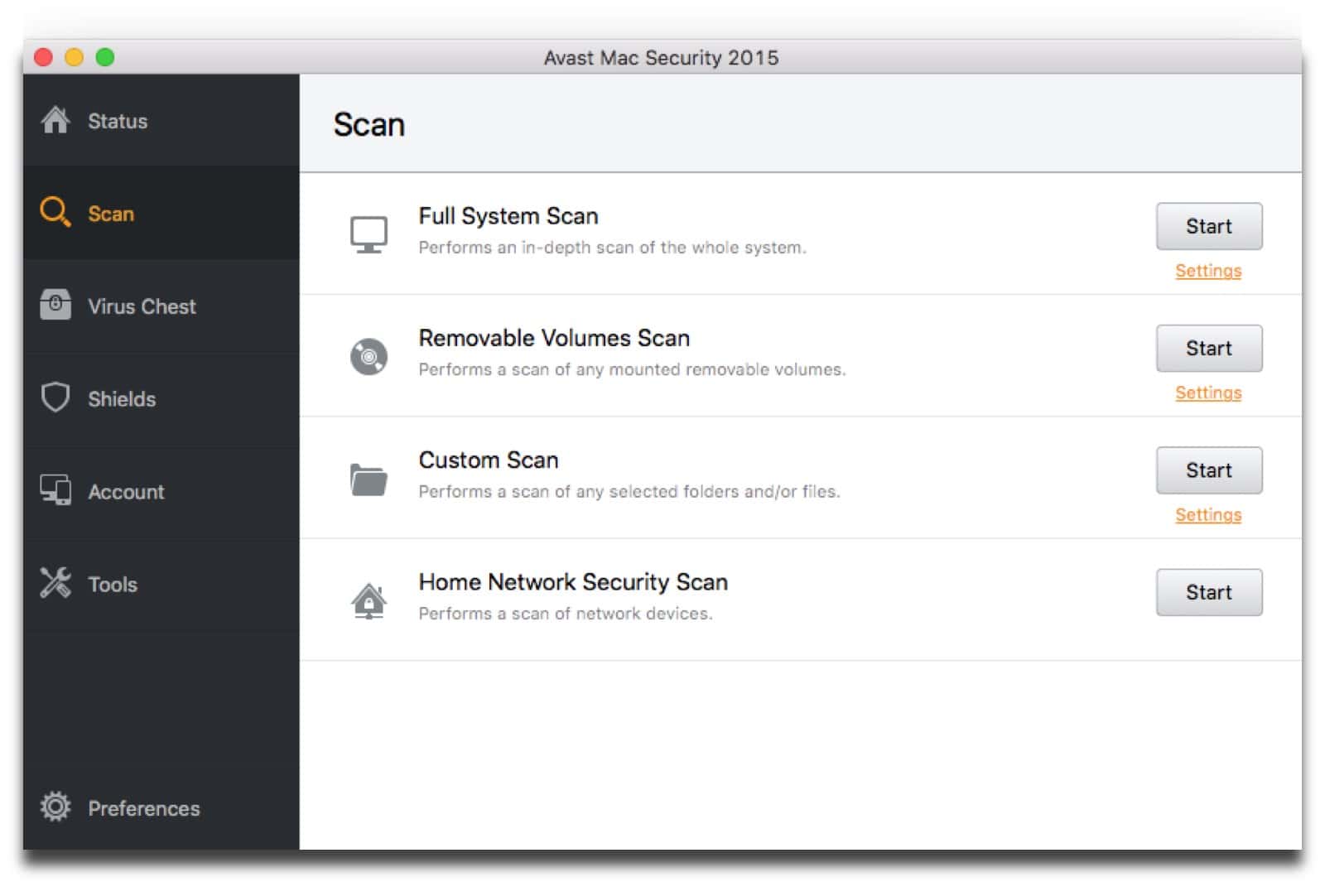
- Look for Secure Keyboard Entry or similar options.
- Turn the setting off temporarily.
- Press Control + Command + Space to test the emoji shortcut.

3. Check for an Off-Screen Emoji Window
It might sound silly, but the emoji picker could be hiding behind another window, or worse, stuck off-screen. This happens more often than you’d think, like when you’re juggling multiple apps or using an external display. Resetting its position manually usually brings it back where you can actually see it.
- Close or minimize active windows.
- Press Control + Command + Space again.
- Move your mouse across screen edges and corners.
- Drag the panel back into your visible workspace.
4. Restart macOS to Refresh Core Services
macOS background services can stall after prolonged uptime. When UI components like the emoji panel stop responding, a system reboot clears temporary caches and reinitializes those services. See if a fresh login often resolves input-related bugs without further changes.
- Save your work and close all apps.
- Click the Apple menu in the top left.
- Select Restart.
- Sign in and test the shortcut again.
5. Test With an External Keyboard
If your built-in keyboard has worn keys or misaligned switches, shortcuts might fail even if everything else works. Using an external keyboard rules out hardware issues and helps confirm that the problem isn’t physical.
- Plug in a USB or pair a Bluetooth keyboard.
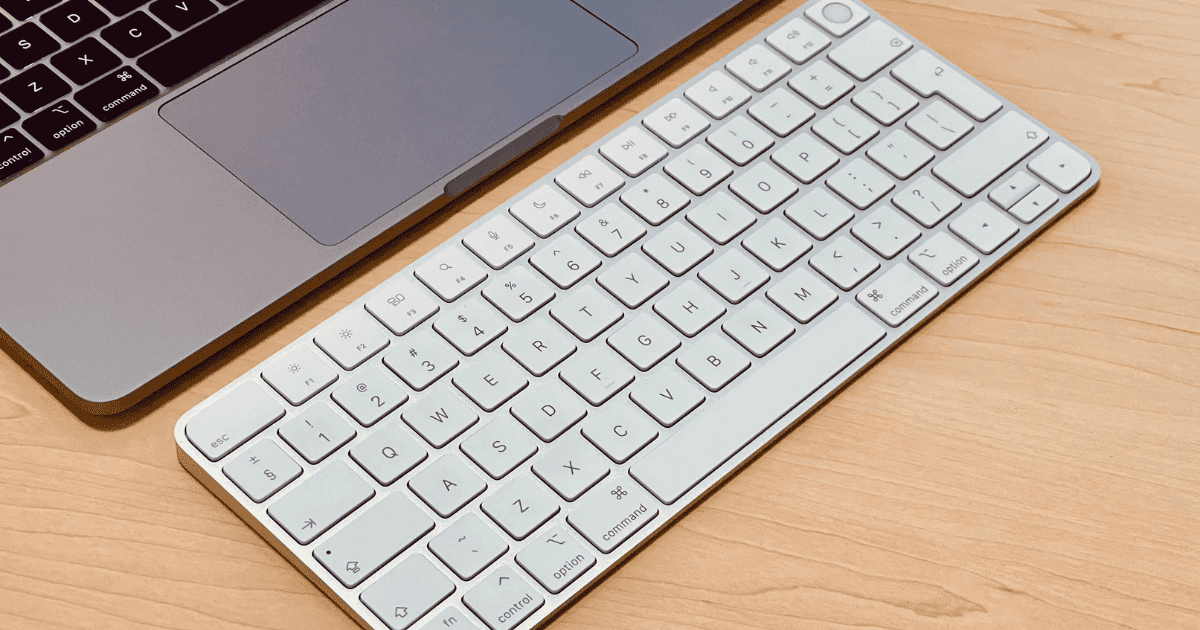
- Let macOS finish setup and detection.
- Try Control + Command + Space.
- Check if the emoji window appears normally.

6. Factory Reset
As a last resort, consider factory resetting your Mac. Since you can’t pinpoint whatever corrupted preference file or failed shortcut mapping is causing glitches, just revert everything to their defaults. Just remember to back up your data beforehand.
- Back up using iCloud or Time Machine.
- Head to System Settings > General > Transfer or Reset.
- Tap Erase All Content and Settings.
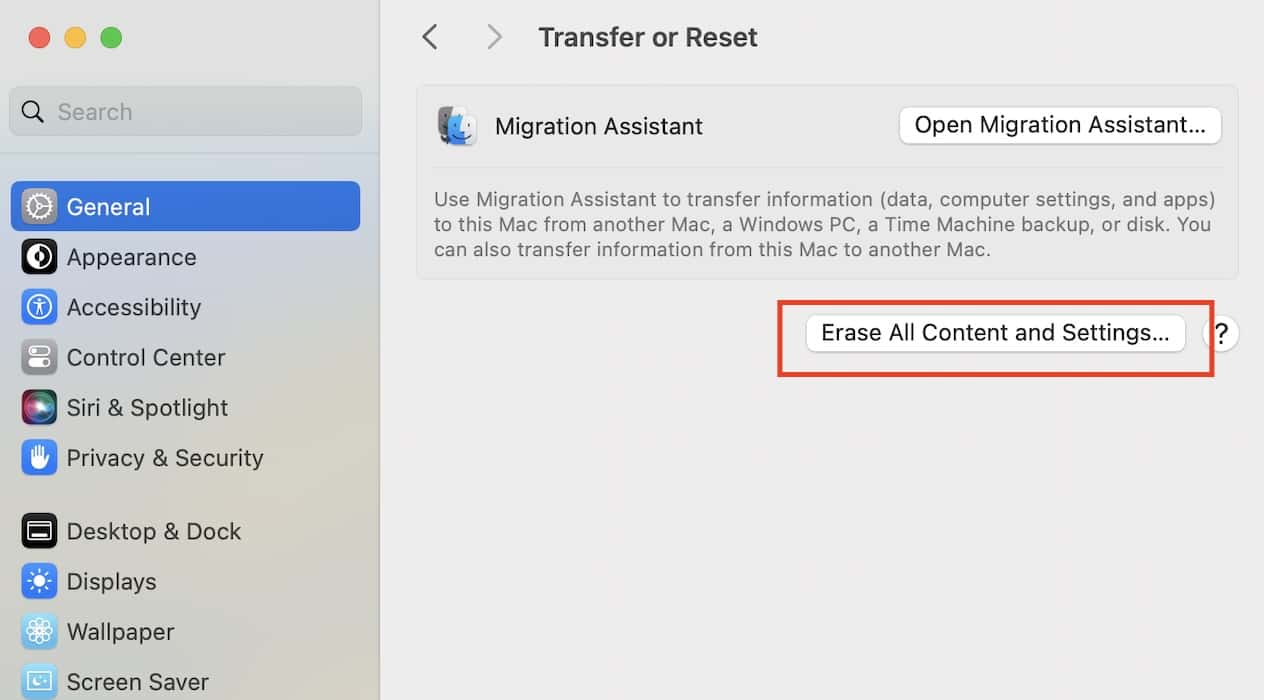
- Follow the setup steps and reinstall needed apps.

Should issues persist, contact Apple Support. They can help rule out deeper software bugs, and while hardware defects are unlikely, they can also run diagnostics if needed. Once you’ve got the emoji picker working again, check out all the new emoji added in iOS 18.4. You might find a few worth bookmarking.


Discussion