

Your iPhone’s network settings control how it connects to Wi-Fi, cellular data, and Bluetooth. If you’re facing issues like dropped connections or slow internet, and changing your network settings didn’t help, resetting these settings can often resolve the problem. Let’s look at how to reset network settings on your iPhone, ensuring you can restore connectivity.
Table of contents
Why Reset Network Settings?
Resetting network settings can fix persistent connectivity problems, such as when wifi keeps disconnecting on your iPhone or it’s struggling to connect to cellular networks. This process clears all saved Wi-Fi passwords, cellular configurations, VPN settings, and Bluetooth pairings, giving your device a fresh start.
It’s a simple troubleshooting step that doesn’t delete your apps or personal data, but it does require you to reconnect to networks afterward.
Don’t miss the best of The Mac Observer
Set us as a preferred source and our Apple reporting ranks higher in your Google Search results and Discover feed — one tap, no account changes.
How to Reset Network Settings on iPhone
After the reset, your iPhone will no longer have saved Wi-Fi networks, Bluetooth devices, or VPN configurations. You’ll need to reconnect to Wi-Fi networks and re-pair Bluetooth devices.
Follow these steps to reset your iPhone’s network settings. The process is straightforward and works on all iPhone models running iOS.
- Open Settings.
- Tap General.
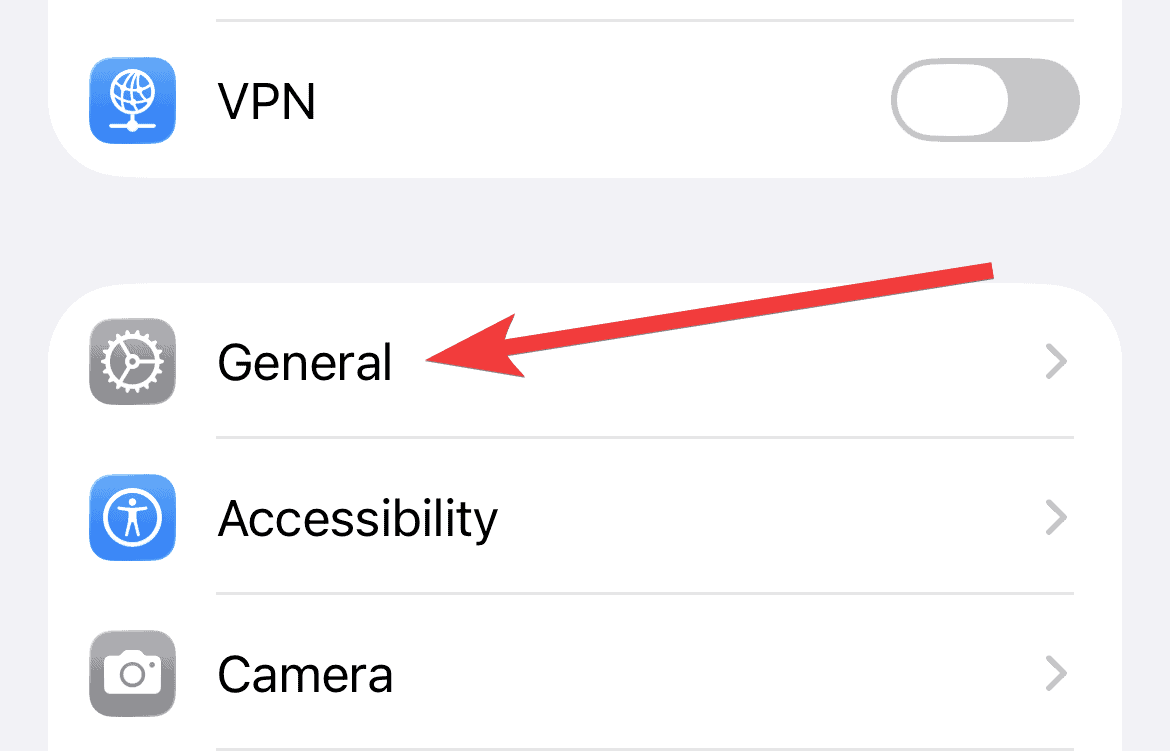
- Scroll down and tap Transfer or Reset iPhone.

- Tap Reset.
- Select Reset Network Settings.

- You may need to enter your passcode to proceed.
- Tap Reset Network Settings again to confirm.


Tips for a Smooth Reset
- Back up Wi-Fi passwords: Note down Wi-Fi credentials before resetting, as they’ll be erased.
- Check cellular plan: Ensure your cellular plan is active, especially if you rely on mobile data.
- Test connectivity post-reset: After resetting, connect to a Wi-Fi network or check your cellular data to confirm the fix.
- Update iOS: Ensure your iPhone is running the latest iOS version for optimal performance.
Contact your carrier: If you need to fix your cellular network after the reset, reach out to your carrier for assistance.
FAQ
No, resetting network settings only affects Wi-Fi, cellular, VPN, and Bluetooth configurations. Your photos, apps, and other data remain intact.
The process takes less than a minute, followed by a quick restart of your iPhone.
No, only reset when you’re experiencing connectivity issues that basic troubleshooting can’t fix.
Restore Your iPhone’s Connectivity with a Network Settings Reset
Resetting network settings on your iPhone is a quick and effective way to troubleshoot connectivity problems, whether it’s Wi-Fi, cellular, or Bluetooth issues. By following the steps above, you can restore your device’s network functionality in minutes. If you’re still having trouble, consider contacting your network provider or Apple Support for further assistance.


Discussion