

If your iPhone is grouping photos into Memories, featured categories, or People & Pets collections, you can reduce how much those appear, but you cannot completely turn off Apple’s automatic organization.
Table of contents
- How iOS 26 Handles Automatic Photo Organization
- Hide or Collapse Photos
- Turn Off Featured Content and Memories Highlights
- Reduce People & Pets Mentions
- Turn Off Location for the Camera App (Most Effective)
- Remove Location Data From Existing Photos
- Customize Library Sorting and Filters
- Tips for Managing Your Photos Without Excess Automation
- FAQ
How iOS 26 Handles Automatic Photo Organization
iOS 26 organizes photos using on-device intelligence and metadata like dates, locations, faces, and subjects. This power helps the Photos app group your media under headings like Memories, People & Pets, Featured Photos, Albums, and event collections.
It also restores the tabbed interface for browsing photos, making it easier to switch between your raw library and curated Collections.
Don’t miss the best of The Mac Observer
Set us as a preferred source and our Apple reporting ranks higher in your Google Search results and Discover feed — one tap, no account changes.
Unlike earlier iOS versions that showed one long scroll of content, iOS 26 splits Library and Collections to improve navigation without removing Apple’s organizational structure.
Hide or Collapse Photos
You cannot remove automatic sections entirely, but you can collapse them in the Collections view.
- Open the Photos app on your iPhone.
- Tap the Collections tab at the bottom.
- Locate a section such as Memories, Featured Photos, or People & Pets.
- Tap the small arrow or collapse control beside the section header to minimize it.
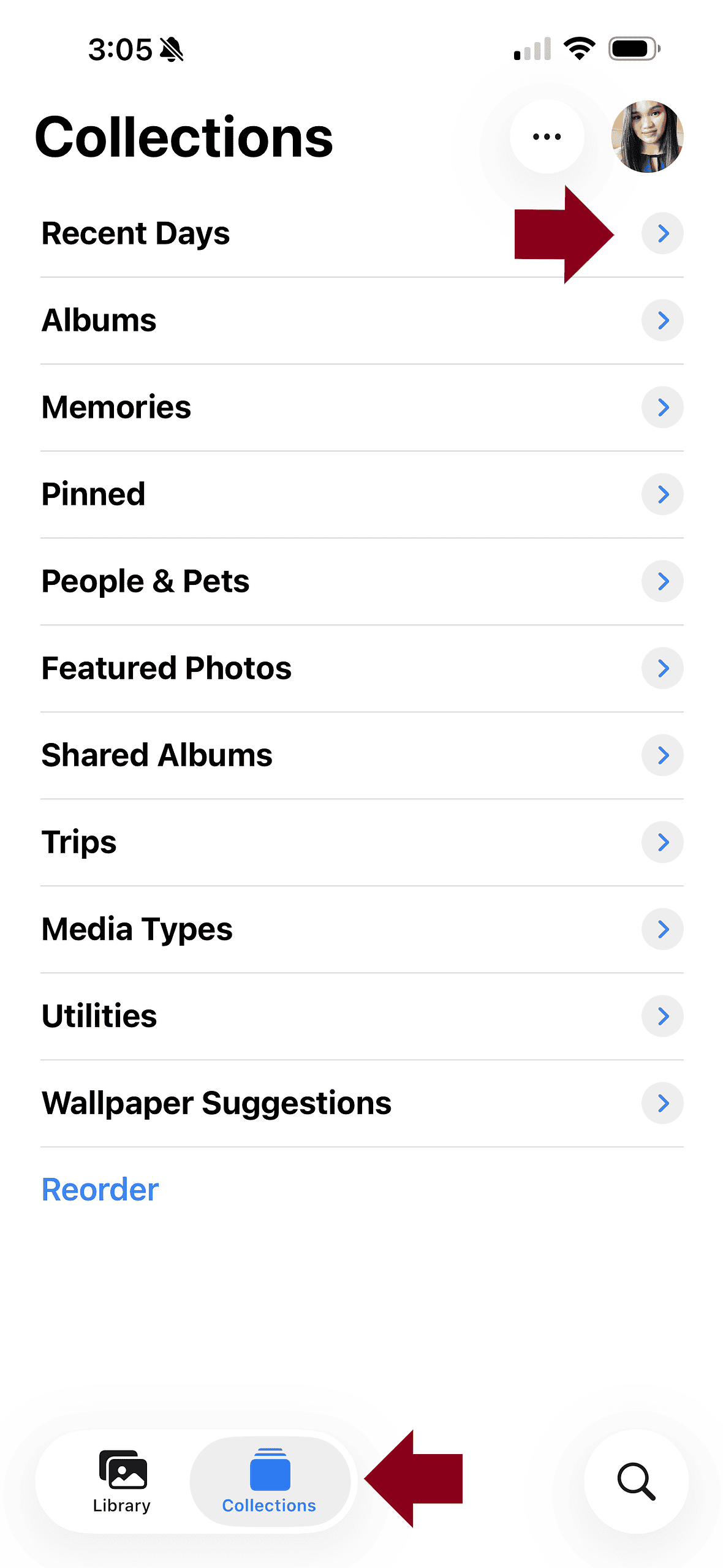
Collapsing sections keeps them out of your immediate view while preserving your photo data.
Turn Off Featured Content and Memories Highlights
iOS 26 lets you hide featured content and Memories from surface suggestions, which reduces automatic highlights in the app and on the Home Screen Widgets.
- Open Photos on your iPhone.
- Tap the Collections tab.
- Tap your profile icon in the top-right corner.
- Scroll to Featured Content.
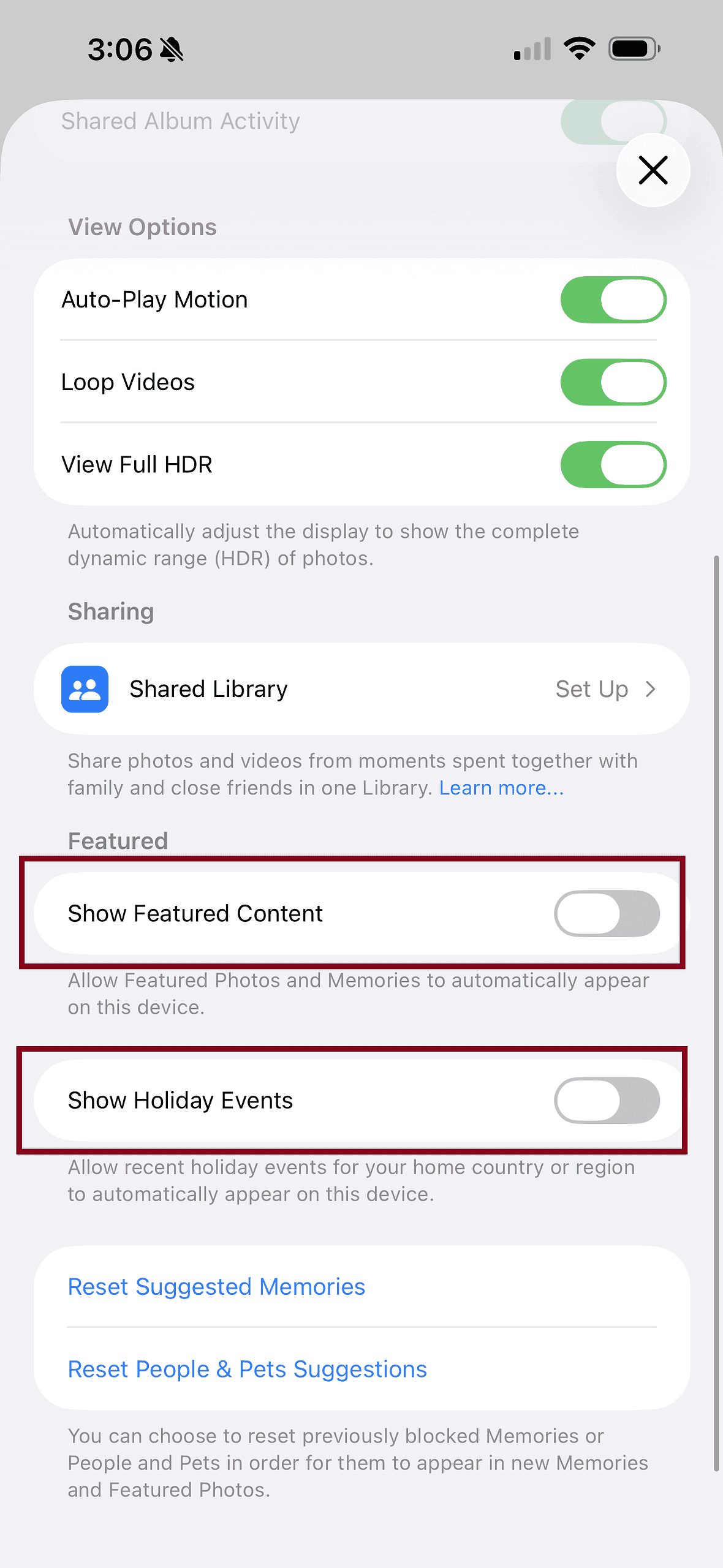
- Turn off Show Featured Content.
- Turn off Show Memories.
- Optionally, turn off Show Holiday Events if you want to prevent holiday-specific collections.
This stops iOS from automatically generating featured photos or Memories that Apple Intelligence picks out for you.
Reduce People & Pets Mentions
While iOS 26 still uses face recognition for People & Pets grouping, you can ask the app to show fewer appearances of certain people or pets in suggestions.
- Open Photos.
- Tap Search at the bottom.
- Type People & Pets.
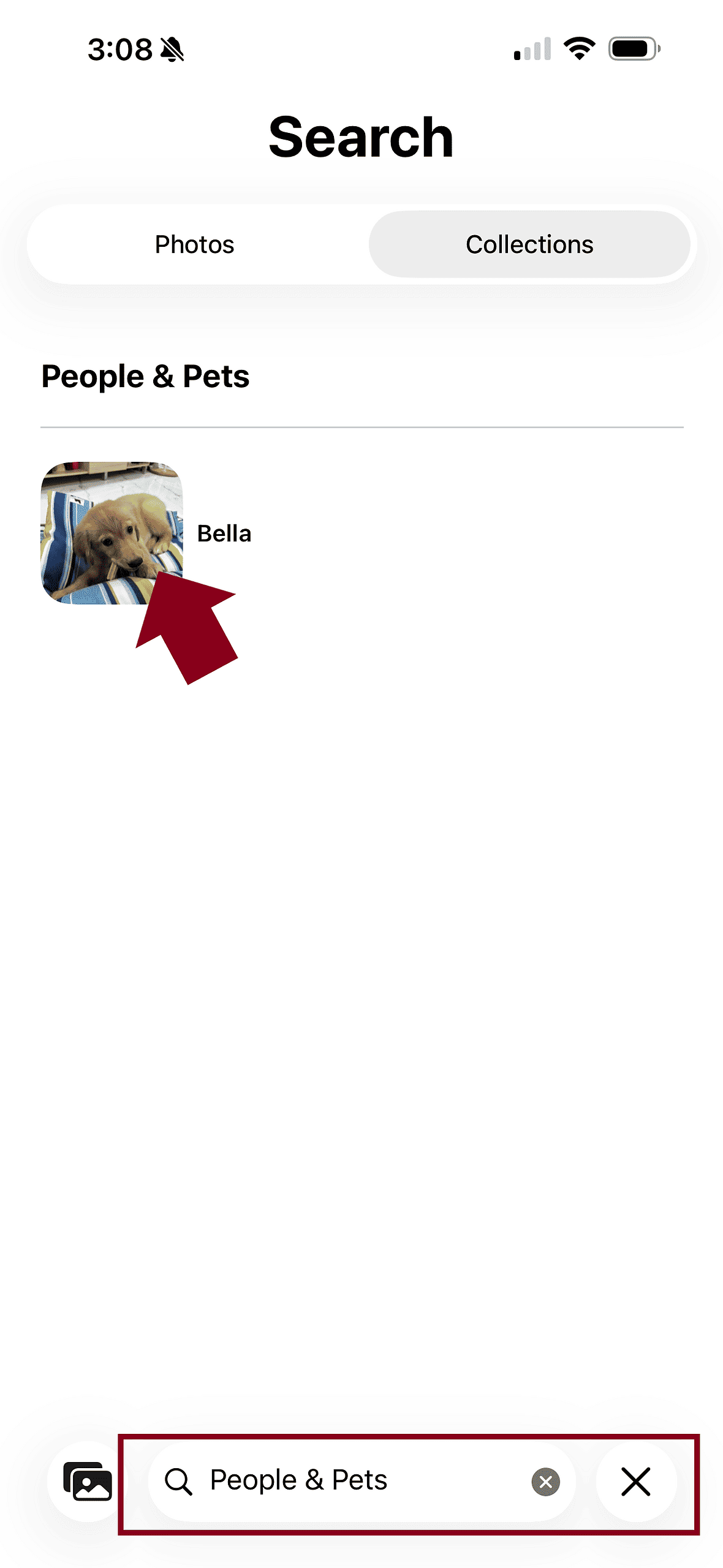
- Select a face you want to de-emphasize.
- Tap the three dots on the upper right corner.
- Choose Don’t Feature or Hide.
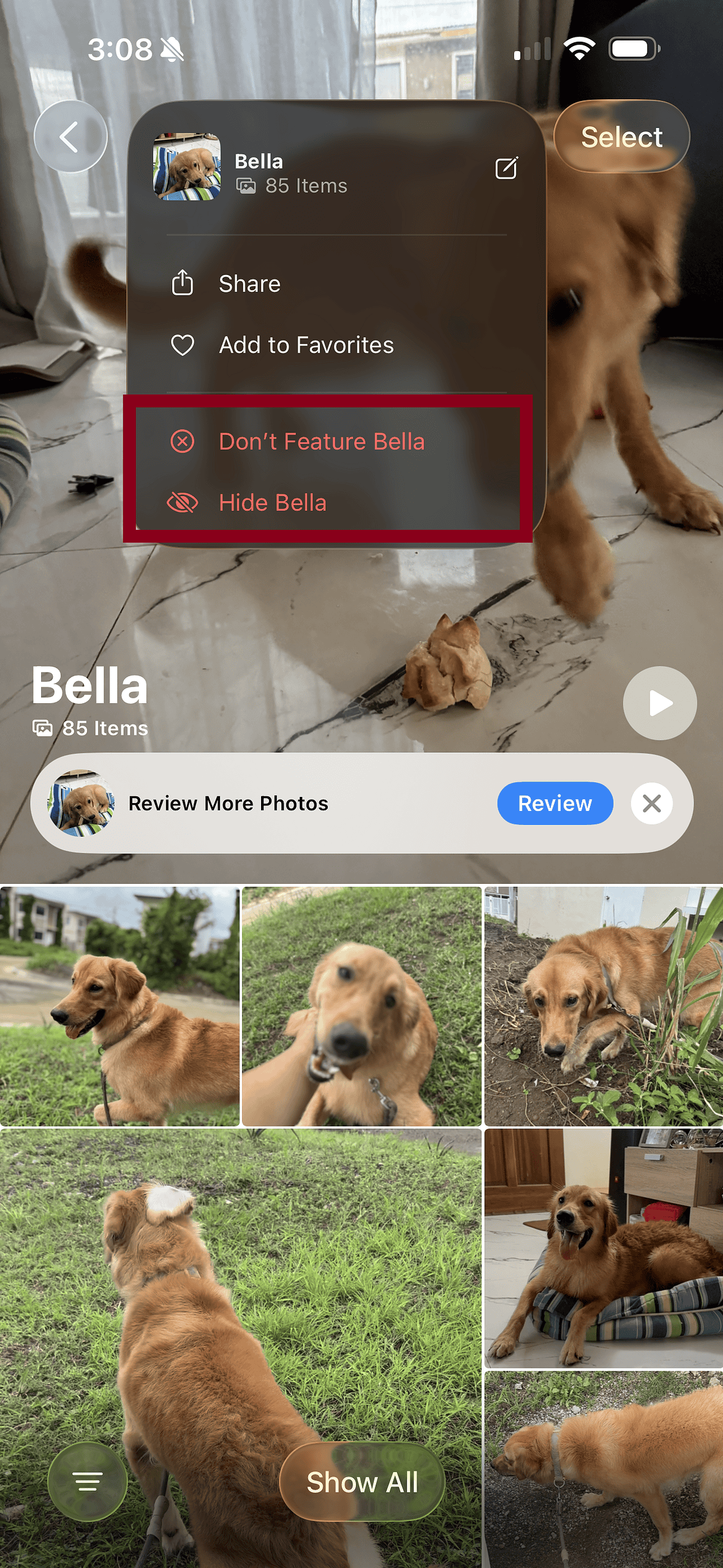
This option tells the Photos app to reduce how often that person or pet appears in automatically generated sections, without deleting the underlying content.
Turn Off Location for the Camera App (Most Effective)
If you want to limit Trips, Places, and location-based collections, you need to stop new photos from being tagged with precise location data.
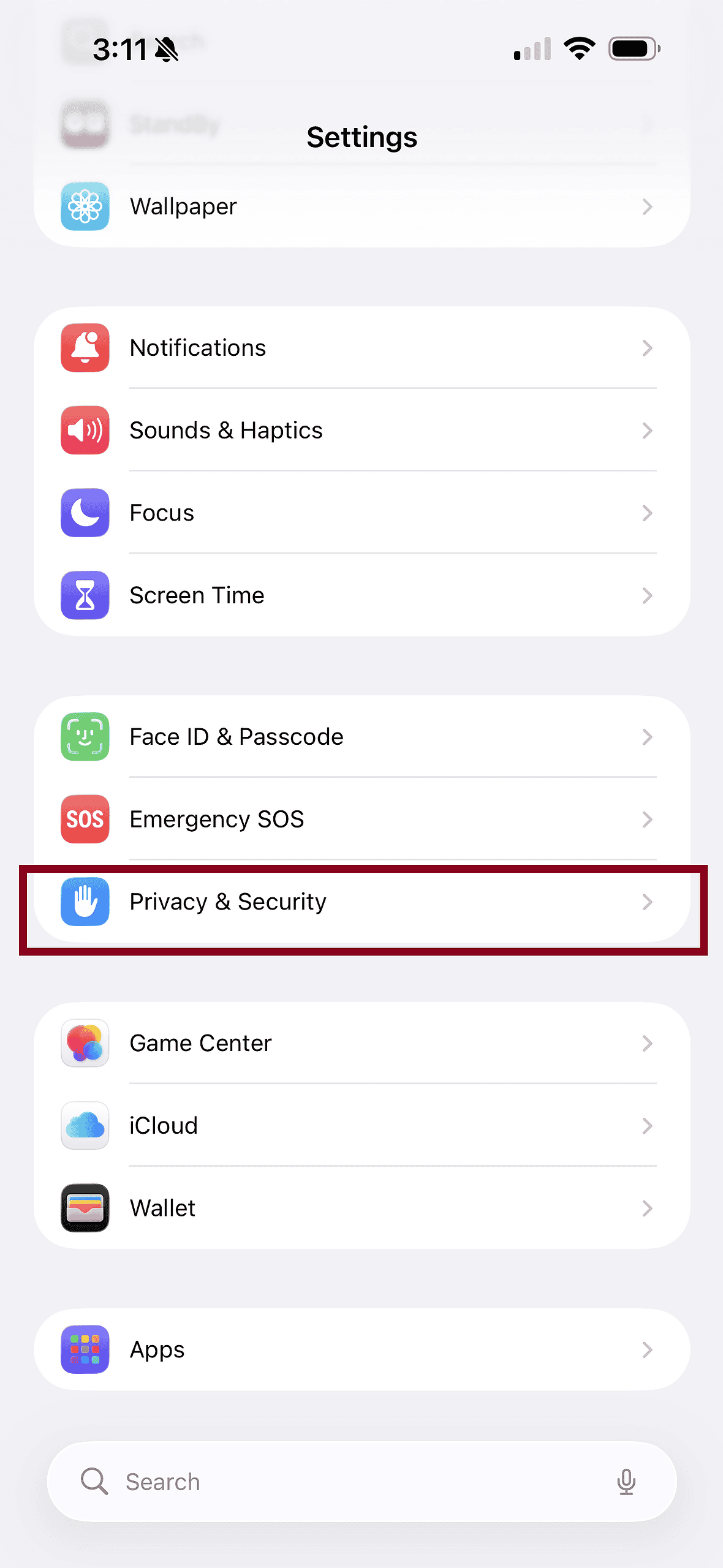
- Open Settings
- Tap Privacy & Security
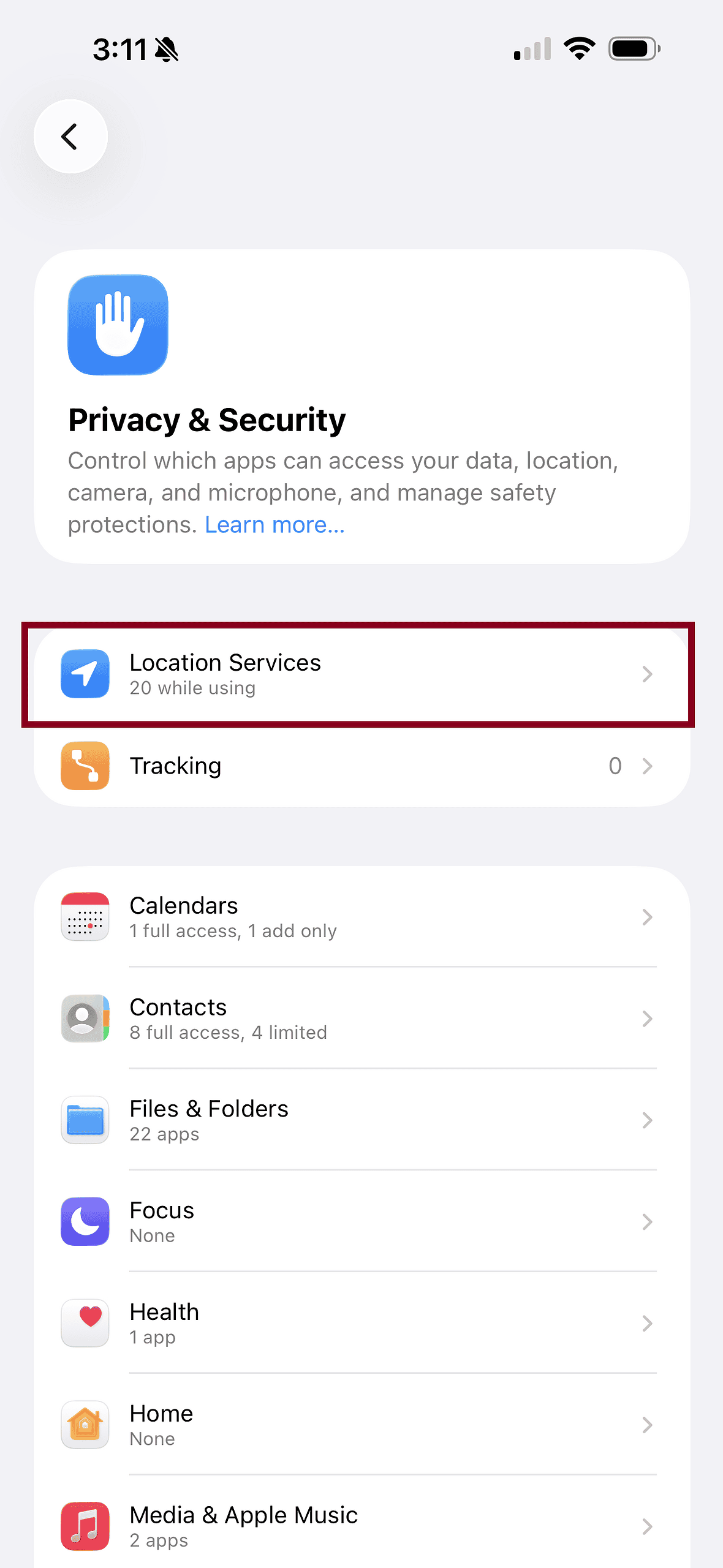
- Tap Location Services
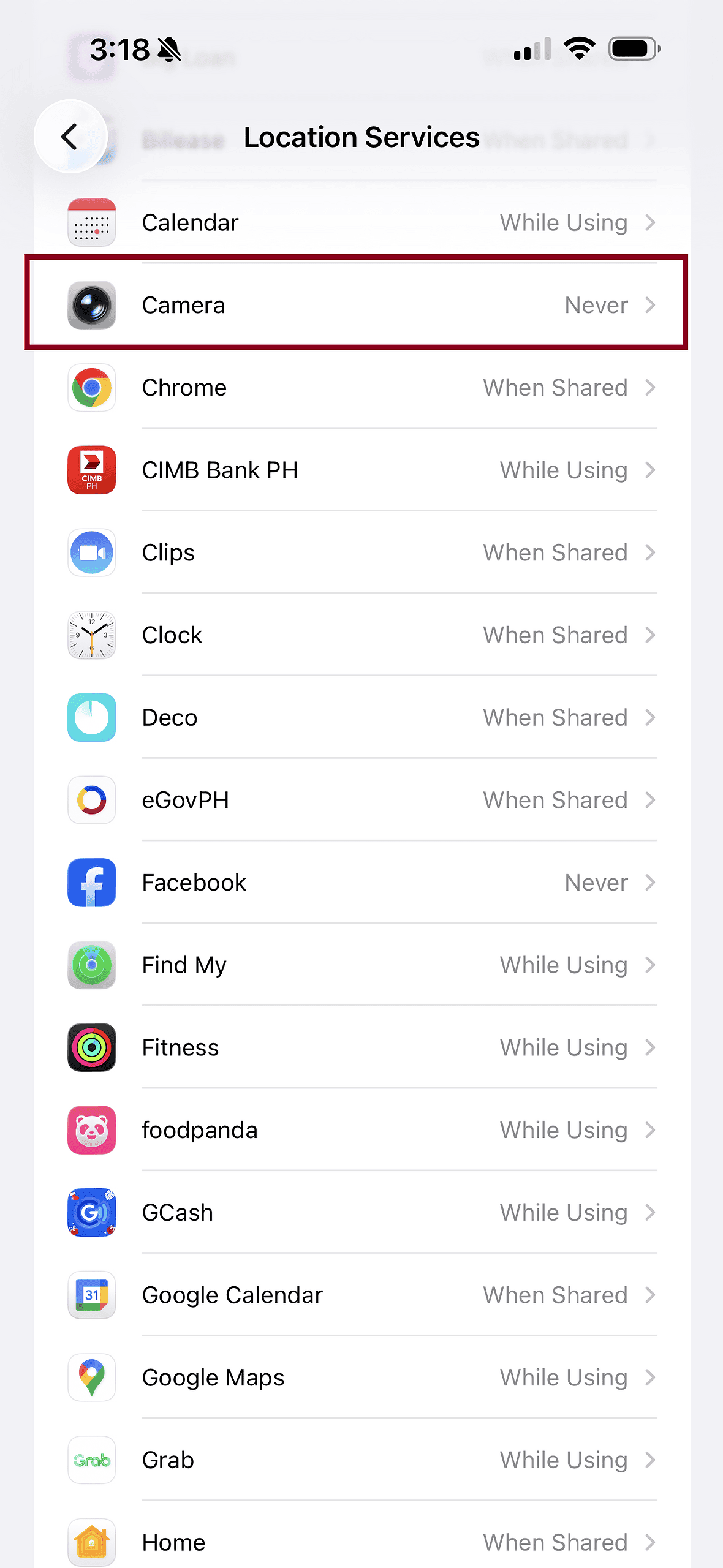
- Scroll down and tap Camera.
- Select Never.
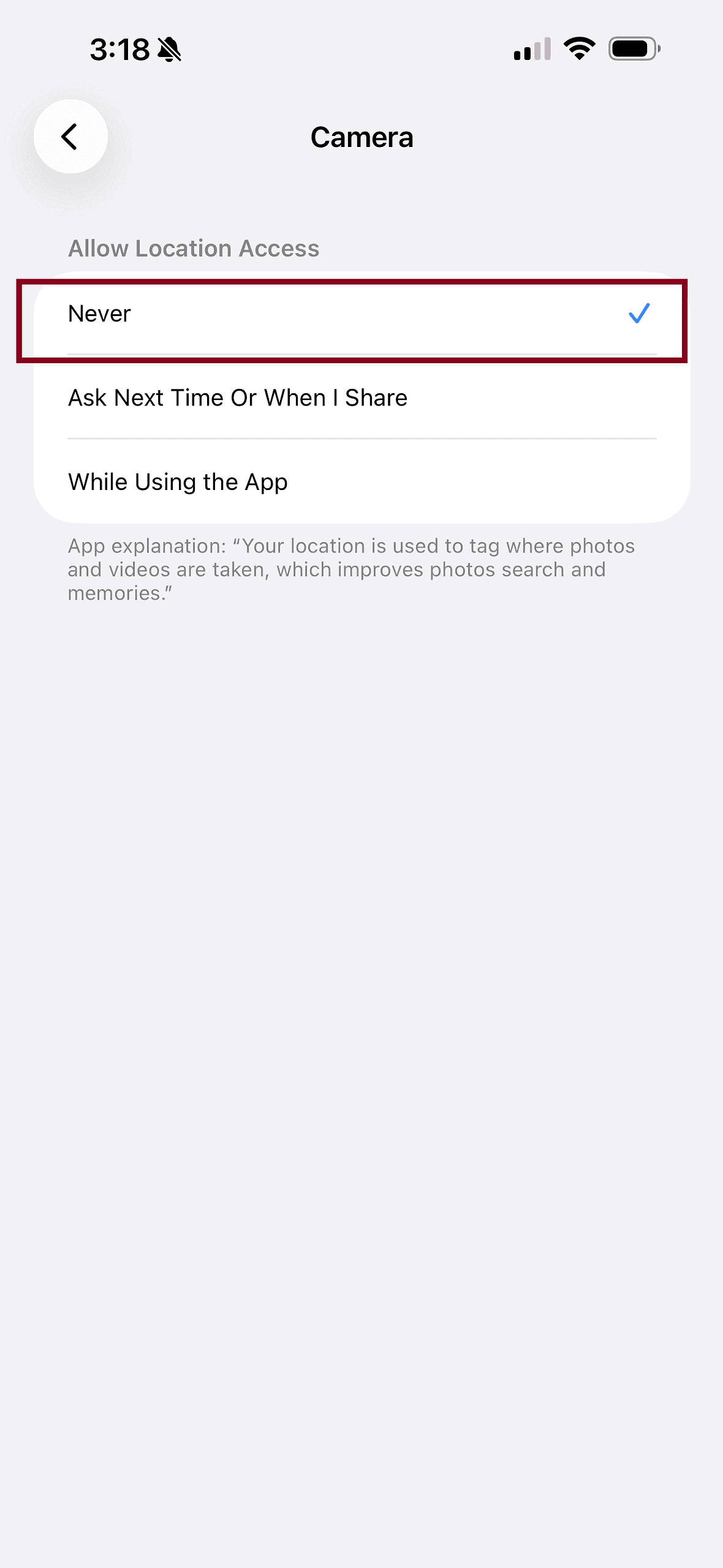
From this point forward:
- New photos will not contain precise GPS data
- Photos will have much less ability to group images by place or trip
Existing photos will keep their location data unless you remove it manually.
Remove Location Data From Existing Photos
If you want to stop Photos from grouping past images by location, you must strip the metadata.
- Open Photos
- Select one or more photos
- Tap the Info (ⓘ) button
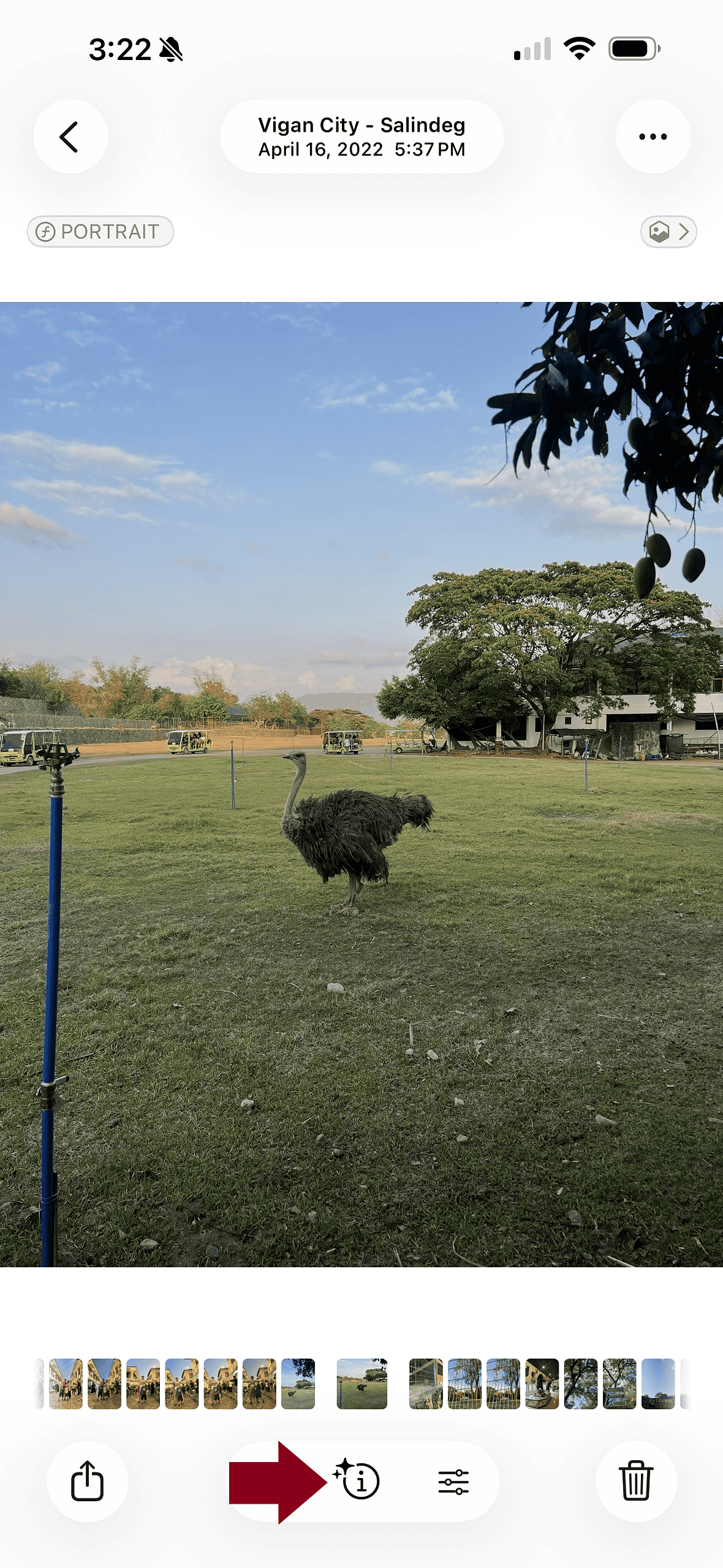
- Tap Adjust Location
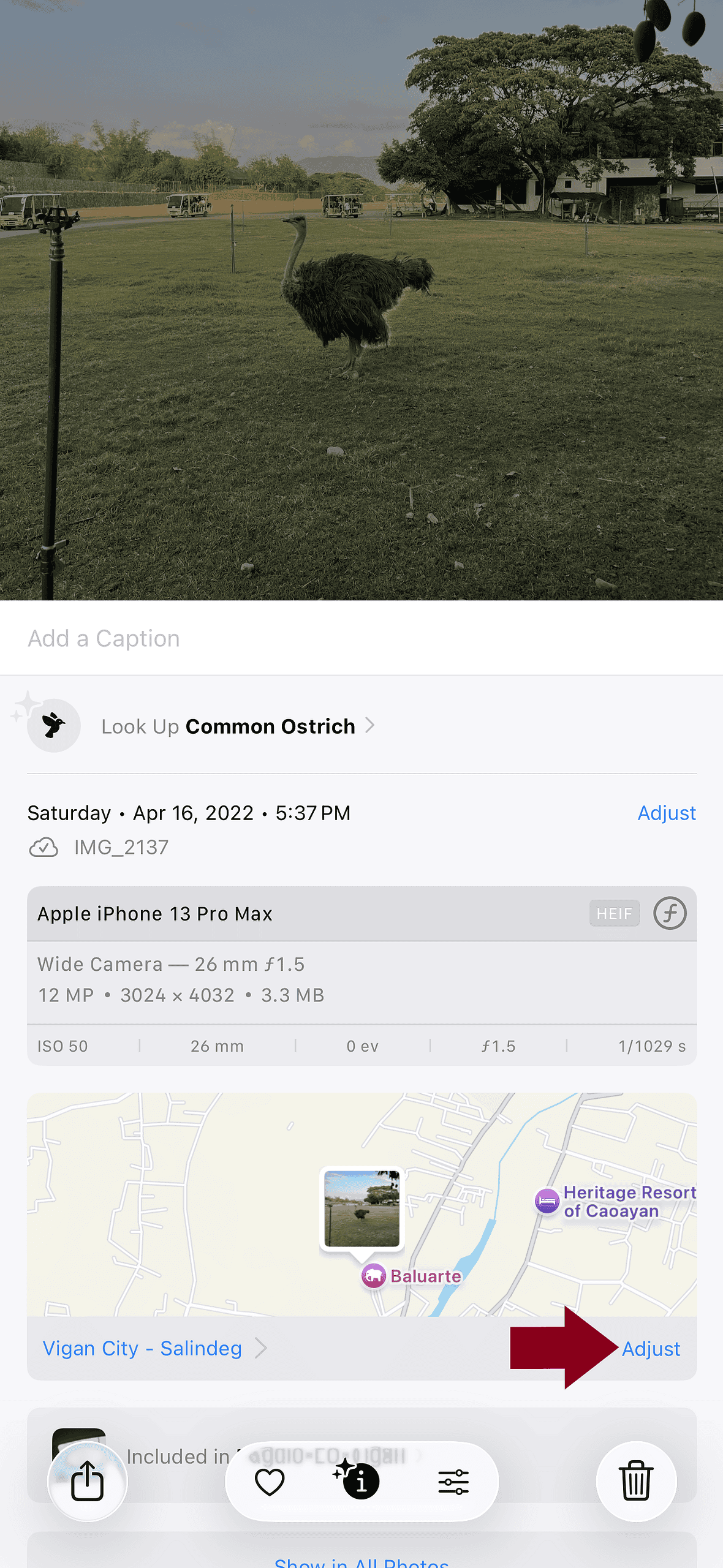
- Choose No Location
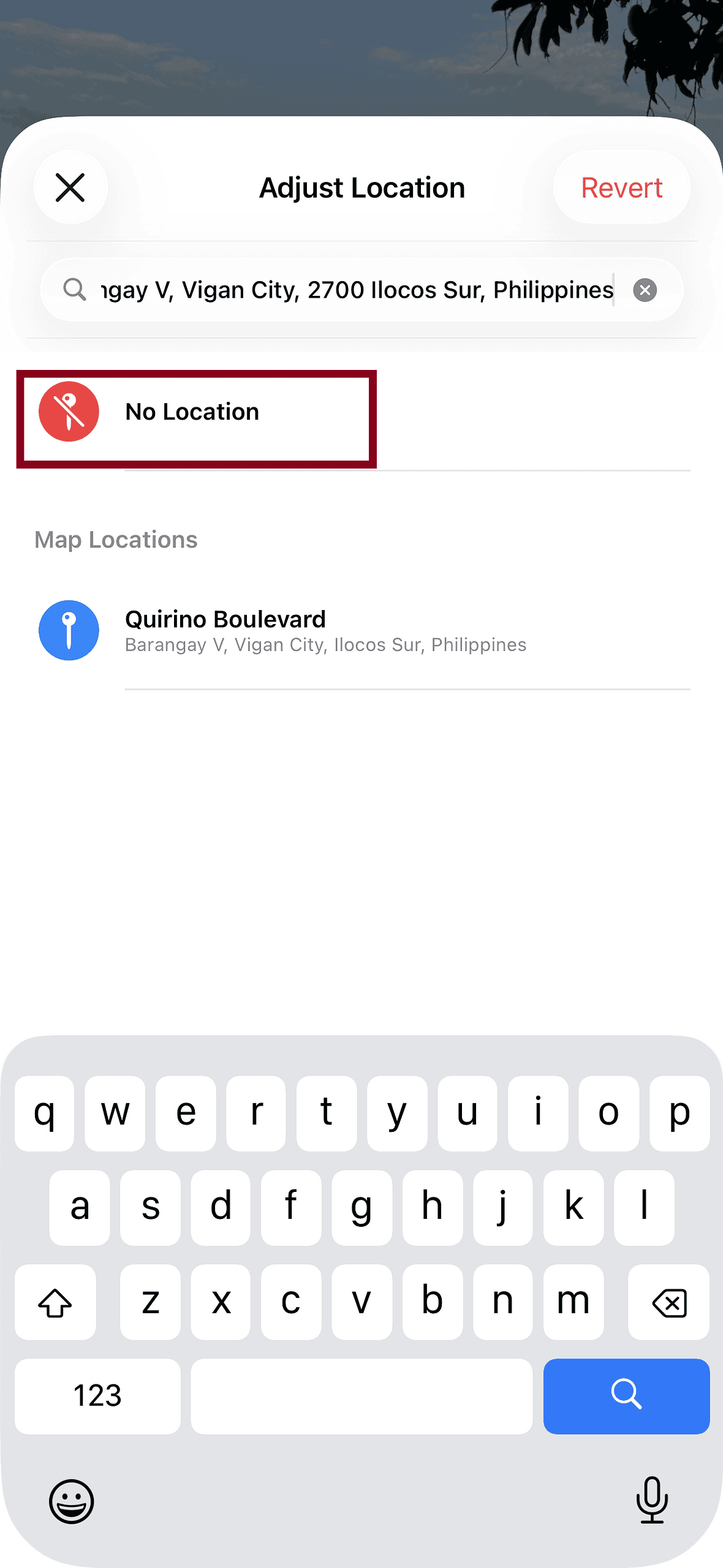
This is manual, but it’s the only way to affect already-captured images.
Customize Library Sorting and Filters
In the Library tab, iOS 26 gives simple viewing options that focus on your raw photo feed. You can use filters to adjust what appears.
- Open Photos.
- Tap Library.
- Tap the Filters button above your photos grid.
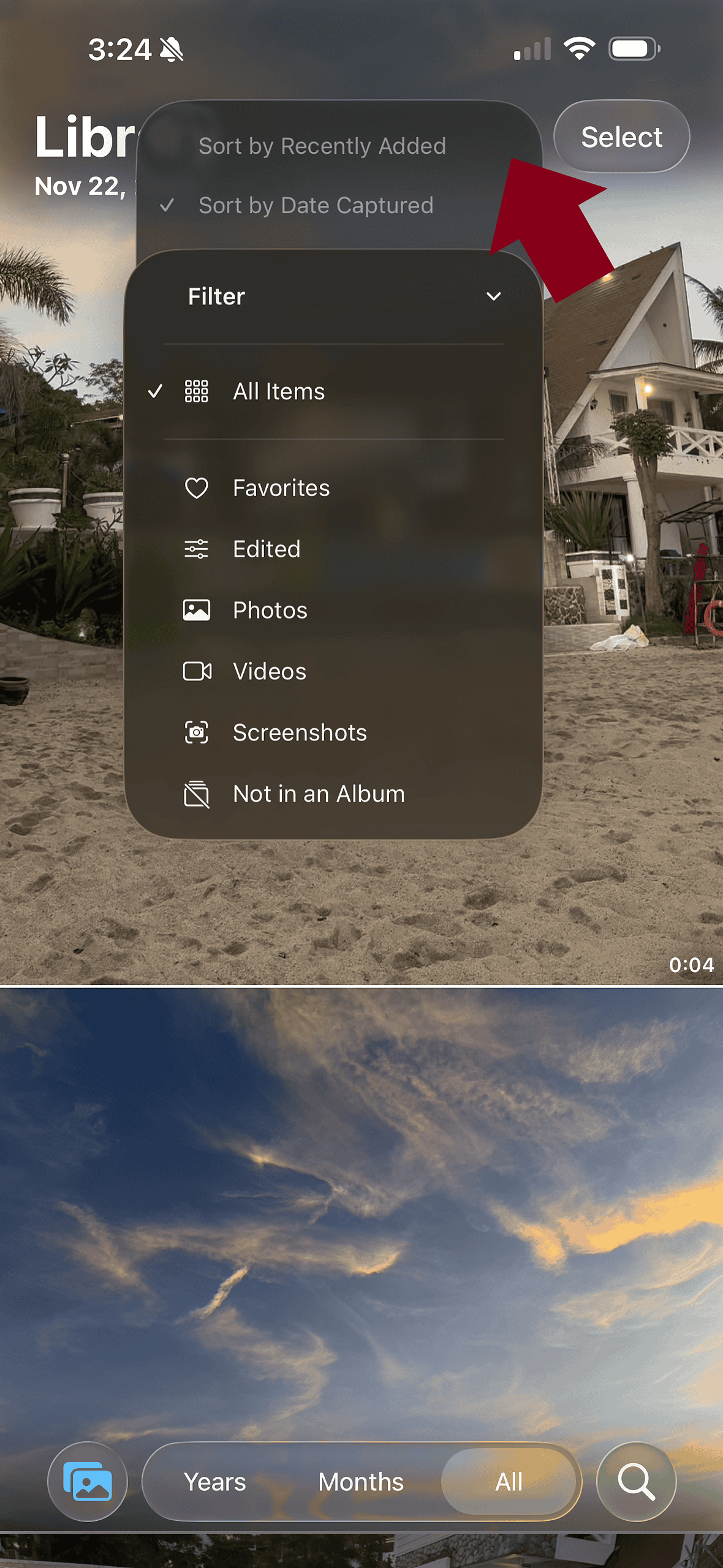
- Choose sort order (e.g., Date Taken).
- Apply filters to show or hide content types like Screenshots, Videos, or Favorites.
This does not stop automatic organization, but helps you view photos by your preferred criteria.
Tips for Managing Your Photos Without Excess Automation
If your goal is to exercise manual control instead of relying on iOS’s curated view, try these habits:
- Create your own named albums for key events.
- Add manual favorites (tap the heart) to separate important photos.
- Use the All Photos view under Library for a chronological list.
- Regularly delete unwanted screenshots and duplicates.
- Turn off location only for new photos if grouping by place bothers you.
These practices help keep your collection organized without depending on automatic groupings.
FAQ
Can I truly stop iOS 26 from organizing photos automatically?
No. You can reduce visibility and hide sections, but automatic groupings cannot be fully turned off.
Will hiding Memories delete my photos?
No. It only hides curated Memories and featured content; the original photos remain intact.
Does changing location permissions affect shared albums?
It affects how new photos are tagged with location data, which can influence grouping in your personal library and shared views.
Can I hide specific people or pets entirely?
You can de-emphasize them in suggestions, but the category remains in the Photos app.
Do these steps apply to iOS 26.1 and later?
Yes. While Apple continues updating iOS 26, these behaviors are consistent across recent builds




Why does Apple think they have the right to “organize” MY photos at all????
Why won’t Apple make its photo “rearranging” optional? I really hate it. I wish they would just leave my photos alone!
I really wish Apple would make rearranging photos OPTIONAL!!!
iPhone only “arranges” my photos only when my phone is “Locked, charging and connected to WiFi”????
Absolutely not true!!!
It arranges anytime it wants to. And at very inconvenient times
I should be able to STOP all automatic sorting of my photos if I want to. I see absolutely no reason this should be required.
I do have my own collections and albums and your arranging is unwanted and inconvenient.
Please make this completely optional in the photos app!