

Apple Pay makes contactless and in-app purchases quick and secure, especially when you have multiple cards loaded in your Wallet. Your default card is the one that appears automatically when you authenticate a payment. Knowing how to change this default is essential for efficiently managing your finances and ensuring you always use your preferred card for transactions. It’s a simple process across all your Apple devices.
Managing Your Primary Apple Pay Payment Method
Switching your primary payment method in Apple Pay is easy and can be done instantly on your iPhone, iPad, Mac, or Apple Watch. Whether you want to use a specific debit card for daily spending or a rewards credit card for bigger purchases, customizing your default card gives you control over your payment choices. If you are starting fresh, learn How to Set Up Apple Pay. You may also need to know How to Add Your Apple Account Card to Wallet before you can set it as your default.
Change Your Default Card via the Wallet App on iPhone
The Wallet app provides the fastest way to switch your default payment card on your iPhone. This method is incredibly intuitive, relying on a simple touch-and-drag gesture that instantly repositions your preferred card to the front of the stack, making it the new default payment source.
Don’t miss the best of The Mac Observer
Set us as a preferred source and our Apple reporting ranks higher in your Google Search results and Discover feed — one tap, no account changes.
- Open the Wallet app on your iPhone.
- Touch and hold the payment card you wish to set as the default.
- Drag the card to the front of your other cards. When you release it, a confirmation message will appear.

Update Your Default Card Through Settings on iPhone or iPad
For a more traditional settings-based approach on your iPhone or iPad, the Wallet & Apple Pay menu gives you explicit control over your transaction defaults, including the card used for Apple Pay purchases. This option is helpful when dealing with numerous cards in your Apple Wallet.
- Go to the Settings app on your iPhone or iPad.
- Tap Wallet & Apple Pay.
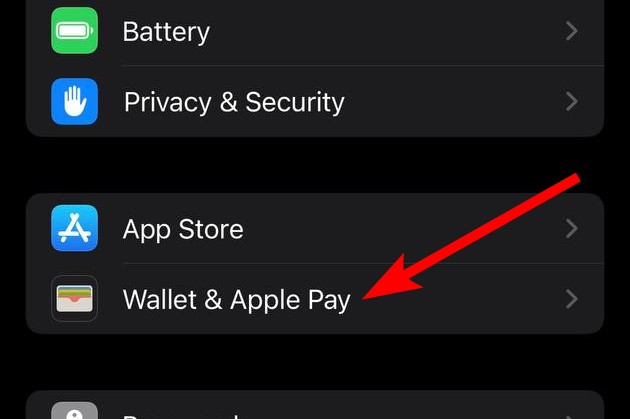
- Under the Transaction Defaults section, tap Default Card.
- Select the card you want to set as your new default.
Switching the Primary Card on Your Apple Watch
Because the Apple Watch is a separate device, changing its default card must be done through the paired iPhone’s Watch app. This ensures that the card used for on-the-go wrist payments is always the one you prefer for quick, contactless payment via Apple Watch.
- On your iPhone, open the Apple Watch app.
- Navigate to the My Watch tab.
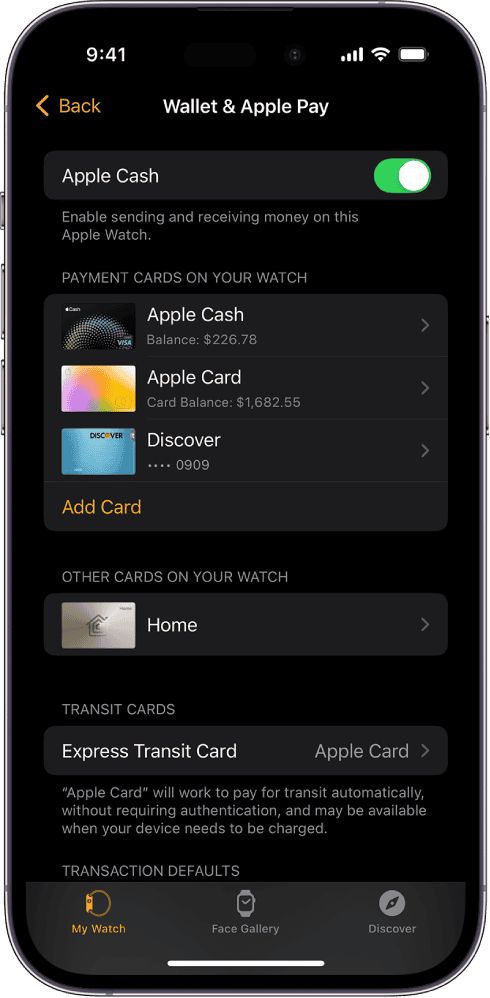
- Tap Wallet & Apple Pay.
- Under Transaction Defaults, tap Default Card and choose your preferred card.

Setting Your Default Card on a Mac with Touch ID
If you use Apple Pay on your Mac for online purchases, you’ll manage your default card through the System Settings (or System Preferences) menu. A Mac with Touch ID secures your online transactions, and this setting ensures the correct default card is used every time.
- Go to System Settings (or System Preferences) on your Mac.
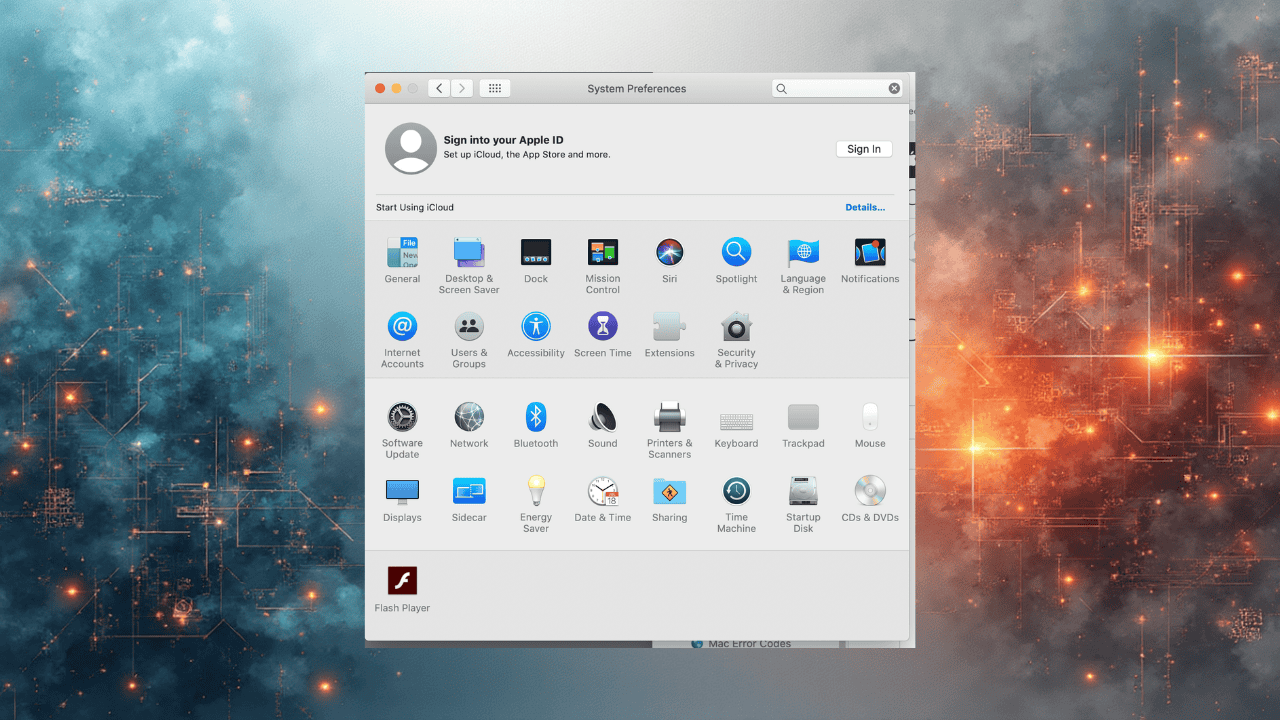
- Click Wallet & Apple Pay.
- Choose your new default card from the Default Card dropdown menu.

Reordering Cards for Quick Access within Apple Pay

While setting a default card is crucial, reordering the remaining cards in your Wallet can also speed up a transaction when you need to use a non-default card. You can quickly view the Device Account Number for any card you have set up in your Wallet.
- Open the Wallet app on your device.
- Touch and hold any card.
- Drag the card to a different position in the stack.
Frequently Asked Questions About Apple Pay Cards
Yes, each device manages its own default card setting independently, though both are configured through the Wallet & Apple Pay section on your paired iPhone.
No, changing the default card for Apple Pay purchases does not typically affect subscriptions linked to a specific card’s number. Subscriptions usually charge the card associated with your Apple Account payment method or the card details stored for that specific service.
If you remove the card that is currently set as your default, Apple Pay will automatically assign the next card in your Wallet as the new default payment method.
Optimizing Your Contactless Payment Experience
Effectively managing your payment cards in Apple Pay is key to a smooth and secure digital transaction experience. By using the straightforward methods available on your iPhone, iPad, Apple Watch, and Mac, you can ensure that your preferred debit or credit card is always the first option presented for payments. Taking a moment to adjust this setting saves time at the point of sale and prevents accidentally using the wrong card, making the entire Apple Pay process more convenient and controlled. You can learn more about managing your cards and troubleshooting issues if you Can’t Add a Card to Apple Wallet.


Discussion