

Apple lets you mute specific conversations or silence all messages on your Mac. To turn off alerts for a specific chat, select the conversation, click on the i (info) button, and turn on the Hide Alerts option. If you want to disable all message notifications, go to Settings > Notifications > Message and toggle off Allow Notifications. Let’s dive into the details.
How Do I Silence Messages on My Mac?
1. Mute Conversations in the Messages App
Time needed: 2 minutes
If you want to turn off message notifications from a specific conversation, you can easily mute it without losing any messages. This lets you stay focused while keeping the chat intact for later.
- Open the Messages app on your Mac.
- From the left sidebar, select the conversation you want to mute.
- Click the “i” (info) button in the top-right corner.
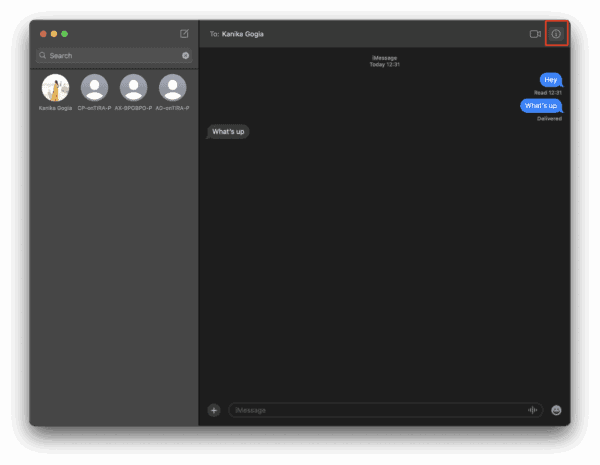
- Check the box next to “Hide Alerts.”

- You can also right-click the conversation and choose the Hide Alerts option.


2. Turn Off All Message Notifications
You can also completely mute Messages on your Mac by turning off notifications in the System Settings app. When you do this, it will disable all alerts, including banners, sounds, and notification badges.
- Open the System Settings app.
- From the left sidebar, choose Notifications.
- Under Application Notifications, select Messages from the app list.
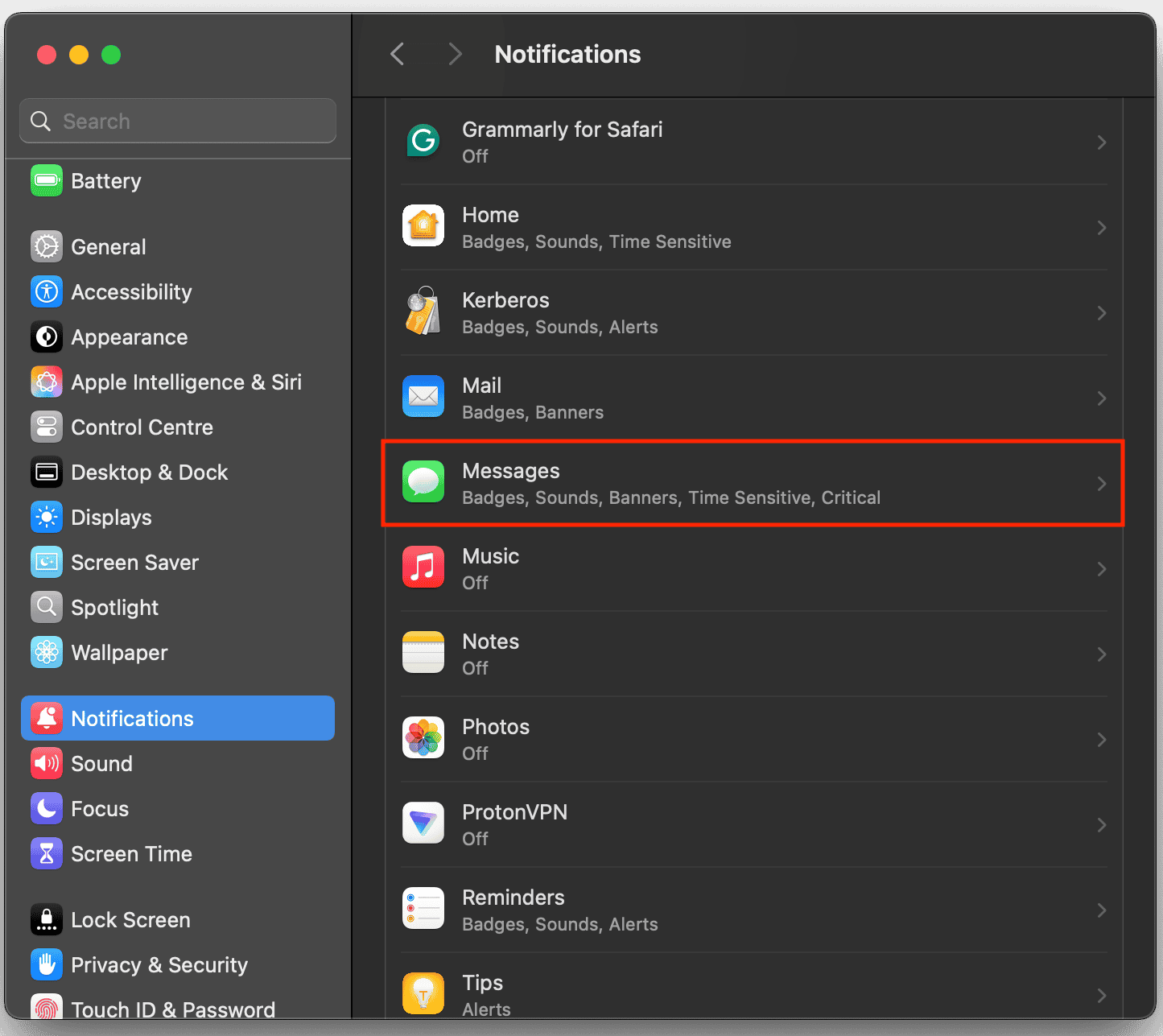
- Finally, toggle off Allow Notifications.
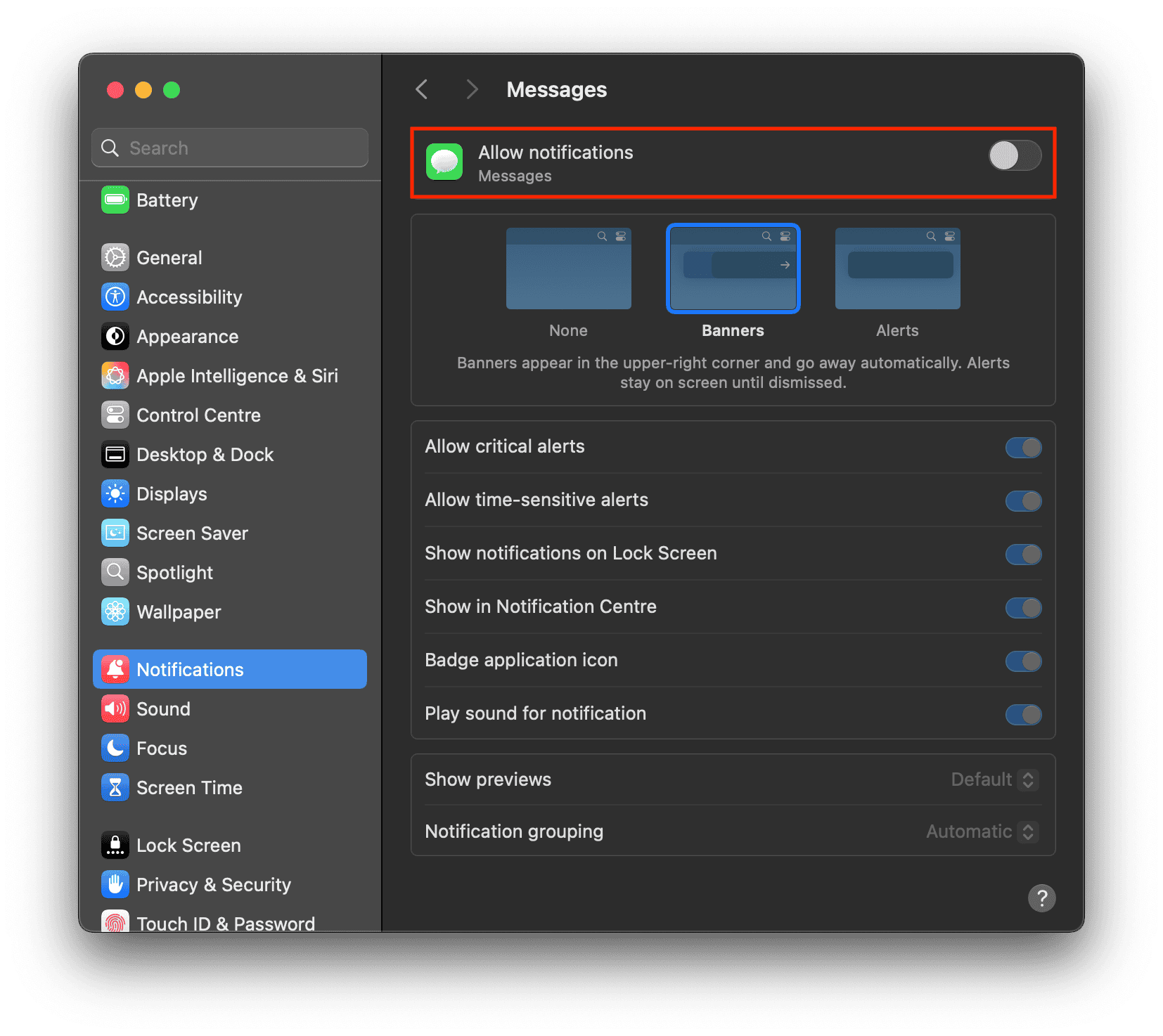


If you wish to receive message alerts anytime in the future, you can easily undo this change by switching Allow Notifications back on in your Mac’s settings.
Don’t miss the best of The Mac Observer
Set us as a preferred source and our Apple reporting ranks higher in your Google Search results and Discover feed — one tap, no account changes.
3. Manage Notifications in Messages
If you don’t want to silence all message notifications, macOS also lets you customize exactly what you’re alerted about. So you can stay informed and avoid unnecessary distractions. This is a smarter way to manage notifications without turning them off entirely.
- Open the Messages app on your Mac.
- From the top menu bar, select Messages > Settings.
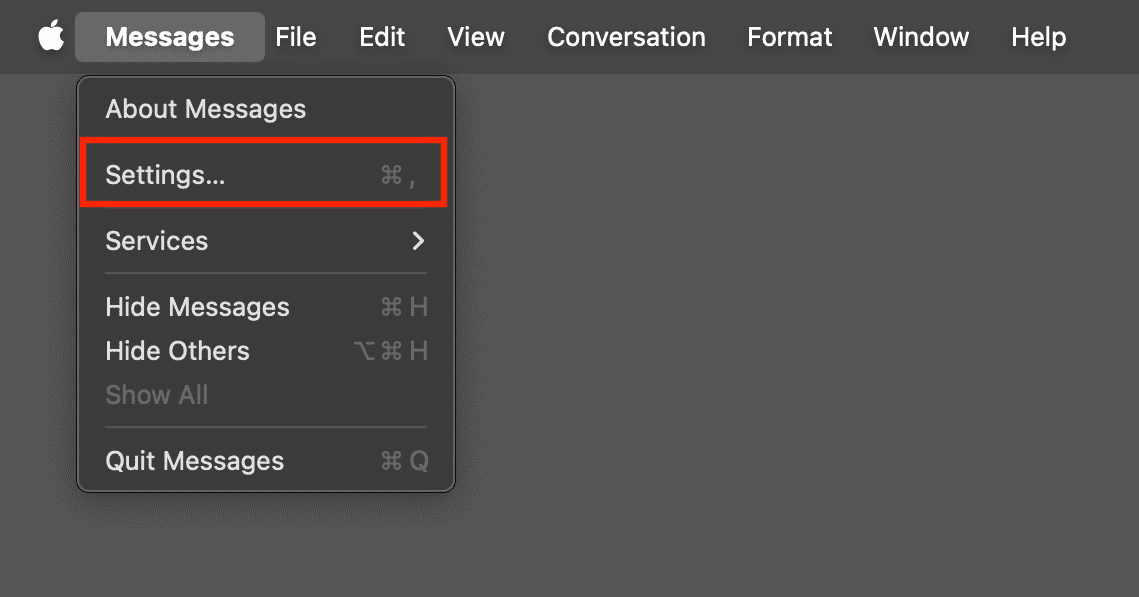
- Click the General tab. Here, you can manage specific notification preferences.
- If you don’t wish to get alerts from people not saved in the Contacts app, uncheck the “Notify me about messages from unknown contacts” option.
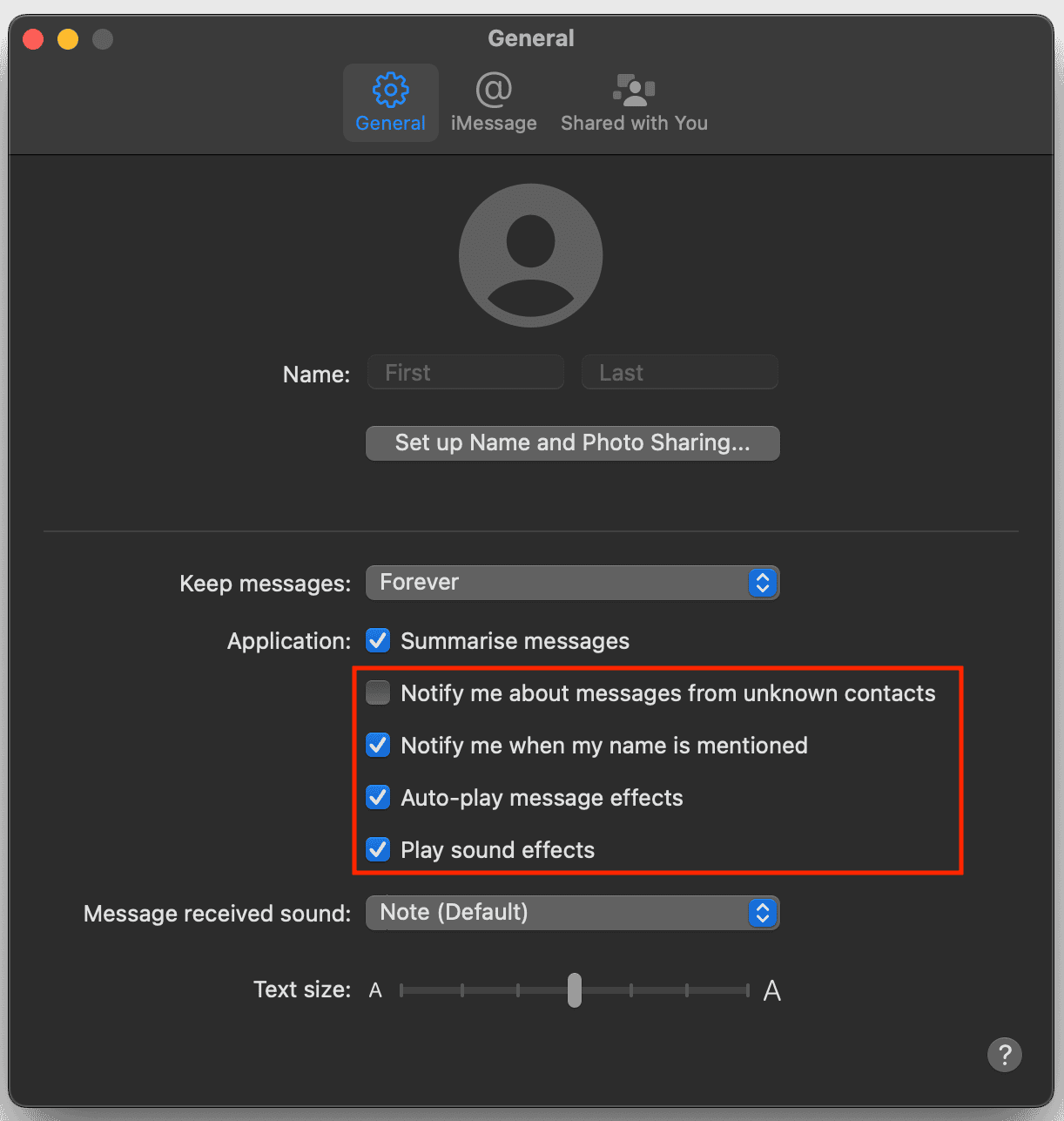
- If you don’t want your Mac to notify you even when someone mentions your name in a group chat, uncheck “Notify me when my name is mentioned“.
- If you don’t want to hear a sound when a new message comes in or when you’re mentioned, uncheck “Play sound effects“.


How To Mute Messages on Mac but Not iPhone
When you mute a conversation in the Messages app on your Mac, it will only silence notifications for that specific thread on your Mac. Your iPhone will continue to receive and alert you about that conversation unless you mute it manually or enable Do Not Disturb on your iPhone.
If you’re using Focus or Do Not Disturb on your Mac and don’t want it to sync across your Apple devices, follow the steps below:
- Open Settings > Focus on your Mac.
- Here, toggle off “Share Across Devices.”
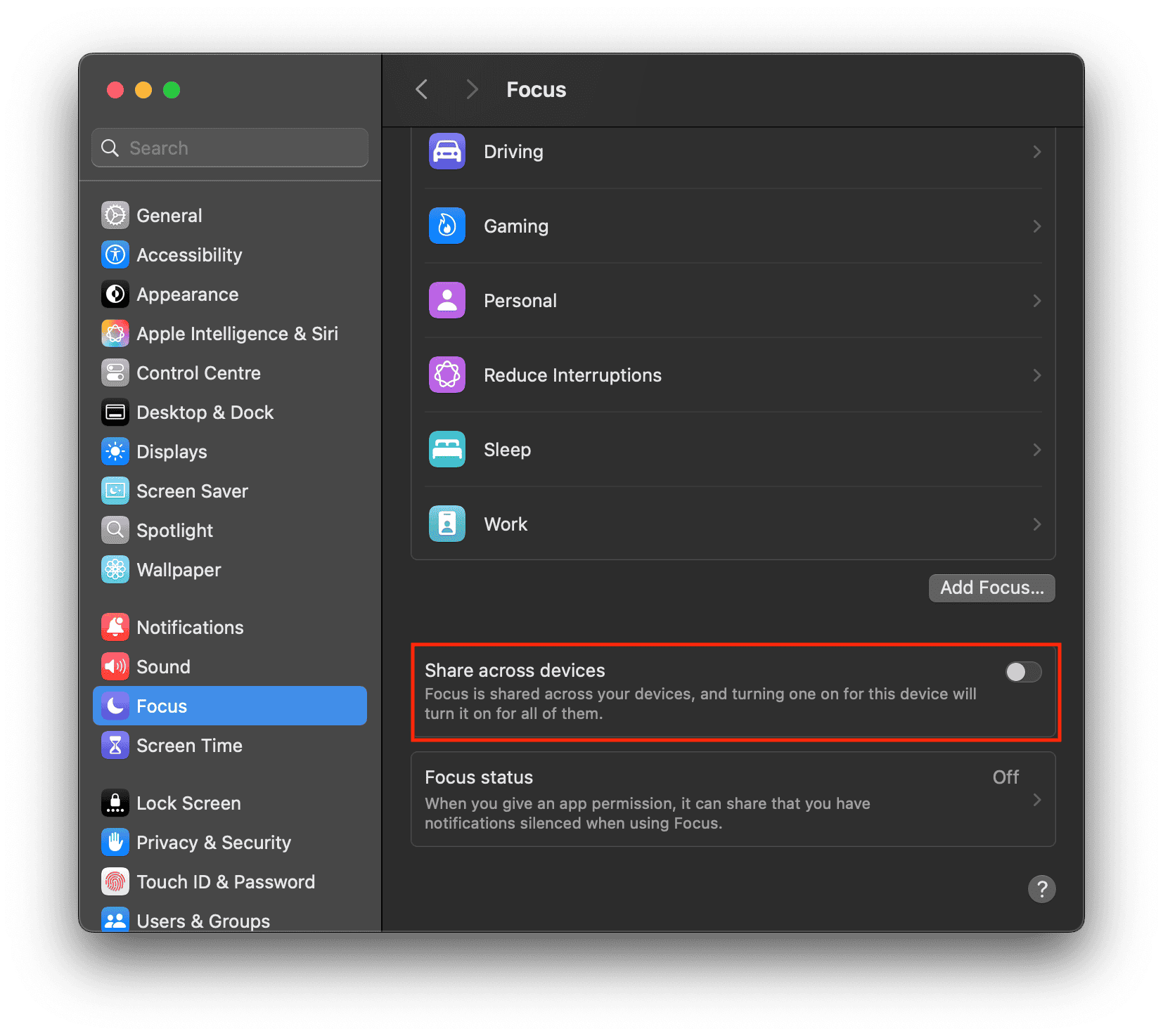
- Now, when you use Focus mode to silence messages on your Mac, it won’t mute alerts on your iPhone.

How To Put Messages on Do Not Disturb on MacBook?
The only way to mute all messages and notifications at once is to enable Focus mode on your Mac, which lets you temporarily silence all notifications so you can concentrate on your meetings or deep work. Here’s how to put messages on Do not Disturb on your MacBook:
- On your Mac, click the Control Center icon in the top-right corner.
- Select Focus.
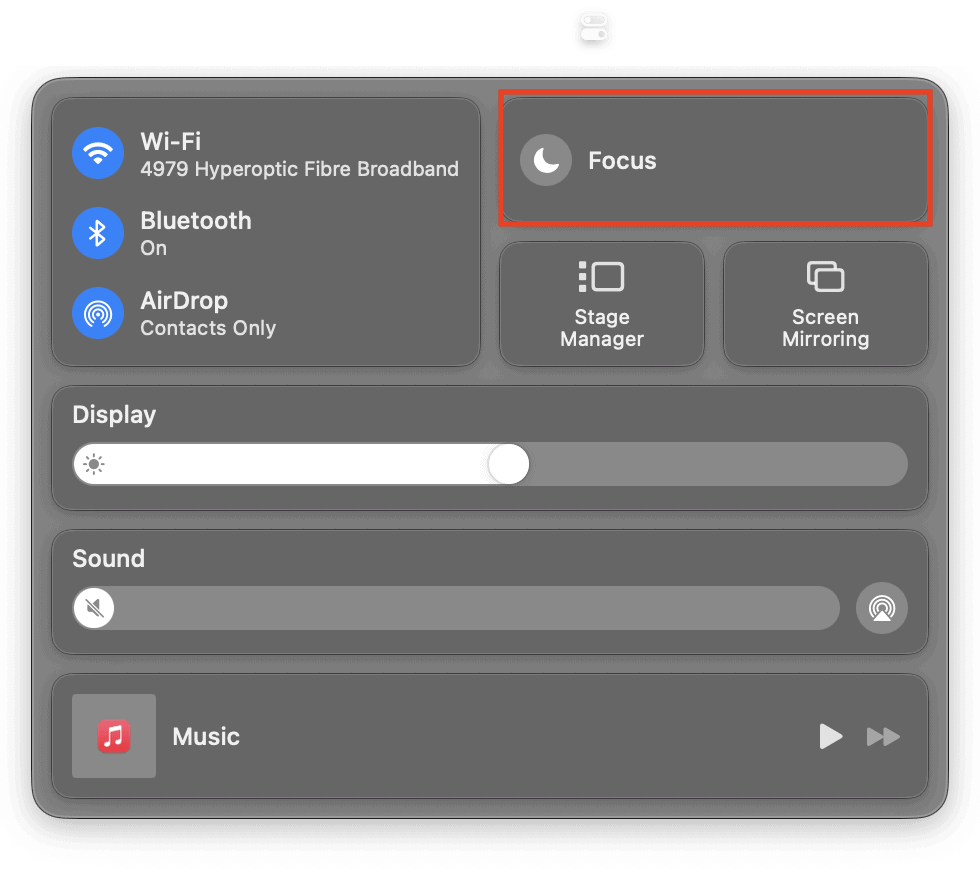
- Choose Do Not Disturb. You can choose how long you want to silence notifications.
- You’ll see two options: For 1 hour, until this evening.
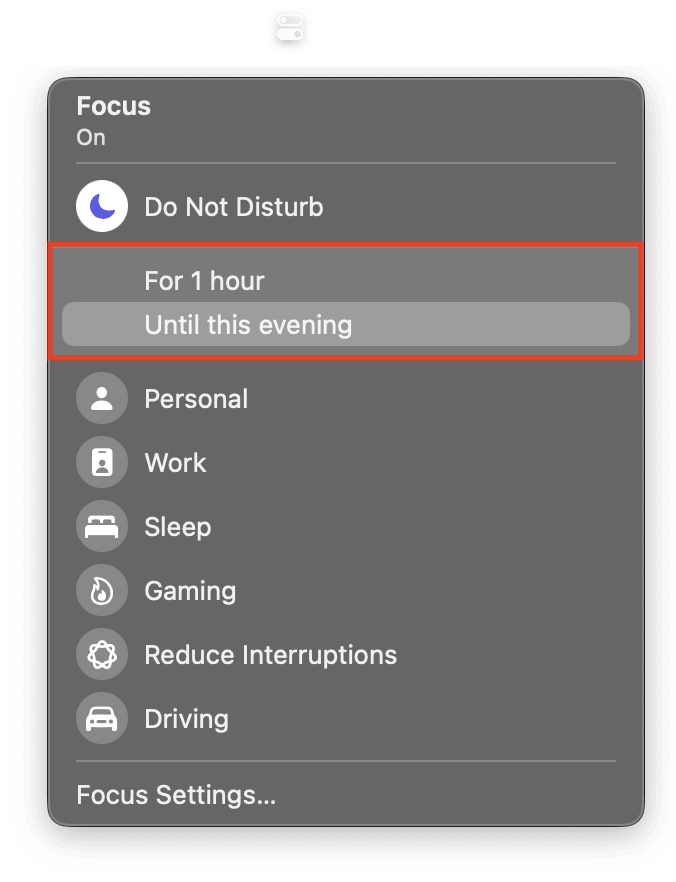


You can also click Focus Settings to receive alerts from specific apps or people.


Discussion