

You can automate taps on your iPhone with built in settings or third party apps. iOS does not offer a direct auto clicker like Android, but you can still automate repeated taps using accessibility tools or dedicated apps. This guide explains every working method in simple, clear steps.
Auto clickers help you automate tapping on your screen. You can use them to repeat taps in games, forms, workflows, or testing tasks. On iOS, Apple restricts direct auto clicker tools, so you either use built in accessibility features or install approved apps from the App Store.
Table of contents
Built in Accessibility Auto Tap
This method uses Apple’s accessibility system to repeat a tap in the same location. It does not require any app downloads and works on modern iPhones and iPads.
Don’t miss the best of The Mac Observer
Set us as a preferred source and our Apple reporting ranks higher in your Google Search results and Discover feed — one tap, no account changes.
Auto Tap via Switch Control
- Open Settings on your iPhone.
- Go to Accessibility.
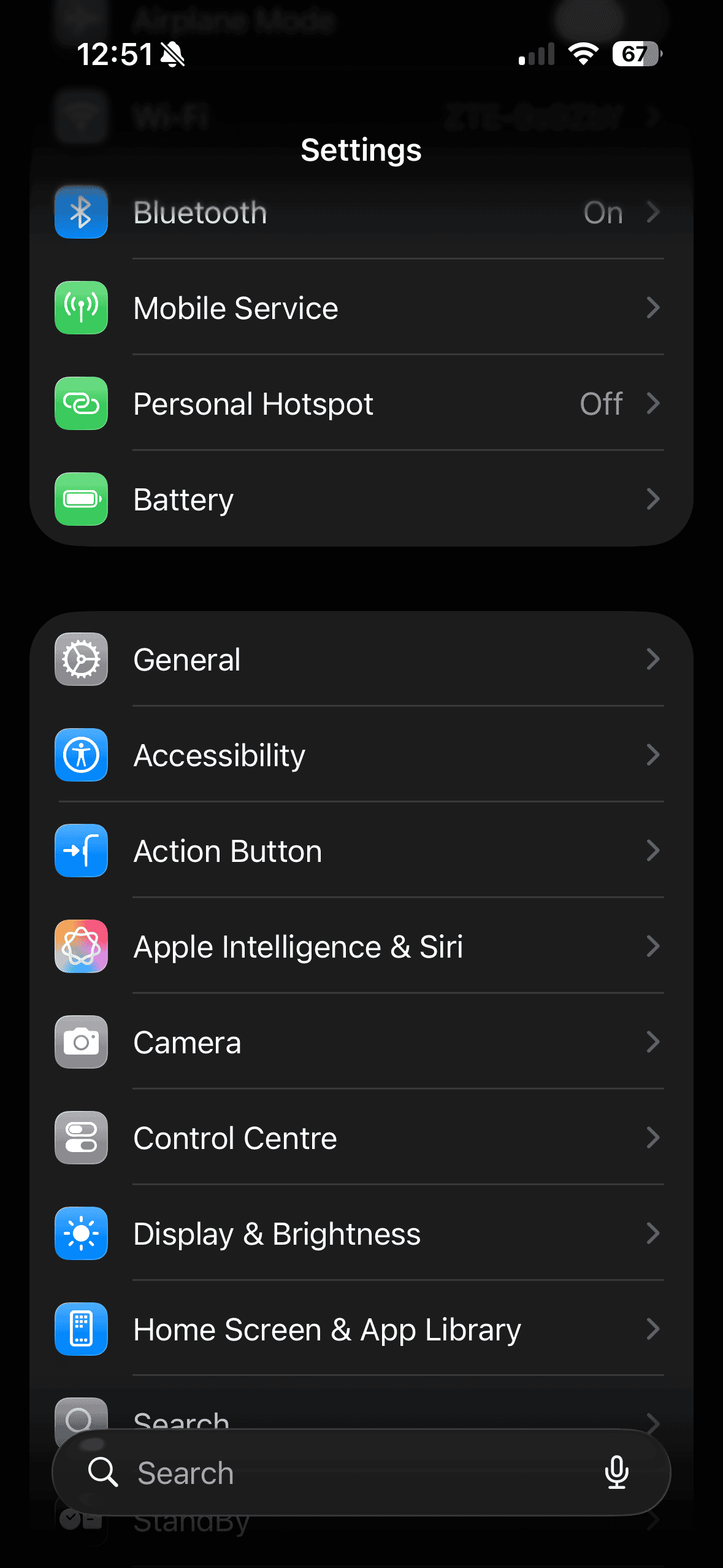
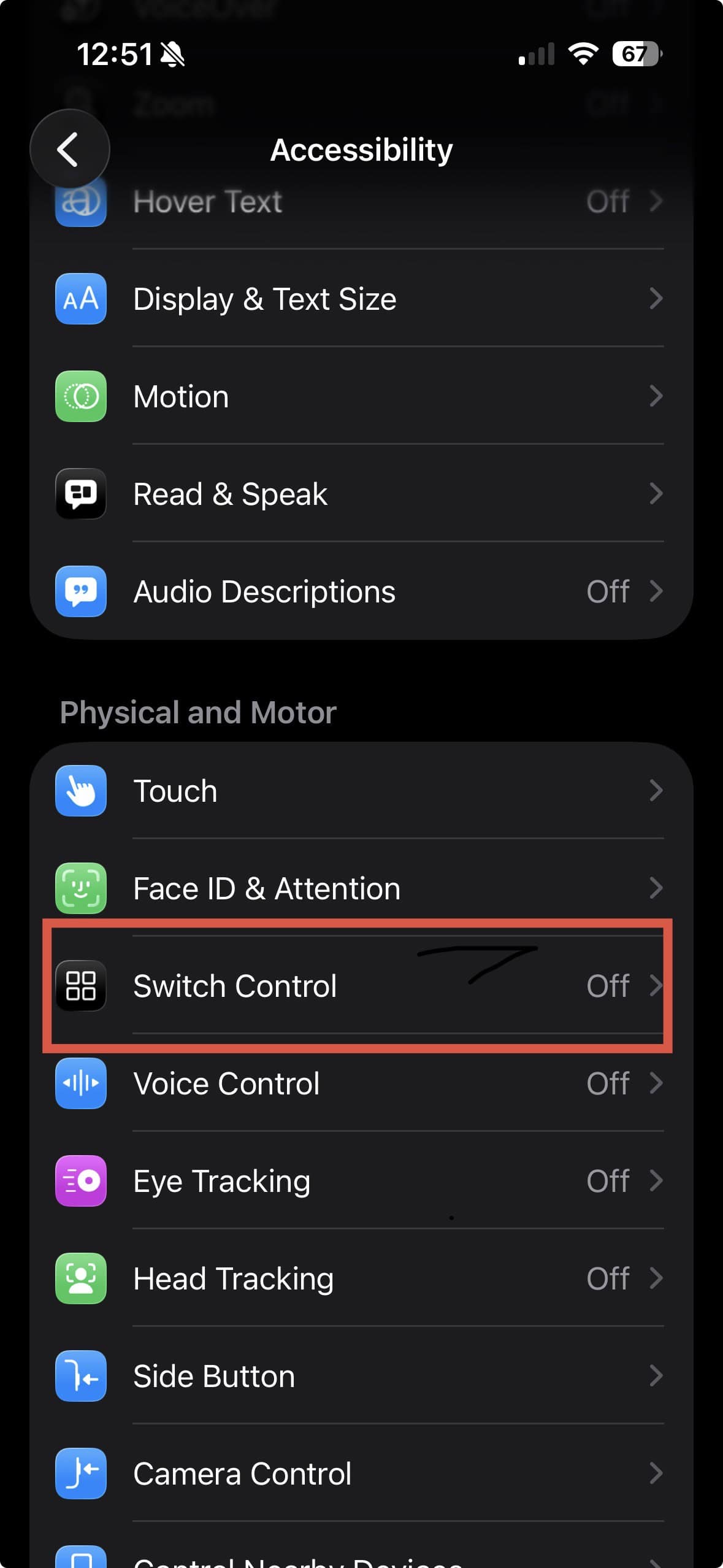
- Tap Switch Control.
- Select Tap Behavior.

- Turn Auto Tap on.
- Choose Dwell Time to set how long the device waits before repeating a tap.


This setup simulates repeated taps after you position the selector. It works best for simple, repeated tapping in a fixed location.
Custom Gesture with Switch Control
You can record a pattern of taps as a custom gesture. iOS then repeats that gesture automatically when activated.
Create and Use a Custom Auto Gesture
- Go to Settings and open Accessibility.
- Tap Switch Control.
- Select Recipes.
- Tap New Recipe.
- Enter a name for the gesture.
- Tap Assign a Switch and choose Full Screen.
- Select Custom Gesture.
- Tap the screen in the pattern you want to repeat.
- Save the gesture.
- Enable Switch Control to start using the recipe.
This method works best for fixed tap patterns that do not change position.
AssistiveTouch Custom Gestures
AssistiveTouch also lets you record and replay gestures using an on-screen menu. This option gives you quick access without deep menus.
Program Auto Click Gestures
- Open Settings.
- Tap Accessibility.
- Go to Touch and select AssistiveTouch.
- Turn AssistiveTouch on.
- Tap Create New Gesture.
- Record the tap or swipe pattern.
- Name and save the gesture.
- Use the AssistiveTouch button to replay the gesture.
This method is ideal for repeating short actions or tap sequences in the same area.
Third Party Auto Clicker Apps
You can also use auto clicker apps from the App Store. These apps offer more control options but usually work only inside their own interface.
Auto Click Auto Clicker App
Overview:
- Free to download with optional in app purchases.
- Automates taps inside the app’s browser.
- Supports multiple tap points.
- Allows adjustable tap intervals.
Key Features:
- Multiple click locations.
- Custom delay times.
- Gesture recording.
- Auto refresh tools.
Auto Clicker Automatic Tap App
Overview:
- Free with optional subscription.
- Supports automatic tapping and scrolling.
- Mainly works inside the app environment.
- Limited system wide automation.
Specs:
- Requires iOS 13 or later.
- Includes auto scroll and refresh tools.
- Designed mainly for browsing tasks.
Tips
- Use built in accessibility tools for system wide automation.
- Test gestures before long sessions.
- Reduce dwell time for faster tapping.
- Check game or app rules before using automation.
- Monitor battery usage during long runs.
FAQs
Can you use auto clicker in all iOS apps?
Accessibility gestures work system wide, but most third party apps only work inside their own interface.
Do you need a jailbreak to use auto clickers on iOS?
No. All methods explained here work on standard iOS devices.
Will auto clickers drain battery?
Yes. Continuous tapping increases CPU usage and can reduce battery life.
Are auto clickers allowed in games?
Some games restrict automation. Always check the game rules before using it.
Summary
- iOS does not include a dedicated auto clicker.
- Switch Control enables automatic tapping.
- Custom recipes allow tap pattern repetition.
- AssistiveTouch provides quick gesture playback.
- Third party apps offer limited automation.
- Follow app rules and system guidelines.
Conclusion
You can use auto clicker features on iOS without complex tools or unsafe methods. Built in accessibility options offer the most reliable system wide automation. Third party apps add flexibility for browser based tasks. Use these tools responsibly and stay within app and platform rules.


Discussion