

Staying connected to your work life without being glued to your desk is a huge perk of modern technology. If you rely on Microsoft Teams, getting those notifications right on your wrist is a game changer. However, there is a catch: Microsoft does not provide an official, standalone app for the Apple Watch.
But don’t worry! You can still stay in the loop. By setting up notification mirroring or using third-party tools, you can receive messages, send quick replies, and even browse chats from your wrist. Before diving in, make sure you know how to set up an Apple Watch properly to ensure seamless pairing with your iPhone. Here is exactly how to make it work.
Table of contents
What You Need to Access Teams on Apple Watch
Since there is no native app to install, your setup relies heavily on your iPhone settings.
Don’t miss the best of The Mac Observer
Set us as a preferred source and our Apple reporting ranks higher in your Google Search results and Discover feed — one tap, no account changes.
- An iPhone with the Teams App: You must have the official Microsoft Teams app installed and signed in on your paired iPhone. If you are used to the desktop experience and use Microsoft Teams for Mac, ensure you also have the iOS version ready.
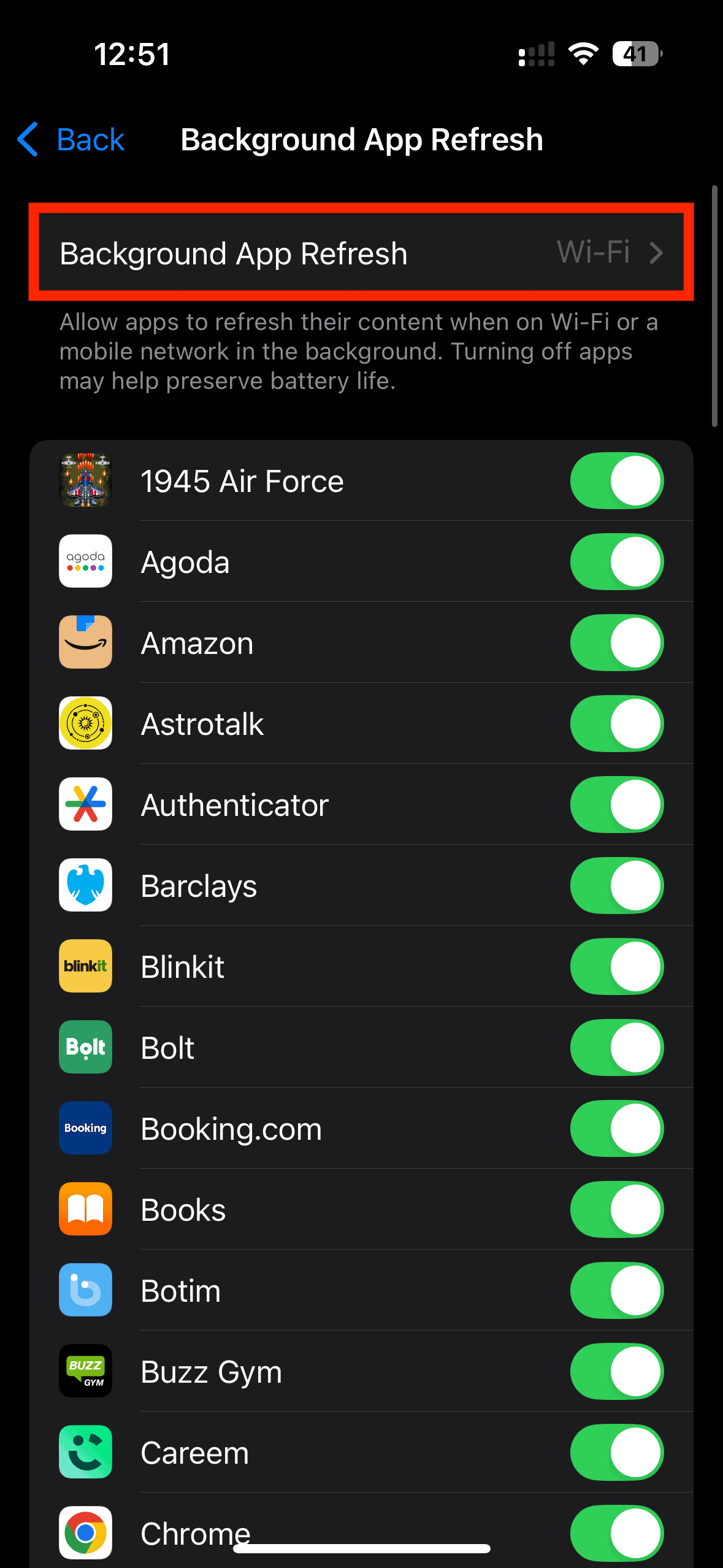
- Background App Refresh: Ensure this is enabled on your iPhone so Teams can receive data while locked.
- Third-Party App (Optional): If you want to browse chats (not just reply to new ones), you will need to learn how to install apps on Apple Watch to get a third-party wrapper like TeamsSync or WatchTeams.

Here’s How to Access Microsoft Teams on Apple Watch
There are two ways to use Teams: the official “notification only” method and the unofficial “full access” method via third-party developers.
1. Enable Notification Mirroring (Official Method)
This is the standard way to use Teams. It allows you to receive alerts and tap “Reply” instantly, but you cannot open an app to browse old messages.
- Open the Watch app on your iPhone.
- Tap on Notifications.
- Scroll down to the section titled Mirror iPhone Alerts From.
- Find Teams in the list and toggle the switch to On (green).
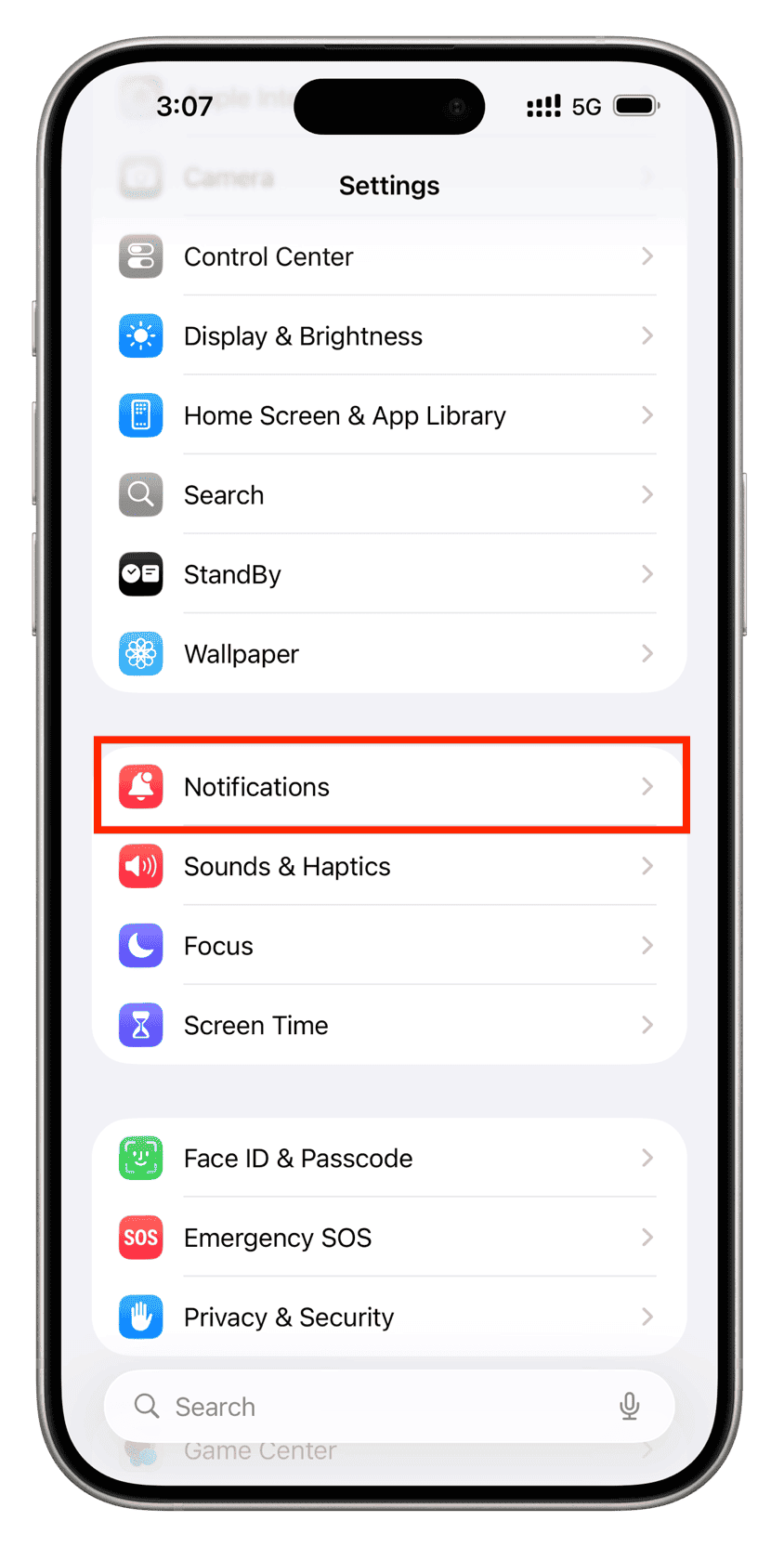
- Crucial Step: On your iPhone, go to Settings > Notifications > Teams and ensure “Show on Lock Screen” is checked.
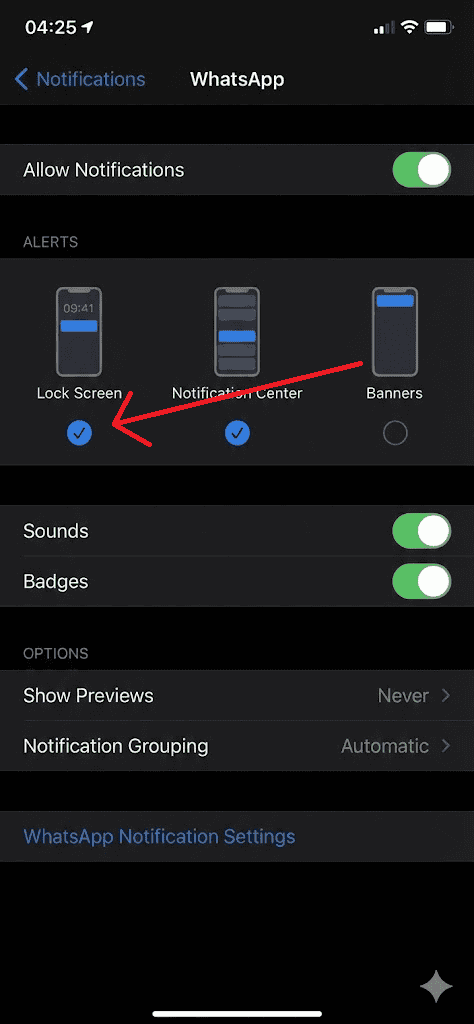
If alerts don’t hit your locked phone screen, they often won’t forward to the Watch.


2. Use a Third-Party App (For Full Access)
If you need to browse your channel history or view images, you can use a wrapper app. These are not made by Microsoft but connect to your account to provide a watch interface.
- TeamsSync for Microsoft Teams: A popular option that lets you view chats, images, and even your calendar.
- WatchTeams: Another client that allows for reading and replying to messages directly from the app interface.

To install these:
- Open the App Store on your Apple Watch.
- Search for “TeamsSync” or “WatchTeams”.
- Tap Get to download the app.
- Follow the on-screen instructions to log in with your Microsoft credentials (usually requires authenticating via your iPhone).
Additional Tips for a Better Experience
To master this workaround experience, keep these pointers in mind.
- Master the “Reply” Button: When a notification pops up, scroll down immediately. You can tap Reply to send a voice message, emoji, or preset text response without needing a full app.
- Tweak Focus Modes: If you use “Work” or “Do Not Disturb” Focus modes, ensure you add Teams to the “Allowed Apps” list so you do not miss urgent pings while trying to use your Apple Watch for productivity.
- Security Note: When using third-party apps, be aware that you are logging into your corporate account through a non-Microsoft interface. Check your company’s IT policy before doing this.
Final Thoughts
While the lack of an official Microsoft Teams app is disappointing, the Apple Watch is still a powerful companion for triage. By mirroring notifications, you can stay responsive to urgent items without pulling out your phone. For those who need more power, third-party developers have stepped in to fill the gap effectively.
FAQs
No, there is currently no official standalone Teams app from Microsoft for the Apple Watch. You cannot browse chats natively without a third-party app.
This usually happens if the iPhone is unlocked (notifications go to the phone then) or if “Mirror iPhone Alerts” is off. Also, check that you haven’t muted the specific chat on your desktop Teams app.
Not directly via video. However, if you receive a meeting notification, you can often tap it to answer the audio portion of the call, acting like a standard phone call.


Discussion