
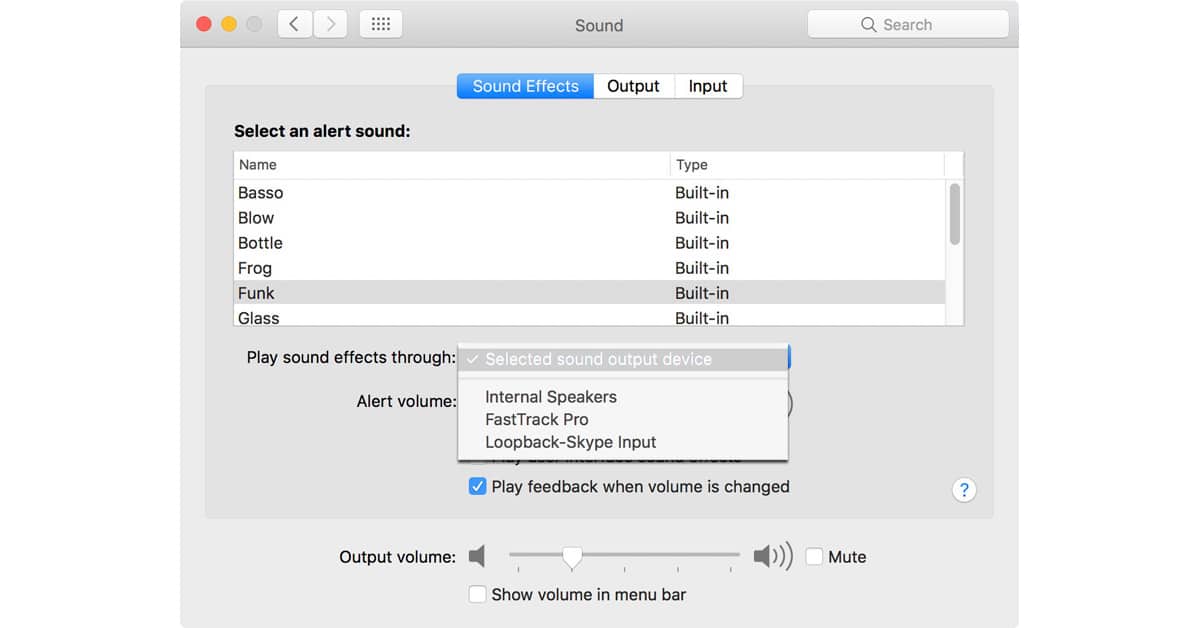
Every macOS/OS X update has its own quirks, and those quirks can be amplified by whatever peculiarities existed on the Mac being upgraded. For instance, when I upgraded to Sierra, that setting got changed so that it was independent from my System Output. Fortunately, putting it back is easy:
Changing Sound Effects Output
The idea is simple here. Most users want their Sound Effects—which include alert sounds—to be on the same speakers as their main Output. That way, if you change that main Output, your Sound Effects automatically shift at the same time.
Go to System Preferences > Sound > Sound Effects. If you want them tied to the settings under Preferences > Sound > Output, choose “Selected sound output device” from the pulldown menu, as shown below.
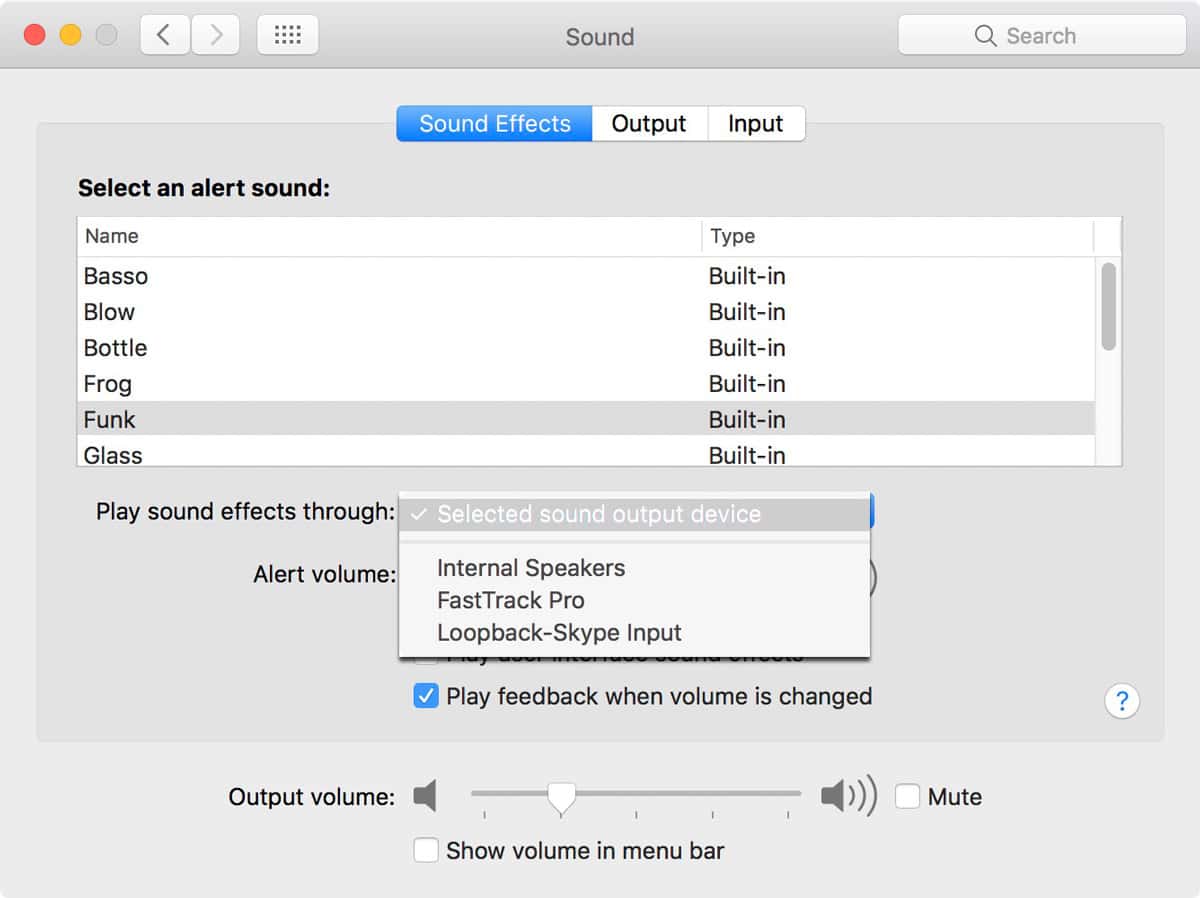
“Selected sound output device” really means “whatever device you have selected under Output.” Most users will find that already selected. If not, select it, and you’ll be good to go.
Don’t miss the best of The Mac Observer
Set us as a preferred source and our Apple reporting ranks higher in your Google Search results and Discover feed — one tap, no account changes.

Discussion