
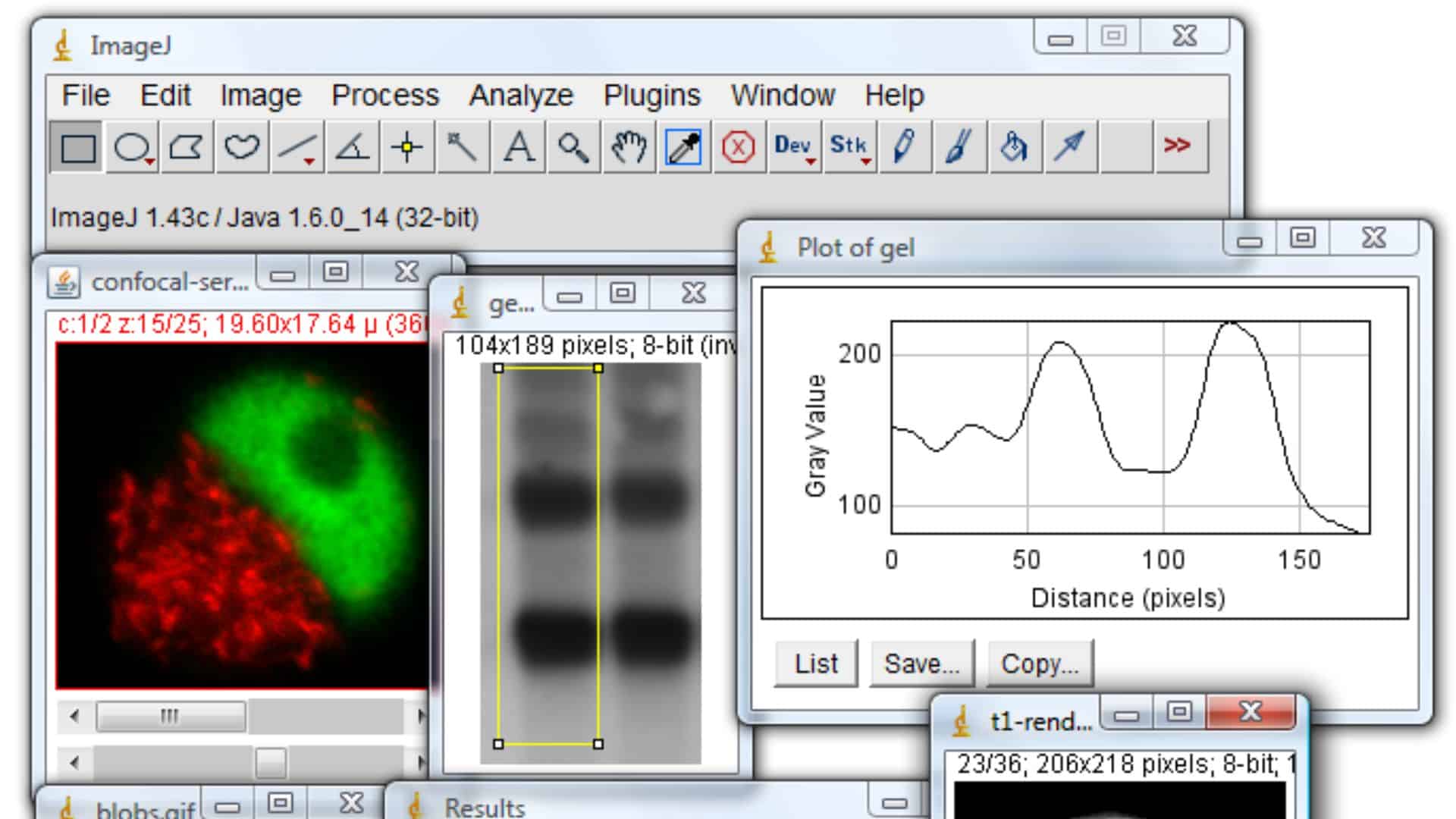
If you’ve ever dabbled in scientific imaging, microscopy, or medical research, there’s a good chance you’ve heard of ImageJ. It’s one of those rare tools that’s both open-source and incredibly powerful, a kind of Swiss Army knife for image analysis. Originally developed by the National Institutes of Health (NIH), ImageJ runs smoothly on macOS, Windows, and Linux—but let’s focus on how it performs on a Mac and why it’s still one of the best free tools out there for serious image work.
What Makes ImageJ Stand Out
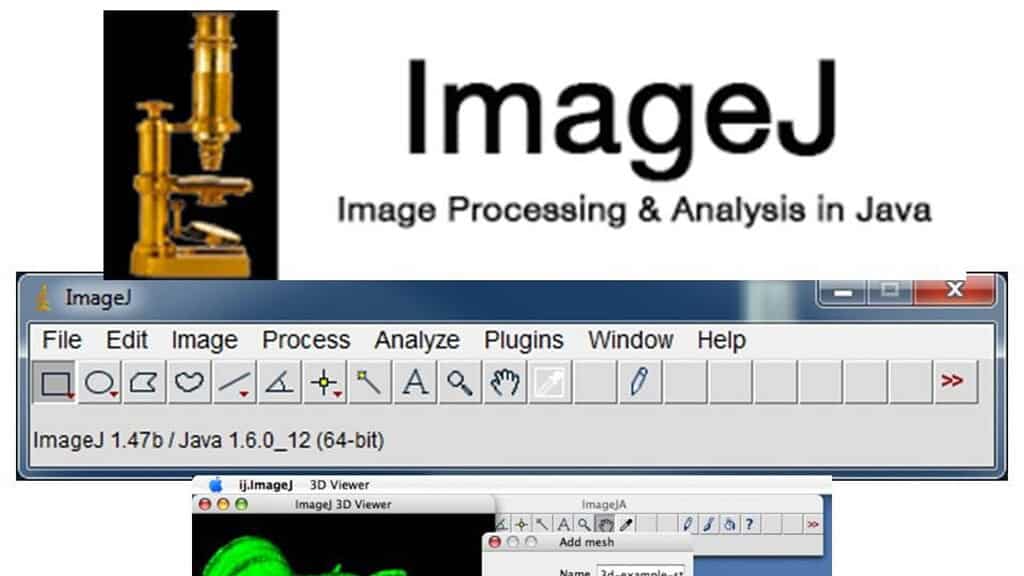
Here’s the thing about ImageJ: it’s not just for scientists. Sure, it’s a favorite in labs, but anyone working with images—whether you’re studying cells under a microscope or analyzing satellite photos—can use it. On Mac, ImageJ integrates neatly with macOS, making installation and updates straightforward. Once you’ve got it running, you’ll notice it’s not flashy. The interface looks simple, almost plain, but that’s part of its charm. Every menu option has a purpose, and you won’t waste time wading through clutter.
What makes ImageJ so powerful is its flexibility. You can measure distances, count particles, adjust contrast, perform batch processing, and even write macros or plugins to automate complex workflows. It supports a wide range of image formats—TIFF, PNG, JPEG, DICOM, and more—and handles massive datasets without choking your Mac.
Don’t miss the best of The Mac Observer
Set us as a preferred source and our Apple reporting ranks higher in your Google Search results and Discover feed — one tap, no account changes.
Why It Works Well on macOS

ImageJ is written in Java, which means it runs identically across platforms. On a Mac, that translates into stability and consistency—something researchers appreciate when they’re knee-deep in data. It also supports drag-and-drop from Finder, integrates with Apple’s file system permissions, and doesn’t demand heavy system resources. Even older MacBooks can handle it without breaking a sweat.
For those who love to customize their setup, ImageJ plays nicely with plugins. Tools like Fiji (Fiji Is Just ImageJ)—a pre-packaged version with popular plugins built-in—make it even easier to expand its functionality without writing code yourself.
Bottom Line
If you’re working with scientific or high-detail images, ImageJ for Mac remains a must-have. It’s free, reliable, endlessly adaptable, and supported by a massive community of researchers and developers. Sure, the interface feels old-school, but it’s fast, efficient, and gets the job done. Once you learn the basics, you’ll understand why ImageJ has been a staple in labs and classrooms for decades—and why it’s still going strong.




Discussion