

Apple’s iOS 26 introduces Call Screening, a privacy-focused feature that filters incoming calls from unknown numbers. When enabled, your iPhone automatically answers these calls, prompts the caller to state their name and reason, and only rings if a response is received. While this helps reduce spam and robocalls, it can also delay or block legitimate calls from unsaved numbers. If you’ve enabled Call Screening and want to disable it, here’s how to do it.
Table of contents
What Is Call Screening in iOS 26?
Call Screening, also labeled “Screen Unknown Callers”, automatically intercepts calls from numbers not in your contacts. The system asks the caller to identify themselves before your phone rings. If the caller responds, the call proceeds; otherwise, it’s silenced or sent to voicemail. This feature is ideal for avoiding spam but may interfere with time-sensitive or important calls from new contacts.
Disable Call Screening on iPhone
Disabling Call Screening restores traditional call behavior: all calls ring through immediately, regardless of whether the number is saved.
Don’t miss the best of The Mac Observer
Set us as a preferred source and our Apple reporting ranks higher in your Google Search results and Discover feed — one tap, no account changes.
- Open Settings.

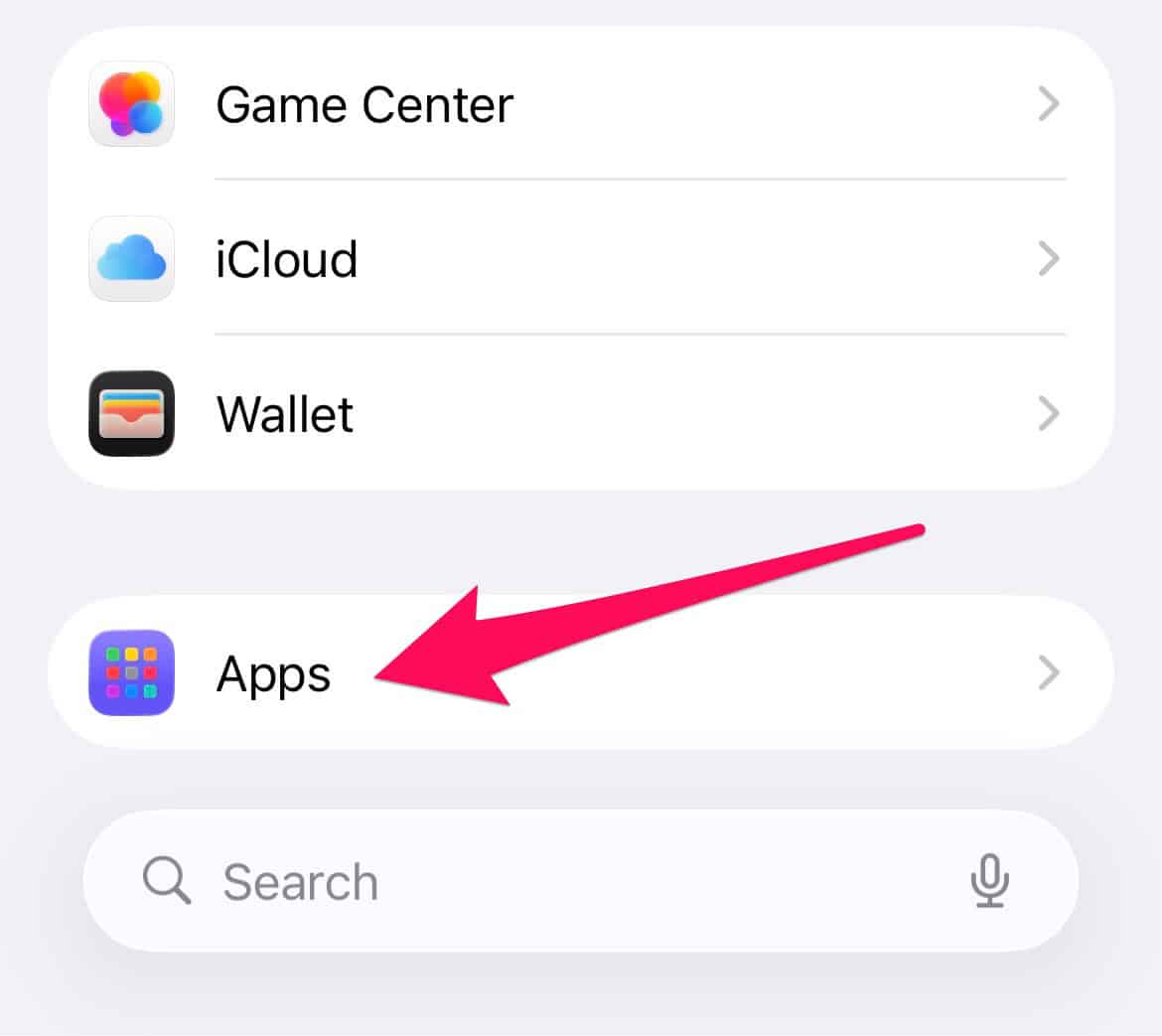
- Scroll down and tap Apps.
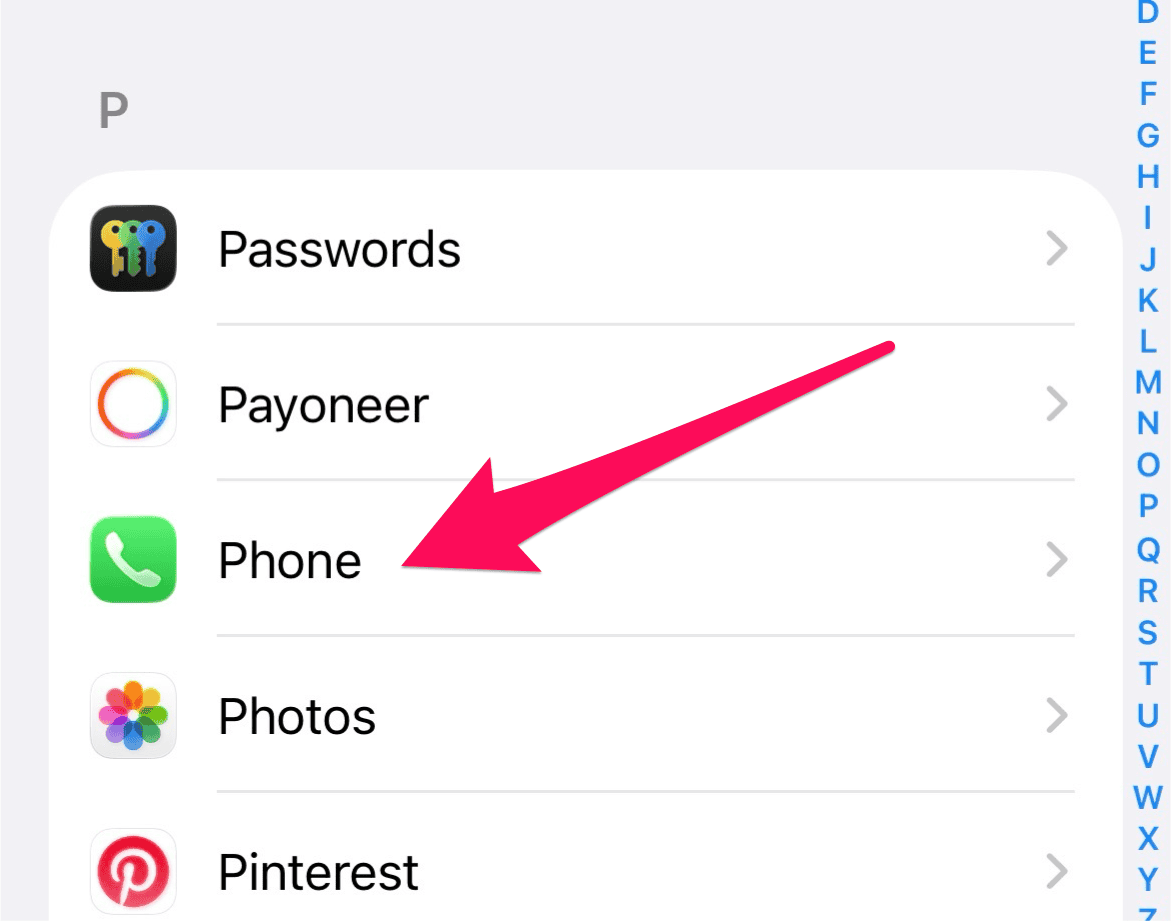
- Tap Phone.
- In the Screen Unknown Callers section, tap Never.


Once disabled, your iPhone will ring for all calls, including those from unknown callers. Missed calls from unsaved numbers will appear in your Recents list as usual.
FAQ
Yes. Without screening, spam and robocalls may ring through. Consider using “Silence Unknown Callers” or third-party apps like Truecaller or Hiya for alternative filtering.
Yes. Apple’s “Silence Unknown Callers” feature works independently and can be used even when Call Screening is off.
Use the search bar in Settings and type “unknown.” Tap “Screen Unknown Callers” and select “Never.”
Calls with no caller ID will ring unless silenced. You can find out who called from no caller ID using carrier tools or third-party apps.
Yes. You can make an anonymous call by hiding your caller ID in Phone settings or using a prefix code.
Regain Control Over Your Incoming Calls
Turning off Call Screening in iOS 26 is a quick way to ensure you don’t miss important calls from unsaved numbers. Whether you’re expecting a job interview, delivery update, or medical call, disabling this feature restores direct access. If spam becomes a concern later, you can re-enable screening or explore Apple’s other call filtering tools. For a deeper dive into how the feature works, revisit the guide on enabled Call Screening.


Discussion