

You pop open the case, ready to play music or take a call, and your AirPods just won’t connect. No sound, no animation, nothing. It’s annoying, especially when they usually just work.
Here’s the thing: connection problems with AirPods are common, and they’re usually easy to fix. Whether your AirPods won’t connect to your iPhone, iPad, or Mac, the cause is almost always one of a few simple things: Bluetooth glitches, low battery, or a software hiccup. Let’s break down what’s happening and how to get them paired again fast.
Table of contents
Start with the Basics
Before diving into resets or updates, check the simple stuff. It solves most connection issues in seconds.
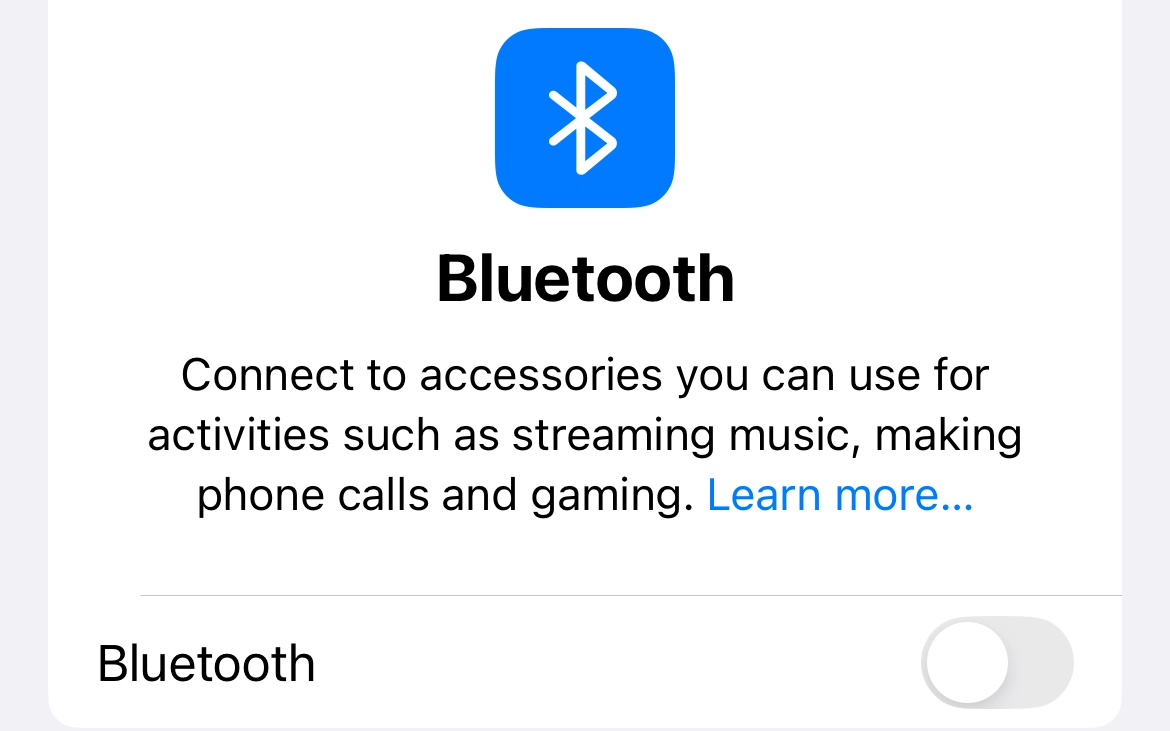
1. Make sure Bluetooth is on.
- On your iPhone or iPad, go to Settings > Bluetooth and confirm it’s switched on.
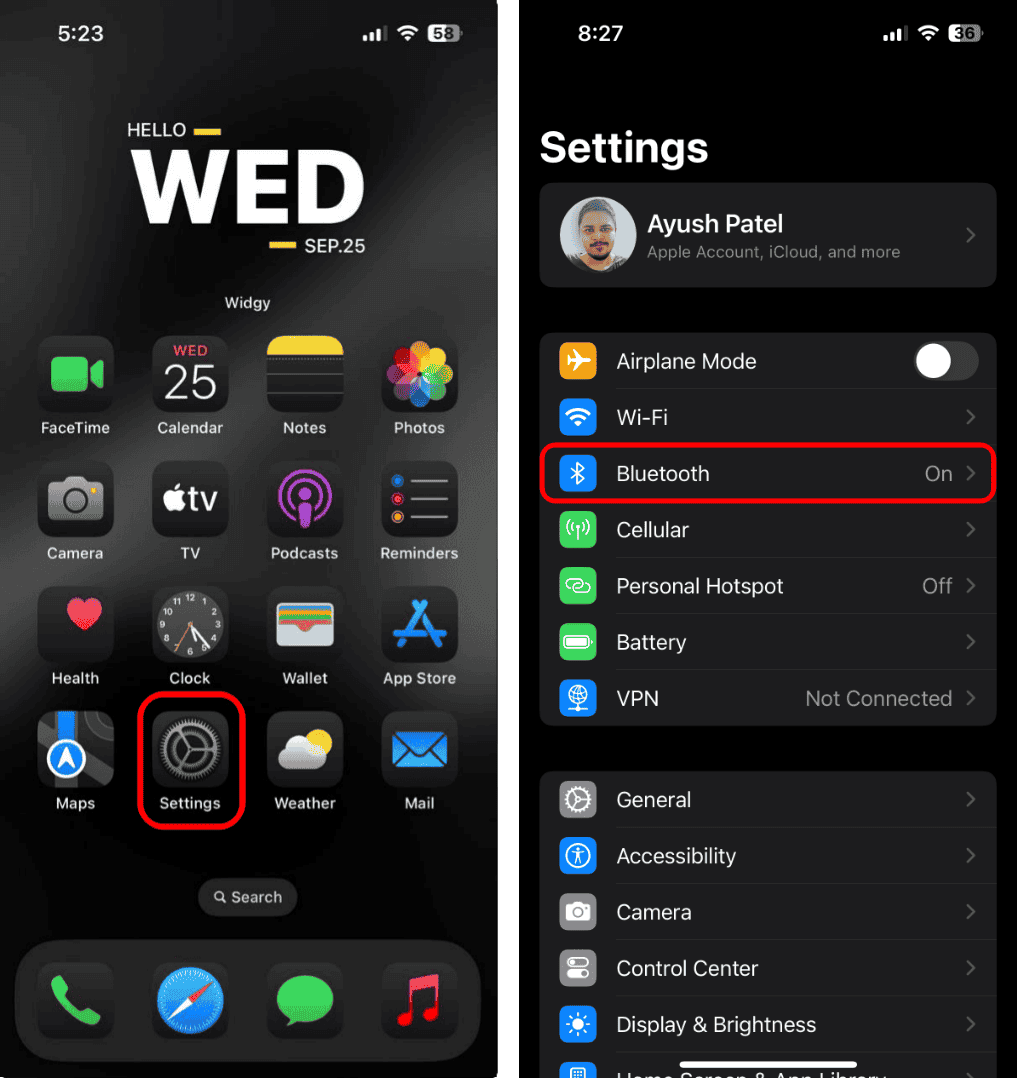
- If it’s already on, try toggling it off and on again.

2. Check the charge.
Put both AirPods in the case and close the lid for about 15 seconds. Then open it and look for the status light.
- Green means fully charged.
- Amber means charging or low battery.
If your AirPods are low, charge them for a few minutes before trying again.
3. Make sure your AirPods are selected.
- Open Control Center, tap the AirPlay or Audio Output icon, and select your AirPods.
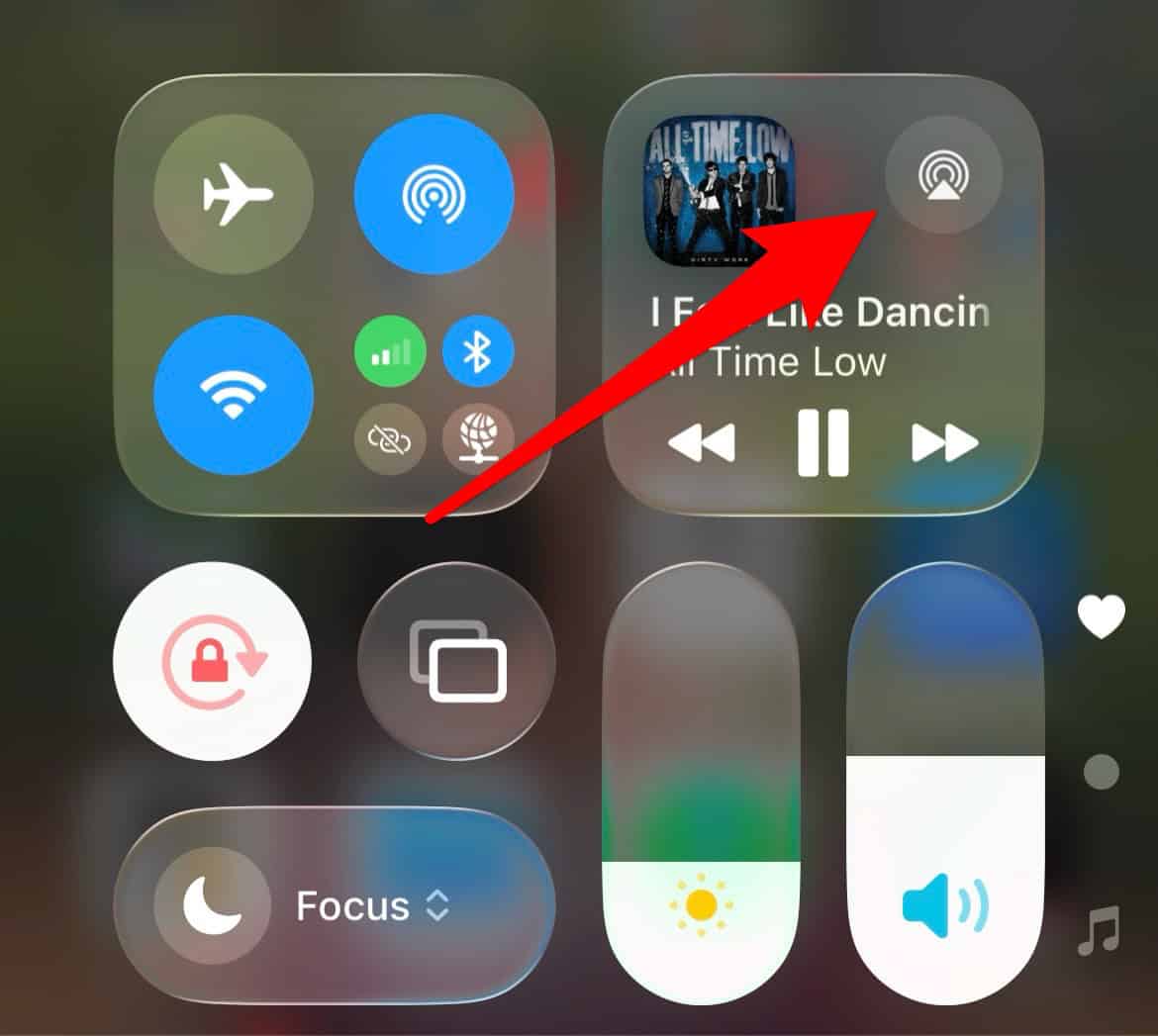
- Try playing a song or video to see if they connect.

If they show up but won’t play, or if they don’t appear at all, move on to the next step.
Restart and Reconnect Your AirPods
Sometimes the simplest reset clears up connection problems.
- Put both AirPods in the charging case and close the lid for 15 seconds.
- Open the lid near your iPhone.
- If the setup animation appears, tap Connect.
If nothing pops up, press and hold the setup button on the back of the case (or the front of the case for AirPods 4 or Pro 3) until the light flashes white. Then try pairing again.
Still no luck? Keep reading.
Check for Software Updates
Outdated software can mess with Bluetooth connections.
- On iPhone or iPad: Go to Settings > General > Software Update.
- On Mac: Click the Apple menu > System Settings > General > Software Update.
If there’s an update available, install it, restart your device, and try pairing again.
Reset Your AirPods
If they still won’t connect, it’s time for a full reset.
- Put both AirPods in the charging case.
- Close the lid and wait 15 seconds.
- Open the lid.
- Press and hold the setup button until the status light flashes amber, then white.
Now hold the case next to your iPhone and follow the on-screen steps to reconnect. This erases all existing pairings, so your AirPods will behave like new.
Check If They’re Connected Somewhere Else
Your AirPods can only stay connected to one device at a time. If they’ve paired with your Mac, iPad, or Apple TV recently, they might automatically connect there instead.
To fix that, open Bluetooth settings on those other devices and disconnect or forget the AirPods. Then return to your iPhone and try connecting again.
Try Connecting to Another Device
If you’re still stuck, connect your AirPods to a different iPhone, iPad, or Mac. If they work there, the issue is likely with your original device’s Bluetooth settings. Restart that device or reset network settings under Settings > General > Transfer or Reset iPhone > Reset > Reset Network Settings.
How to Connect AirPods to a Mac (If That’s Where You’re Stuck)
- Put your AirPods in the charging case and open the lid.
- Press and hold the setup button until the light flashes white.
- On your Mac, go to Apple menu > System Settings > Bluetooth.
- Find your AirPods in the list and click Connect.
If they appear but won’t connect, remove them from the list (click the “x” next to their name), then pair them again.
When Nothing Works
If your AirPods still won’t connect after a reset, the problem could be hardware: battery wear, charging case issues, or Bluetooth module failure. Apple can check this for you, or you can bring them to an authorized service provider for a quick diagnostic.
The Bottom Line
AirPods usually fail to connect because of something small; Bluetooth turned off, low battery, or a forgotten update. Resetting them, re-pairing, or updating iOS fixes almost every case.
Once they’re reconnected, they’ll automatically sync across all your Apple devices again.
No need to panic or replace them, most connection issues disappear once you give them a quick reset and a fresh charge.


