

You pull out your iPhone 17, hit record, and everything looks great—until playback. The video’s crisp, but there’s one big problem: silence. No voices, no background sound, nothing. It’s frustrating, especially when Apple’s latest iPhone promises studio-level recording quality. If your iPhone 17 records video with no audio, don’t worry—you’re not alone, and it’s usually fixable. Let’s walk through what’s going on and how to get your sound back.
Table of contents
Why Your iPhone 17 Might Record Video With No Sound
When your iPhone records a video without audio, the issue usually falls into one of a few categories: settings, software, or hardware.
- Settings misconfiguration: Sometimes, an iOS update resets certain camera or microphone settings without warning.
- Microphone blockage: Dust, lint, or a case covering the mic can easily muffle or block sound entirely.
- Software bugs: Even Apple’s latest iOS versions have the occasional glitch that affects recording.
- Bluetooth interference: If your phone is connected to a Bluetooth headset or speaker, it might try to record audio through that device instead.
- Third-party app conflicts: Apps that have microphone permissions—like voice assistants or social media recorders—can hijack or mute your mic input in the background.
Knowing which category you’re dealing with helps narrow down your fix.
Step-by-Step Fixes for iPhone 17 Video Sound Issues
1. Check the Basics First
Start simple. Make sure your iPhone isn’t on silent mode. Slide the switch on the left side of your device—if it’s showing orange, it’s muted. Then turn up the volume using the side buttons.
Also, make sure no Bluetooth devices are connected. Open Settings > Bluetooth and toggle it off. Sometimes, your iPhone tries to record sound through connected AirPods or speakers instead of its built-in mics.

2. Clean the Microphones
Your iPhone 17 has multiple microphones: near the rear camera, the front-facing camera, and the bottom speaker grill. If dirt or a phone case blocks any of them, sound capture can fail.
Take off your case and inspect each microphone opening. Use a soft, dry brush or a bit of compressed air to clear out debris. Avoid using liquids—moisture can cause permanent damage.
3. Test the Microphone
- Open the Voice Memos app and record a short clip. Play it back.

- If you hear clear sound, your mic is fine, and the issue likely lies in camera or app settings.
- If it’s silent or distorted, the microphone may be physically damaged or malfunctioning.

You can also test each mic by switching between the front and rear cameras in the Camera app and recording short clips.
4. Turn Off Vocal Shortcuts
Apple’s Vocal Shortcuts feature can sometimes interfere with mic access during recording.
- Go to Settings > Accessibility > Vocal Shortcuts, and toggle it off.
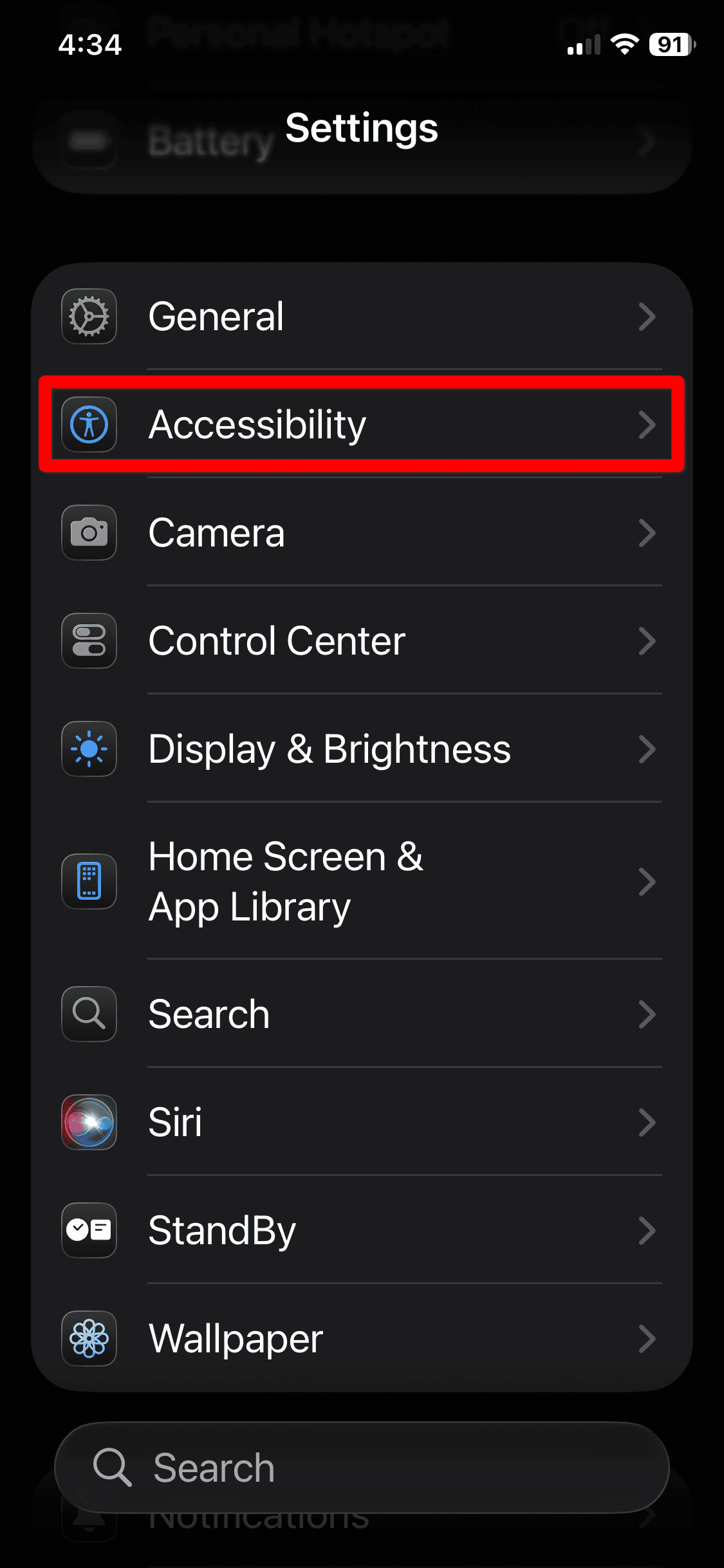
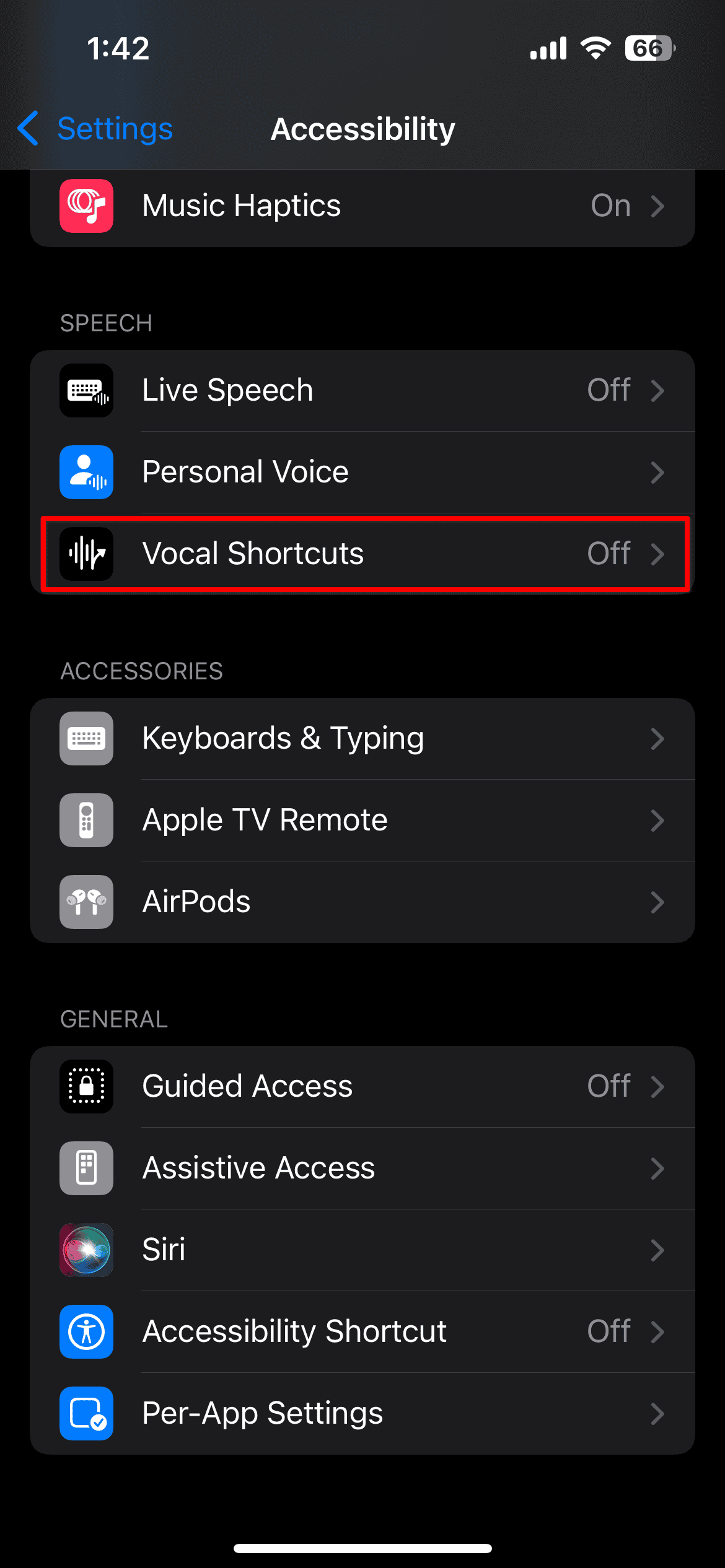
- Restart your iPhone and record a short video to see if the sound returns.


It’s a small change, but it’s solved the issue for many users who upgraded to iOS 18 on iPhone 17.
5. Change Your Audio Recording Settings
If you recently changed your camera settings, your audio input format might be off.
- Go to Settings > Camera > Record Video and scroll to Audio Format.
- Make sure it’s set to Stereo, not Mono.
Stereo captures sound from multiple microphones, producing richer, more accurate audio. Try recording a new clip after switching. You should hear a noticeable difference if the previous setting was the culprit.
6. Restart Your iPhone
It sounds obvious, but a restart clears temporary glitches that can affect the camera or mic.
- Press and hold the Power and Volume Up buttons until the power slider appears.
- Slide to turn off.
- Wait a few seconds, then power back on. Once it boots, test your video recording again.
When to Suspect Hardware Damage
If you’ve tried everything and still get silent videos, the issue might be hardware-related. A few clues point in that direction:
- No sound in Voice Memos or FaceTime calls.
- Your iPhone gets hot near the camera area while recording.
- The mic openings look physically damaged or clogged beyond cleaning.
In this case, book a diagnostic at an Apple Store or authorized repair shop. They can test your microphones directly and replace them if needed.
Bonus Tip: Avoid Future Recording Issues
Once you’ve fixed the issue, take a few small steps to avoid running into it again:
- Keep your iPhone updated to the latest iOS version. Many sound bugs are fixed in updates.
- Don’t cover the mic areas with cases or clips.
- Periodically check microphone permissions under Settings > Privacy & Security > Microphone. Disable access for unnecessary apps.
- Restart your phone once a week to keep background processes clean.
The Bottom Line
When your iPhone 17 records video with no audio, it’s usually not the end of the world. Most cases boil down to small software hiccups or blocked microphones. Start with simple fixes—clean the mic, check Bluetooth, adjust settings—and move up to iOS repair tools only if you need to.
And if all else fails, let Apple handle it. A quick hardware check can tell you if your mic’s physically damaged. Either way, the goal is simple: your videos should sound as good as they look. With a few of these fixes, you’ll be back to recording sharp, lively footage in no time.


Audio has disappeared from all my videos on ,y new iPhone 17