

If you’re one of those people who stick with their old iPad, the only letdown would be the fact that it may no longer run the latest operating system version. The best it might run on is iOS 15. But the question is, how to update an old iPad to iOS 15? Here’s how.
iOS 15 Supported Devices
iOS 15 is compatible with these iPad models:
- iPad 5th generation and later
- iPad Mini 4
- iPad Air 2 and later
- iPad Pro (all models)
While these models are technically compatible, performance might vary depending on the age of the device and how it’s been used. Always back up your device before performing any update.
Don’t miss the best of The Mac Observer
Set us as a preferred source and our Apple reporting ranks higher in your Google Search results and Discover feed — one tap, no account changes.
How to Update an Old iPad to iOS 15
Time needed: 1 minute
- Go to Settings.
- Tap General > Software Update.
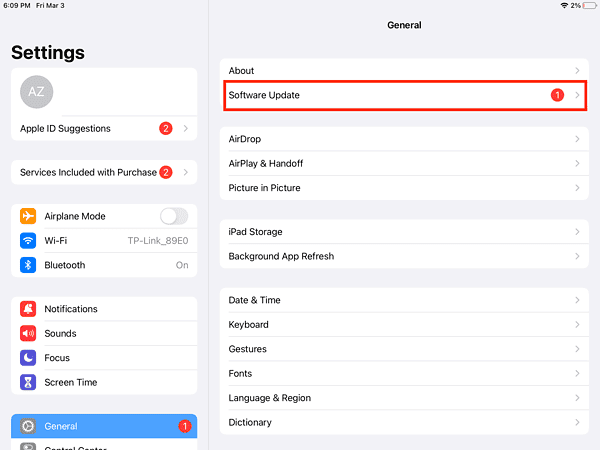
- Tap on the available updates.
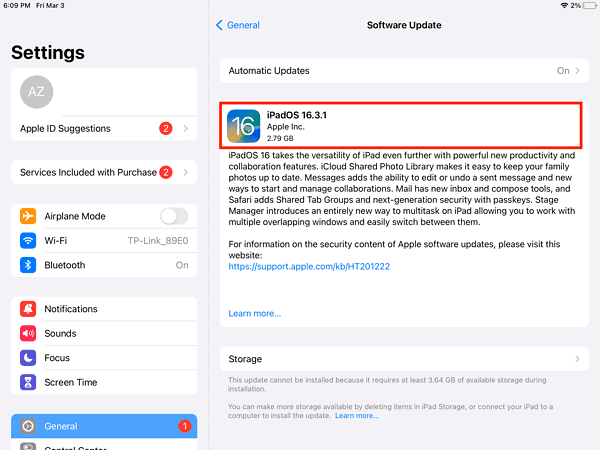


If your iPad supports iPadOS 15, you will see its latest version before Apple transitioned to iPadOS 16. Technically, this method should work in updating your old iPad to iPadOS 15. But if does not, then proceed with the second method.
How to Update an Old iPad to iOS 15 With a Computer
- Open the Finder app on your Mac, or iTunes on your Windows PC.
- Connect your iPad to your Mac or PC using the appropriate cable.
- Wait for your iPad’s name to appear, then click on it.
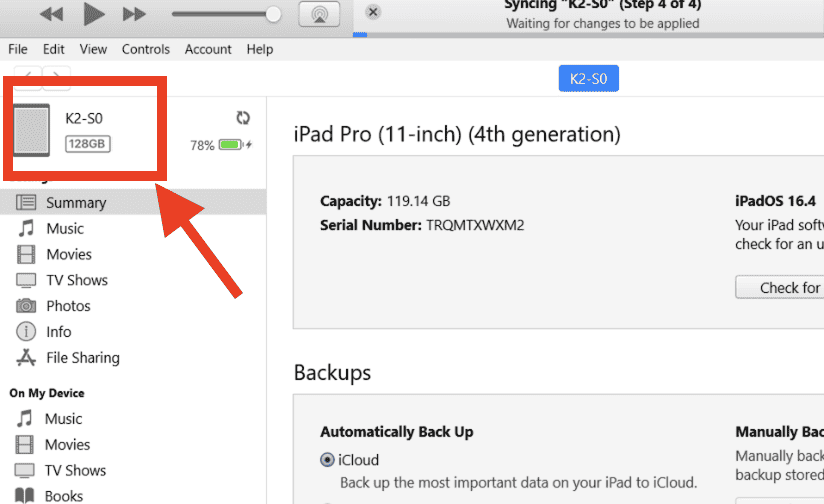
- Click General or Settings.
- Click on Check for Update.

- Click Download and Update if available.
- Enter your iPad passcode to continue.


If you don’t see an iPadOS 15 update, it simply means that your iPad can not run iPadOS 15. The last known version your Apple tablet supports will appear instead. Of course, if your iPad is already updated to the latest iPadOS version, you won’t see any updates.
Why Won’t My iPad Update to iOS 15?
If your iPad won’t update to iOS 15, it’s likely because it’s too old for the new version, it’s already updated itself to a newer version without you noticing, or a VPN or proxy is stopping it from connecting to the update server.


Good
Great guide! I was unsure if my older iPad could handle iOS 15, but your step-by-step instructions made the process clear. Thanks for including both methods! I appreciate the tips for those without a computer too.
Great guide! I appreciate the step-by-step instructions for updating without a computer. It’s nice to see that my old iPad can still get some love with iOS 15. Thanks for sharing!
Great tips! I was hesitant about updating my old iPad, but your guide made the process so much easier to understand. I especially appreciated the section on updating without a computer. Thanks for sharing!